


June 17, 2012
Open for Voting

P: Filter images in a collapsed stack

  • June 17, 2012
  • 13 replies
  • 1274 views

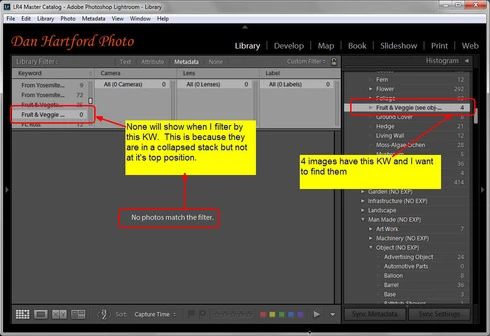
In LR Library module, Grid view, if you filter on a KW (Keyword), it does not show you images that are burried in collapsed stacks (see screen shot attached). As it stands, the only way to find these images is to turn off all the filters, select all photos in the catalog, then Expand All Stacks (thereby erasing all the hard work done collapsing some stacks and expanding others) then re-filter on the keyword.

I would like to see an option or some means that will either

a) show all images that match the filter regardless of stacking state, or

b) once a filter is applied, click something to "expand all stacks containing images matching filter"

Thanks -- Dan
13 replies

June 17, 2012
Click the "4" next to the keyword results in the screen shot supplied in this thread. It creates a filter with the clicked on keword as the only filter criteria and shows no images that are burried in collapsed stacks.
johnrellis
Legend
June 17, 2012
I agree, it's inconvenient. The Photo > Stacking > Collapse/Expand All Stacks commands only apply to currently visible photos. So if a photo with the keyword is buried in a collapsed stack, and you filter by that keyword, Collapse and Expand All Stacks won't have any effect, because no photo from the stack is currently visible. So, as you point out, you have to turn off filters, select all photos, and expand all stacks.

In general, LR's support for stacking is pretty weak. Please add your opinion to these topics and vote on them:

http://feedback.photoshop.com/photosh...

http://feedback.photoshop.com/photosh...
Inspiring
June 17, 2012
What happens if you click the "4" in the keyword panel next to the selected keyword?