


Known Participant
January 16, 2024
Open for Voting

P: give us the same 'Edit in' dialog for Photoshop as all of the other Editing Programs

  • January 16, 2024
  • 4 replies
  • 512 views

As you know there is no value added to saving a JPEG edited in PS, as a PSD, DNG or TIF .

The information lost during original compression simply cannot be recovered. So there is no value added by saving a JPG edited in PS as anything other than a JPG, unless one wanted to preserve layers for future editing.

When choosing to 'Edit in Photoshop' this is the dialog:
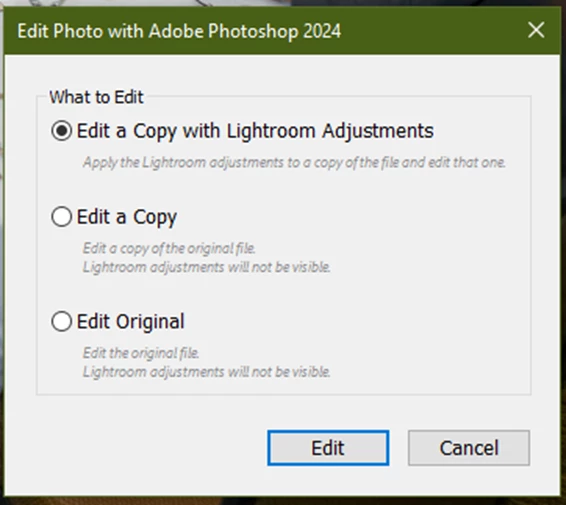
 

When editing in virtually any other vendor's program, from Lightroom, this is the dialog:
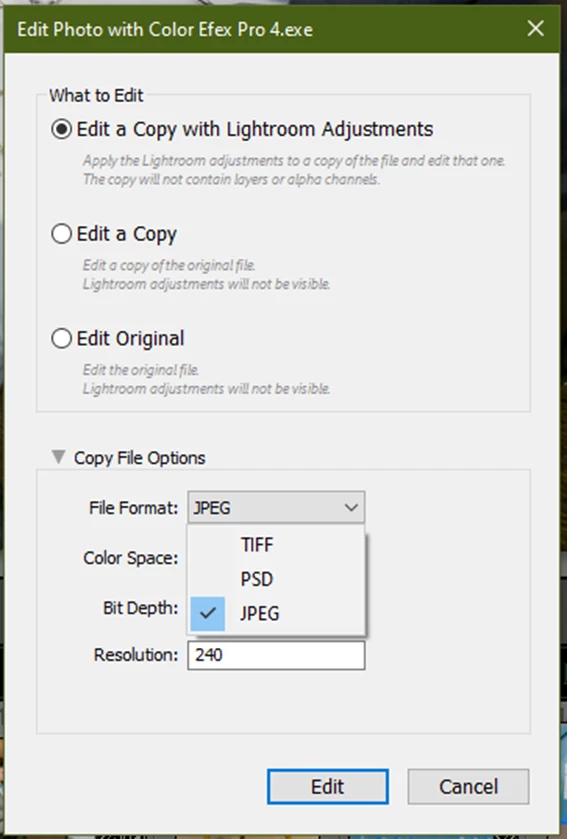
 All the others allow you to choose JPEG, the Resolution, and the Color Space. Only Adobe fails to offer those 'Edit in' options.

Consequently it becomes a pain in the posterior region to get PS edits back into the LR Catalog as JPEGS.

If you use Ctrl -S in PS, a bloated and completely unnecessarys TIF file comes back into LR and to get a JPG it has to be EXPORTED as such from LR and brought into the LR Catalog. 

If you use the Save As dialog in PS and save it as a JPG IT DOES NOT COME BACK INTO LR. 

That is not a 'family of products'.


This feature request is for Adobe to give us the same 'Edit in' dialog for Photoshop as is available to us for all of the other Editing programs. It is extremely counter productive to saddle millions of users with the current dialog and create all that extra work to get JPEGS back into the LR Catalog when working from JPEGS to begin with. Please incorporate that feature.


[Moved to "Ideas" by moderator, because that is the forum for feature requests]


4 replies

jjayladAuthor
Known Participant
October 8, 2024

It would be great if Lightroom had a preset to:

Edit in > Edit in Adobe Photoshop (or Photoshop Bet)

What to Edit:

* Edit a copy with Lightroom Adjustments

Copy file Options:

File Format: JPEG

Bit Depth: pick from list

Resolution: specify


Having that preset in the Edit in section would eliminate the current 17 step process that I have described in the Lightroom Forum as follows:


The process to edit a jpeg in Photoshop from Lightroom, and get it back in Lightroom is as follows:

  1. Select 'Edit in' ...whichever version of Photoshop you wish to edit in
  2. Decide what to edit ...a copy, or the original
  3. THERE IS NO OPTION TO CHOOSE WHAT FILE FORMAT TO EDIT IN
  4. Do your editing in PS
  5. Select 'File >Save a copy'
  6. Navigate to the folder you want it in. The originating folder would make sense so as to have the edit beside the original for comparison, however the folder PS defaults to is the last one saved to, which might be several drives and multiple layers of folders away from the originating one, so that navigation must be performed first. THERE IS NO OPTION IN PHOTOSHOP TO SAVE A JPEG TO THE ORIGINATING FOLDER UNLESS YOU ACCEPT THE DEFAULT TIFF OPTION. IF YOU DON'T, ADOBE INFLICTS THE FOLLOWING PUNISHMENT:
  7. Select the JPEG format because PS always defaults to Tiff
  8. Click Save
  9. Select the JPEG quality and format options wanted
  10. Click OK to save it AND PHOTOSHOP SAVES IT AND UNLIKE ANY OTHER PROGRAM ON THE PLANET IT DOES NOT ADD THAT EDITED IMAGE BACK INTO LIGHTROOM
  11. Go back into LrC, to that folder
  12. Select Synchronize Folder
  13. You must make sure the "Show Import dialog before importing" is checked since there may be photos in that folder that were removed intentionally from the catalog that you don't want re-imported at this point
  14. Click "Uncheck All" and then find the image that was just exported from PS and check that one
  15. Click Import
  16. That image then shows up in the 'Previous Import' window and then
  17. Right click on it to "Go to folder in Library

And finally after that totally ridiculous 17 step abuse of the Adobe subscriber's time, we are where we wanted to be.

And finally after that totally ridiculous 17 step abuse of the Adobe subscriber's time, we are where we wanted to be.

Steps 12-15 can be done skipped if one
11. Reduce LrC to a smaller window
12. Open Finder or Explorer and reduce that to a smaller window
13. Navigate to the folder containing the newly edited image
14. Find that image
15. Drag that image into LrC.


I have been requesting this for years and do not understand why Adobe will not provide that functionality in that all the following LrC plugin suppliers do:

  • DxO PureRAW (no point in doing anything in LrC first because it will only work on a copy of the original)
  • Topaz DeNoise AI
  • Topaz Sharpen AI
  • Topaz Photo Ai
  • Nik Collection
  • Alien Skin
  • Imagenomic Portraiture
  • Retouch4Me
  • Aurora HDR
  • Helicon Focus
  • Luminar AI
  • Luminar Neo
  • EVOTO


JohanElzenga
Community Expert
Community Expert
October 8, 2024

This is a FAQ, so I assume this will get merged with the existing request. In the meantime, there is a simple work around. You can open in and save as JPEG if you add Photoshop as secondary editor too. Do not forget to save the settings as a new preset, so you'll have a "Open as JPEG in Photoshop' menu item (if call the preset that). The JPEG will be saved to the original folder, but as a copy. If you want to replace the original (if that is a jpeg too), then simply delete the original after the new jpeg has been saved. Overwriting the original will most likely not work, because Lightroom Classic won't allow that.


-- Johan W. Elzenga
jjayladAuthor
Known Participant
January 16, 2024

Another user on the LR Forums, (a Senior Member) responded to this there, describing another problem he encountered when testing this process. He only shoots RAW and doesn't save as JPEGS and was only trying it out of interest. I don't want to re-write and insert all his images seperately so I'm including the following screenshot of it that contains the detail. He suggested it should be reported as a BUG but didn't want to involve himself in that because he onlyworks with RAW, PSD, TIF etc.


jjayladAuthor
Known Participant
January 16, 2024

Thanks for responding GoldingD. Regarding multiple saves of JPEG, I try not to do that. Instead I just re-edit from my 'mother' file (the original JPEG catalogued in LR). That has the Crop, Keywords, Rating, Tonal and WB adjustments so It becomes the 'mother' for any edits I do. I work the same way from RAW and never want the 'big' files unless needing to work with their layers later on, like for a publication or when used as a template, etc. Cheers.

GoldingD
Legend
January 16, 2024

So, to clarify, or simplify


Author wants to shoot in JPEG, edit the JPEG in LrC, not convert in any way. And wants to Edit a Cop[y with LrC Adjustments in PS, and have PS return with a JPEG, not a TIFF or PSD


And author desires this to be presented as a set of options when clicking on Edit in PS, and not have to set that up in /preferences/external editing/ in advance (where, no, JPEG is not currently offered)


If you ignore any mindset of shoot RAW only, if you ignore degradation of quality upon multiple saves of JPEG (it may not be that bad, and JPEG shooters deal with that already) this makes sense. Also, if you sometimes prefer to have PS come back with a simpler TIFF but at other times come back with a PSD, it also makes sense.


I will vote in favor.


I would think that more formats should be included, DNG for example (basically all formats supported in export), And would adding a button to Include in Catalog be called for? And would a stacking button be called for?