


Known Participant
October 28, 2021
Released

P:(Masking) Invert/Flip Mask Group

  • October 28, 2021
  • 28 replies
  • 9580 views

Description:

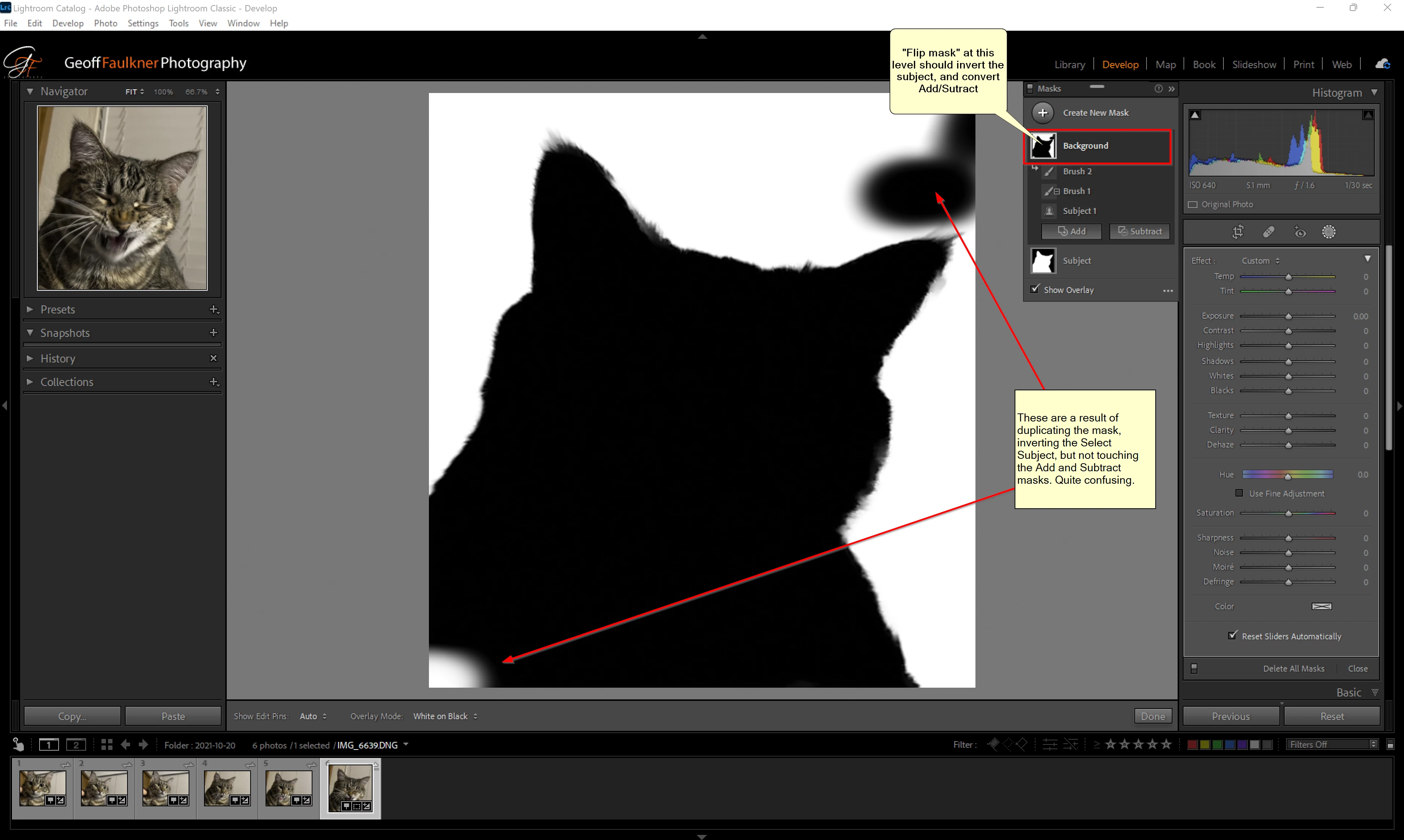
Selecting subject in the new Lightroom release is great...but no automatic tool is perfect. After creating a subject selection mask, I often Add or Subtract with a brush to clean it up (There is currently no "Refine edge" function, which would be awesome, by the way).  My problem is this--Now that I have the Subject selected, I duplicate the mask so I can select the background. But the Add/Remove brushes don't work properly and must be converted.

Proposed improvement:

Instead of duplicating the mask and going to each element to invert, convert to add, convert to subtract, I would like to see an option on the mask itself to "Flip" it. The Flip at the top level would invert the select subject mask, and convert the Add to Subtract, and convert the Subtract to Add. Then the mask would be a perfect inversion in one step. 

You would have to consider how it would behave with the other mask elements--I was only considering the select subject/Add/Subtract.
28 replies

Rikk Flohr_Photography
Community Manager
January 6, 2022

Setting status to Planned

Rikk Flohr: Adobe Photography Org
Ken Nielsen
Legend
December 12, 2021

Clean as a whistle! Adobe developers for Lightroom should be reading this whilst blinking their eyes IMHO. Very good and I expect to see a Invert Mask et. al. command in the next update to Lightroom. This is too good to let slide.


Legend
December 12, 2021

For anyone wanting to understand the two steps I posted for Inverting a Mask Group, masks in LrC are analogous to Mathematical Sets and can be analysed using the algebra of set theory.


If the mention of mathematics and algebra is enough to terrify you, then you might want to stop reading now.


The relationships between LrC Mask operators and set operators are:

Add is equivalent to the set operation Union;
Subtract is the set operation Difference or Minus;
Intersect is the set operation Intersect;
Invert is the set operation Complement.


I will use the symbols:
+ for Add;
- for Subtract;
& for Intersect;
! for Invert


Let's say a Mask Group M has components A, B, C and D, where A is the first (bottom) Added mask. Furthermore, the Mask Group M is constructed by Add A, Subtract B, Add C then Intersect D. This can be written as


M = A - B + C & D


By now, most LrC users will be aware that Intersect is equivalent to, and is implemented in LrC, by Subtract Invert. So C & D = C - !D and our Mask Group is


M = A - B + C - !D


LrC users may not be aware that Subtract is also equivalent to Intersect Invert, so we also have


M = A & !B + C & D


To Invert M, i.e. !M, it is best to express M as I have above, just in terms of Adds, Intersects and Inverts. Now we have to work out the equivalent of the Inverted expression


!M = !( A & !B + C & D )


in terms of just Adds, Intersects and Inverts. An important rule known as De Morgan's rule is needed here and it states that for any two sets A and B:


!( A + B ) = !A & !B

and

!( A & B ) = !A + !B


Applying De Morgans rule, !M becomes


!M = !A + !( !B ) & !C + !D = !A + B & !C + !D


For LrC Masks, the final result needs to be expressed in terms of Adds, Subtracts and Inverts. Changing the Intersect back to a Subtract, B & !C = B - !( !C ) = B - C, so


!M = !A + B - C + !D


So you see, only the first mask is Inverted and for all the other masks, only their Add/Subtract operations are toggled.


If in the future, LrC gets an Intersect operator in addition to the Add and Subtract operators, then Inverting a Mask Group containing Intersect components requires a small addition to the steps I have given: any Intersect component is changed from Intersect to Add and its Invert state is toggled.

Ken Nielsen
Legend
December 11, 2021

Bravo, Excellent help. Thank You drtonyb!

Legend
December 11, 2021

In a recent video post, a well-known, knowledgeable photographer and Photoshop/Lightroom Classic educator stated that Lightroom Classic 11 cannot Invert an entire Mask Group.


Although it is true that LrC 11 doesn't have an Invert function at the Group Mask level (yet), his claim that it cannot be done is incorrect. After I pointed this out on his blog and how to do it, he has refused to accept it.


Hopefully Adobe will add an Invert function for the Mask Group in a future release.


This topic has already been discussed at length on this forum in an Ideas post "Invert/Flip Mask Group", but for the benefit of the wider LrC, Lr (and ACR) community, here again is how to manually Invert an entire Mask Group in two simple steps:


1. Toggle the Invert state of the first (bottom) component mask;

2. For every other component mask above the first (bottom) component, toggle their Add/Subtract modes.


johnrellis
Legend
December 11, 2021

You can also use the Invert Mask command of the Copy Settings plugin. Hopefully Adobe will add Invert for masks soon, given how easy it is to implement and how many people have requested it.

Known Participant
November 26, 2021

One think that is missind in the Ai mask is first the possibility to invert all the componet at once second and more important the ability to add retouch to a specific part of the selected mask. would be a little bit like the new fuction in PS to assisgn a modification just to a layer.

for exemple:

I have a portrait of a person.

It is half in shadows and half in the sun. I proceed to selct the subject. I recover the shadows and I increse the exposure.

Now the lit part of the person is overexposed. To correct it I have right now two option in LR

1: I subtract with a brusch the X amount of the mask till I get the exposure right.

2: I intersect the subject mask with another mask thet correct the over exposed area.

There are Two main problems on these workflow:

in the first one by brusching away I will reduce also the other parameter i may have apply to the mask, like color temparature, clarity texture and so on. For the second when one interect with other masks it is apply to the whole photo for exemple if I apply a color or luminance mask it would select the same color or luminance troughout the photo and not just in the selected subject mask. This means that then I have to intersect or brusch away the parts outside the subject.

My Solution to that is that we could assign retouch mask beneth and inside theselction we already have.

johnrellis
Legend
November 21, 2021

I released a new version of the Copy Settings plugin containing the Invert Mask command, which allows you to quickly invert an entire mask.


The plugin has a 30-day free trial, and I'm optimistic LR 11.1 (due in December) will include mask inversion built-in.

Ken Nielsen
Legend
November 8, 2021
Thank You. I will try this.


Sent from my iPad
JohanElzenga
Community Expert
Community Expert
November 7, 2021

Press the Upvote button in the original post if you didn't do that yet. No need to post "me too".


-- Johan W. Elzenga
Inspiring
November 7, 2021

Yes there are workarounds as mentioned above, but I too would appreciate an invert all option for multi adjusted masks.