GoldingD
Legend
October 19, 2022
Open for Voting

P:(Masking) Object Mask execute button instead of mouse release for complex selections

  • October 19, 2022
  • 12 replies
  • 638 views

Request for change


In the Object Masking panel, add a button to execute the mask creation as opposed to the mask creation occurring upon mouse release. This could allow for complex object selections without resorting to multiple Additions. This is not a request for the Done button coming back, this is a request for basically a start button being created.


Example workflow, currently


  • Image has, say three separate objects to be in the one mask, objects are not near one another.
  • Create an object mask
  • Using the mouse define the first object to be in the mask. Release mouse
  • Now in the mask, select Add, and define next object
  • Repeat....


Example of proposed workflow


  • Create an object mask
  • Use mouse to define first object, release mouse
  • Mask is not created yet
  • Use mouse to define second object
  • repeat
  • Now click on the proposed Execute button, mask is created
  • continue.


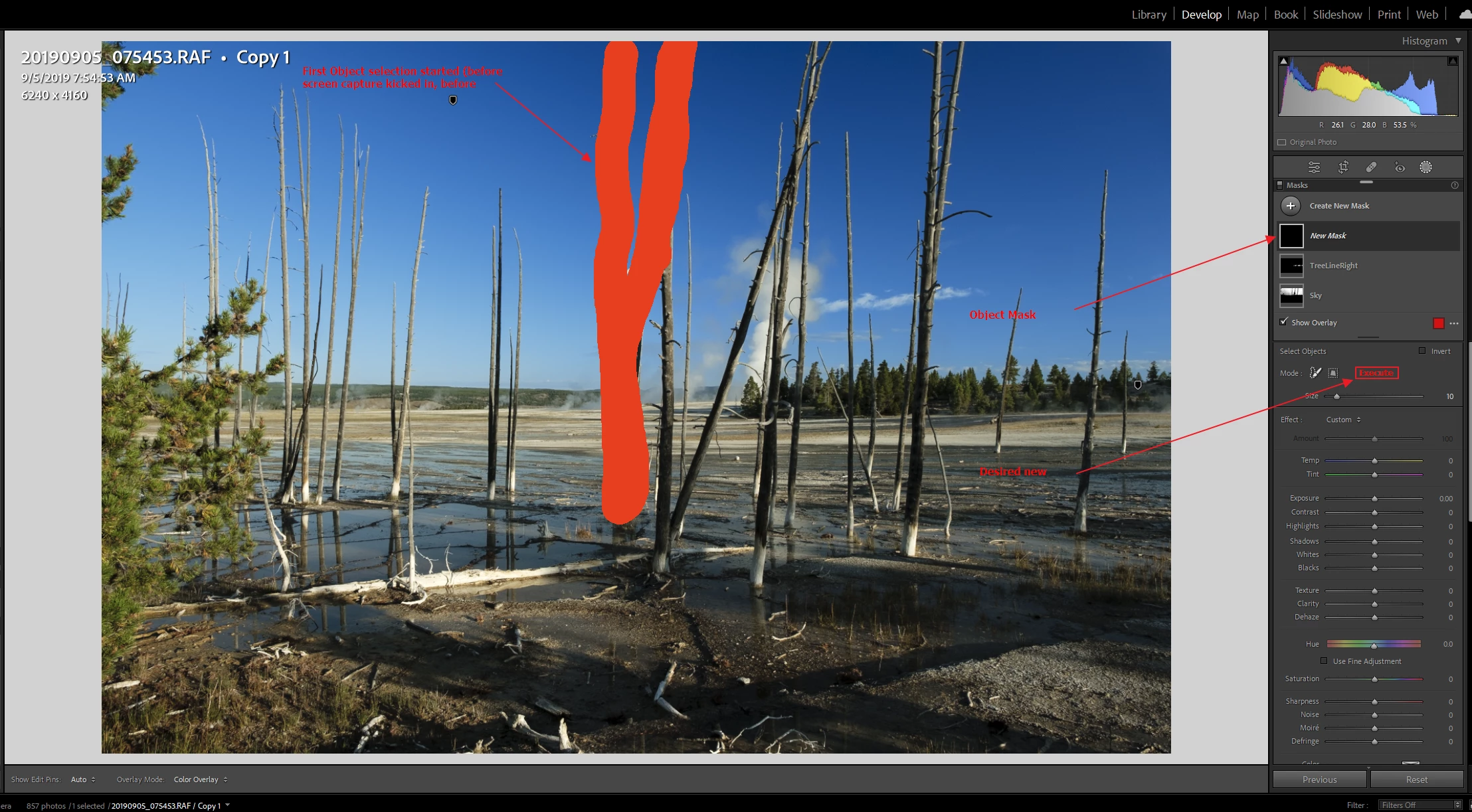
Example of a situation:


Would like the addition to the UI of an Execute button:
 

12 replies

C.Cella
Inspiring
February 8, 2023

First of all currently there is a bug and Objects is deselected after one use.

It will be fixed hopefully in the near future 🤞


As a workaround after creating an object use Shift + N to immediately draw a new one..


•••

Now the behaviour you suggest @GoldingD is not possible without serious redesign of the Objects tool AND it's not even advisable to work like that imo.


As of now when an Objects tool has been drawn the dab points are not kept suspended into memory, they are immediately processed by the ML and then a selection bitmap is produced.

This means better performance.


If the dab points were kept suspended in memory until we "Execute" then the Objects would not be as fast as it is.

Also there would be no way to manage each stroke we did.


The behaviour you suggest is not advisable or practical IMO: I explain why.


By keeping single separate Objects as individual Masks we can better manage the selection.

Having one single final Objects mask as you suggest means that if that Mask is bad we either discard it or refine it with more Objects.


If we instead do several single Objects Masks we can have higher precision and we simply delete the one(s) we don't like: we don't have to discard them all but only those that don't work.


E.g.


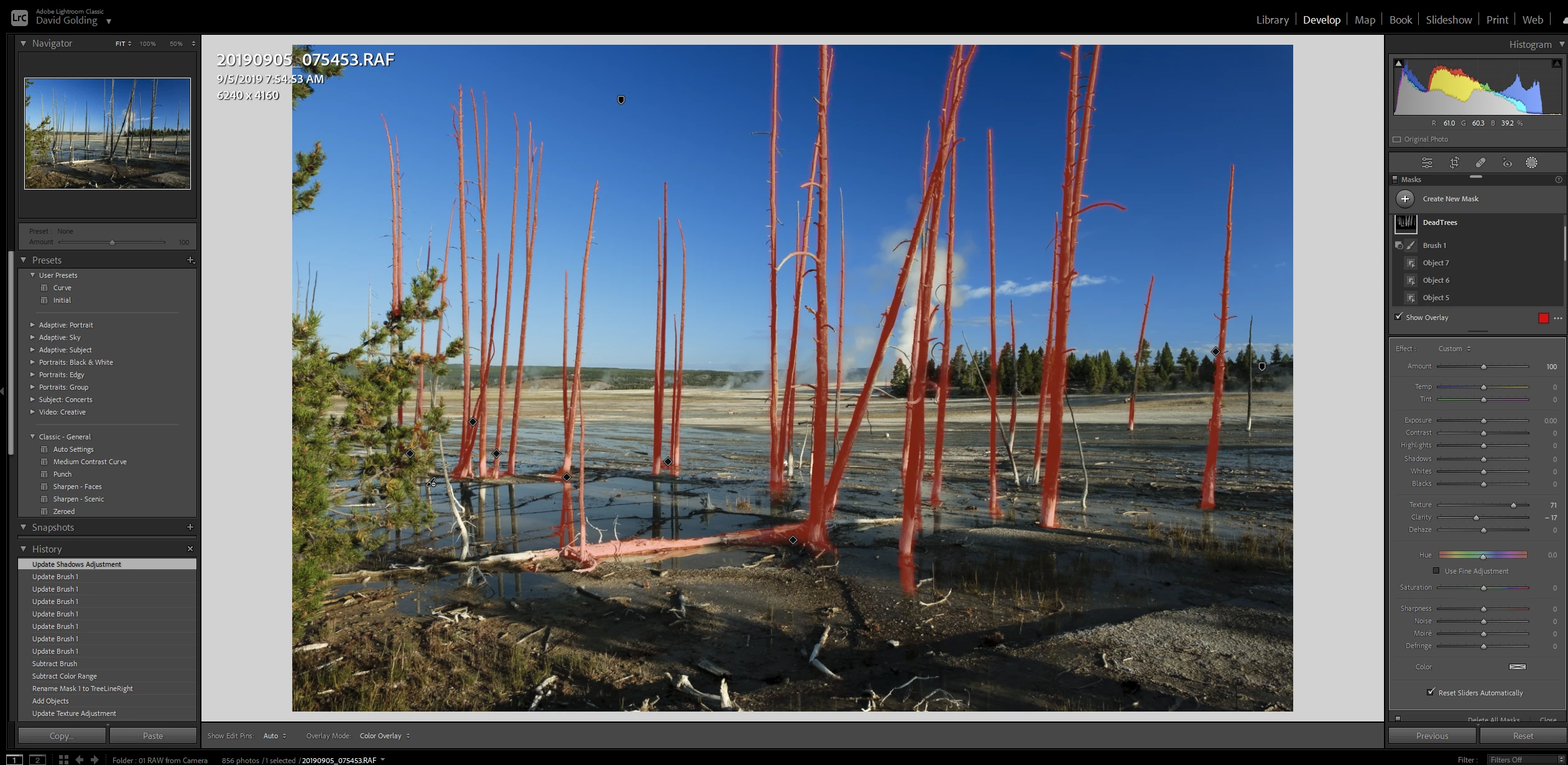
In the screen below is a Mask created using "Objects Execute"


Masks is poor, must be improved or deleted > result more Objects to do anyway.


Here below wiht the current workflow you will see that thre are several "Bad Objects"


I can simply delete the Objects that produced a poor selection and re-do them to get a prefetct one.


The disadvantages of having many single Masks Objects is that the correction becomes crowded...but that would be easily fixed if we could Group Masks.


.


GoldingD
GoldingDAuthor
Legend
February 8, 2023

Nope, no "Mask All Objects" in LrC

Not sure when this PS feature was added. 

Participating Frequently
February 8, 2023
GoldingD
GoldingDAuthor
Legend
February 8, 2023

"thanks! Piximperfect recently posted a video with a Julieanne Kost seal of approval tip, which is to use the button "mask all objects". Is there such a thing in lightroom classic?

Raul Dias Barboza"


Link?

Participating Frequently
February 7, 2023

thanks! Piximperfect recently posted a video with a Julieanne Kost seal of approval tip, which is to use the button "mask all objects". Is there such a thing in lightroom classic?

Ian Lyons
Community Expert
Community Expert
February 6, 2023

The 'Object' mask tool is probably one of the most useful of the AI tools, and as you've found out it's a lot smarter than many users realise. It's also possible to get multiple 'objects' selected in one sweep, even with with quite messy backgrounds as demonstrated below. However, in some cases it may be necessary to 'add' a second sweep to the same mask to pick up peripheral elements.


Known Participant
February 5, 2023

Sorry to respond to my own post but I just tried something. I did a single Object mask selection holding down the left mouse button and wiped it over a flock of geese in the sky to give a red trail over the whole flock. When I let go of the mouse just the geese were selected. I should have trusted the software more in the first place.

Participating Frequently
February 1, 2023

I like yours better actually, but the example stevebracken gave out is a good one. Imagine you could use it like a tool. You would pick it up, like the spray can from the library module, but then you select a sheep... then two, tree, four... you keep selecting sheep for how long you wish, without holding any modifier key, but holding an tool. You then put the tool back and doing so triggers the creationg of the mask. I'd like that.

Known Participant
January 27, 2023

Maybe I was wrong to give a concrete example. It was just to paint the picture of what I was trying to describe.
By the way, I nudged the whites and highlights sliders to the right a bit as well. It really made the sheep stand out.

Community Expert
January 27, 2023

Not saying it was wrong to do the selection as you did it, but the existence of supposedly subject-aware AI tools does not mean we have to work in that way, pragmatically speaking. Especially when doing so will give indistinguishable results from greater effort. 


Taking the example of many sheep in a field - another way to have gone, may have been to re-cast the problem not as selecting the individual outlines of a lot of sheep per se - but rather, as selecting across the whole photo that aspect of the whole flock which is practically problematic: its inclusion of a lot of whiteness.


Probably a tonal based selection mask could have found all of that more brightly-lit wool in one go. Failing to select all of the outline of every particular animal simply won't matter, if (say) the non-white or the more shadowed parts of these animals correspondingly don't require this corrective adjustment.


Areas which accidentally fell into this same global tonal range - bright bits of sky or whatever - can then be mask-subtracted. Perhaps quite roughly and rapidly brushed, and/or subtract an AI Sky selection; whatever works efficiently.


Selecting many many sheep, one at a time, sounds to me quite sleep-inducing as a task (!) and so one should question how worthwhile all that effort on your part, and of all that AI calculation on the computer's part, would really be IMO.


Another still simpler approach may have been to simply brush-select just these brighter parts that need adjusment. Quick to do with a large radius brush, clicking around the image with Automask active, putting the central crosshair strategically on a suitable sample for each click. Probably under a minute to do this well enough to suit the case, and: not nearly so computation-intensive OR so finicky.