



27shutterclicks
Inspiring
September 18, 2022
Open for Voting

P: Amount or Opacity slider for individual tools within a mask

  • September 18, 2022
  • 4 replies
  • 1343 views

Lightroom's new masking panel is very versatile, but I needed several times to control the amount of effect of an individual tool within a mask. This often happens in high contrast scenes, especially clouds that are brighter than the rest, or any areas that have different levels of brightness, like when the sun shines onto only part of a mountain or a valley.


Typically, in Photoshop, when applying an effect or adjustment as a new layer, we can easily control the extent of that adjustment by simply adjusting the opacity of that layer.


In Lightroom, although a mask does have an amount slider for the overall effect of the tools (linear or radial gradient, color range, select sky, etc.) that are part of it, there is no such slider available for the individual tools.


The Brush tool may be the sole exception to this rule, since you can actually control the extent of the effect of the brush within a mask, by adjusting the Density or the Flow sliders, depending on the situation. 


However, for the rest of the masking tools, this is not the case. It is especially important when using Add, Subtract or Intersect on a mask, because we may need to subtract part of the effect, not the full extent of it.


Here's a step by step example. 
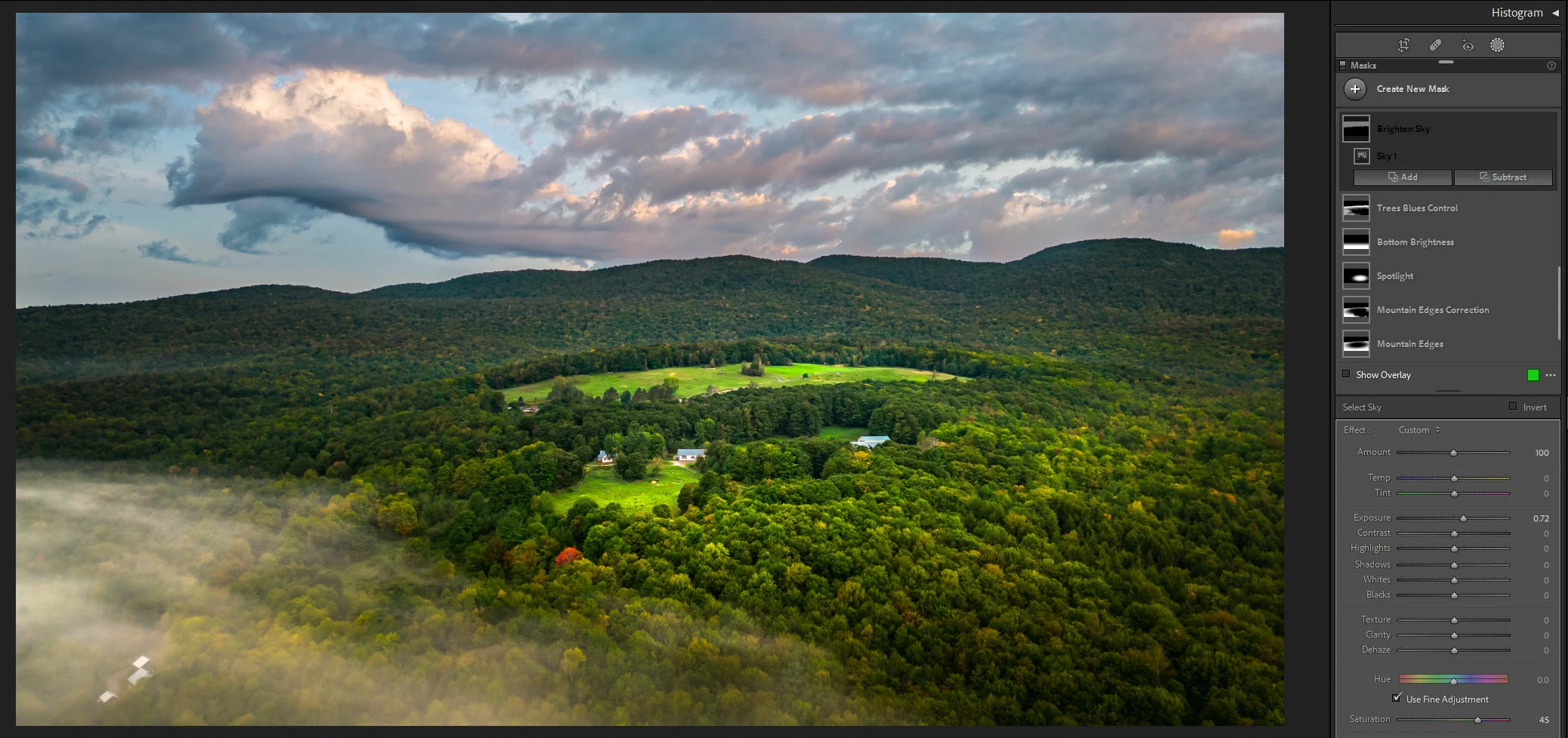
 

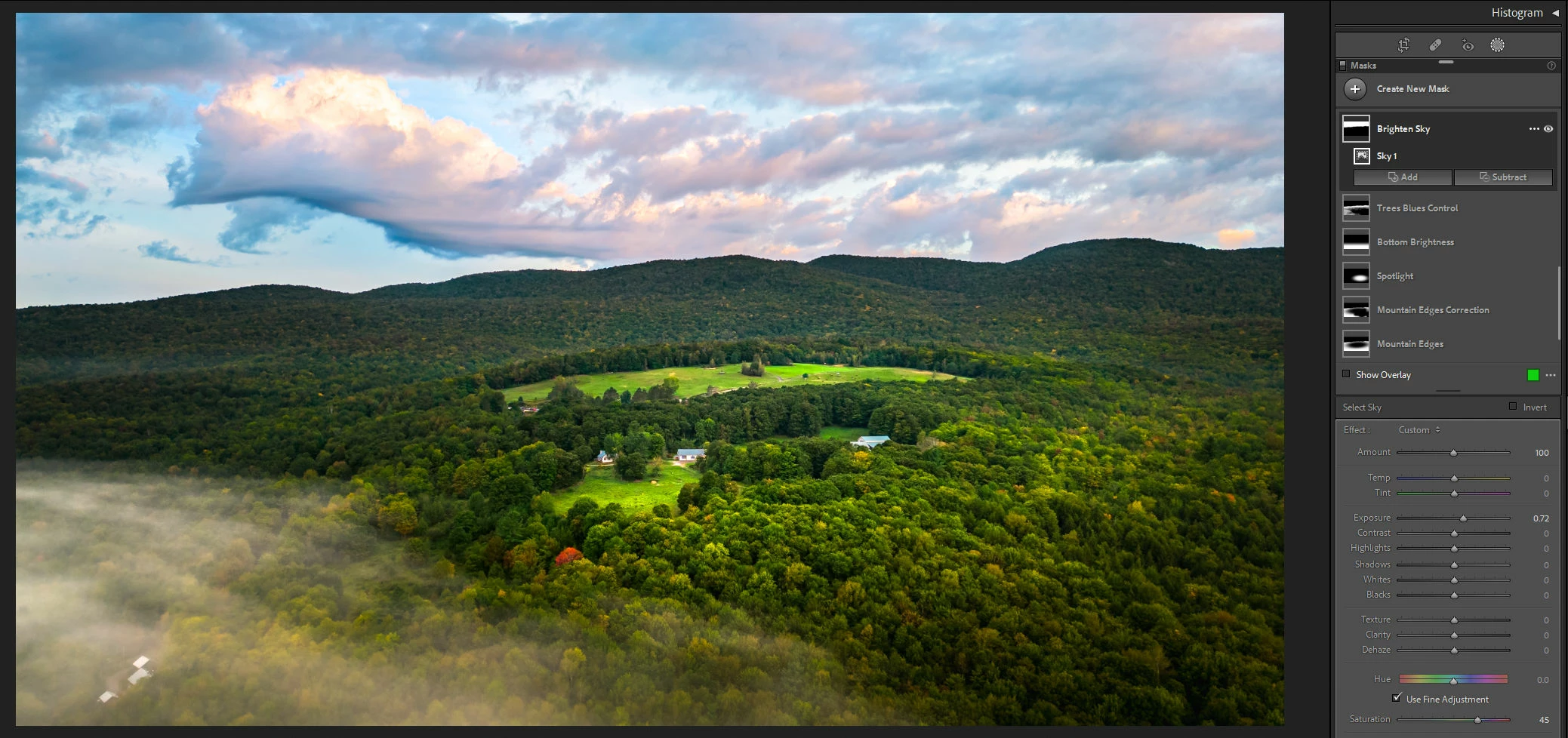
In this first screenshot above, I have a partially retouched image where the sky needs brightening up. To do this, I add a Select Sky mask to bring it to the desired brightness levels:
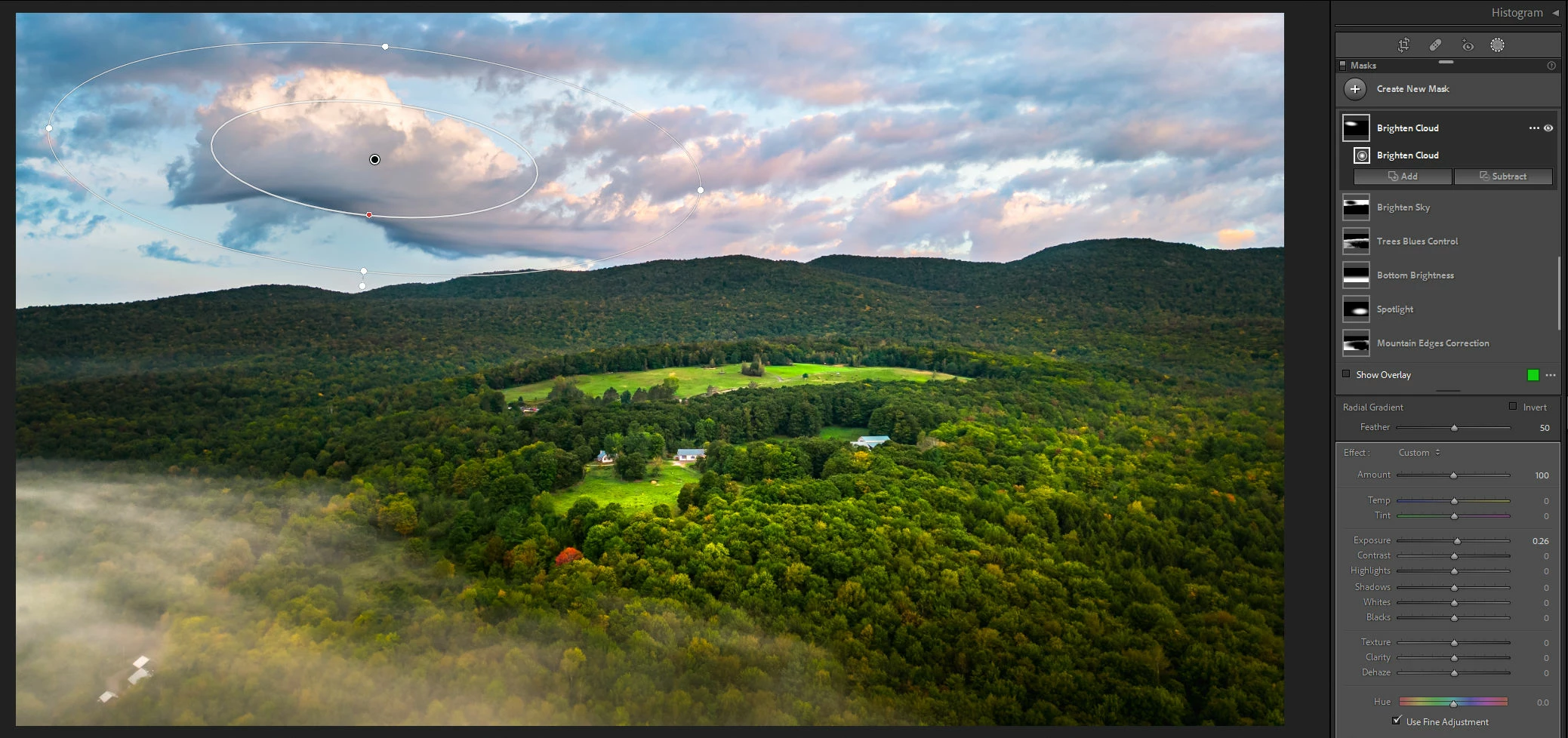
With the sky brightened up, that big cloud is now too bright. To fix this, I subtract from the sky mask, using a radial filter:
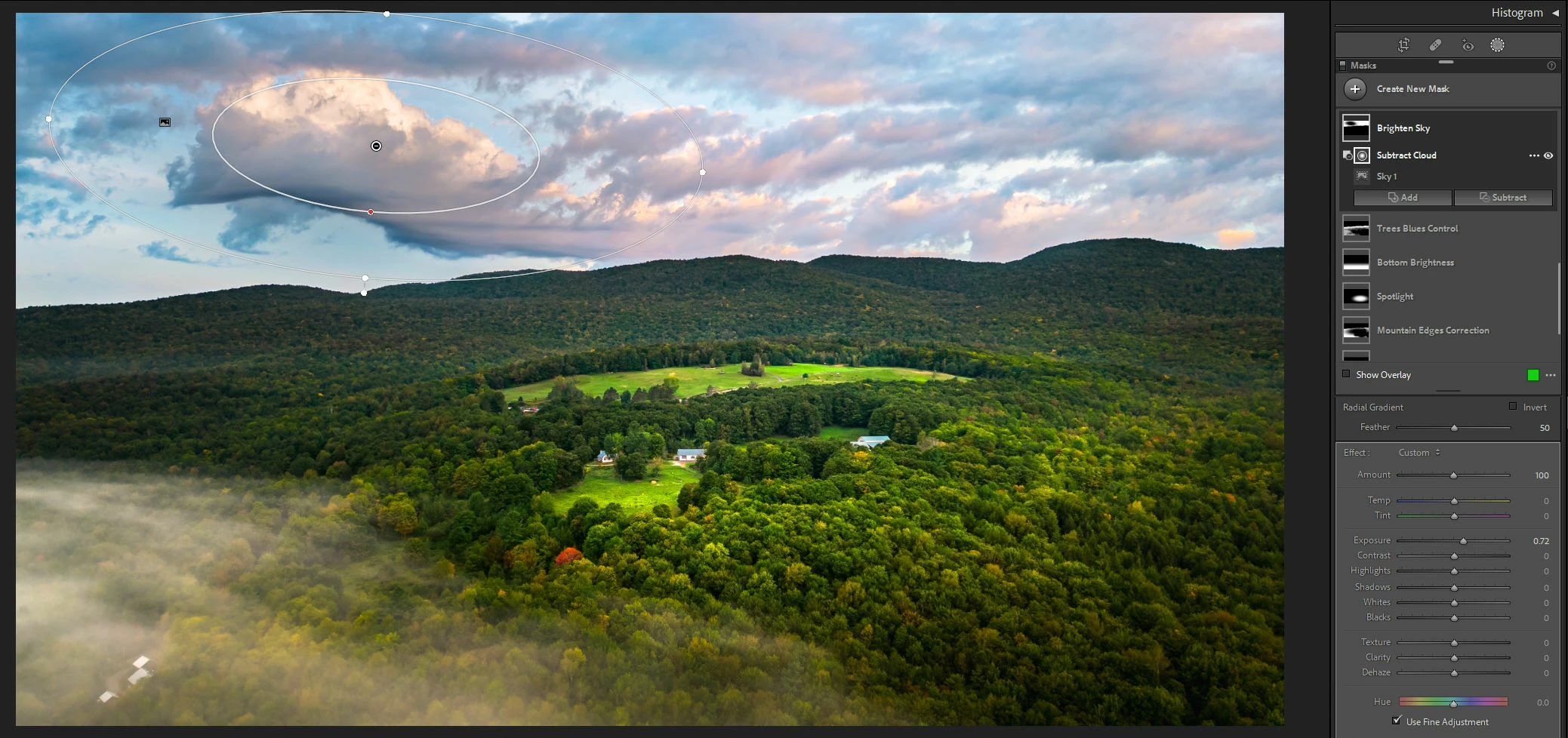
Since the radial filter subtracts the entire effect of sky brightening, now the cloud is back to the original brightness which no longer matches the rest of the sky.


Ideally, at this point, I would have liked to have an opacity amount for the subtracted radial filter, so I can subtract only about 1/3 of the added brightness to the sky.


Here's a mockup as an idea, where we assume that an opacity of 100 on a subtracted tool hides the effect entirely (as it does now):
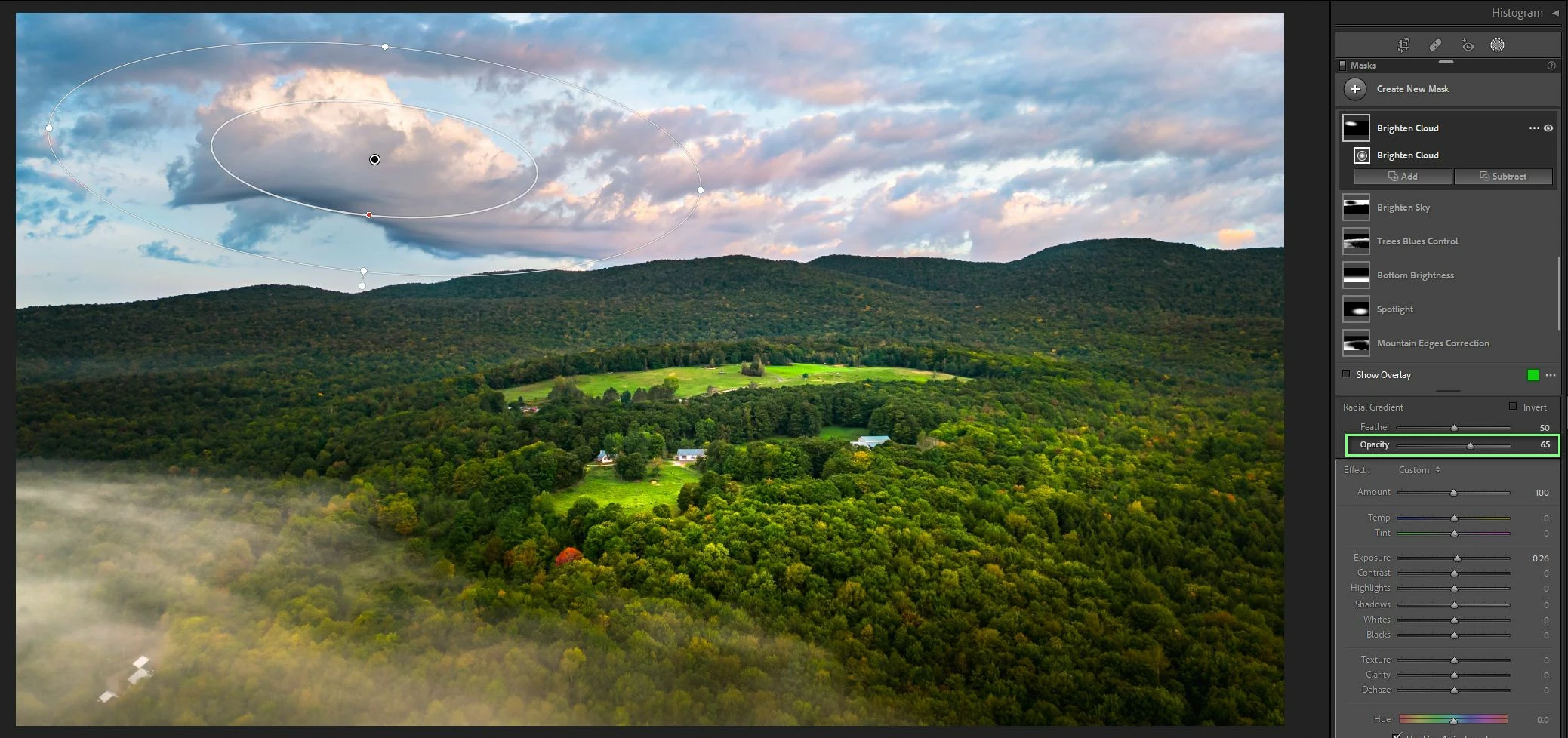
But, since no such slider exists, I am stuck to creating a new mask, copying and pasting the radial filter into the new mask (which by the way is not possible without first adding some kind of tool in the new mask and then deleting it after pasting) and countering the effect of the sky brightness radial filter subtraction by increasing exposure in the new mask, to bring the cloud brightness more in line with the rest of the sky.
This is a few unnecessary extra steps, if you ask me. 


So, what do you think about having an Opacity slider available for individual tools within a mask?

4 replies

Rikk Flohr_Photography
Community Manager
October 18, 2022

Incorrectly marked as implemented

Rikk Flohr: Adobe Photography Org
Rikk Flohr_Photography
Community Manager
October 18, 2022

Greetings,


Updates to Adobe Photography Products were released today and now contain this new feature. Please refresh your Adobe Creative Cloud App ([Ctrl/Cmd]+[Alt/Opt]+[ R ]) and download the updated version “.0”. 


Posted to this thread in error.

Rikk Flohr: Adobe Photography Org
Bob Somrak
Legend
September 19, 2022

Why should a component of a Mask have different edits when you can use a NEW mask of the component if you want it to have different edits.  Components in a mask all have the same edits which I think is a good design.  

M4 Pro Mac Mini. 48GB
27shutterclicks
Inspiring
September 19, 2022

@Bob Somrak I am not talking about "different" edits, I am talking about the same edits, but with an amount slider per tool.


Like I explained, you can already do this with the brush tool. Why can the brush be applied in different intensities, but a radial filter not? It's inconsistent.


Also, keeping similar edits together within the same mask, instead of having to create a NEW mask just to have the same edits at lower "amounts", would drastically reduce the overall number of masks needed. If all I need is to control brightness or contrast in a given area at different intensities, like in a stream in the forest under foliage where the sun doesn't hit the stream equally, why make several masks and rename them "Brightness Stream 1", "Brightness Stream 2", etc., when I can simply have 1 mask with 4 gradients that have the same brightness value at different amounts in the same general area.

Bob Somrak
Legend
September 19, 2022

The Brush does not have an Amount Slider.  It has Density and Flow.  Neither of these allow you to change the already drawn brush dynamically like an Amount Slider.  If you draw with the brush and change the Density the brush you have drawn does not change.  


The Mask components are not designed to have independent adjustments as it is just as easy to have spearate masks.  File a feature request.

M4 Pro Mac Mini. 48GB
GoldingD
Legend
September 19, 2022

Working with Masks, you have the Mask, and bellow that you have the brushes applied to the mask, (AI Subject, AI Sky, Brush, Linear Grad, Radial Grad, Color Range, Lum Range, and that smartphone Depth Range thingy)


My exempler below, my focus, my mouse click is on the Brush. And you see the normal sliders specific for that brush. and adjustment sliders (in this case I went over the hill on Saturation in that foreground)


If, on the over hand, I place my focus on the Mask, the actual mask, I click on the Mask, not the brush, An additional slider will shows up, oh the sliders for particular brushes will go away, but the developer sliders will have this AMount Slider available:


And a adjustment slider shows up, Now that adjusts the amount to the entire mask.

27shutterclicks
Inspiring
September 19, 2022

@GoldingD The amount slider and the sliders below it are common to all tools in that mask. So in your example, if you click on Brush 2, Color Range 1 or Brush 1, they will ALL share the same Amount slider and all the sliders below it.


The only sliders specific to individual tools are the ones in the darker area above the Amount slider, where it says Brush (in your example).


I have highlighted this in green in the screenshot below:

GoldingD
Legend
September 19, 2022

Yes, I thought that was what I stated.