


Eyedropper and Color Sampler Improvements
Dear Photoshop Developers
I have recently started working with 32bit greyscale images, and need to make finite adjustments to greyscale values.
When brightening or darkening these images, I would love to be able to monitor how I'm affecting the actual pixel values.
The problem is to do with the Eyedropper sample tools using 32bit greyscale images. It occurs when using either the eyedropper or colour sampler tools.
When I open a 32 bit greyscale image in photoshop; levels, curves, and exposure adjustment layers are often required to see the work which is being carried out due to the enormous DR of 32bit.
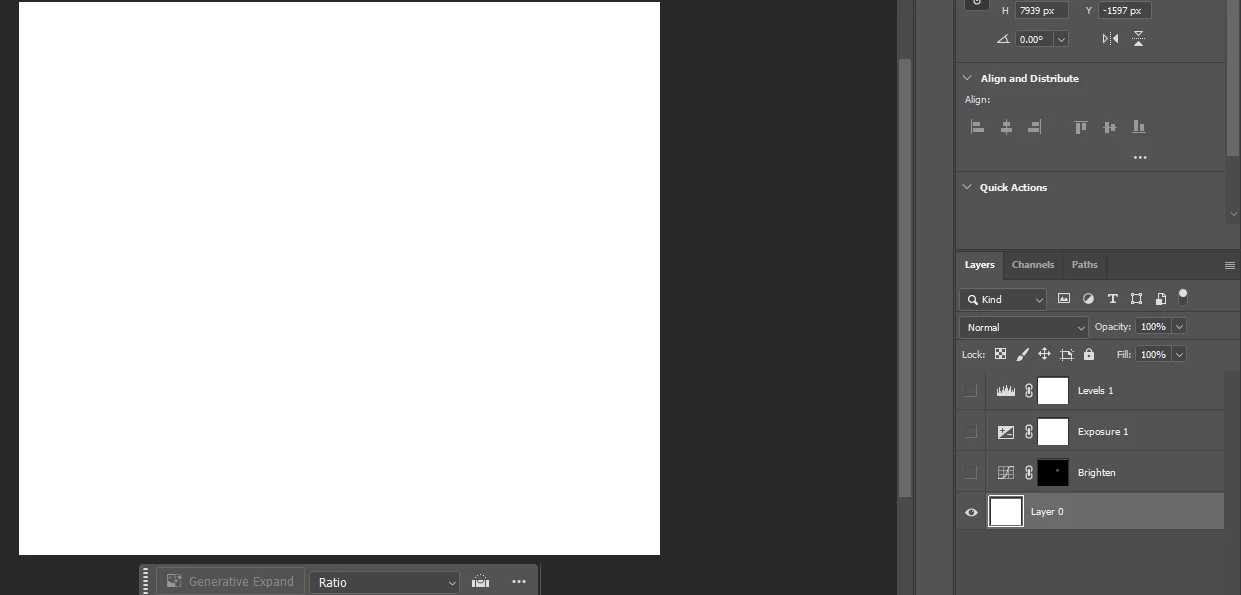
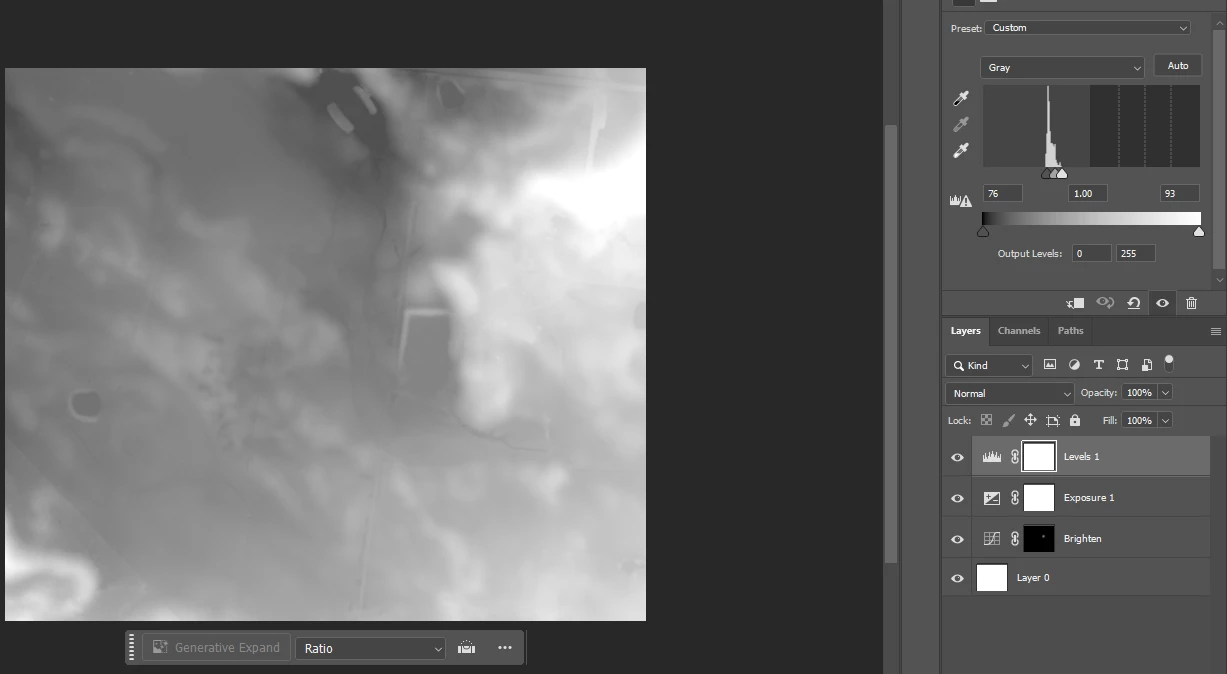
The first image above is without exposure adjustment preview or layers turned on. The second image has the exposure adjustment layers turned on so I can see what I'm doing.
In 26.5, I understand that I can select the adjustment layer above the base image, and it will show adjusted/original value comparison. But I need to be able to work on a duplicate of the base image with dodge and burn, rather than a layer mask of curves etc.
Ideas for improvement.
For this workflow, I would greatly benefit from some adjustments or additions to the colour sample tool.
1. The ability to have more than 10 color sampler points. If it's not too computationally intensive, it would be great to have significantly more sample points on screen; perhaps even 100 or more.
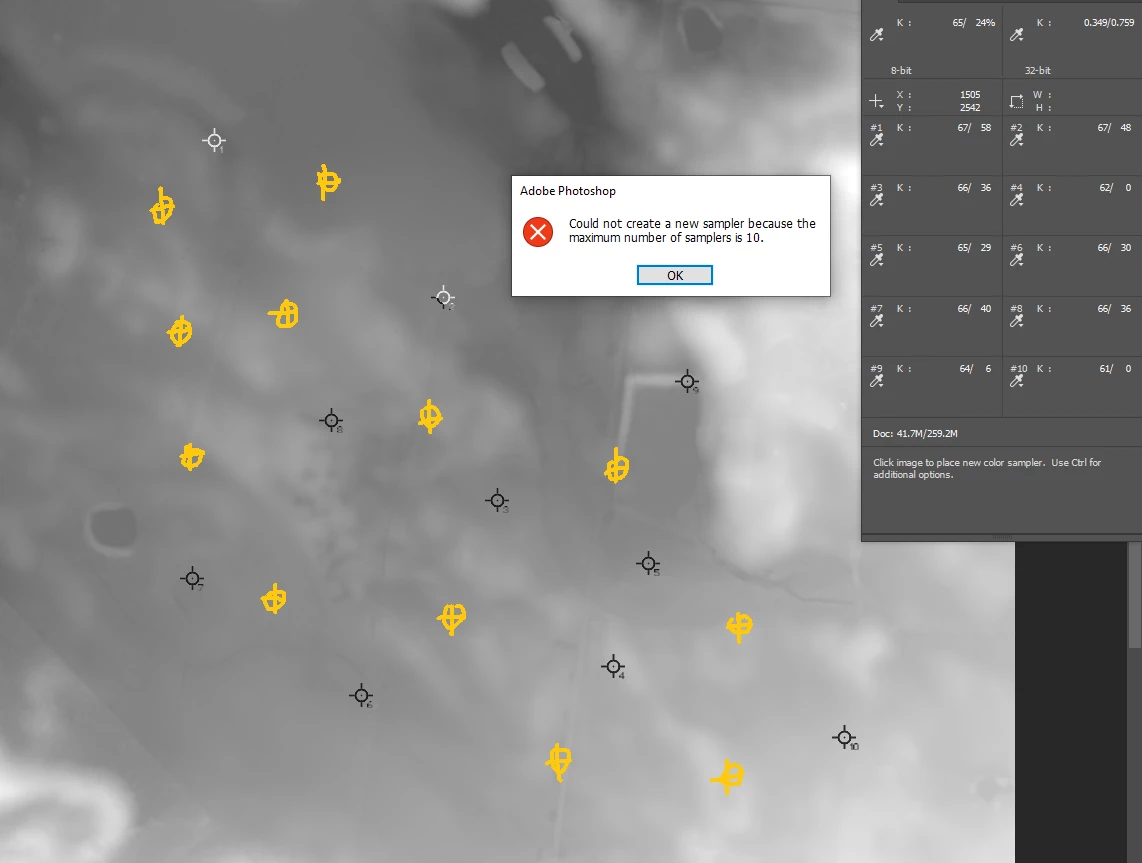
2. When adding a sample point, the option for the sample readout to automatically default to the value of the image's working space. E.g., if the image is 8 bit, the samples should be in 0-255. But in 32bit, they should default to be in 0-1 (preferably with more than 2 decimal places). See image below
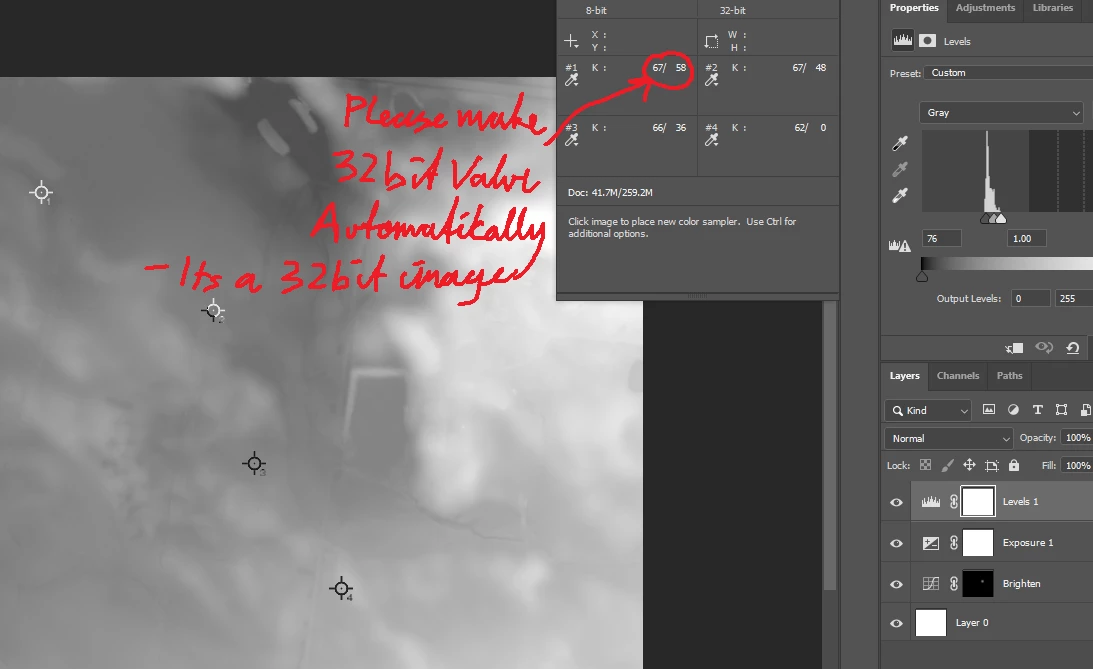
3. The ability to see the actual values on screen next to the sample points, as well as in the panel. For example, If I could work on a duplicate of the original Layer 0 as working Layer 1, and show the 'before/after' values on screen, that would be perfect. See below
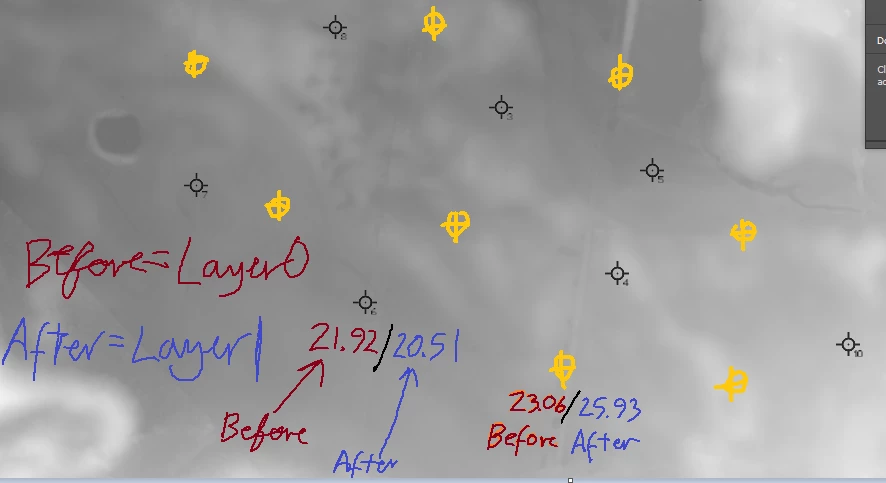
4. For the sample values can be shown independently of the adjustment layers such as curves, levels, and exposure.
Summary
1- have many point or average sample spots on the workspace; perhaps up to 100?
2- for the default sample value to mirror that of the document by default. E.g., 0-255 for 8 bit, 0.000-1.000 for 32bit. Perhaps have an option for more than 2 decimal place accuracy
3- for these sample points to show altered values in relation to the original unaltered value. This could be referencing a selected layer(s) or a group(s).
4- Independent sample reading between original and adjusted.
The benefit
The benefit of these ideas is utimately to be able to make adjustments and compare the altered values with the original value on the fly.
Kindest,
Jeremy
 AdChoices