




Turntable in Illustrator | Multi‑Angle Viewing for Vector and Raster Objects
Hello everyone,
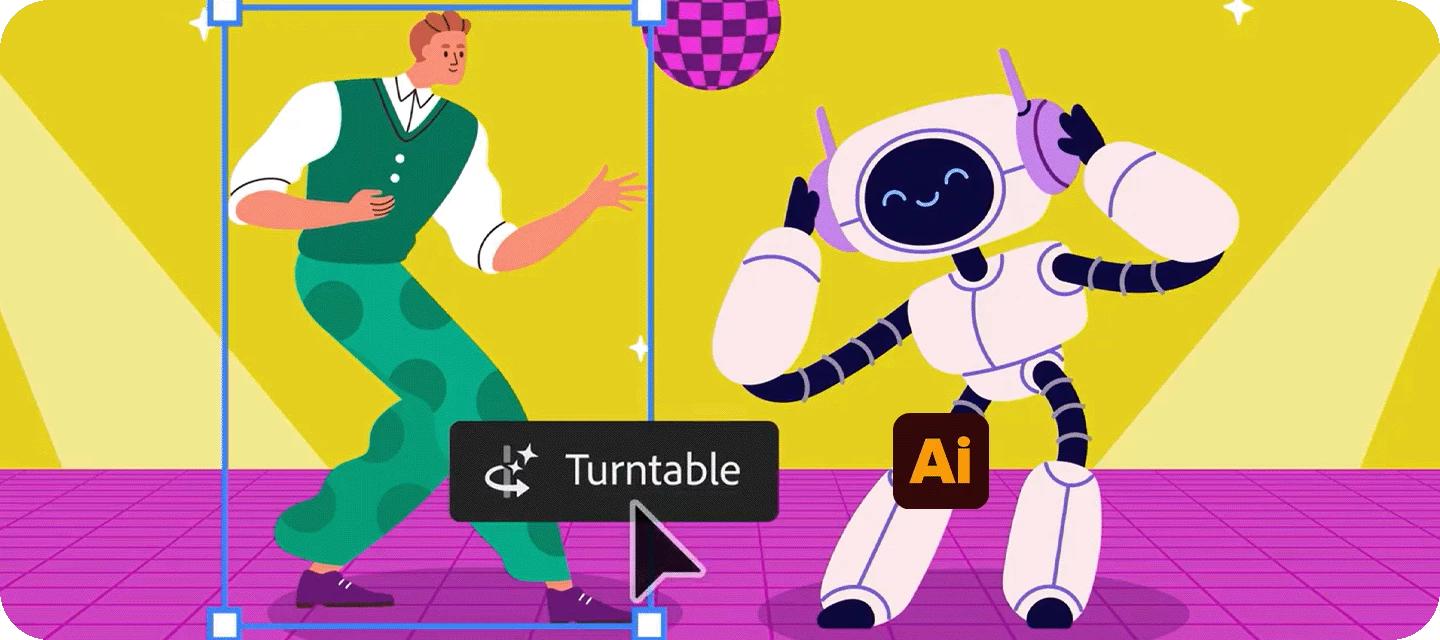
Turntable, powered by Adobe Firefly, is now available in Illustrator. It takes your 2D object and generates multiple rotated views, so you can see it from different angles.
You can smoothly slide between these views, pull out the ones you like, or export them as a GIF for a dynamic, rotating preview.
Generate multiple views
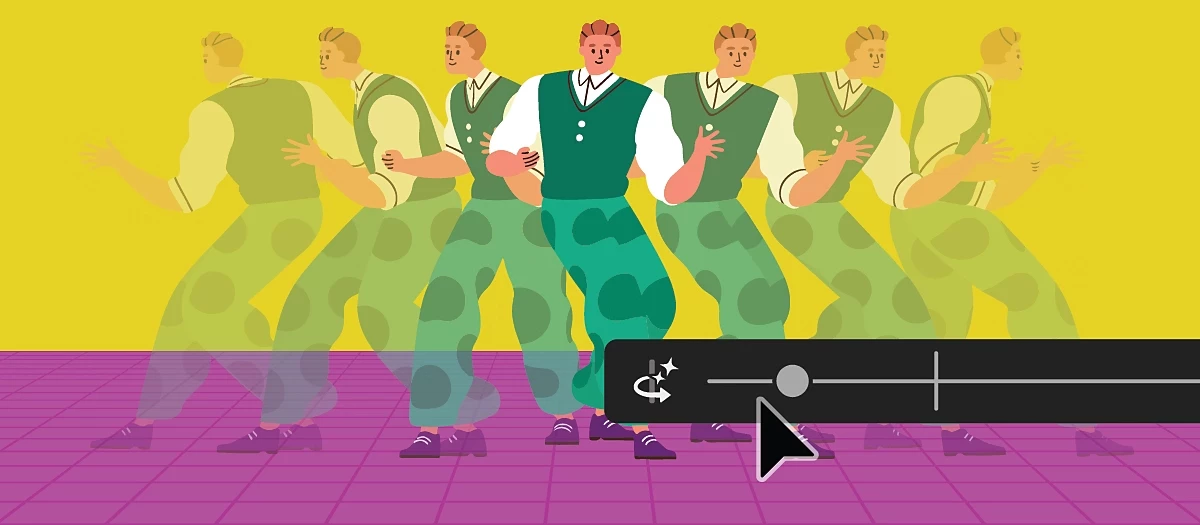
Select the object you want multiple views for, then go to Object > Generative > Turntable. Illustrator will create a set of views and place them inside a Generative Object on your canvas, along with controls in the Contextual Task Bar. You’ll also see a grouped version in the Layers panel, plus a copy of your original object.
You can also find Turntable in the Transform panel, Properties panel under the Transform section, Control panel, and the right-click menu.
Note: Turntable works best with vector and raster objects without a background that have recognizable angles in a real-world scenario.
Use the Contextual Task Bar to play around with views—rotate left or right, tilt up or down, or reset to the original view. You can add new rotated views to either side, place all views on the canvas, or export everything as a GIF.
Want more angles? Just drag the rotate slider or use the tilt arrows. You can even combine rotation and tilt for more perspectives. Hit Reset anytime to go back.
To pull out views, add them individually or place all of them on the canvas at once. For exporting, choose Export as GIF, then pick your settings like view type, frame range, speed, direction, and background.
You can also give feedback on any view—upvote, downvote, or report it if needed.
Access the views later
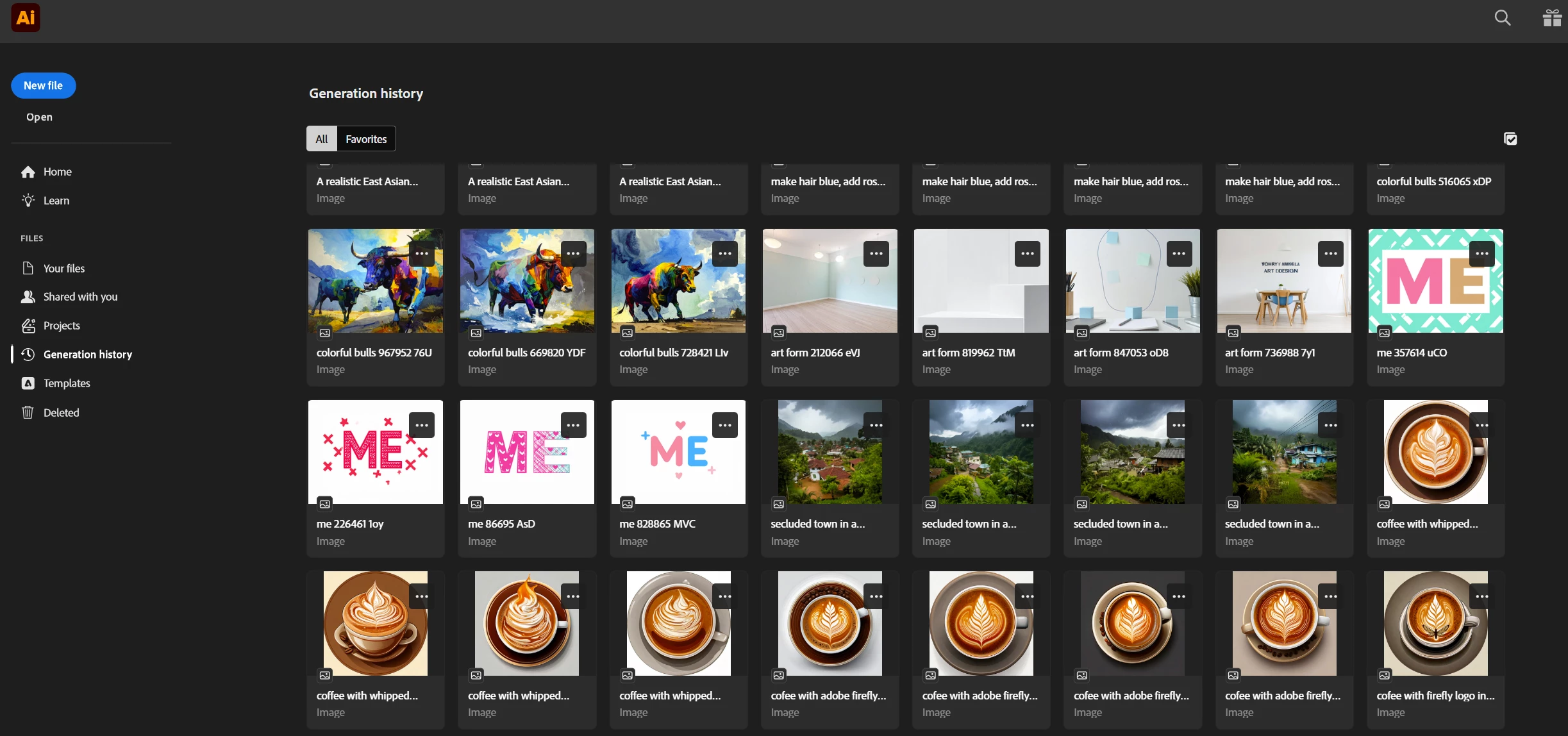
To get back to your generated views, just select the Generative Object and click Turntable in the Contextual Task Bar or Properties panel.
If you want to see and manage all your generated views in one place, go to Object > Generative > Generation History.
Edit the views
If you directly edit a view in isolation mode, those changes won’t stick—once you go back to Turntable and move the slider, they’ll be lost. If that happens, just hit Cmd + Z (Mac) or Ctrl + Z (Windows) to bring it back. Also, edits to one view don’t affect the others.
If you want to make permanent changes, you’ll need to ungroup the Generative Object. Since that breaks all linked views, it’s a good idea to make a copy first. Then:
Select the Generative Object and open Turntable
Use the slider or arrows to get the view you want
Go to Object > Ungroup (this turns it into a regular object and removes linked views)
Edit it however you like
You can also explore when to use Turntable vs Illustrator’s 3D tools, and check out its current limitations.
Share Your Feedback
We encourage you to try Turntable in Illustrator and share your feedback with the community. If you have questions or suggestions, please reply to this post or create a new post for any issues.
If you found this post helpful, click 👍 Like.
Use ⭐ Subscribe to stay informed about future updates.
You may also share this post with others who might benefit from these enhancements.
 AdChoices