
 Adobe Firefly
Get your best results with Firefly
Firefly Video Guide
Unlock your full creative potential with the Firefly Video Model — cinematic videos with elevated realism, intuitive controls, and commercially safe outputs.
Unlock your full creative potential with Firefly.
When you choose Adobe Firefly, you get an all-in-one creative space for AI-assisted content ideation, creation, and production.
Let's focus on video generation. While you can access many industry leading AI models from Adobe, Google, OpenAI, ElevenLabs, and more via Firefly, this guide specifically focuses on the Adobe Firefly Video model, which delivers cinematic videos with elevated realism, intuitive scene controls, and flexible workflows. Plus, you'll always create confidently knowing it's commercially safe. Firefly models are trained only on content we have permission to use — including Adobe Stock, public domain, and licensed material.
Let's dive into Generate video features so you can master prompting, explore the subjects our model handles best, and fine-tune your outputs to get exactly what you want.
Tips for selecting your subject.
Ready to pick your subject? Choose anything from a single person or animal, an object, architecture, an abstract background, a landscape, and more. Use the grid below to learn more about the wide array of Firefly Video model capabilities.
Note: The best results are achieved when choosing images of a single subject performing simple actions.
| Image example | Video descriptor | Video Model |
|---|---|---|
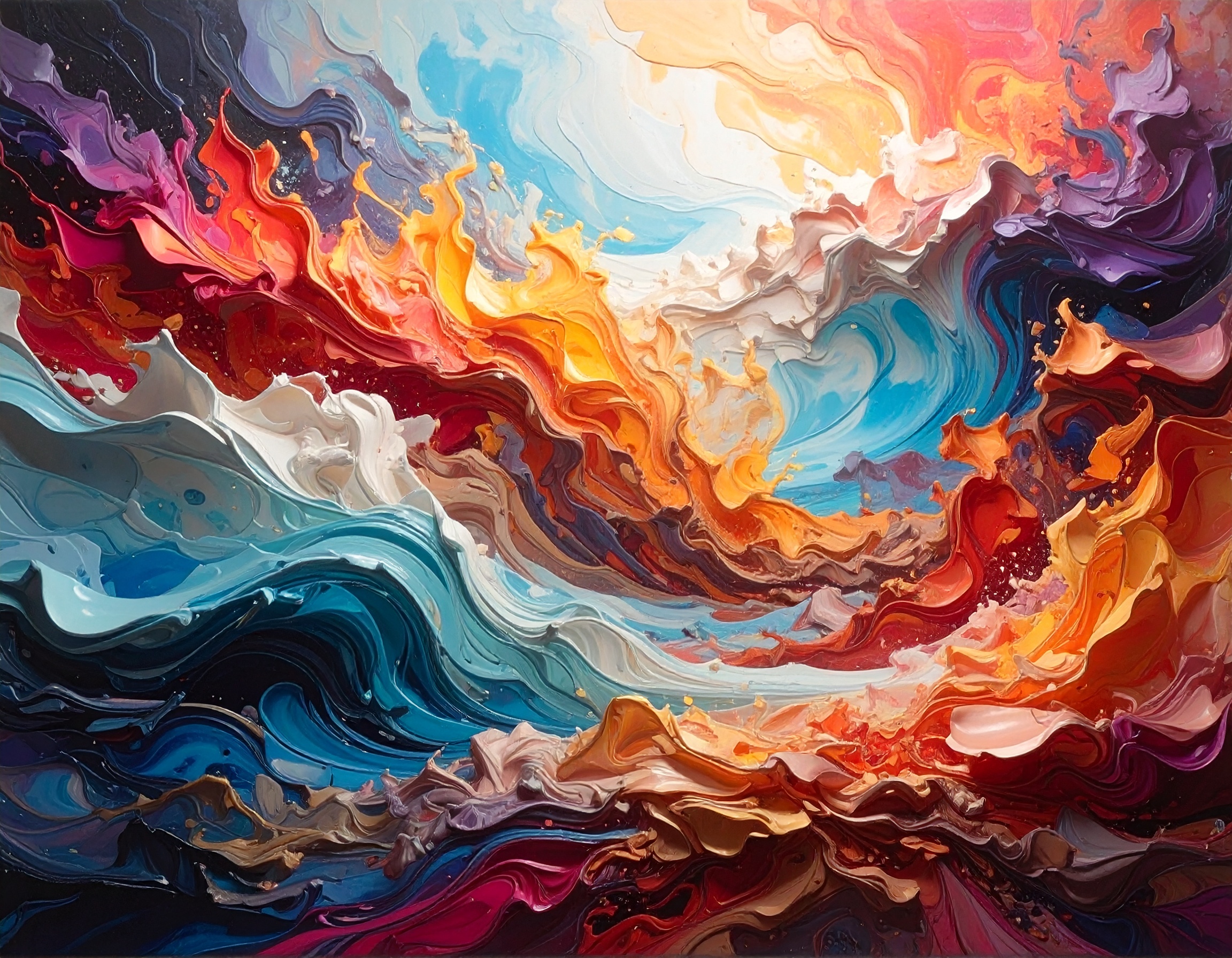 | Abstract background | ★★★★★ |
 | Seasonal background with space for copy | ★★★★★ |
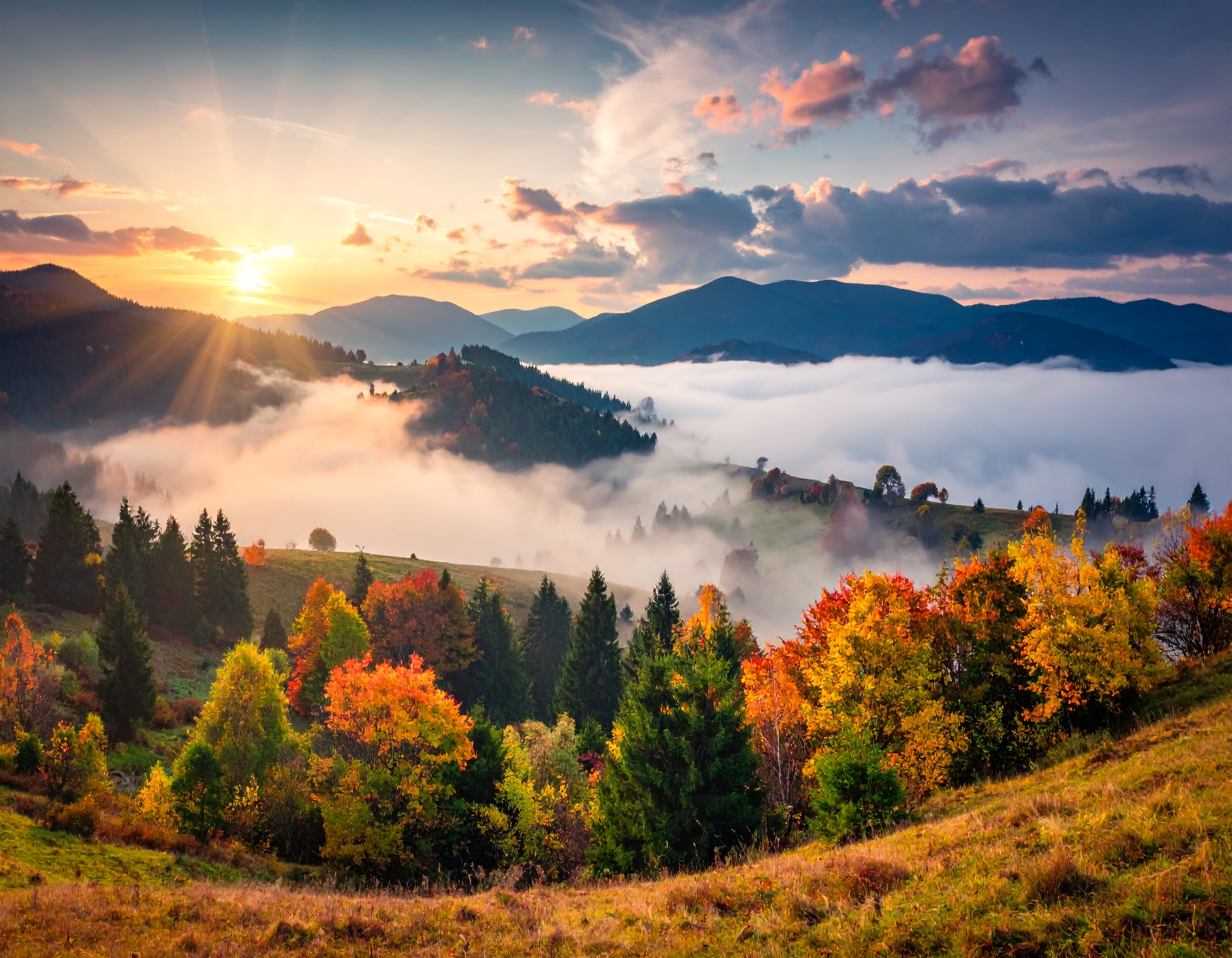 | Landscapes and Nature | ★★★★★ |
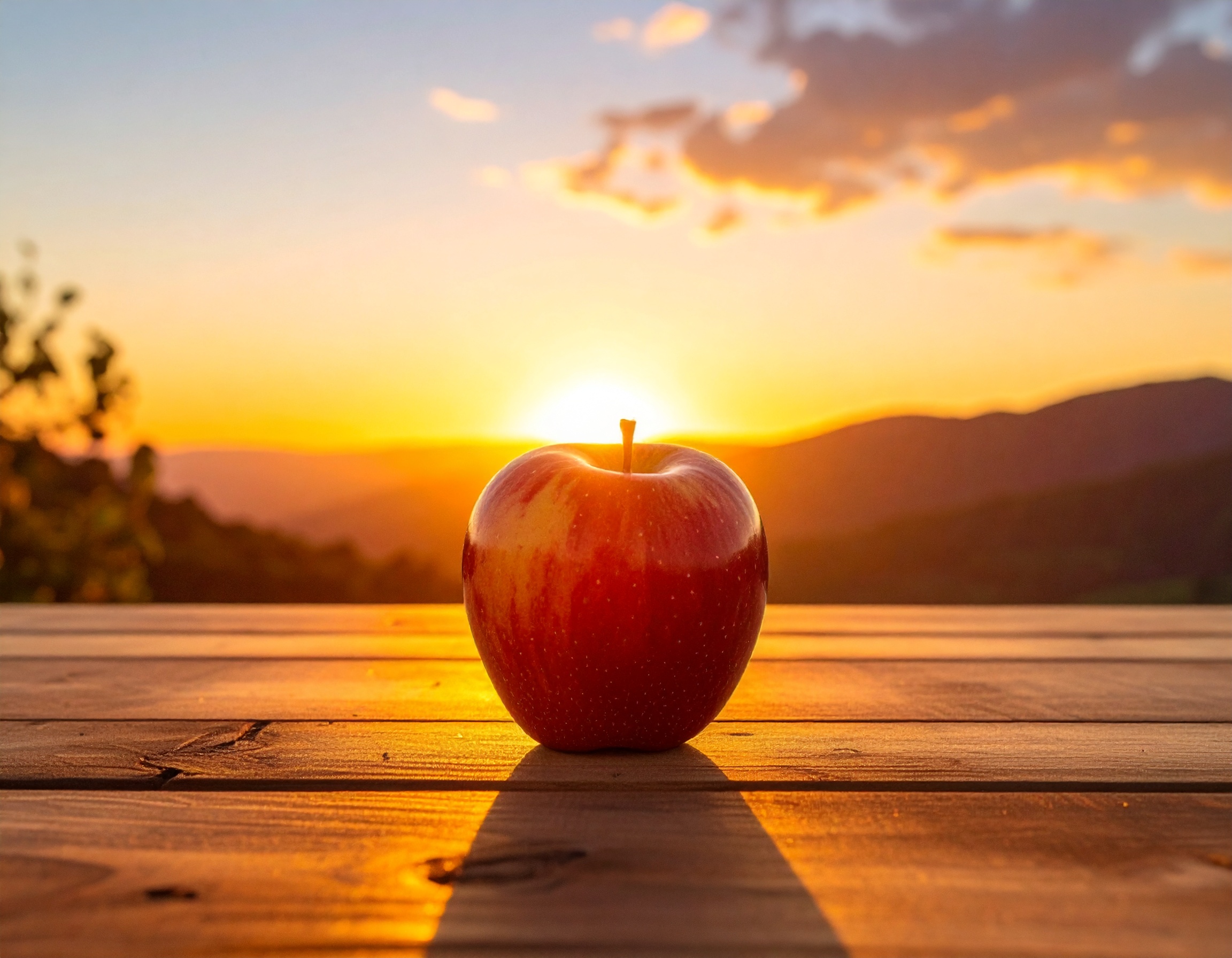 | Single object or simple food | ★★★★★ |
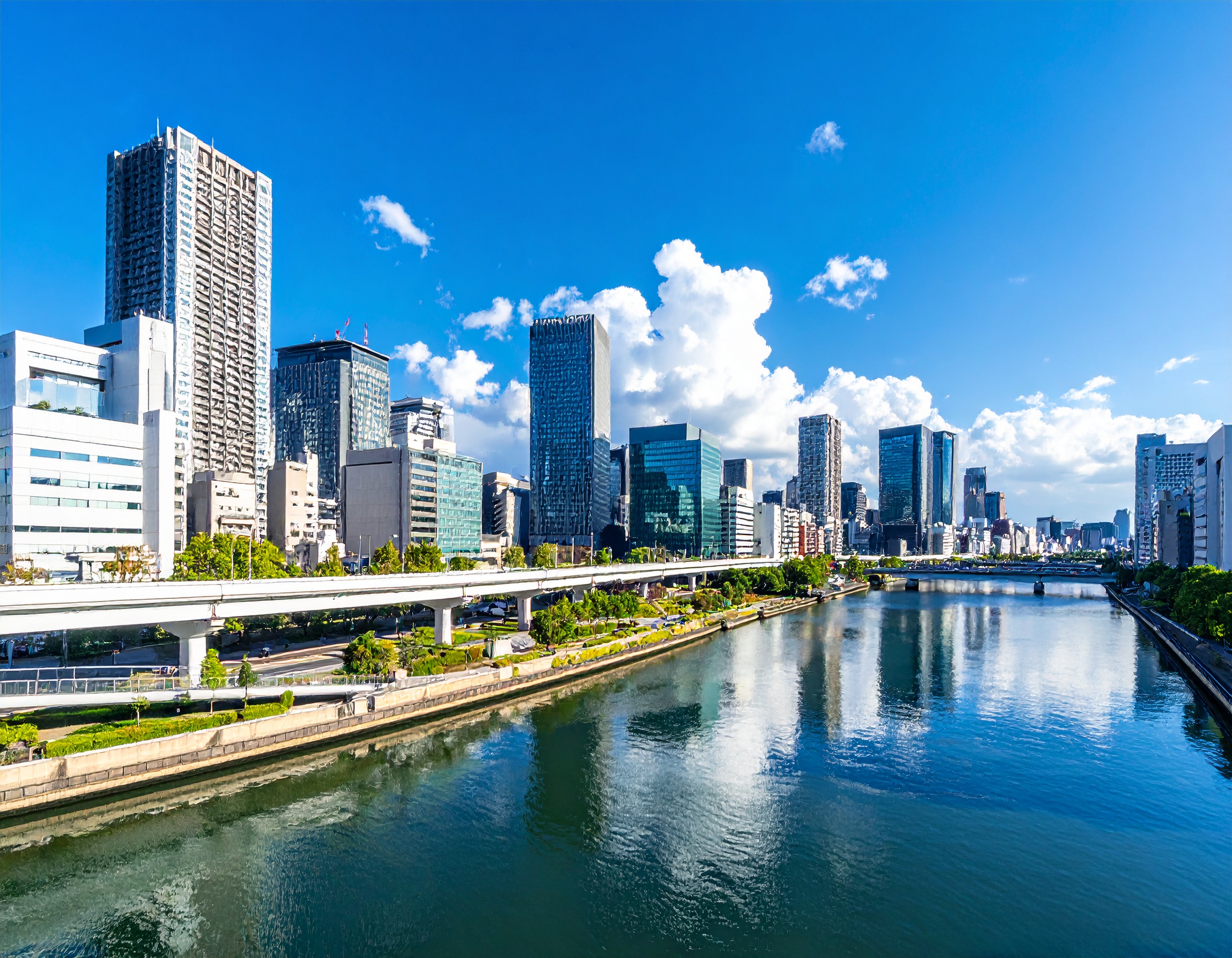 | Aerial shots | ★★★★★ |
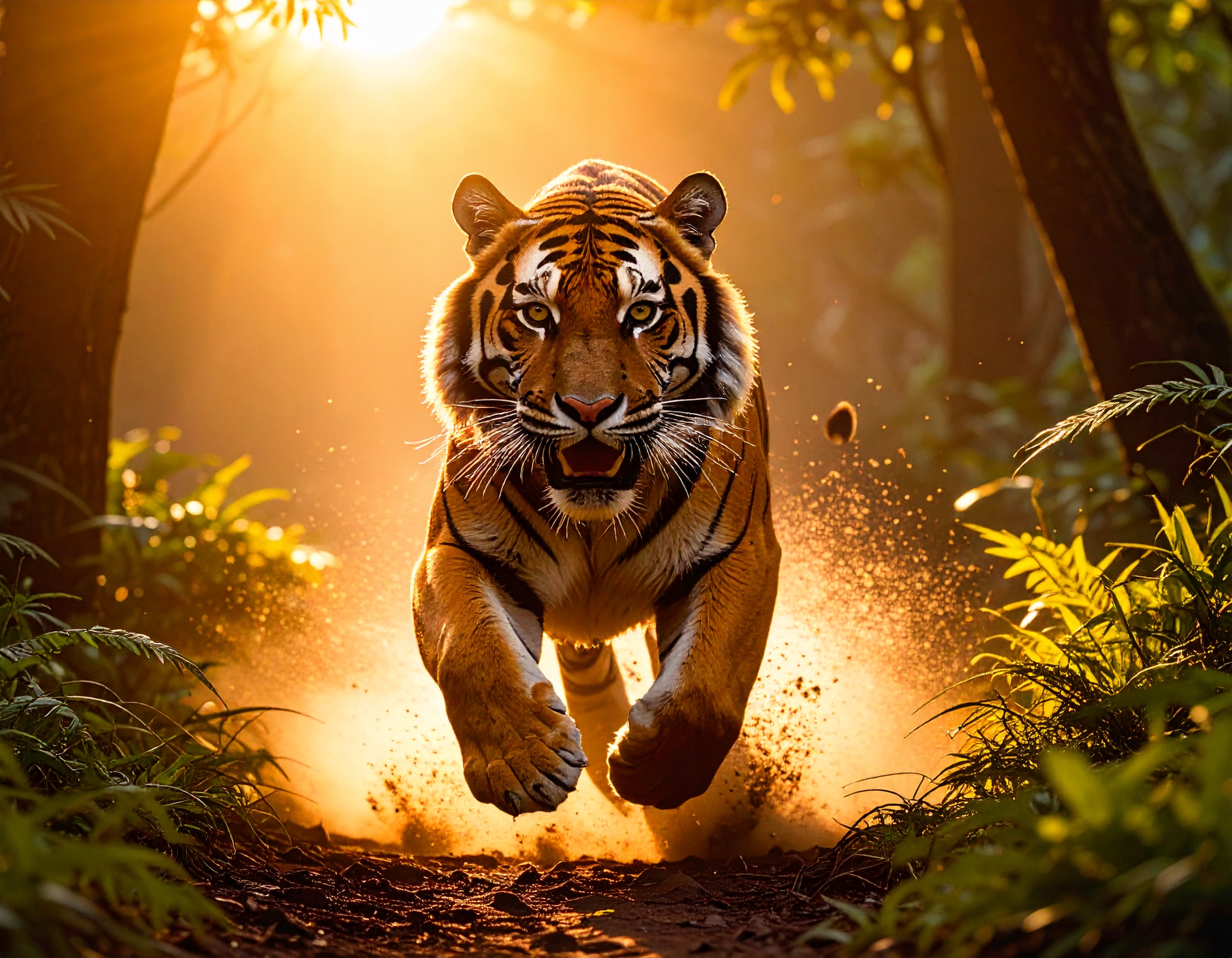 | Single animal | ★★★★ |
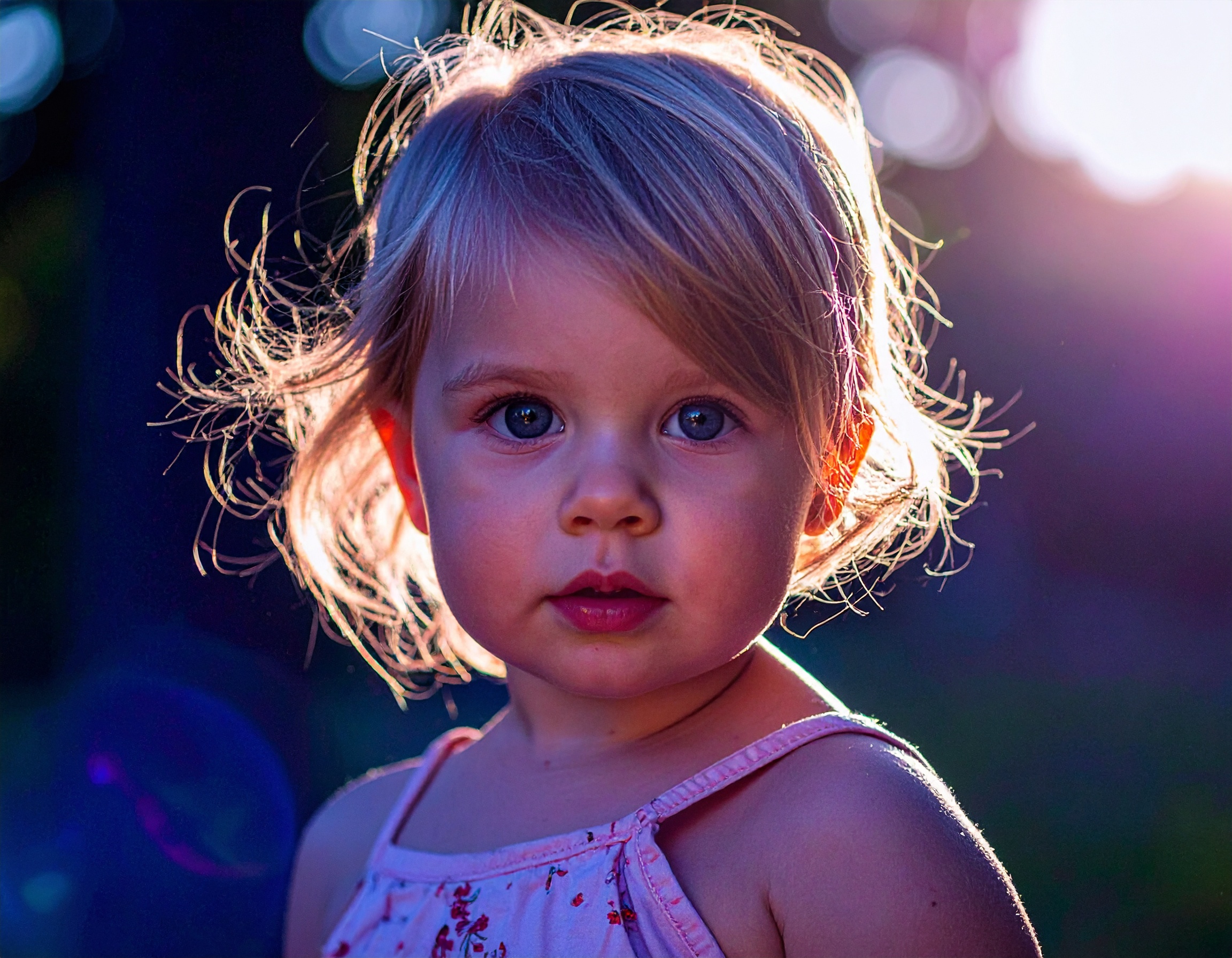 | Single human portrait | ★★★★ |
 | Simple text rendering | ★★★ |
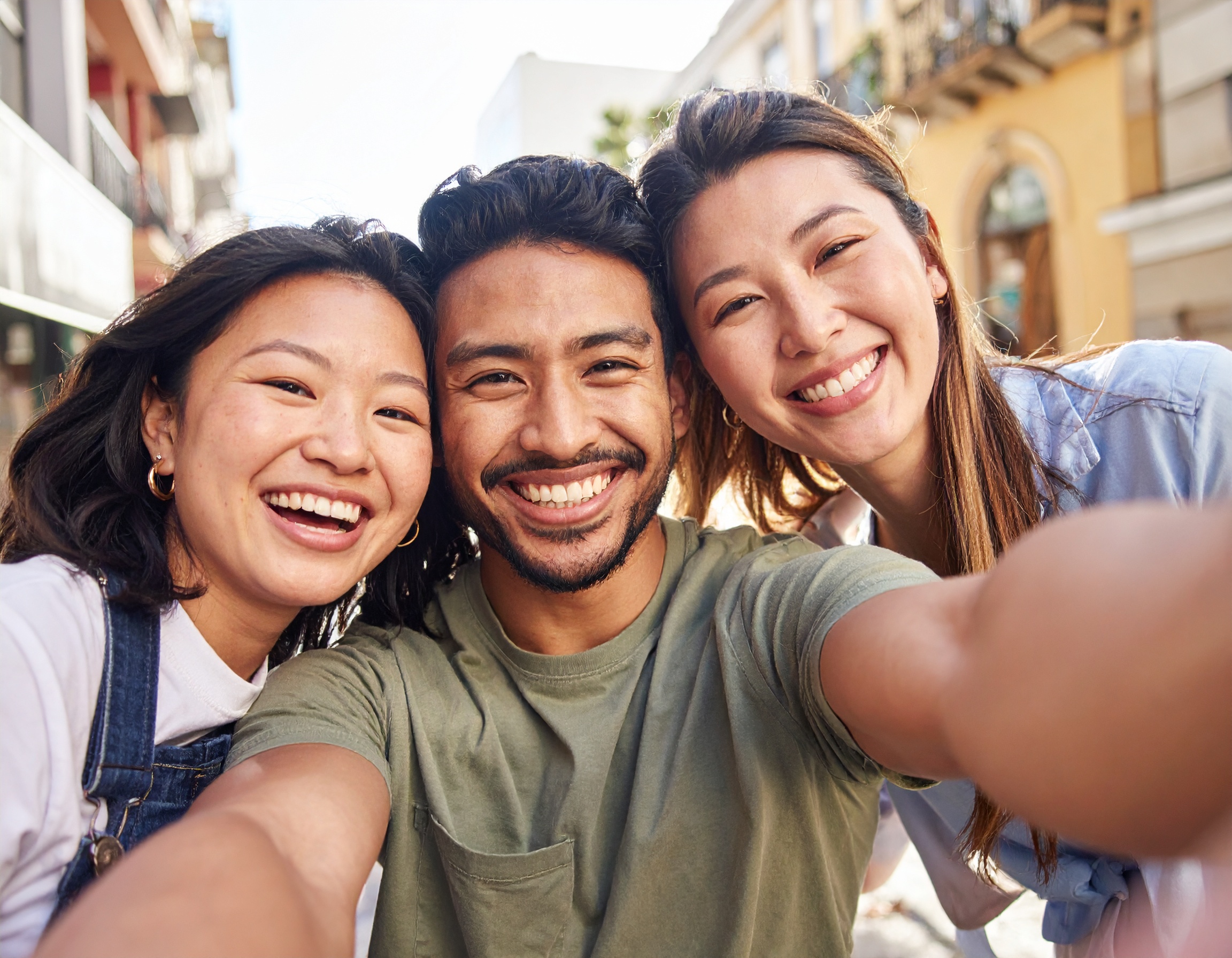 | Medium group of humans | ★★ |
Understanding Firefly Video features.
Image to video: Achieving better video results
When possible, start with a reference image to guide the visual direction of your project. This method allows for greater control and helps ensure the generated video aligns with your original vision.
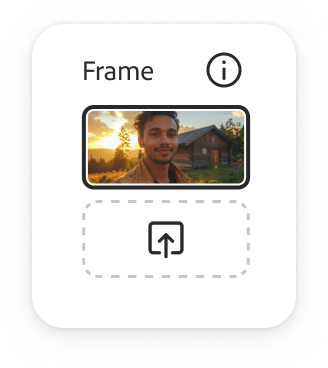
Firefly offers more control over your video output. Upload a stylized portrait as the first frame and a new pose or background as the second — Firefly can then generate a short video that naturally transitions between the two scenes.
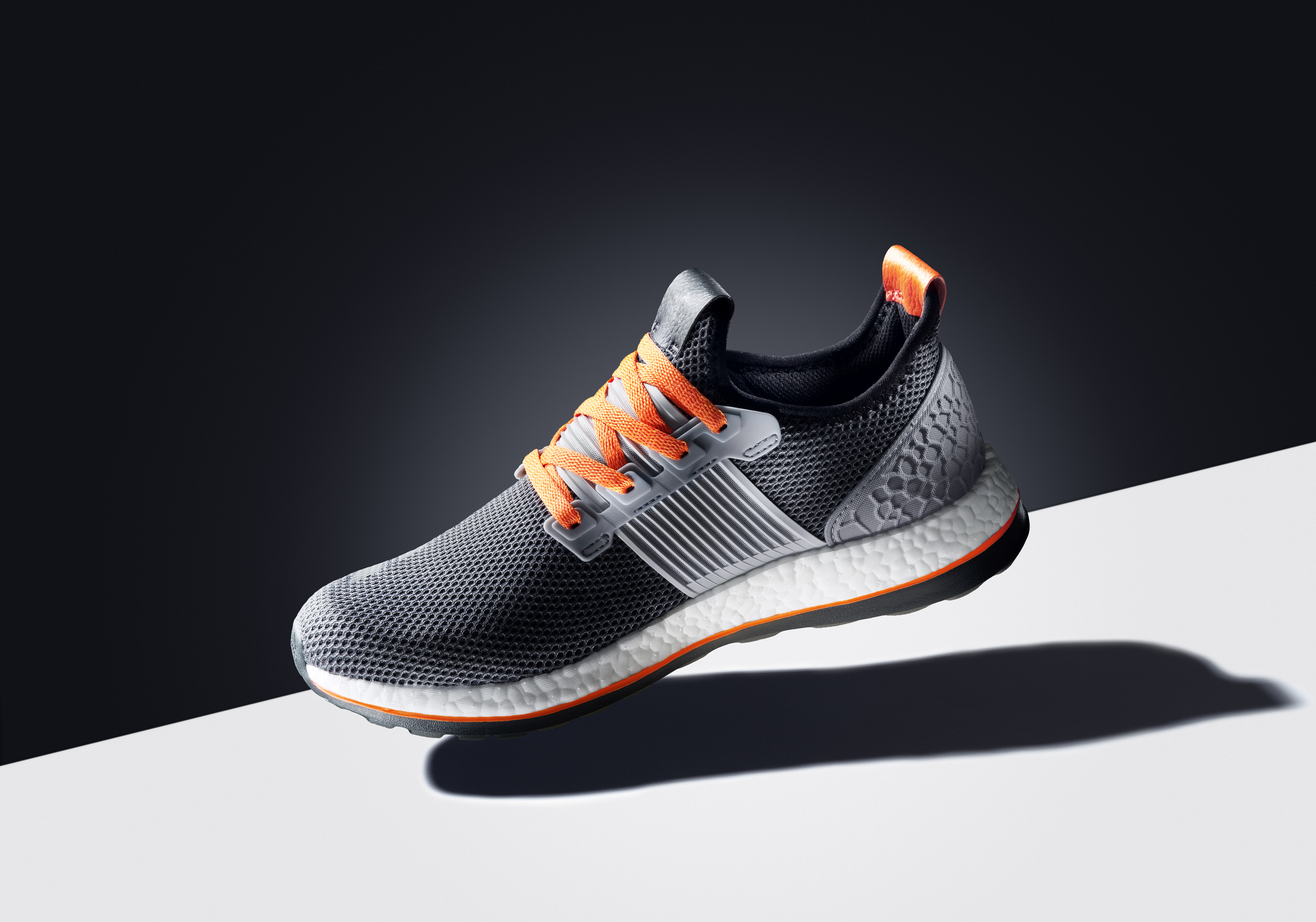
Pro tip: Provide the model with a first frame reference (or both first and last) to improve quality and enhance coherence.
Text to video: Generating videos without a reference image
You can create dynamic video content using only a written prompt with Text to video generation. This method is especially useful when no reference image is available — for instance, when generating B-roll to transition between scenes or experimenting with more open-ended, imaginative ideas.
Prompt: A futuristic cityscape at sunset with flying cars and glowing neon signs.

Text to avatar: Turning scripts into avatar-led videos
With Text to avatar, you can easily convert written scripts into avatar-led videos without the need for filming. This makes it useful for creating tutorials, explainers, and other presenter-style content directly from text, while also helping you maintain a consistent visual style across videos.
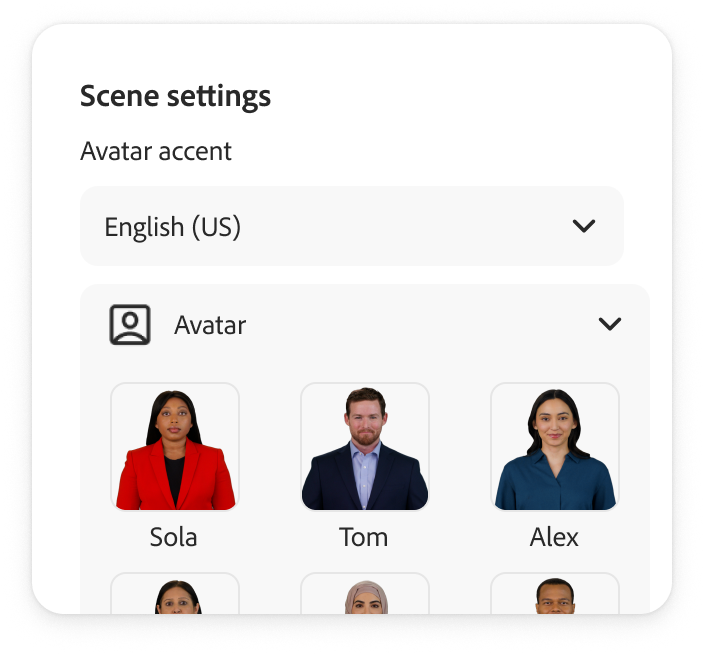
Pro tip: Learn how to write scripts that make your avatar's speech clear and natural when using the Text to avatar feature.
Firefly video editor: Transforming generated clips into stories
Firefly video editor helps you transform your generated clips into engaging visual stories within a simple, browser-based timeline editor. You can generate video clips, voiceovers, and music, then bring them together seamlessly in one place.
To get started, import your generated clips, arrange them on the timeline, then add titles or audio to enhance your narrative. You can also generate new scenes from any frame directly from the video editor.
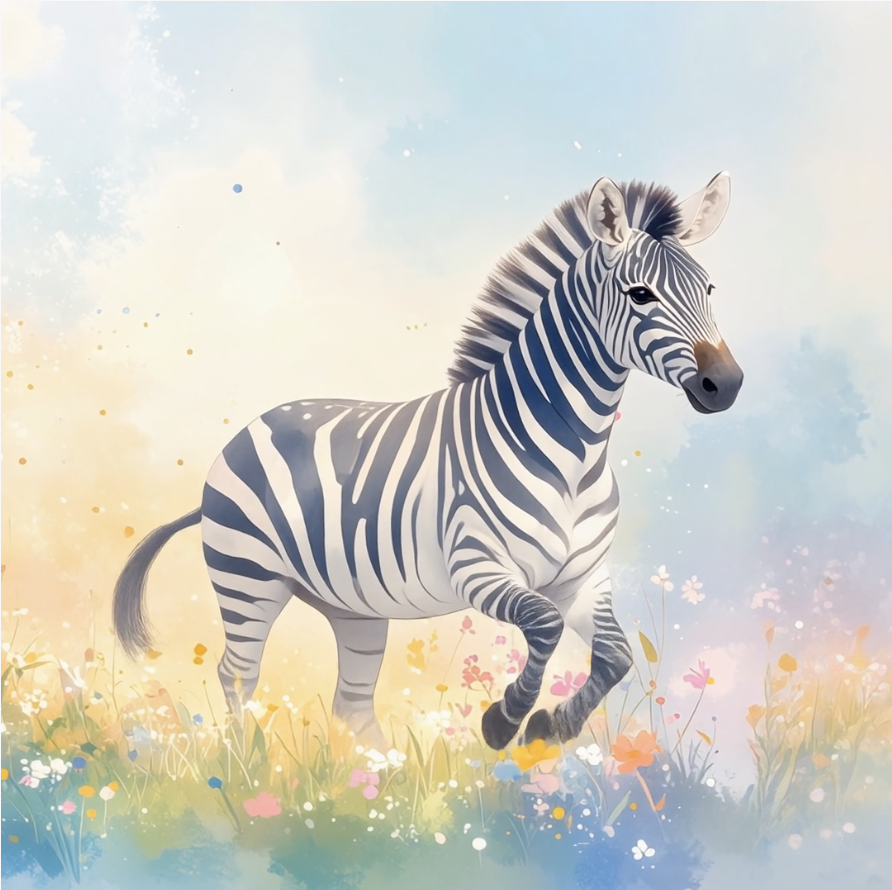
Prompting: Communicating your vision.
Prompting is how you communicate your creative vision to the AI model to generate a video. You provide the creative direction, and the AI helps bring your vision to life.
Firefly Video model takes your words literally, so the clearer and more specific your prompt, the better the results. You're not just telling it what to show, but how to show it — like setting the stage for a film. Visualize the scene you want to generate, describe it with as many factual details as needed, and then iterate to refine the results.
General Guidelines
Be clear and descriptive
When writing your prompt, be as specific as possible — especially when it comes to lighting, action, location, mood, and tone. Prompts should be well-structured, detailed, and at least eight words long. Prompts can extend up to 1,800 characters, so there's no need to worry about brevity.
It's not a conversation
Firefly Video model does not operate conversationally — it outputs a video based on a single prompt. Each new generation starts from scratch, which means you can't carry over edits or instructions from a previous prompt.
Guide the model
Leverage the controls available, so that the model will give you exactly what you pictured. This could include uploading your own images and videos to use as reference.
Iterate and further refine with your favorite Creative Cloud applications
Like in all creative endeavors, working with Firefly Video model is an iterative process and it might take a few tries before you get exactly what you want. To further refine your video, bring it into your favorite Creative Cloud application, such as Express, Premiere, or After Effects.
Pro tip: Use dynamic affirmative verbs and descriptive adjectives so Firefly can understand your end goal. Words like cute or gentle can create a soothing video, and words like strong or uplifting can create an inspiring one.
Prompting Formula
What's the secret to strong prompting? Including as many of the following elements as possible. The more you add, the more precise the results. We've included examples to help you pinpoint each element of the formula.
[Visual Style]Realistic, animated, artistic, cinematic.
[Shot Size]Close-up shot, medium shot, long shot.
[Camera Angle]Aerial, eye-level, shot from above.
[Camera Motion]Zoom in, tilt down, static, handheld.
[Subject]An animal, a person, a building. (Don't forget to describe the person's features, emotions, clothes, an animal's size, a building's architectural style, etc...)
[Lighting]Golden hour, studio light, cooler tones, dramatic lighting.
[Action]Running, jumping, flying, swimming quickly, pacing slowly.
[Location]In the mountains, on a roller coaster, across rugged terrain, on the beach.
[Aesthetic]Serene, mysterious, realistic, abstract.
Note: Firefly can simulate real-world camera work, so anything else you include (camera lens type, angles, etc) is helpful in getting you closer to what you're picturing.
Enhance Prompt
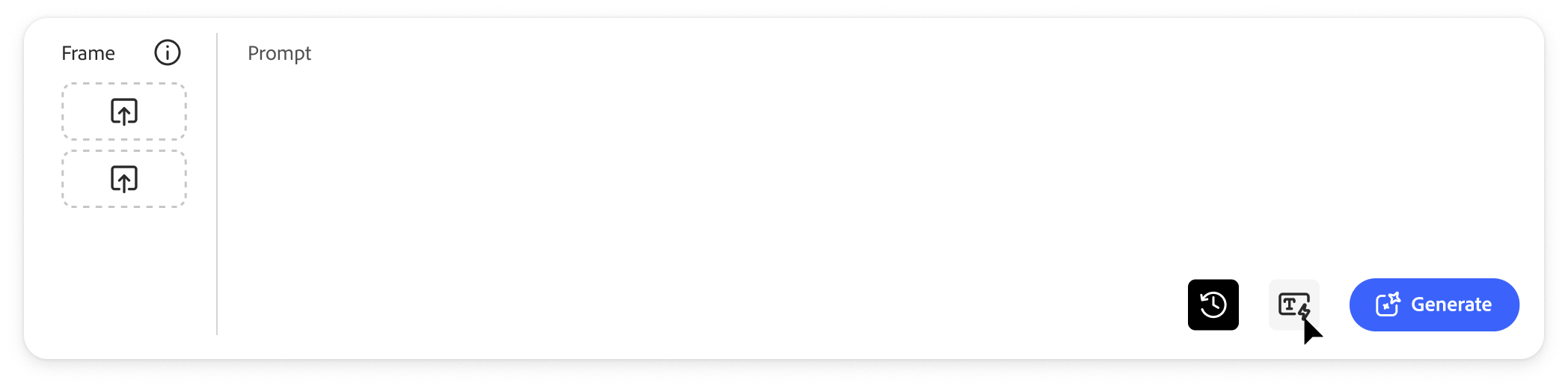
When creating a video using Text to video or Image to video, you can enhance the text description in the prompt field you've entered for video generation. Selecting the Enhance prompt option in the prompt bar automatically improves your original prompt, making it clearer, more detailed, and more effective at helping the system generate the video you have in mind.
This tool is especially useful when you're first learning to prompt for video, as it helps you see all the necessary elements of the prompt formula. You can also easily edit the enhanced prompt to better align with your vision.
Keyframe Cropping
Instead of relying on automatic center cropping, which may not always match your creative vision, you can manually adjust the crop area using Keyframe Cropping.
You can also adjust the visible area of your video over time. As you work, you'll see a live preview of the changes, allowing you to make precise adjustments to the composition without leaving the platform.
Prompt Examples
Nature
Artistic video of a foggy alpine meadow at dawn, where deer graze quietly among wildflowers and low-hanging mist. The background features snow-capped peaks and soft morning light filtering through the haze, creating a muted, painterly effect. Captured in a long shot from a top-down drone perspective, the camera glides slowly across the landscape, revealing the peaceful rhythm of the natural world. The overall tone is meditative and impressionistic, with desaturated tones and soft textures that highlight the stillness of the scene.
B-Roll
Animated video of a surreal desert landscape at twilight, where glowing sand particles swirl gently in the wind, as the sky shifts from burnt orange to deep indigo. The background reveals distant rock formations and a crescent moon rising, softly stylized to enhance the dreamlike quality. Captured in a medium shot from a low-angle perspective, the camera tilts upward slowly, emphasizing the vastness of the sky. The overall tone is mystical and atmospheric, with glowing highlights and a soft, pastel palette.
Animal
Realistic video of a snow leopard cub climbing over rocky terrain in a high-altitude mountain pass. The cub's fur shifts with each movement as it navigates the uneven ground, occasionally pausing to look around. The background features jagged cliffs and a pale, overcast sky, casting cool shadows across the rocks. Captured in a medium shot from a high-angle perspective, the camera tracks the cub's movement from behind. The overall tone is raw and intimate, with crisp textures and a cool, natural palette.
Human Portrait
Artistic video of a young man with vitiligo, standing in a sunlit greenhouse filled with tropical plants. He wears a loose, earth-toned linen outfit that moves gently with the breeze, as sunlight filters through the glass ceiling, casting patterned shadows across his face. The background is lush and softly blurred, filled with green and amber tones. Captured in a medium close-up from a side profile angle, the camera slowly dollies inward. The overall tone is organic and introspective, with warm highlights and a soft, natural color palette.
Product
Hyper-realistic video of a bottle of perfume sitting on a dark pedestal. A hand briefly enters the frame, opening the cap before pulling away. The background shows a dramatic, dimly-lit studio with ruby red walls. Captured in a close-up from a slightly elevated angle, the camera remains steady, focusing on the perfume bottle. The overall tone is cinematic and dynamic, with crisp edges, controlled lighting, and rich red surfaces that emphasize a refined, high-end luxury feel.
Abstract Background
Stylized animation of a floating geometric cityscape made of translucent glass shapes, where glowing orbs pulse rhythmically through the structures. The background is a gradient of deep purples and blues with scattered light particles, creating a futuristic, ambient glow. Captured in a medium shot from a rotating aerial perspective, the camera orbits slowly around the scene. The overall tone is abstract and futuristic, with high contrast, glowing edges, and a smooth, digital finish.
Controls: Fine-tuning the outputs.
Now that you've learned a few tips to write effective prompts, leverage the controls that best fit your needs so you can reinforce the intention you described in your prompt, add visual references, and select a specific style or composition.
Style Presets
You can quickly apply a specific artistic style to your generated videos by using predefined visual themes.
Pro tip: For the best results, make sure that the video controls and the prompt are aligned to avoid sending the model mixed signals.
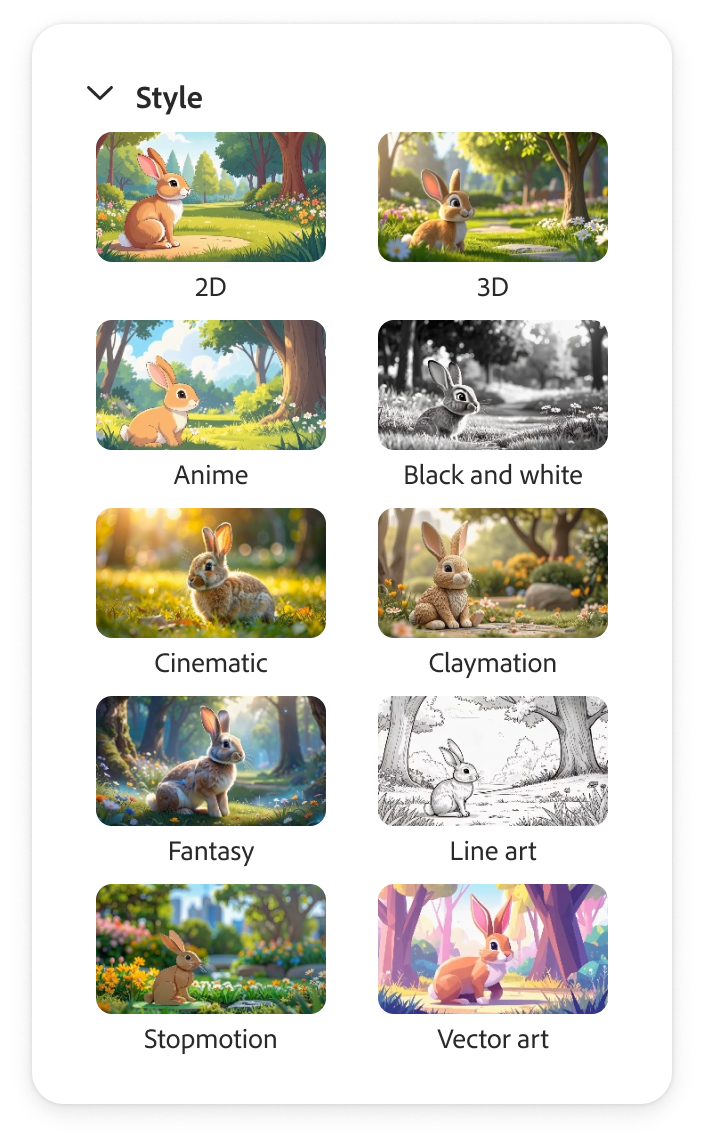
Example: Cinematic Portrait
Composition Reference & Camera Motion
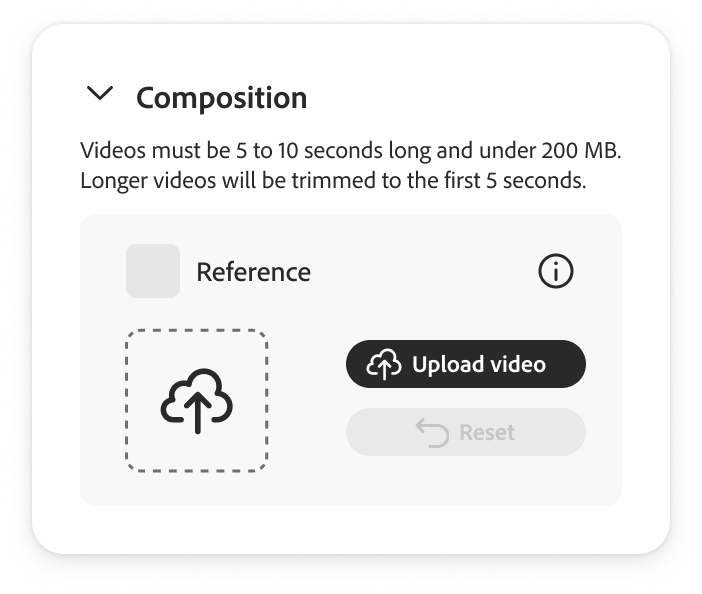
Composition Reference
You can also guide the model by specifying the composition you want to retain. When you provide a reference video, Firefly will generate a new version guided by your prompt while preserving the original structure and layout in the supported aspect ratios 16:9, 9:16, or 1:1.
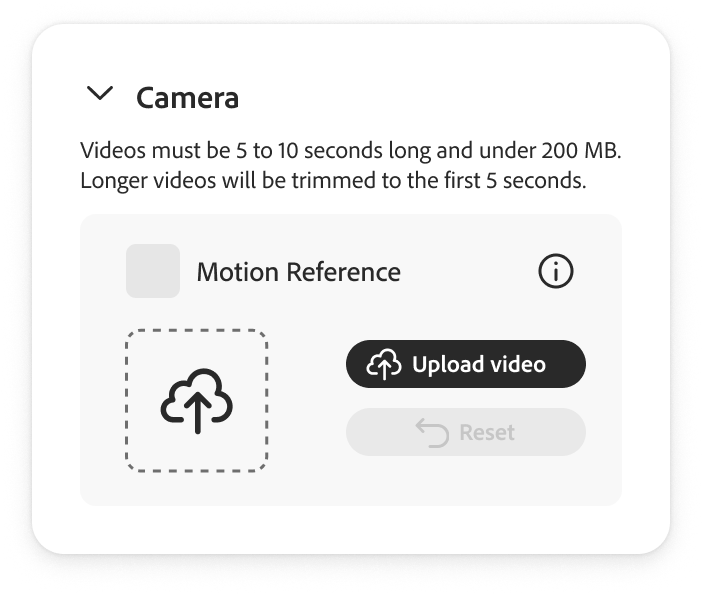
Camera Motion
Keep motion consistent across versions or edits with Camera Motion controls. Use a preset (such as pan, tilt, or zoom) when you want a standard camera move applied to your video. Or, upload a reference video to match the exact movement from your own footage — for example, a zoom in with a particular speed or handheld feel. Reference videos give you more specificity, while presets provide quick, consistent options.
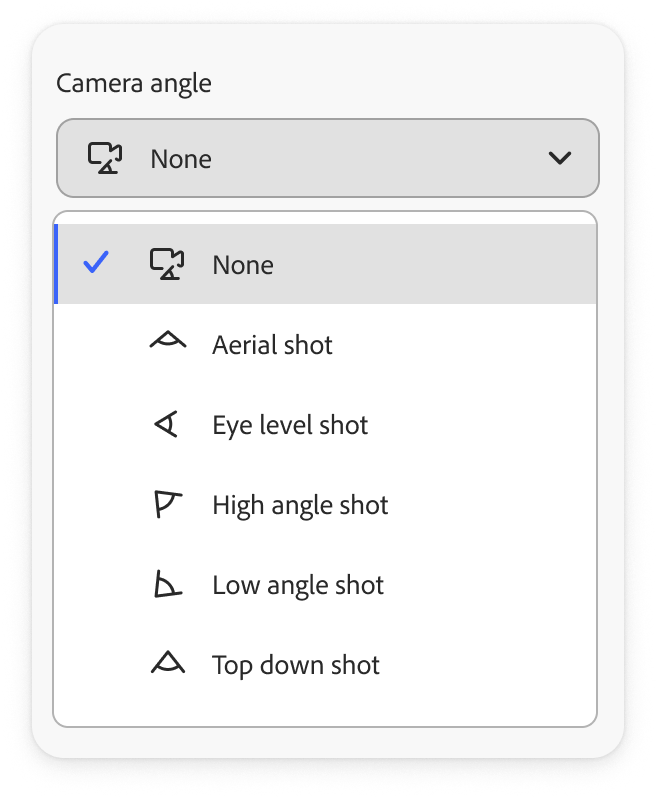
Camera Angle
Shift the viewer's perspective by changing how the camera frames your subject. You can fine-tune this angle using the Camera settings in Firefly video generation features.
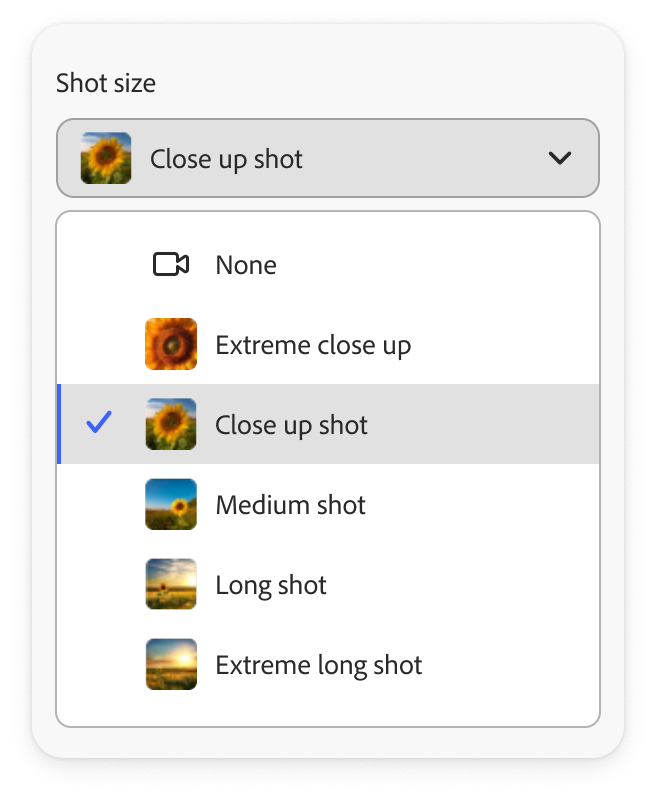
Shot Size
Determine how much of the subject and surrounding environment appears in the frame by adjusting the Shot Size.
Enhance Your Shot with Layered Elements
Generate standalone video elements including characters, objects, and visual effects with a transparent or keyable background. This gives you greater flexibility in post-production and allows you to composite these elements over existing footage in Premiere or After Effects. This approach is especially useful for adding elements such as snow, fog, sparkles, or animated stickers, without needing to capture those effects during filming.
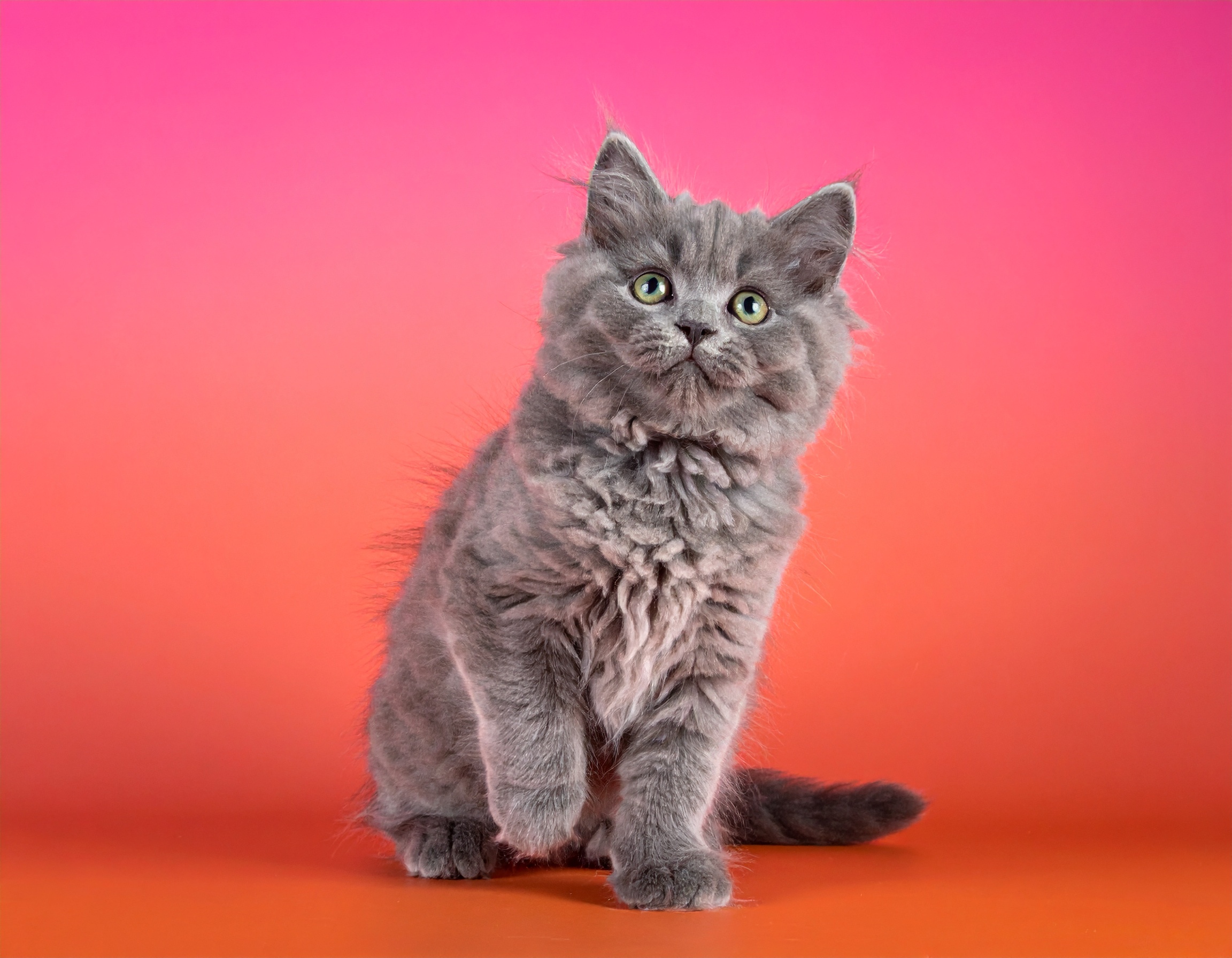
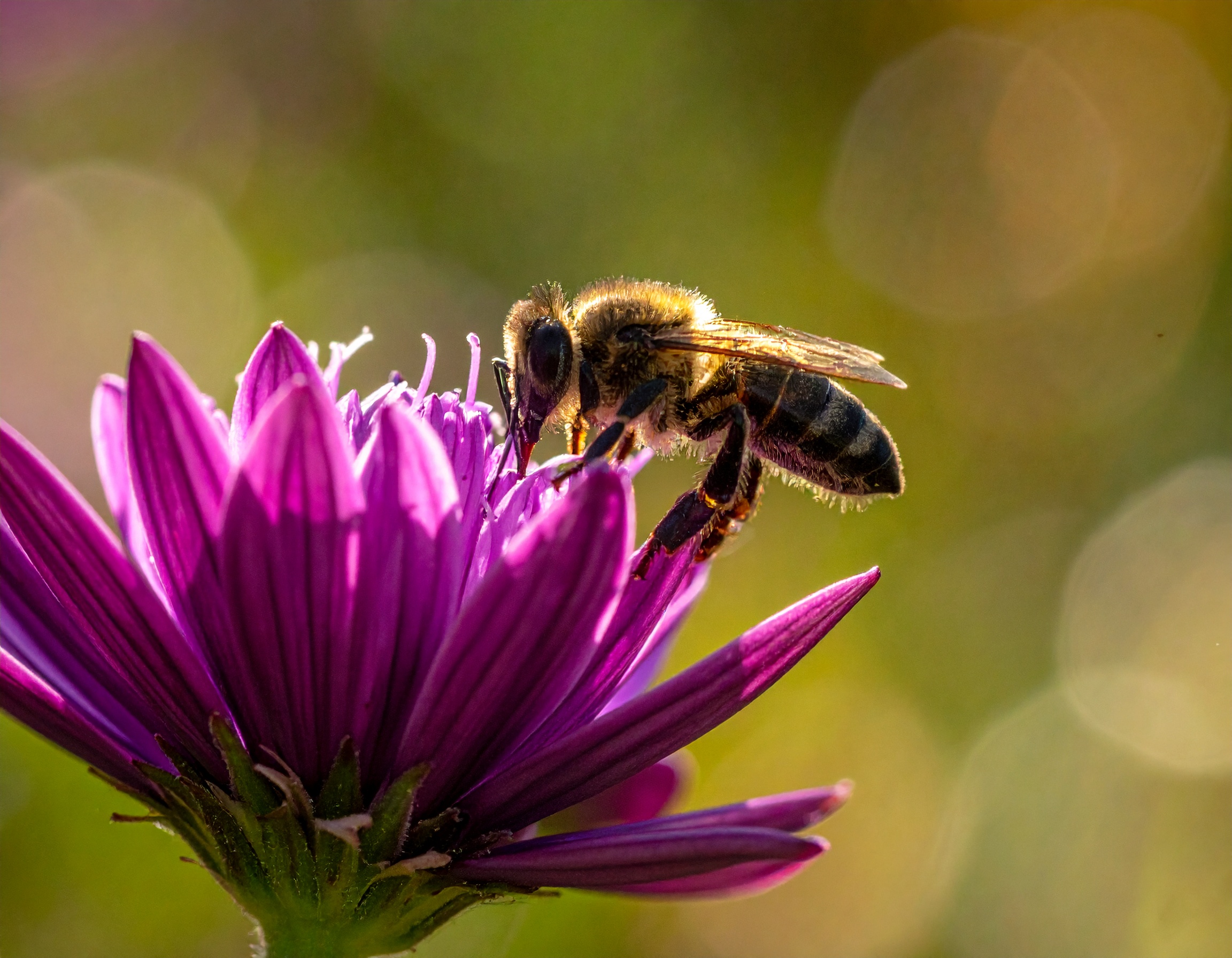
Pro tip: For best results, choose foreground-focused prompts and simple motion to ensure clean edges and smooth compositing.
Advanced tips.
1
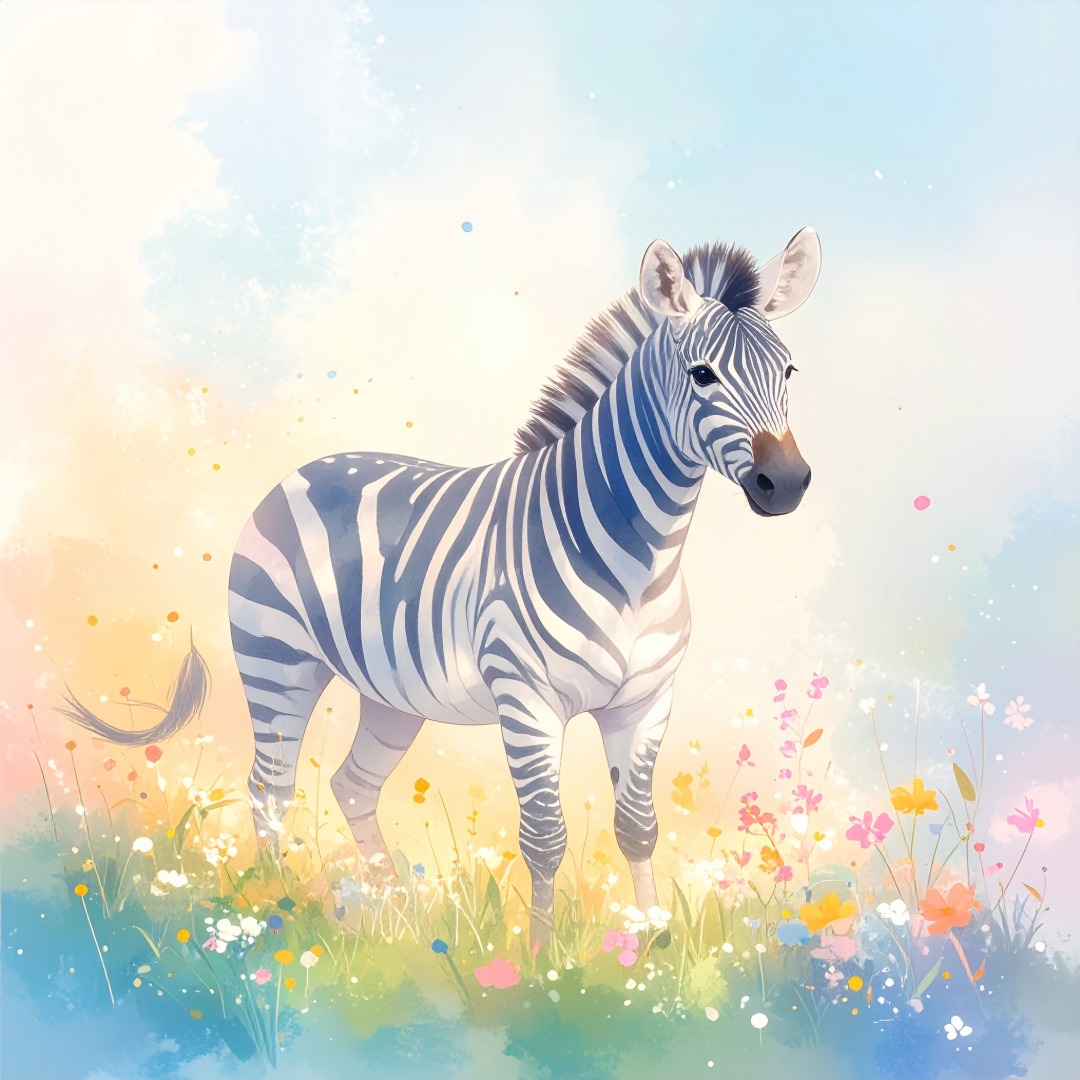
Frame-by-frame method: Using a frame-by-frame method, start with an initial frame and generate the next one based on it to create longer videos. Repeat the process, treating each new frame as the starting point for the next. It gradually builds a complete sequence that can be compiled into a video.
2
Seamless loops: Upload the first and last frames of your sequence to create a seamless video loop. Check that they share similar composition and visual elements, then generate the in-between frames to smoothly bridge the gap. This technique creates a natural transition from end to beginning, forming a continuous loop.
3
Composition Reference for depth: Generate a video with accurate structure and depth by using a Composition Reference to extract the edge and depth information of your target image, then combine it with a new prompt to guide the video generation process.
4
Style presets: Use Style presets to guide the creation process when no image is provided, helping to achieve your desired visual style, and serving as a starting point for generating the final image.
5
Start with Image Model 4: Start with Image Model 4 to create your desired image, then transition to the Image to video tool to generate a more refined and visually consistent video based on that image.
6
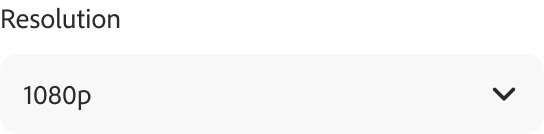
Work in 1080p: If your final output needs to be high-resolution, work directly in 1080p.
7
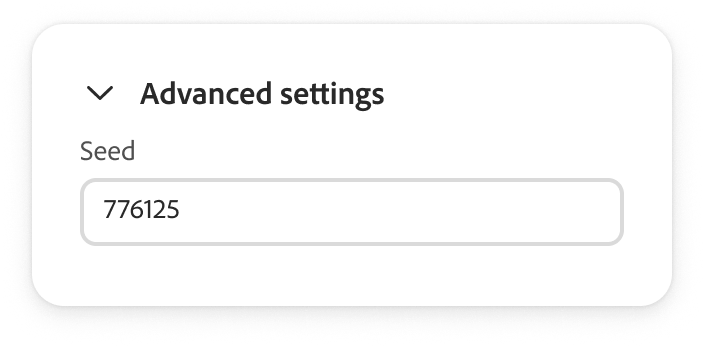
Use seeds for consistency: Use the same seed for consistent iterations. A seed is a numerical value that acts as a starting point for generating random variations in images or videos. Using the same prompt, settings, model, and seed will produce similar results; changing the seed will produce new variations from the same input.
.jpg)
Pro tip: Use Express or Premiere to crop or adjust each frame as needed before generating the next to ensure visual consistency.
Further Enhance Your Video with Creative Cloud
You can continue to refine your video creation by bringing it into Express, Premiere, After Effects, or other Creative Cloud apps.
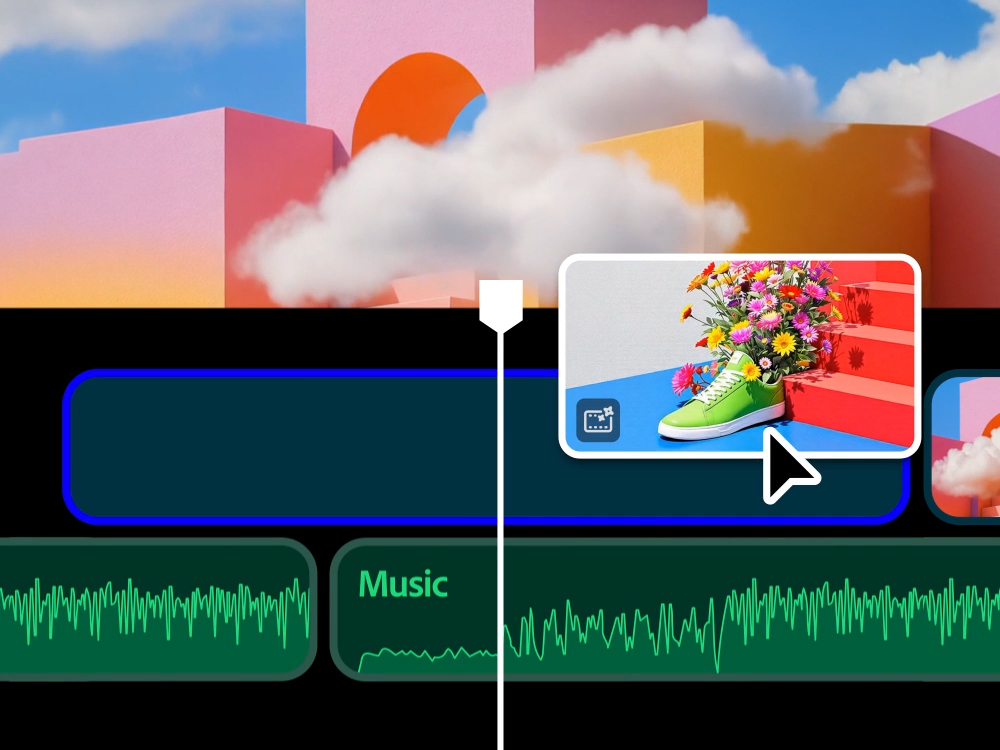
Pro tip: Import generated B-roll into your Premiere timeline as temporary placeholders that match your script or storyboard. Simply replace them with the real footage once it's ready.
Generate audio.
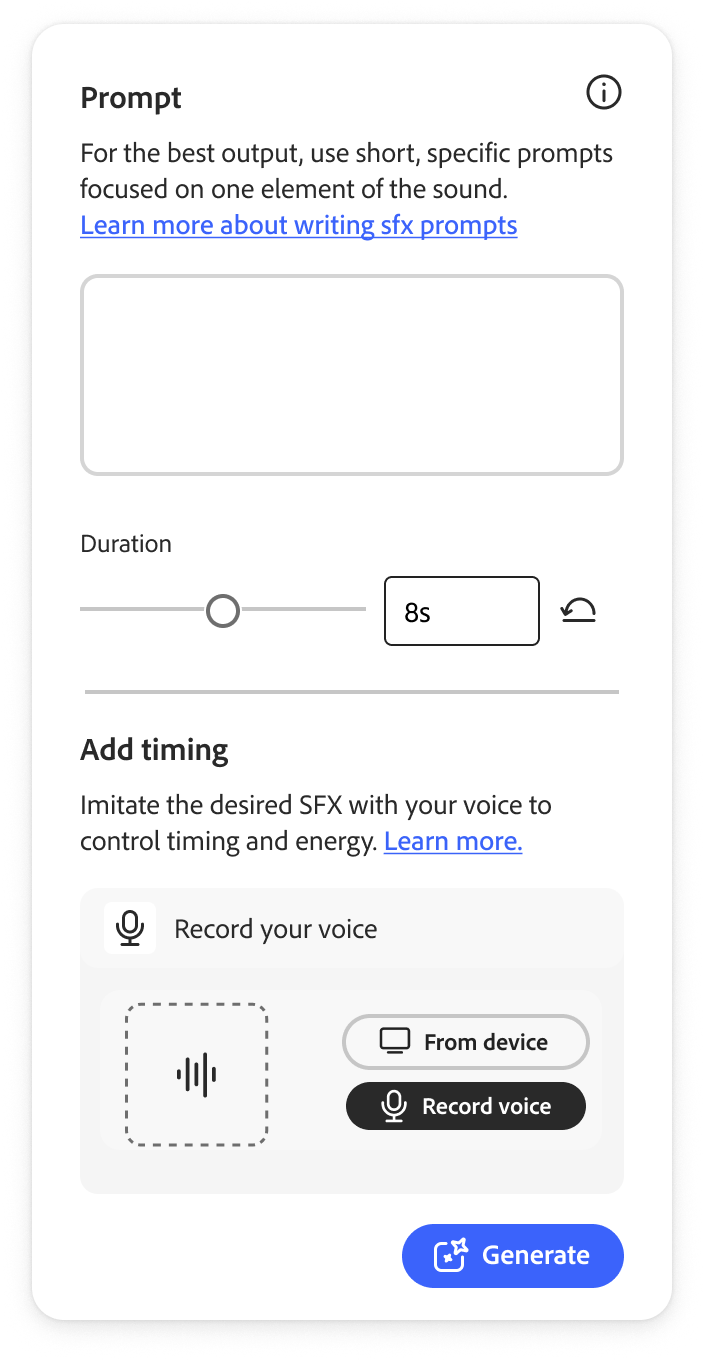
The Generate sound effects feature in Firefly introduces a way to create custom audio for video content by combining text prompts and audio hints to indicate when and how the effect should occur in the timeline. Instead of searching through endless sound effect libraries, you can instantly create royalty-free sound effects, like glass shattering or thunder clapping, that are tailored to your project. From podcasts to games to films to social media posts, this feature can help you explore and create your most impactful work.
As you refine the audio experience of your project, Firefly also offers tools to enhance the emotional impact of your video. In addition to effects, you can also generate full music tracks that support the pacing, mood, and storytelling of your project.
Generate Sound Effects
If you are adding sound to your video, you will need to learn the basics on how to write effective prompts to Generate sound effects. By combining a text prompt with a voice performance, you can generate a sound effect that matches the description of your prompt while following the timing and energy of your voice performance.
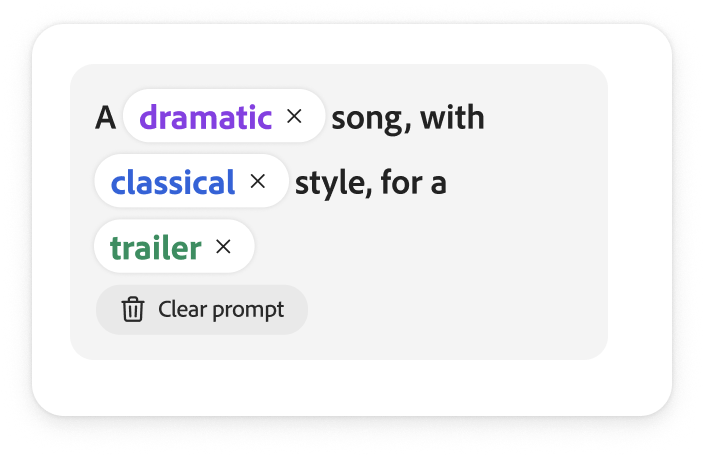
Generate Soundtrack
Generate an original, royalty-free soundtrack that adapts to your video's pacing, mood, and style.
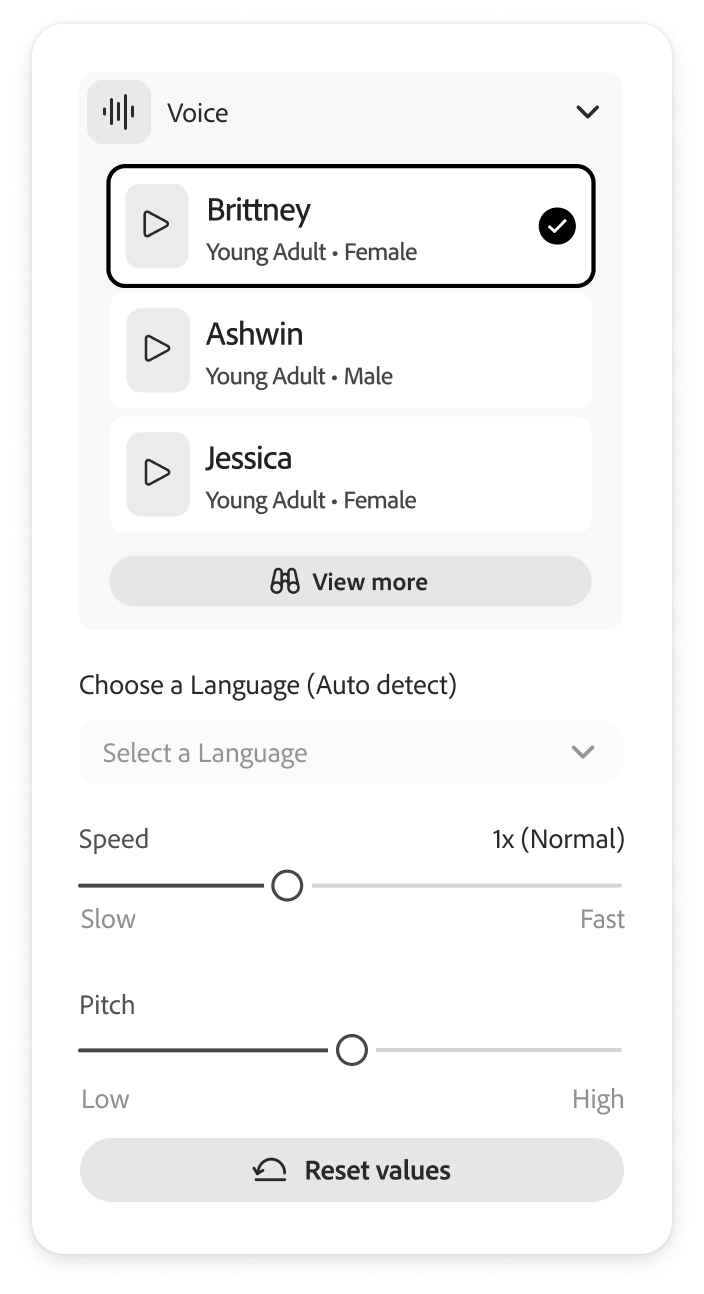
Generate Speech
Transform written text into natural, expressive voiceovers with Generate speech. Apply emotions, refine pronunciation, and ensure clarity with simple text adjustments for more realistic narration.
Sound Effects: Prompting Guidelines
Describe the sound clearly
Provide clear, concise, and direct text descriptions of the sounds you want to generate. For example: "lion roaring," "heavy rain on a metal roof," or "crackling campfire."
Use descriptive adjectives and verbs
In your text prompts, include clear adjectives to describe the qualities of the sound and verbs to convey the action or behavior of the sound. For example: "very loud explosion" or "soft explosion."
Add commas to include multiple descriptions
Separate your keywords with commas to quickly describe multiple characteristics of the desired sound. For example: "robot, sci-fi, futuristic" or "cinematic impact, sharp attack."
Describe one sound at a time
Generate sound effects is designed to create one sound at a time to ensure maximum quality and control. To build soundscapes that combine multiple sounds, generate each sound separately and layer them using multiple audio tracks. For example: "car honking," "indistinct chatter of crowd nearby," or "car whooshing."
Use general descriptions to generate ambiences
When generating ambient soundscapes, it's often more effective to use broad or general descriptions rather than highly specific ones. For example: "forest ambience," or "traffic in a busy city."
Focus on single sound events
Generate sound effects is best suited for generating single sound events such as footsteps or door creaks, as well as audio tracks that follow a recorded voice performance. Please note that this feature cannot produce speech. It is designed to create sound effects along with human sounds such as coughs and sneezes, and ambiences like background chatter. The same applies to music. While Generate sound effects can produce percussive hits and impact sounds, it cannot generate music that includes singing, melodies, or chord sequences.
Generate Soundtrack
Generate an original, royalty-free soundtrack that adapts to your video's pacing, mood, and style. Start by uploading your clip into Firefly, letting it analyze your clip's vibe, style, purpose, energy, and tempo to generate a tailored prompt you can refine for more control. Then adjust attributes like vibe (mood), style (genre), purpose (use case), energy, and tempo before generating.
Firefly will then produce up to four soundtrack variations that automatically match your video's duration. Preview each option, select the version that best fits your project, and download your final track directly in the app.
Once your soundtrack is generated, you can tailor it for different creative needs — from social storytelling to branded marketing to immersive experiences.
Social media and vlogs
Create music that fits the tone, pacing, and emotion of a video for YouTube, TikTok, or Instagram.
Podcasts
Create intros, outros, or background tracks for content on Spotify, Apple Podcasts, or Substack.
Marketing
Create catchy, branded music, or jingles for sonic branding and marketing video content.
Gaming and AR
Create immersive background scores for interactive games and experiences.
Educational videos
Create music for learning and training videos that keeps tone and pacing engaging.
Lifestyle
Create calming or energizing tracks with an emotional progression to guide a viewer's journey.
Pro tip: If your soundtrack isn't producing the results you expect, you may have conflicting inputs. Pairing a calm Vibe with a heavy-metal Style can create unpredictable mixes. Align the Vibe with your mood first, then refine the Style to complement it.
Generate Speech Tips
Emotion
Apply emotions to full sentences rather than individual words for smoother delivery.
Narration
Use character narration for nuance: He said with joy, "That's amazing!"
Numbers
Spell out numbers, currencies, or dates if the pronunciation doesn't match your desired result. For example, "€20" is best written as "twenty euros."
Acronyms
Use uppercase letters when spelling out individual letters. For example, "POC" becomes "Pee-Oh-See." Use lowercase when spelling out whole words. For example, "poc" becomes "pock."
Language
Match the language used in your prompt to your selected voice language for best results.
Punctuation
Avoid using brackets, since any text placed inside them won't be spoken.
 AdChoices
Sign up
Already have an account? Login
To post, reply, or follow discussions, please sign in with your Adobe ID.
Sign inSign in to Adobe Community
To post, reply, or follow discussions, please sign in with your Adobe ID.
Sign inEnter your E-mail address. We'll send you an e-mail with instructions to reset your password.