



Harm_Millaard
Inspiring
June 18, 2010
Question

Generic Guideline for Disk Setup

  • June 18, 2010
  • 53 replies
  • 377239 views

There have been many questions about how to set up your disks.

Where do I put my media cache files, where the page file, and what about my preview files?

All these allocations can be set in PR, so I made this overview to help you find some settings that may be beneficial. It is not a law to do it like this, it is a generic approach that would suit many users, but depending on source material, workflow and backup possibilities, it is not unthinkable you need to deviate from this approach in your individual case.

The reasoning behind this overview is that you want to distibute disk access across as many disks as possible and get the best performance.

Look for yourself:
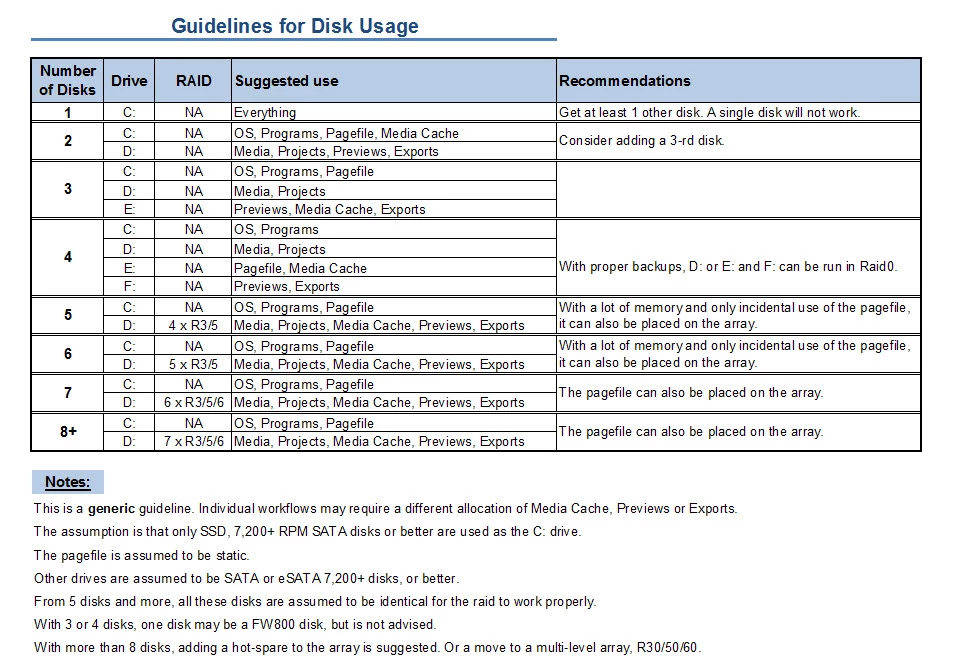
I hope this helps to remove doubts you may have had about your setup or to find a setup that improves performance.

    This topic has been closed for replies.

    53 replies

    davidbeisner2010
    Inspiring
    October 28, 2010

    Thanks, Harm, for your expertise! I've read this post and your post on general storage setup for editing systems, and I've got some questions...

    First, I've got a TON of data, much of which I could probably archive to clean things up. Here's what I've got right now, and maybe you can give me some recommendations for fixing things so it'll run better (my PPBM5 shows significant slowdown in disc-land). FWIW, all internal drives are 7200RPM SATA2.

    I have a 250GB WD Enterprise Storage drive for my OS/Programs, and I think it holds the pagefile... (though I have 12GB of Ram, so I'm not sure how often it's used). This one is about 50% full.

    I have a 500GB WD Enterprise Storage drive which holds all my graphics, photos, and audio, along with some other generic data files (think documents, PDFs, etc. here) This one is about 60% full.

    I have a 1.0 TB WD Caviar Black for my Projects/Scratch/Previews disc. This one is about 40% full.

    I have a 2TB RAID-0 (made from 2x 1.0TB WD Enterprise Storage drives) that holds all my data in whatever format it came in on (most of it is direct capture from HDV in Premiere, but there's a good mix of AVCHD, R3D, and various SD stuff, too). This one is about 95% full.

    I also have a 4TB RAID-0 WD backup drive that's a little over 50% full, and maintains a complete backup of all the drives in my system, minus OS and Programs. (FW800)

    Then I have a second 2TB single disc drive that I use to maintain an off-site backup of whatever projects I'm currently working on, plus important stuff like photos and graphics. This one is about 30% full. (FW800)

    Then I have a third 1TB single disc drive that is a general backup drive and usually remains onsite, and is about 80% full. (USB 2.0).

    Ok, so there's where things are right now. Based on what I've read, I'm thinking that I might be better off doing the following:

    250GB for OS/Programs

    500GB for Previews/Scratch/Pagefile

    3x 1.0TB drives (no RAID) for my projects/media OR 1.0TB in RAID3/5 for projects/media (but I'll have to figure a way to archive a bunch of stuff... Bluray?)

    I've got room in my system to add one more drive, and I can probably get approval for purchase of one more drive if I asked my boss--so if I got a 2TB drive, could I do a 2.0TB RAID using two of the 1.0TB drives for striping and the 2TB for parity, leaving me with an extra 1.0TB? Or should I get a 1TB drive and do a 2.0TB Raid with two drives for striping and two for parity? I'm really not up on this RAID stuff, despite reading your article on it and Wiki...

    Also, could I separate my current RAID-0 and not lose the data on it?

    And just FYI, I'm using onboard RAID (using the ASUS P6T6 Server mobo), and purchase of a RAID controller is out of the question right now...

    I primarily edit HDV/AVCHD, but I have a little bit of RED 4k and I'm hoping to upgrade my HDV camera to the JVC GY-HM700 soon.

    Thanks for your advice and expertise!

    David

    Participating Frequently
    October 16, 2010

    Planning to get an Areca ARC-1210 with four 600GB Velociraptors in RAID 0 (considering R3, but I can set up daily back ups, not too worried about the data). Would there be a RAID controller better suited for this without increasing price too much (~$300)? All reviews I read point to Areca and the next best controller I see is the ARC-1231ML at $600. I have 4 other Western Digital Black 1TB's that are not in RAID currently (don't really plan to either) and an 80GB SSD as a boot drive. Thanks!

    Participating Frequently
    October 16, 2010

    Why would you waste all that money on Velociraptors when (correct me if I am wrong) but the WD 2TB Blacks are faster and much cheaper?

    PaulieDC
    Inspiring
    October 16, 2010

    WD Blacks are 7,200RPM, Raptors are 10,000RPM. But also, Blacks are not always a good RAID choice, they have time-out circuitry that corrects for erros when standalone, but can cause RAID to drop. Hence, the WD RE3 drives, made for RAID, no timeout circuitry.

    PaulieDC
    Inspiring
    September 6, 2010

    Excellent guide Harm. I came up with a setup that I thought would work (and it does so far), and it turns out to be your 4-disk setup (technically 5 because my asset drive is RAID0), so you confirmed that I'm on the right track.

    Thanks!

    Participant
    September 3, 2010

    Hi Harm,

    Sorry but i don't speak english very weel. I need your help because I want to build a new PC for video and photo editing (SD and HD video).

    My problem is for hdd configuration; I don't have problem to buy 4, 5 or 6 HDD but I don't know how many TB are necessary for the scratch/temp disk and where is important to have a RAID 0.

    My idea is this:

    1 x 120 GB SSD for OS/software

    1 x 600 GB 10'000 RPM for Scratch / Temp / Pagefile

    2 x 600 GB 10'000 RPM in RAID 0 for Media / Project

    2 x 600 GB 10'000 RPM in RAID 0 for Export / Final file

    What do you think about this?

    Thank you and best regards

    Andrea Pedrotti

    Harm_Millaard
    Inspiring
    September 3, 2010

    Andrea,

    Least space requirements, but most speed requirements is for scratch, temp and pagefile.

    Export/ final does not require all that speed, but may need the space. You can consider adding the single disk to the export raid in a 3 disk raid0.

    Participating Frequently
    September 3, 2010

    Hi Harm

    I've got something odd going on with 1 of my 5 F3 HDDs

    In device manager, 1 of the drives is showing up as a SCSI device and that drive is being referenced as a removable device through the oprion to "safely remove hardware and eject media". I acted on removal and it then disappears from the system until reboot.

    Any ideas?

    Thanks

    Edit: no Raid yet. All drives are plugged into Mobo sata ports.

    Participating Frequently
    September 1, 2010

    Would anyone know why one of my Samsung F3s is showing up as a SCSI device in device manager?

    Running W7-64 with a WD Velociraptor as the OS drive + 5 x Spinpoint 1TB F3s

    Participant
    August 31, 2010

    This post is awesome, thanks!

    I have a pretty awesome system set up like the 2 drive right now, but want to go to the 3 drive. Here are my questions:

    --EDITED--

    • Does the Scratch disks need to be fault tolerant? I understand an outage would interupt between saves, but I think it saves to the project file the scratch contents.
    • For editing 2 hour features of Canon footage, can I get away with a scratch drive of 64GB SSD or do I need lots bigger?

    Thanks again for the great info!

    June 27, 2012

    [link to external image removed]

    Many PC users like to build their own machines, maximizing purchasing power and performance. I get the occasional question on the amount of hard drives and the location of various files for max performance with Photoshop and other Adobe products.

      I've found that this thread, over at the Adobe Forums, offers a good starting point and clear summary on this issue.

    Participating Frequently
    August 3, 2010

    I shoot wedding films and I have maxed out my internal raid 5 with summer projects so I picked up a new raid encloser. Here is my new configuration that I could use some advice. I just picked up an external raid enclosure Sans Digital Tr5ut-b esata and put 4 2tb WD Blacks in there Raid 5.

    So now this is what I have total for Hardrives.

    4x  WD 2TB Black Drives (external esata raid 5)

    4x  WD 640GB Black Drives (Currently internal software Raid 5)

    1x  60Gb Vertex SSD (OS Drive)

    1x  500Gb 7200rpm Drive

    This is what I was thinking, but your advice would be much appreciated.

    New External Raid 5 for safe Raw Footage storage

    Converting internal raid 5 to raid 0 to use as a working disk. I was thinking of transfering project footage on there while I work on it.

    or

    3 disk raid 0 with the 4th as my drive for exports

    and the 500gb drive as my system backup drive.

    I can never figure out where to direct all the folders in premiere can you tell me where exactly to direct scratch disk folders with what ever my new set up will be?  Thanks. Where should the Captured Video and Audio Go? (I use DSLR footage so not really nessecary). Where should Video and Audio Previews go?  "Where Should Media Cache Files" and "Media Cache Database" go? Where should my pagefile go? Is there anything I am missing if so where does it go. LOL

    I know this has all been talked about, but as I read, there are so many configurations out there and I still keep getting confused for my configuration.

    Thanks.

    ECBowen
    Inspiring
    August 3, 2010

    Question with regards to the internal raid 5. If you lose 1 to 3 days worth of work from drive/data failure, will the cost be prohibitive to you or your company?

    Eric

    ADK

    Participating Frequently
    August 3, 2010

    Not at this point no.


    ECBowen wrote:

    Question with regards to the internal raid 5. If you lose 1 to 3 days worth of work from drive/data failure, will the cost be prohibitive to you or your company?

    Eric

    ADK

    Participating Frequently
    August 3, 2010

    Appreciate the chart; most helpful but I have questions if one only has (4) drive bays total ....(yes, I'm referring to a Mac Pro!!).

    - Should I just follow the guide using one HDD for each function as described with no raid?

    - Would it be recommended to have an external setup as well?

    Any suggestions would be greatly appreciated.

    John T Smith
    Community Expert
    Community Expert
    August 3, 2010

    Someplace there is a message thread titled (something like) "to raid, or not to raid"

    Using raid (mostly) depends on the type of file you will edit

    For AVCHD, which is "about" 11Gig per hour of video... I do not use raid

    For other files which are not as compressed, so the data being transferred from drive to memory is much more... a higher data rate is required

    For someone to try and answer your question, you need to post the file type(s) and codec(s) you will edit 

    ADDED

    Go here to read about RAID - http://forums.adobe.com/thread/525263

    Participating Frequently
    August 3, 2010

    John T Smith wrote:

    Someplace there is a message thread titled (something like) "to raid, or not to raid"

    Using raid (mostly) depends on the type of file you will edit

    For AVCHD, which is "about" 11Gig per hour of video... I do not use raid

    For other files which are not as compressed, so the data being transferred from drive to memory is much more... a higher data rate is required

    For someone to try and answer your question, you need to post the file type(s) and codec(s) you will edit 

    ADDED

    Go here to read about RAID - http://forums.adobe.com/thread/525263

    Yes, that would be helpful wouldn't it?!

    Video will be primarily 8 bit source material; all flavors rangning from Hi-8 to AVCHD.

    Audio will be 16 bit source material

    Then stuff from Ae, Ai, Ps, will be utilized as well.

    Also if it matters, I'm using Windows 7 64bt Ultimate.

    Message was edited by: Shaluda

    Participant
    July 12, 2010

    Perfect timing for your posted guidelines, Harm.  My machine in for a rebuild after I lost TWO RAID 0 arrays at once

    (power outage while I was working, and with no UPS backup.  That won't happen again.  But I digress.

    I'm a little confused about how you partition the RAID arrays into logical drives in your generic setup.  If you dedicate different parts of the edit task to different physical drives when working with 4 drives or less, wouldn't you do the same with logical drives in a multi drive array?

    At the moment I am looking at 4 1TB drives, 2 640 GBdrives, and a 500 GB drive for a new build.  All drives are 7200 rpm drives from the same manufacturer.  I also have a bay for swapping drives for backup.

    In addition to the MoBo and a cheap Promise drive controller, I followed your suggestion and got an Areca 1210 plus the Areca battery backup.  This Areca card only supports 4 drives.  Now I have to assign the drives, and convince the guy actually doing the build to do what I want.

    At this point I am no longer sure that what I originally had it in mind to do is still the best thing for me. I originally thought that I would use the two 640 GB drives in a RAID 1 as the system and programs drive.  Then I was going to use one of the 1 TB drives as the drives for project files and source media, and three of the 1 TB drives in a RAID 5 for everything else.

    But your suggestion of only having two logical drives and maximizing the number of drives in the RAID array is forcing me to rethink that.  The Areca card I got is only good for supporting 4 drives. Should I do four drives on that card? in a RAID 3 or a RAID 5 (not sure which)?  Or use three 1TB drives in the RAID and hold the fourth one in reserve in case of failure?  Or maybe do the 4-drive array, kick out the swapping bay and add the 500 GB in for the project files?

    How then do I partition and assign the different editing tasks? 

    I'm muddled with the choices.

    Stephen

    Harm_Millaard
    Inspiring
    July 12, 2010

    Stephen,

    With these disks at your disposal, look at the 3 Disk configuration in the chart above.

    C: should be the 500 GB disk

    D: should be 4 x 1,000 Raid3

    E: should be 2 x 640 Raid0 on the mobo, with the pagefile on E instead of C.

    Participant
    July 12, 2010

    Thank you, Harm.  That arrangement would not have occurred to me, but it makes sense when I think it through.

    I will pass this on to my technician and see if I can get him to come on board with it.

    Participating Frequently
    July 10, 2010

    Hi Harm,

    Thanks for your advice.

    Aloha,

    Roy