rmthompson902
Known Participant
November 14, 2017
Answered

Premiere Pro using Integrated and not Dedicated Graphics Card

  • November 14, 2017
  • 49 replies
  • 452553 views

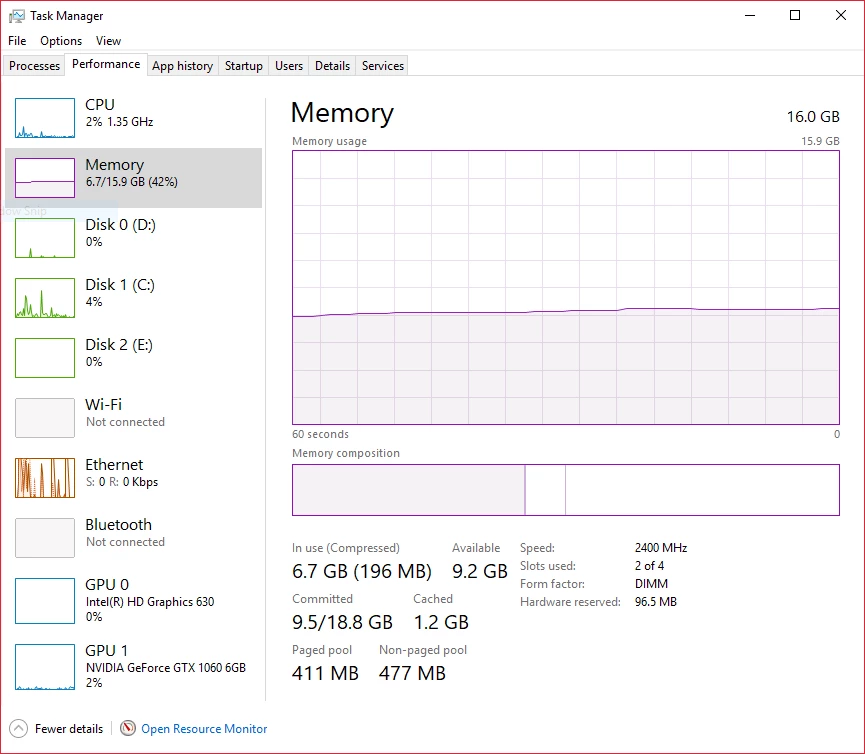
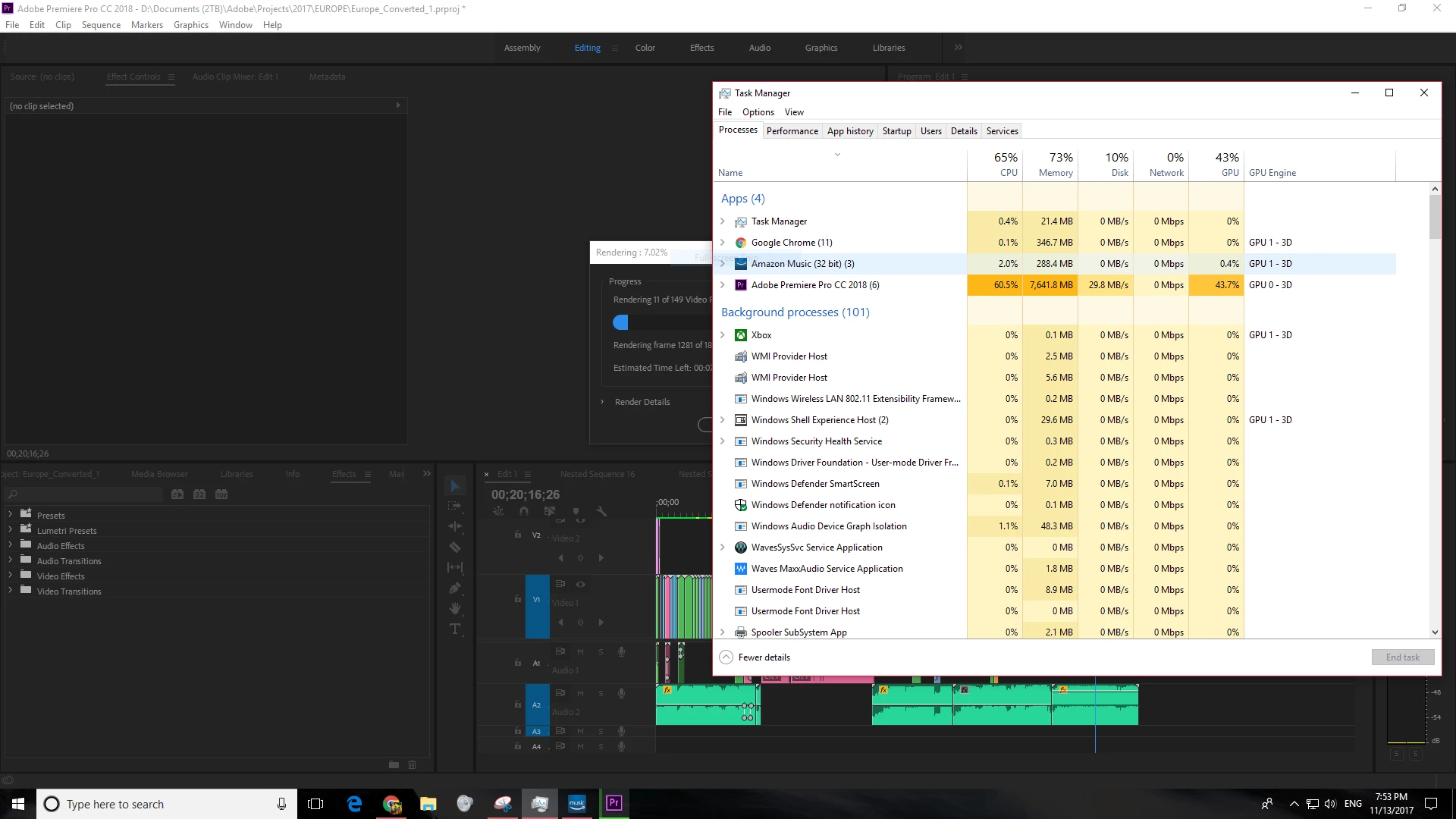
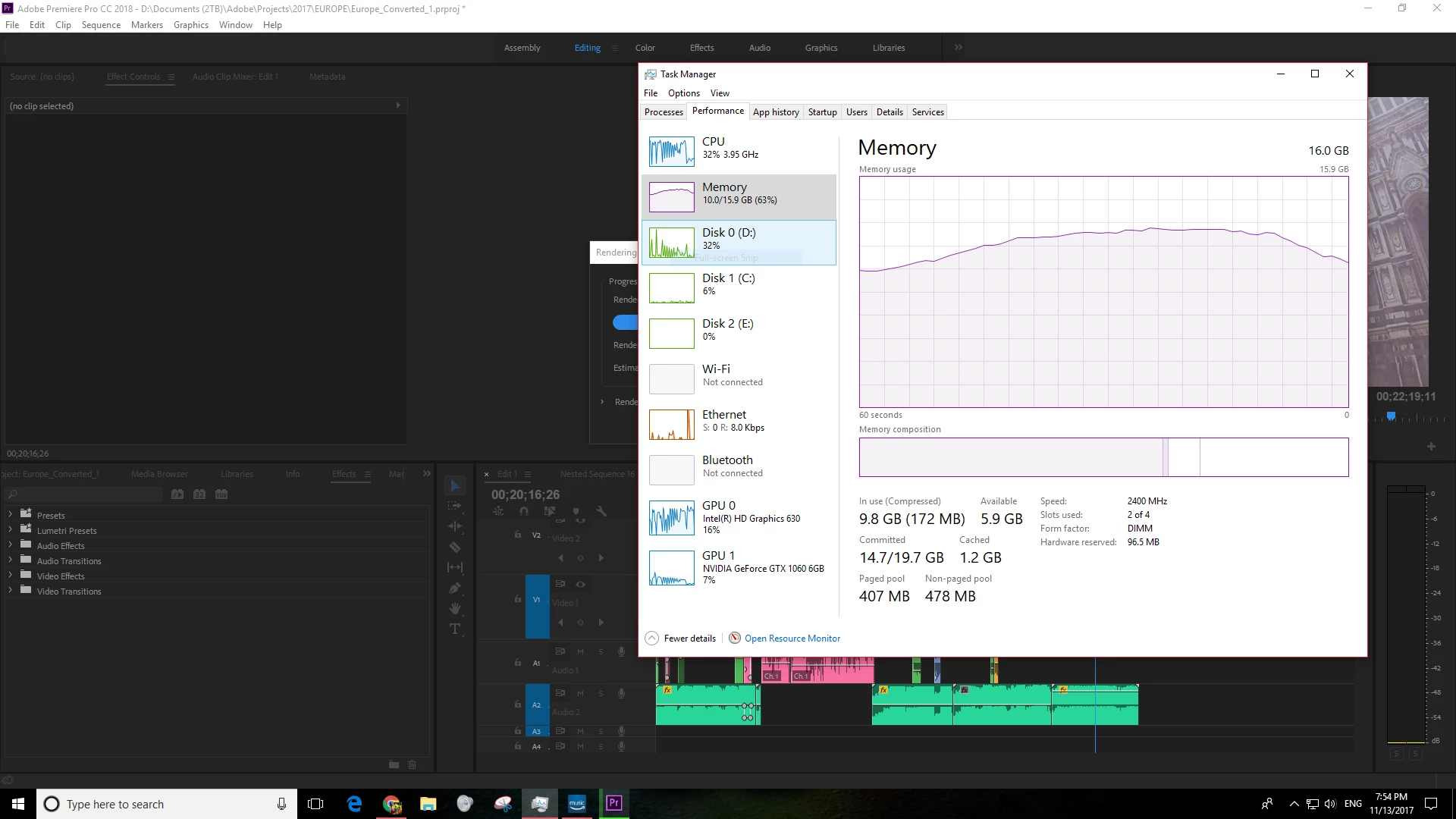
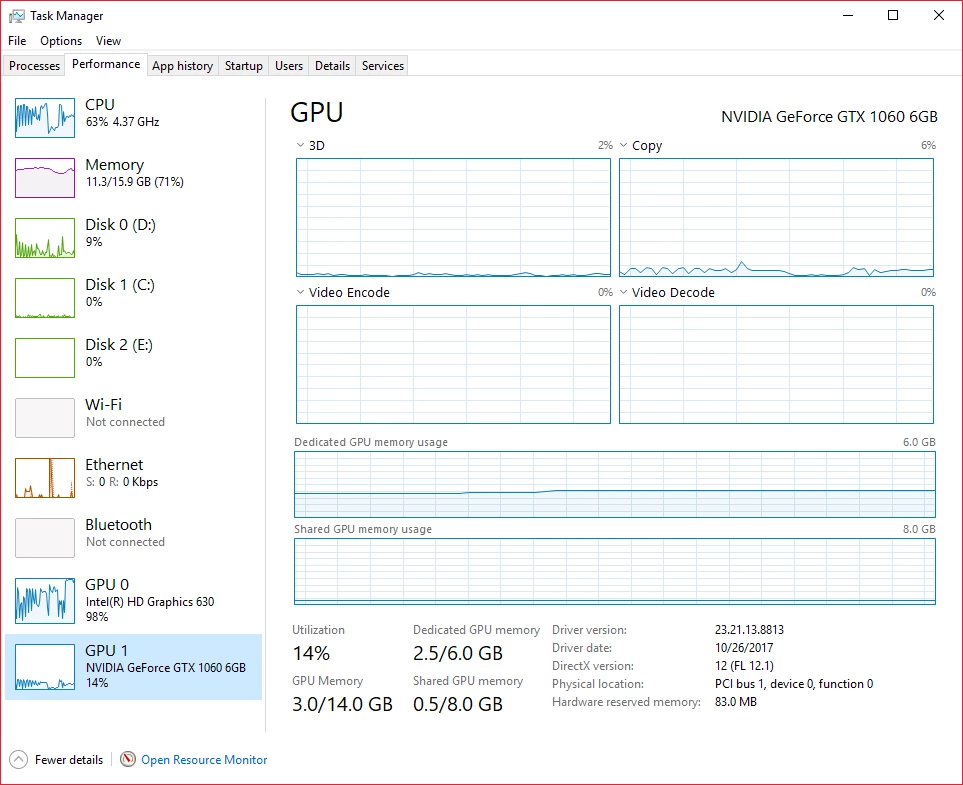
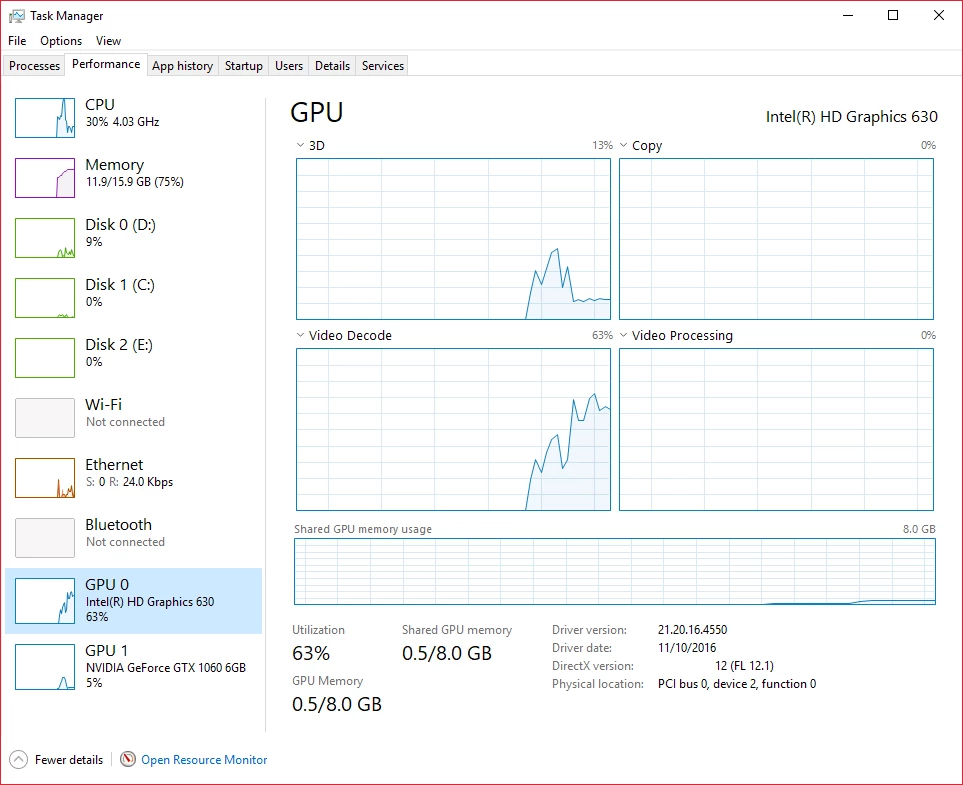
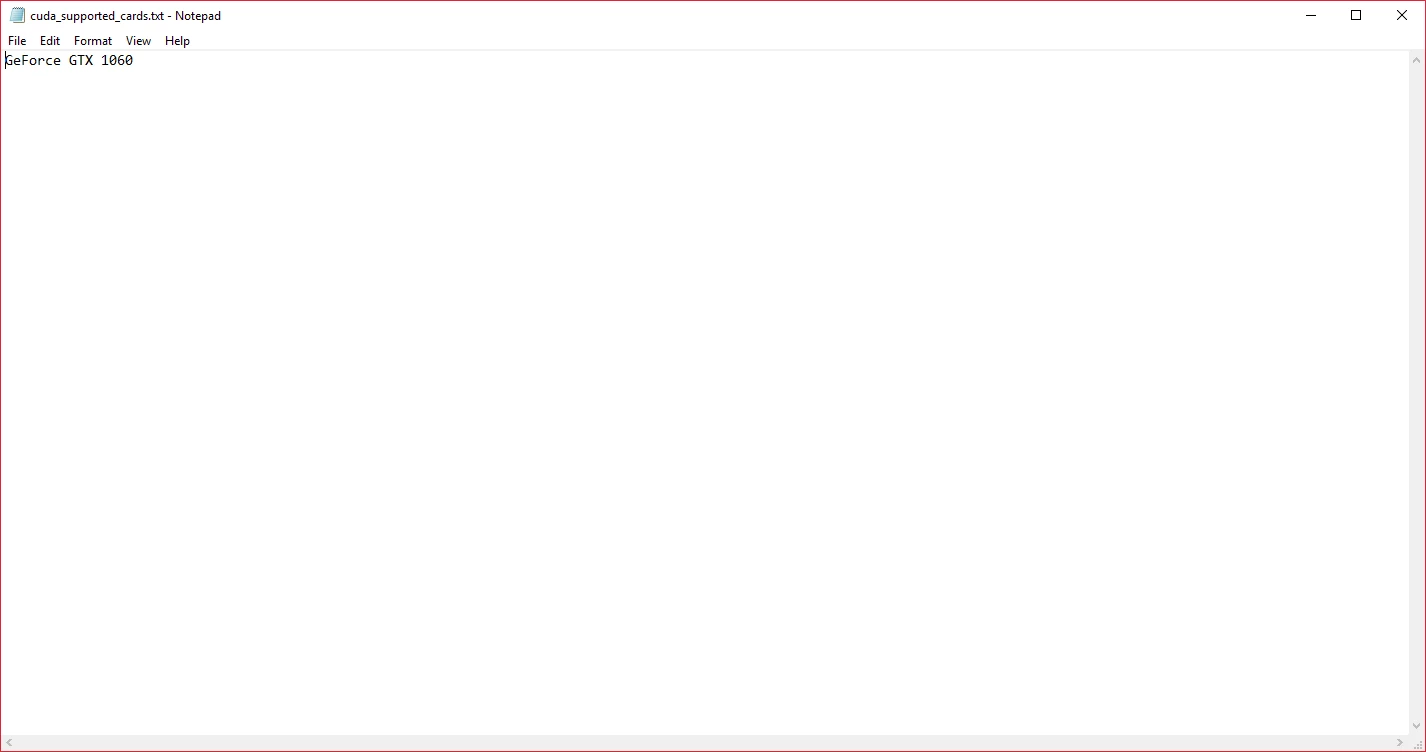
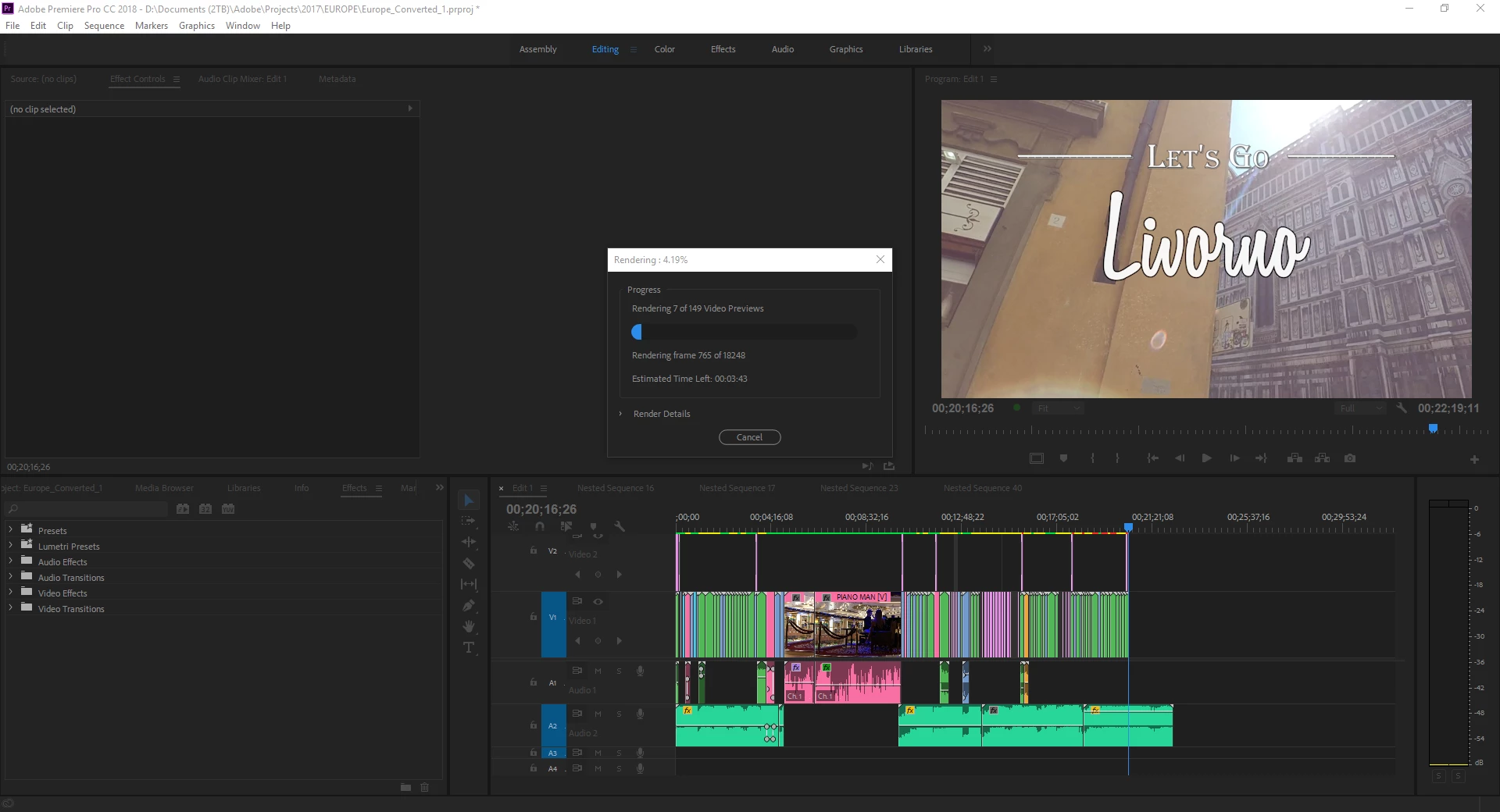
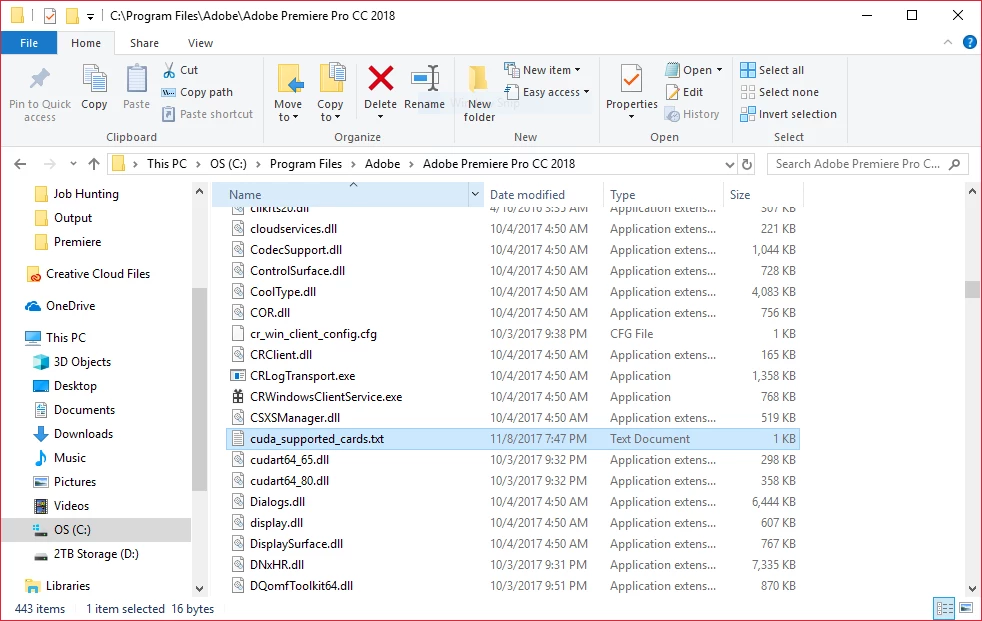
Hello all, I have a quick, but important question about Premiere Pro CC 2018. It seems that Premiere Pro is using my integrated graphics on my CPU rather than using my installed and working dedicated graphics card to render GPU accelerated effects and such. I am running a fresh install of Windows 10 with the latest updates. I also have a fully updated Creative Suite. Below I have listed my system specs and screenshots for reference to the issue. Notice that under GPU Engine in Task Manager, it lists GPU 0, my integrated graphics. I have also done some research of my own, and I have come across adding the "cuda_supported_cards.txt" into Premiere Pro's installation directory. I have done that, and I have tried both typing "GeForce GTX 1060" and "GeForce GTX 1060 6GB" into the document, but its the same story for both cases: it uses my integrated graphics. The file currently lists "GeForce GTX 1060".

Thank for any and all help,

Ryan

System:

7th Gen Intel i7-7700K Processor (No current overclock)

nVIDIA GeForce GTX 1060 6GB

256GB M.2 SSD

2TB 7200 RPM HDD

16GB of 2400MHz DDR4 Memory

Windows 10 Pro 64-bit

Screenshots (Idle, Premiere Pro loaded and open, not rendering):
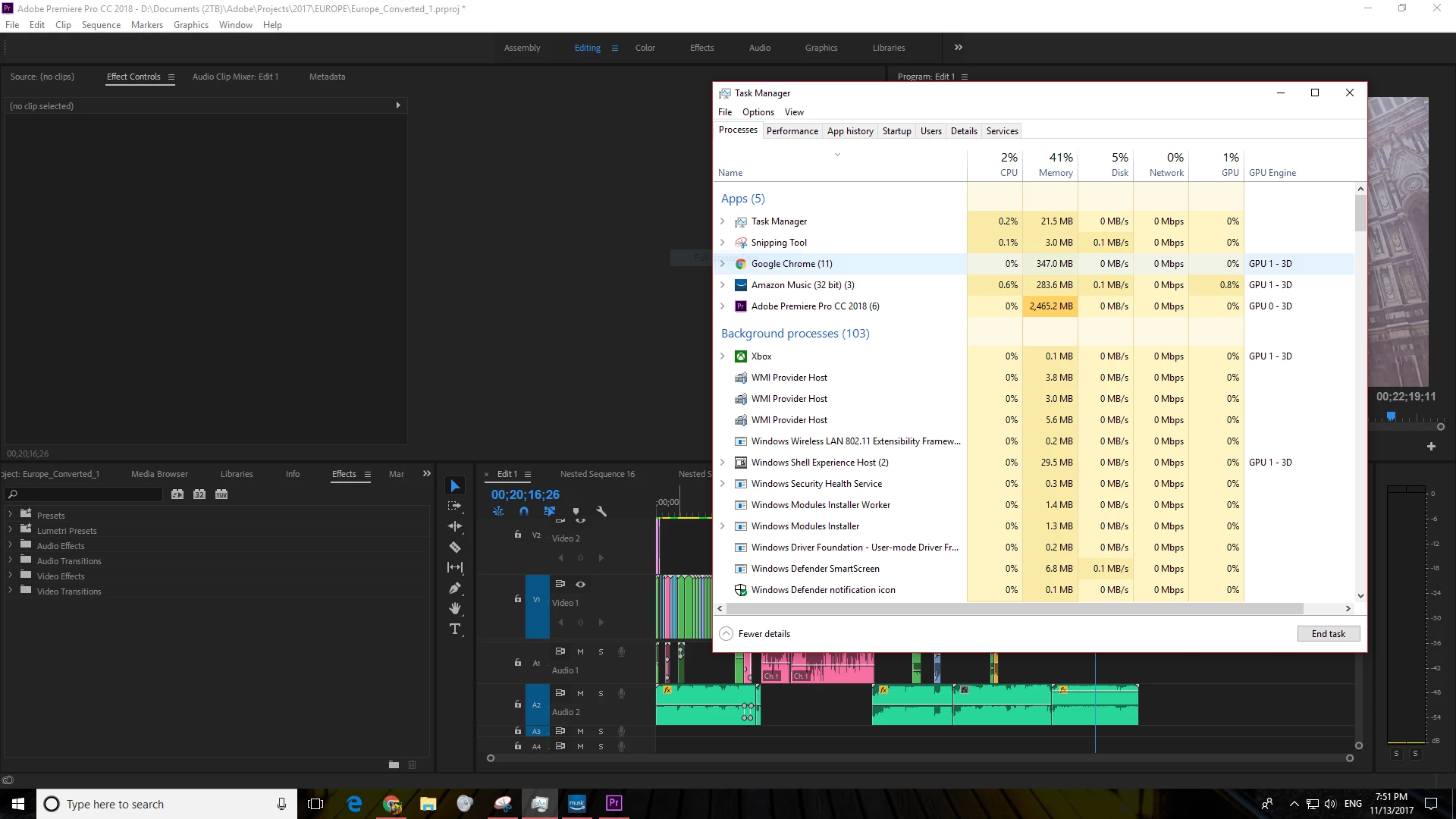
Screenshots (Premiere running, Rendering previews for a project of mine):
Text Document:
[Moderator note: moved to best forum for technical issues.]

Correct answer caroline_edits

We created a video on how to optimize your GPU for Adobe apps here! Take it with a grain of salt, if you have an Intel GPU using QuickSync, you're best off using that GPU for H.264 and HEVC (H.265). 


Caroline

49 replies

Participant
June 2, 2019

Hi everyone,

I've been looking into this matter as I have experienced this too for quite some time now....well, more like as soon as I started using the Premiere Pro. Last night, I was rendering a 9-minute video and it was using about 90-99% Intel GPU. Render setting was my usual resolution and VBR 2, and it was taking longer to render, and I have experienced faster render with similar length videos.

This morning, I tried rendering a new one as I had to revise some details in the video and I tried the CBR, and wouldn't you know it, it started using the Nvidia GPU and improved rendering speed. I normally use VBR 1 for my clients as the videos I do are mostly are published online, VBR is normally better for compression.

*Extra.... I just did another rendering and I found out that if my laptop was plugged in while rendering, it was only using 20ish% of the dedicated GPU. My adapter was becoming a little bit hot so I unplugged it and the dedicated GPU usage jumped to about the same as in the picture.

Nate McFadden
Adobe Employee
Adobe Employee
June 7, 2019

Hello,

What are you encoding to and from? What (if any) effects are on the timeline?

Thanks,

Nate

Participant
June 11, 2019

2 adjustment layers. 1 for exposure and colour correction, and then 1 for a LUT.

And then I have several animated text graphics and an overlayed b-rolls spread across the timeline.

I'm encoding it to a .h264, 1920x1080, 23.976 fps, CBR 15mbps.

Participant
March 5, 2019

Just want to share that i am doing fine with CUDA rendering on PrPro CC 2018 latest update. There is no problem with GPU not being used for rendering. AS you can see, my GPU is 1060 MaxQ (I am using notebook, Dell 7577) is at 100%, and low CPU usage.

There is also times that the dedicated GPU is not fully used because the content is not 'accelerate-able', especially when exporting to H.264 codec and not so much effect.

Viktor sloth
Known Participant
January 8, 2019

i can't fathom this is still an issue...

my 3.200 euro Surface Book 2 have been shit from day because of this issue...

All Adobe applications run like shit on it because of extremely poor GPU behaviour

January 12, 2019

I have a similar set-up to you (notebook with integrated GPU (Nvidia MX150).

I had previously been able to use Premiere Pro (both 2017 and 2018) with no problems and then, all of a sudden, it stopped working for me. This had happened previously and I managed to fix it (only for it to randomly happen again).

I could not remember the solution the first time this happened, months ago ... I'm sure it involved looking at this thread and banging head against the wall then, too! I had installed myrad different versions of the integrated Intel HD 620 GPU and the Nvidia dGPU, with various combinations, in the bid to find a solution. No dice!

However, I've created an account here to see if it might work for you guys (and in case I need to see this post again, when PP inevitably screws up for no apparent reason once more!).

I think the main solution for me was that I went into Preferences>Media>Unchecked the option for "Enable accelerated Intel h.264 decording (restart required)".

I had also done a step prior to that before restarting so it could also be this: (or a comination of this technique and the unchecking accelerated decoding option).

Start>Command Prompt (type cmd and enter)>regedit (type, hit enter)>HKEY_LOCAL_MACHINE>SOFTWARE>Khronos>OpenCL>Vendors> Right click on the REG_DWORD option(s) and select "modify">Change the "Value data" from 0 to 1 [this disabled OpenCL, I believe - must help make Premiere Pro choose the CUDA of NVidia?]

I restarted after performing the above two actions and, voila, it started to work again.

I have no blooming idea why PP stopped working when it previously had no issue with the iGPU nor dGPU ... I'm guessing some automatic background updates that were performed to update the drivers, or the PP software, messed things up.

I hope this works for people!

Edit: Another potential option that I also did was I changed my battery settings. It was previously on power saving mode, so perhaps there was an issue there?? something else to think about!

R Neil Haugen
Legend
January 15, 2019

"Battery saving mode" and "NLE" are not good combinations. Make sure any laptop used while editing with Pr has that turned off! The first thing that typically does is bypass a full GPU to use the lower-power-consuming on-board chip.

Neil

Everyone's mileage always varies ...
Billy Cao
Participant
December 22, 2018

Hi all,

For those who are still angry about your GTX card not being used at all, I have one way to use it FULLY during EXPORT ONLY (Meaning to use GTX Hardware encoder instead of your iGPU hardware encoder, which I find was much, much, much faster.)

I have a 2year old laptop with i7 6700HQ and GTX 960M, running latest PR 2019. Thought I still see minor usage on GTX GPU during replay, I recently found a way to use the GTX card for exporting, which surely saved me a HELL lots of time.

But before I share my solution, I would like to point out something that should be the root of "Preview not using GTX GPU" issue. Hardware decoding. If you have checked "Accelerated H264 decoding" in PR settings, you will notice that your iGPU's "Decoder" engine was specifically high load in task manager. This is because PR is using your iGPU's hardware decoding unit to speed up decoding your raw videos, instead of CPU decoding. However, the problem is your GTX GPU can also decode the same video, at a much higher speed than iGPU, but it is not used, due to adobe ONLY recognising Intel QSV Codec (The official name for video encoding/decoding unit in an iGPU). This means that even if you disable your iGPU, Adobe will ONLY use the software to decode your video instead.This applies to AME and AE also.

HOWEVER, as many of you have mentioned, your GTX GPU is not 0%, but rather a very minor usage. You will also observe that it's VRAM is actually used. This is because your PR UI, including preview panel, is RENDERED on your GTX. What this means is that Windows uses GTX card to render your PR user interface, while the video you are processing with PR are STILL processed/decoded by Intel iGPU's QSV. This explains why forcing PR to run on GTX GPU does not really "transfer" the usage from iGPU to GTX. Your GTX IS indeed being used to DISPLAY PR, not DECODE and make your previews. GTX simply copies the decoded video from iGPU to display. That's all it does.

That being said, now it should be more clear about what is the root cause of this issue. Hence, by only saying "not using GTX GPU" is very vague, and in fact, wrong.

Now that you know how multi-GPUs works, time to share my solution to encoding using GTX.

Care: GTX GPU Built-in encoder offers much higher speed at a small cost of compression quality, especially for low-bitrate video. I recommend setting a relatively higher bitrate for this.

Below is the link to a encoder plug-in. After installing, restart PR and click export. You will find "Voukoder" as an option in the "Format" dropdown list. After selecting it, select "NVIDIA NVENC H264" in the video settings below. This is so far the ONLY thing I've used on PR that can drive my GPU to 100% usage and max VRAM usage.

I did a simple test with a 1080P 2.30min video. Using PR's default "H264" encoder took 3min29sec, while using NVENC took me 59sec only..

Oh and this plugin is open-source, meaning it is complete free of virus/whatever malware.

Releases · Vouk/voukoder · GitHub

Participant
January 26, 2019

@Billy Cao well my video encoding tiem upgraded from 1 hour to 3,5 minutes. So I need to thank you)))
can we mark your comment as a solution for now?

Billy Cao
Participant
January 27, 2019

Sure. Happy to see my suggestion helped

Known Participant
December 19, 2018

Just FYI, I recently used the Premier Rush app, and it chose the more powerful graphics card in my notebook during export/rendering (50% use on powerful graphics card, ~0% on motherboard graphics as shown in the Task Manager). Rush doesn't seem to have a preference for choosing a graphics card, but it chose correctly. It would seem that Adobe CAN do it correctly, they just need to have the Rush engineers teach the Premier engineers.

josha36694150
Participating Frequently
December 16, 2018

Noticing Dell mentioned a lot here. I have a new Dell XPS 8930 with same problem. Adobe: please fix this issue!

R Neil Haugen
Legend
December 16, 2018

This is a user to user forum. If you wish to communicate with the development team please post on the UserVoice system which goes directly into the engineers system.

And   ... please do.

Neil

Everyone's mileage always varies ...
Jonny 5ive
Participant
December 12, 2018

This is going to seem silly..., BUT I was having the same issue after IT moved my office. After hours of scouring forums looking for a solution, it turns out my monitors were plugged into the MB and not the Nvidia GPU so windows assumed I wanted the Intel HD graphics to be the default. I just plugged the monitors into the right slot, disabled the Intel HD Graphics through the device manager for good measure and everything was good to go.

DCSmith!
Known Participant
December 12, 2018

Tried disabling the Intel HD Graphics in Device Manager.  Didn't work for me.  Over a month ago I had a support call with Adobe.  They did a screen share with me and saw the problem.  They agreed that they need to do something in Premiere Pro CC 2019 to fix the problem.

alext2061629
Participant
December 6, 2018

Hi All,

Just to make this clear. This is happening on all laptops even around the world. I have a lot of friends including myself using different brand name laptops and they are having the same issue. This is obviously an Adobe problem. Sad to say, It will not be fixed until we VOTE for the fix. So....

1. Log on

2. Go to the Adobe link: ability to choose graphic card – Adobe video & audio apps​ or https://adobe-video.uservoice.com/forums/911233-premiere-pro/suggestions/34094896-ability-to-choose-graphic-card

3. Click Vote (The more votes, the better)

4. And wait for a patch. If you hurry and vote, we can get enough votes for the next patch coming soon. It has to be enough votes for them to consider the problem to be fixable. Good luck everyone.

Participant
December 6, 2018

Alex,

I know you mean well here, but can we please encourage users to vote on the much more highly upvoted user's voice below, we dont need the ability to select the graphics card, we need Premier Pro to recognise and utilise the more powerful graphics card automatically.

P. Pro not using correct graphics card – Adobe video & audio apps

^ Please update this one with all your might ^

gerradm70779952
Participant
December 10, 2018

For those that need a quick fix:
I've ended up pre-rendering the timeline and selecting 'use previews' on the rendering window. This yielded the best results with a %100 success rate.

I do hope they fix this issue ASAP though

georgef66459885
Participant
November 9, 2018

Hi and sorry for my english, and if my question has an answer above...

I have a desktop, without GPU, and i want to use my intragrated GPU in my 8700k intel.

I have an old version (Premiere Pro CS6). how can i use it, if i can use it in this old version...

Thank you from before..

Legend
November 9, 2018

Unfortunately all Windows versions of CS6 do not support OpenCL at all, so with just the integrated graphics your system will be "locked" to the software-only (or CPU-only, with no graphics utilization whstsoever) mode.

Known Participant
November 8, 2018

I am also frustrated with how little Adobe takes advantage of CUDA in my GTX 1060 6GB graphics card.

I don't have an issue of Adobe using the wrong card, it's just that it hardly uses the GPU at all during playback.  Adobe is using 100% CPU during un-rendered playback while my graphic card just sits at under 5% utilization.  However, if I just open up any of my h264 files in Windows Explorer, the file is opened in "TV & Movies" and I see GPU utilization spike up to 50% while CPU is at 5%, essentially the opposite of what happens during playback in Adobe.  I don't get it. 

Dell XPS 8900

Intel i7-6700 CPU @ 3.40GHz  (6th Gen)

24GB DDR4 Memory at 2133 MHz

GeForce GTX 1060 6GB

Samsung 850 Evo SSD - O/S and Apps

Samsung 860 Evo SSD - Media, project files, media cache, scratch

Seagate Barracuda 1TB 7200RPM - Long-term storage

R Neil Haugen
Legend
November 8, 2018

Adobe's design uses the GPU for certain things off the GPU Accelerated Effects list. Especially things like color, warp stabilizer, and major re-sizing things.

GPU Accelerated Effects: https://helpx.adobe.com/premiere-pro/using/effects.html

So if you're not using something off the list at the moment in playback or exporting, the GPU will not be used for much. Especially H.264 decoding/decompressing is a CPU-only task.

That's just an explanation of what is. Over time, they've added more effects to that list every release. There's still a lot more GPU use they could make, and for a rig like yours with a GPU way past 'balanced' with that four-core CPU, it would be great if they did use the GPU more.

A 1050/4GB would maybe have been a better 'fit' for you CPU/RAM, as when used with GPU-accelerated effects you'd be running a lot more percentage of the capabilities of the card. To really use that 1060/6Gb, you'd need to probably have a six-core CPU. As is.

Building computers for PrPro/NLE use is a tough thing ... most gaming concepts for building a 'video' rig not only don't apply, they are counter-productive. Fast cores: 3.8Ghz or better, up to around 10 cores, is a starting point. Then with as close to 10GB of RAM per core as you can go ... then matching a GPU to that capability. Using SSD drives for OS/programs, maybe an m.2/Nvme for projects/cache and even "active in-use" media if you can.

All that aside, pushing to get more things on the GPU Accelerated list is something to work for.

Neil

Everyone's mileage always varies ...