rmthompson902
Known Participant
November 14, 2017
Answered

Premiere Pro using Integrated and not Dedicated Graphics Card

  • November 14, 2017
  • 49 replies
  • 452555 views

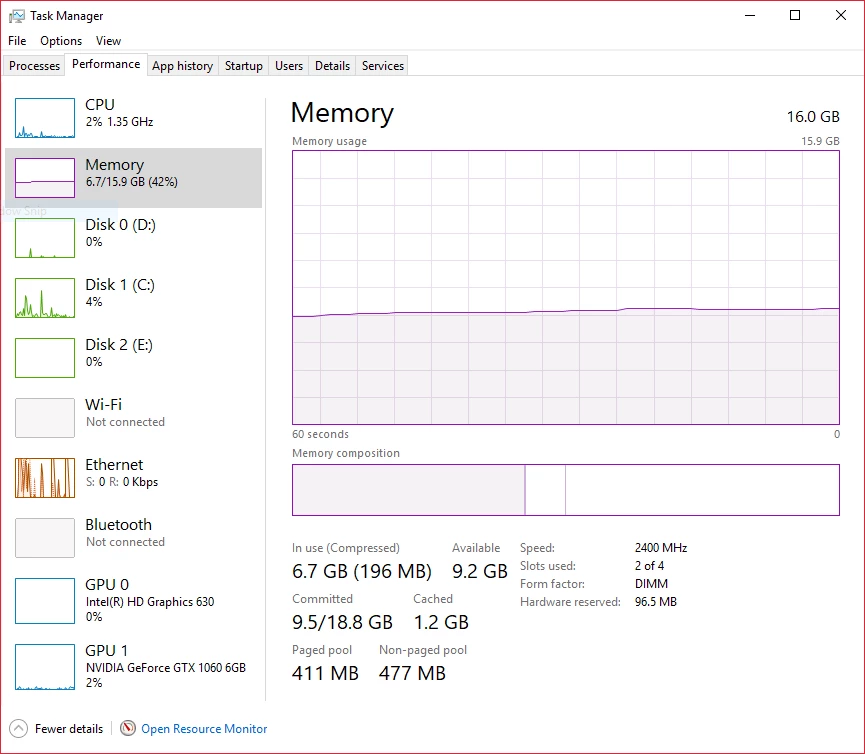
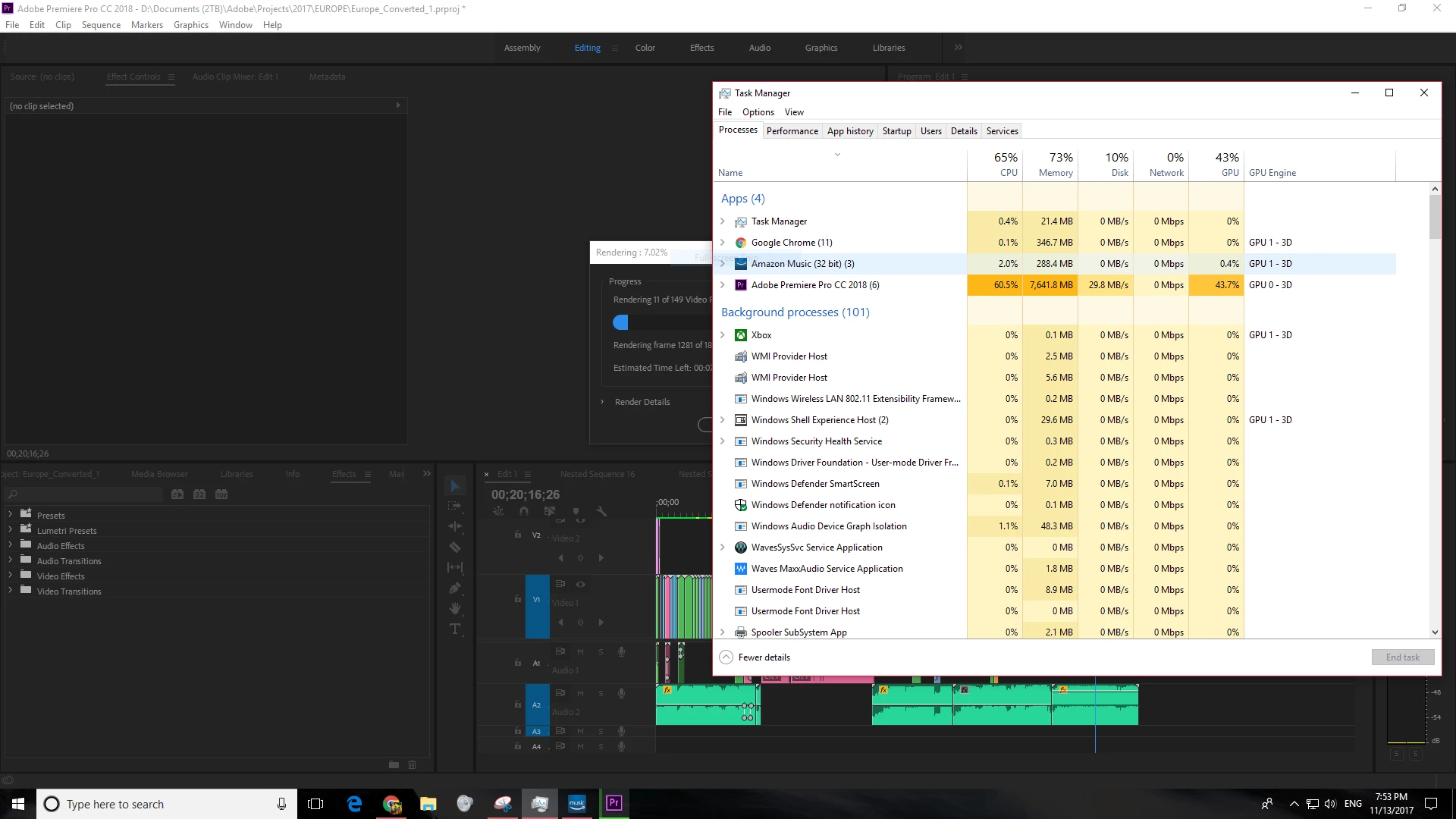
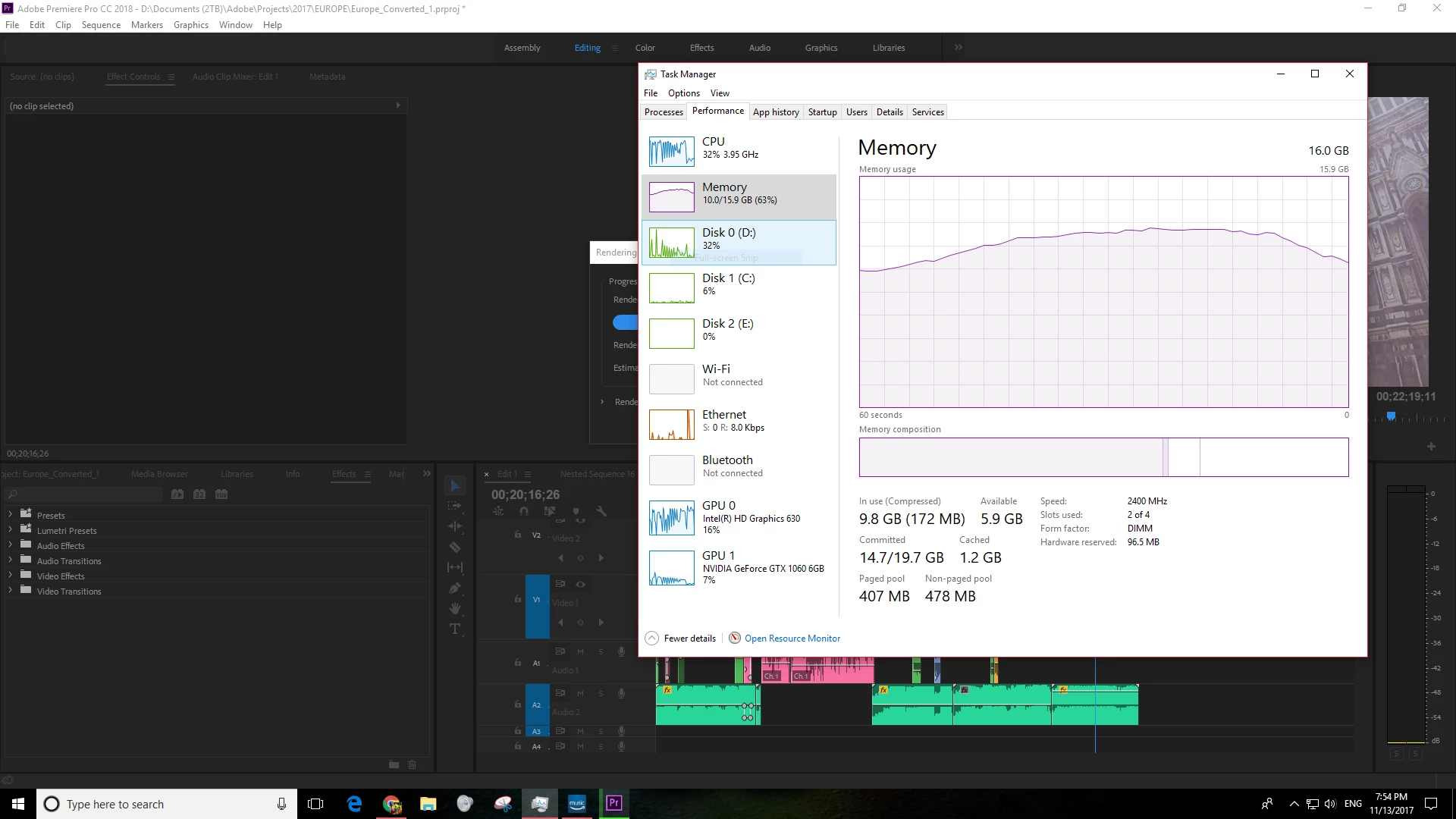
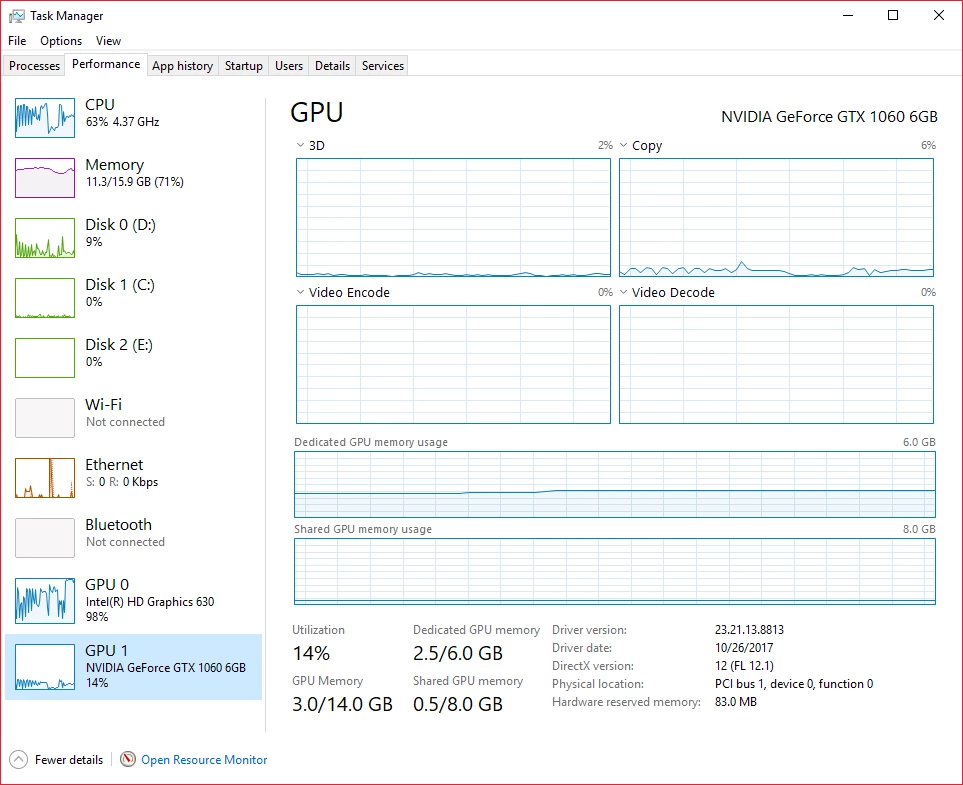
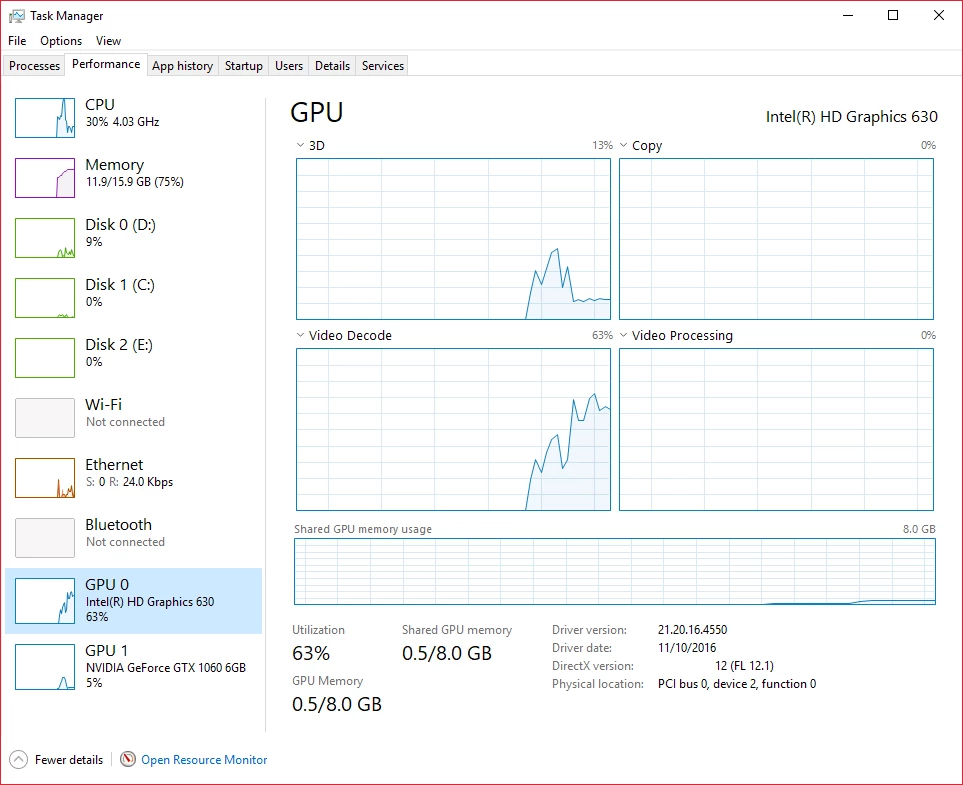
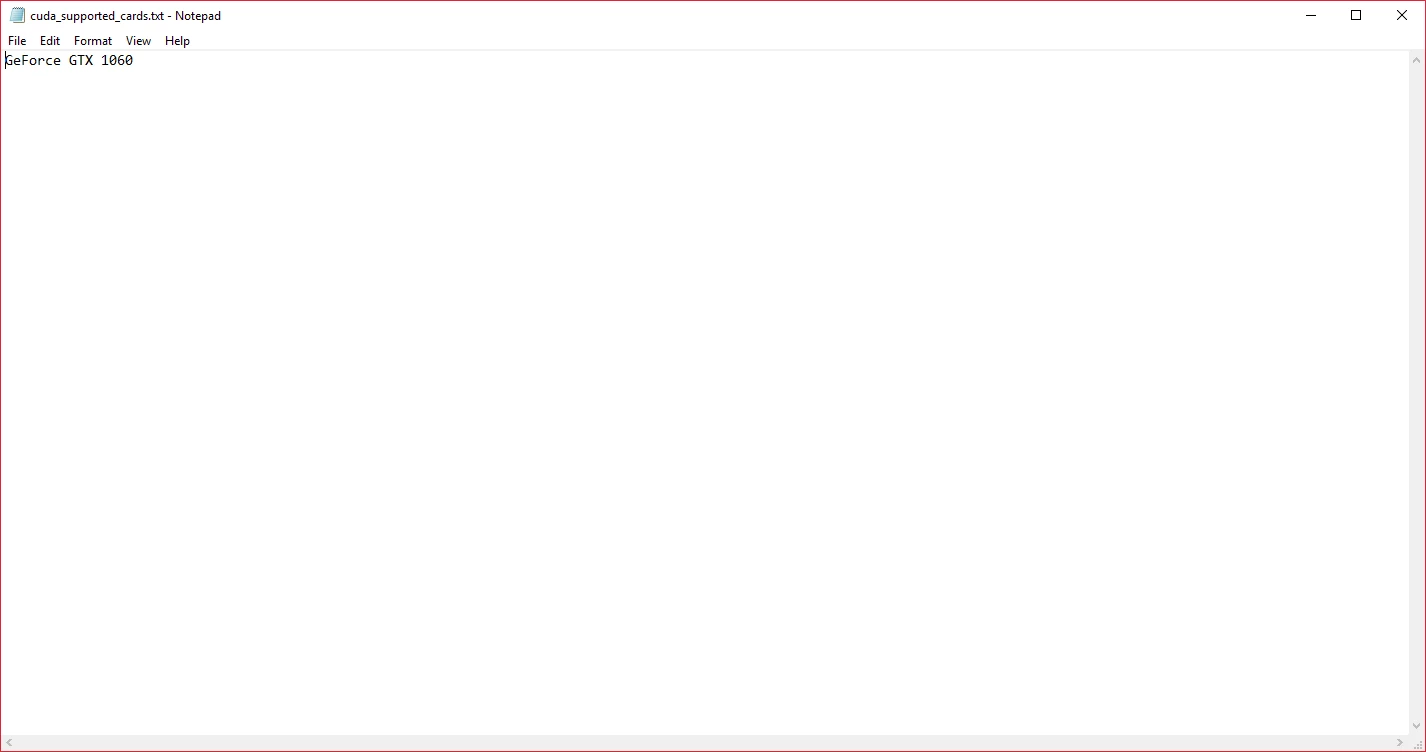
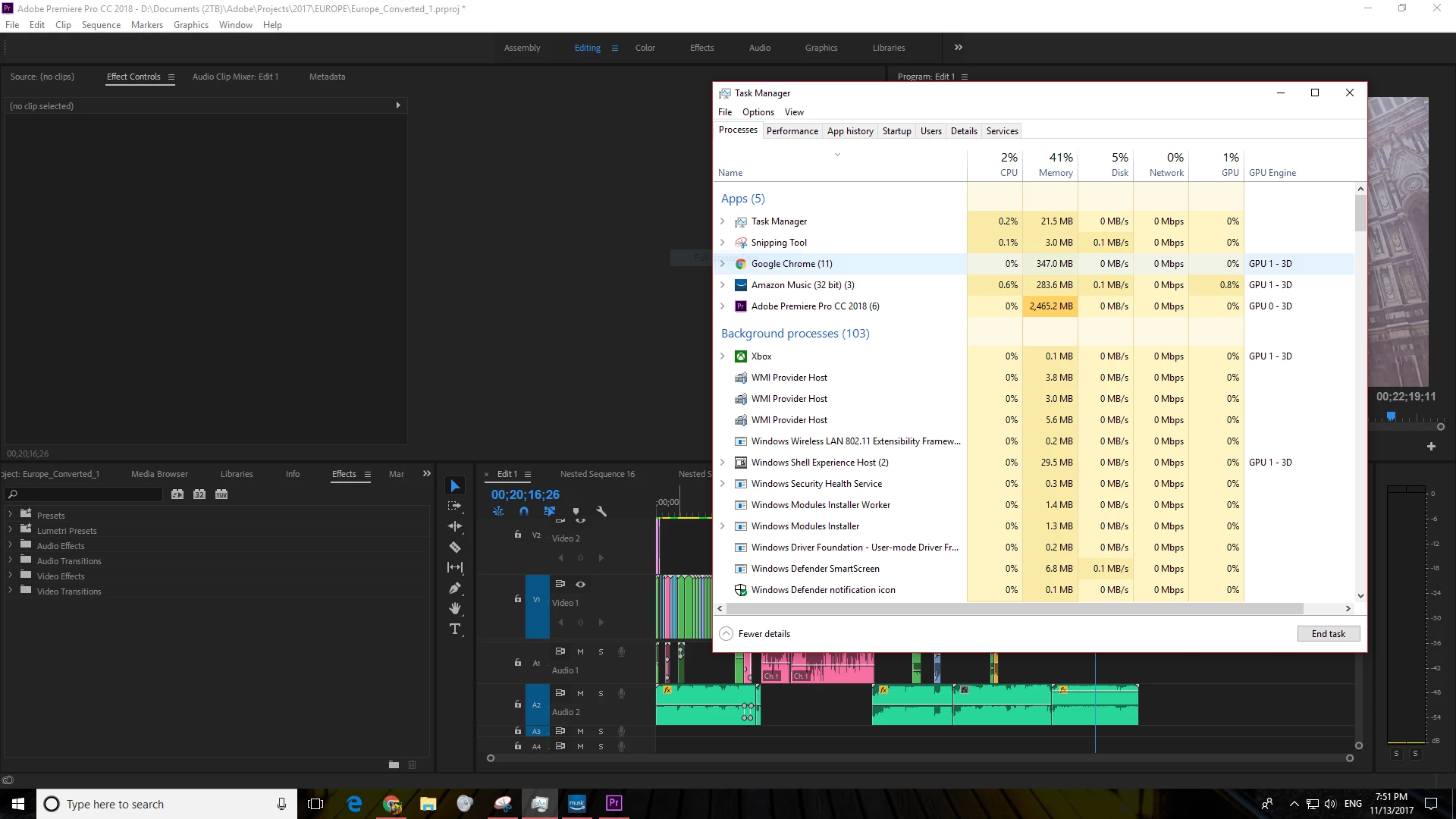
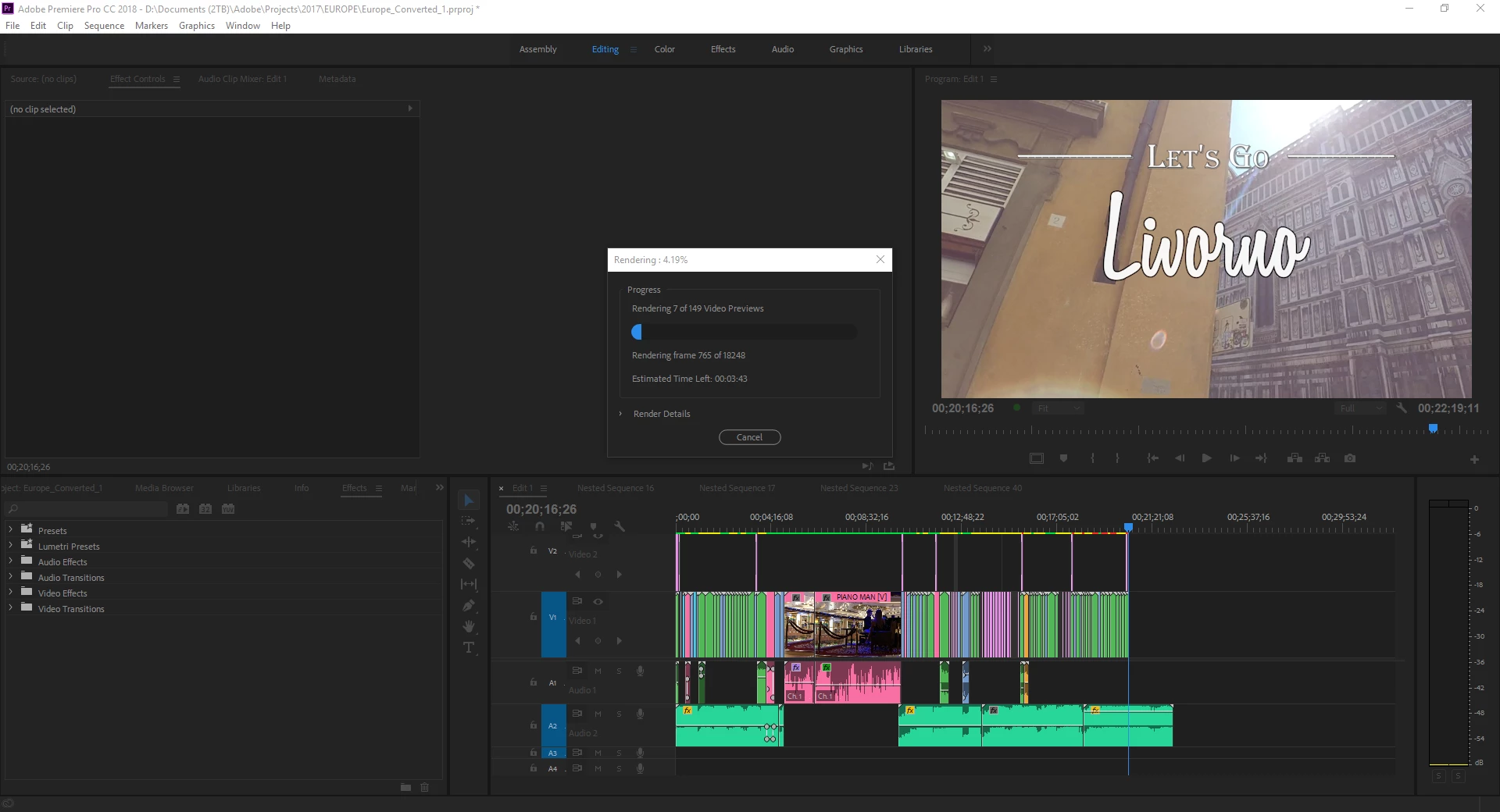
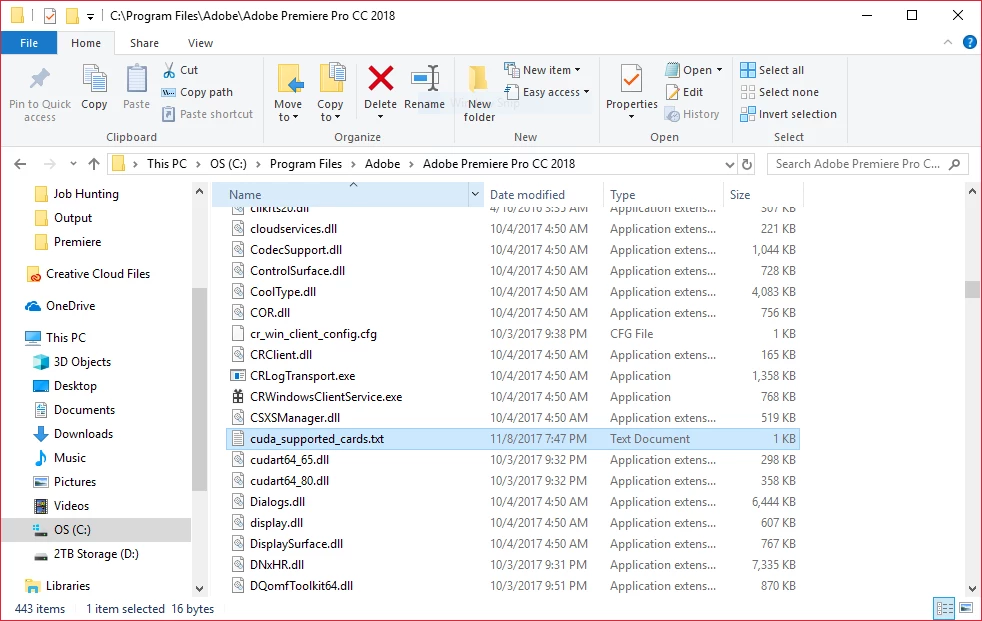
Hello all, I have a quick, but important question about Premiere Pro CC 2018. It seems that Premiere Pro is using my integrated graphics on my CPU rather than using my installed and working dedicated graphics card to render GPU accelerated effects and such. I am running a fresh install of Windows 10 with the latest updates. I also have a fully updated Creative Suite. Below I have listed my system specs and screenshots for reference to the issue. Notice that under GPU Engine in Task Manager, it lists GPU 0, my integrated graphics. I have also done some research of my own, and I have come across adding the "cuda_supported_cards.txt" into Premiere Pro's installation directory. I have done that, and I have tried both typing "GeForce GTX 1060" and "GeForce GTX 1060 6GB" into the document, but its the same story for both cases: it uses my integrated graphics. The file currently lists "GeForce GTX 1060".

Thank for any and all help,

Ryan

System:

7th Gen Intel i7-7700K Processor (No current overclock)

nVIDIA GeForce GTX 1060 6GB

256GB M.2 SSD

2TB 7200 RPM HDD

16GB of 2400MHz DDR4 Memory

Windows 10 Pro 64-bit

Screenshots (Idle, Premiere Pro loaded and open, not rendering):
Screenshots (Premiere running, Rendering previews for a project of mine):
Text Document:
[Moderator note: moved to best forum for technical issues.]

Correct answer caroline_edits

We created a video on how to optimize your GPU for Adobe apps here! Take it with a grain of salt, if you have an Intel GPU using QuickSync, you're best off using that GPU for H.264 and HEVC (H.265). 


Caroline

49 replies

Participant
November 6, 2018

My only gripe is, this seems like it would be fixable but instead we’re just told to disable the iGpu thus disabling potentially three screens the user could have used if the issue was fixed by Adobe.......

Participant
October 30, 2018

So has this embarrasing issue been resolved finally ? I'm about to embark on a full time gig using PP and will invest in a proper AMD GFX for the task, but I don't wanna waste money on a powerfull GFX if Adobe are still acting like —.

Moderator note: Profanity warning. It is unacceptable to use profanity.

Participant
October 22, 2018

So I've learned a couple things since my last post. I just built a desktop yesterday and was using a laptop before that. On the laptop, AME was using the IGP and GPU but the GPU usage was pretty low (5%-10%). I figured it was normal. On my desktop however, the IGP usage is 100% and the GPU is on average above 50%. The difference here is a 45W TDP with a locked CPU and an inadequate power supply for such demanding power draw vs an unlocked CPU that can draw over 100W easy with plenty of power supplied to both the CPU and GPU. My laptop was power limit throttling constantly and I was often editing and rendering at 1.0 GHz. Awful. Without the throttling, the GPU usage was much better but there was such a short window before it started throttling. If you're on a laptop or something with similar power constraints or have a locked CPU that might be the issue.

I've learned also through testing on my desktop that it is much much better to have the IGP enabled. Renders complete much faster with less heat and editing is also much smoother. Hope this helps.

R Neil Haugen
Legend
October 22, 2018

Great information there ... thanks for posting!

Neil

Everyone's mileage always varies ...
Inspiring
October 24, 2018

I have a dumb question.

Exactly how do I enable IGB?  How do I get to it, etc.

I have premiere 2018, ver 12.....

Thanks.

Randall Martin

rmthompson902
Known Participant
October 18, 2018

I would go to say that for the people in this form, it is a problem. It may not be a problem on most desktops/laptops, but still, the people in this form are here to voice their problem.

Ryan

Inspiring
October 18, 2018

Graphics Card problems?

I'm confused; some seem to say that premiere 2018 is not using the card appropriately; others say not an issue.

Is it or isn't it a problem?

R Neil Haugen
Legend
October 18, 2018

This is not a problem on most desktops or some laptops. Some laptops, it is a problem.

I don't know yet how the new 13.x builds do with working with on-board/separate GPU's on laptops.

Neil

Everyone's mileage always varies ...
Participant
October 15, 2018

This is not an issue at all. Adobe added support for the Integrated Graphics to speed up renders as it uses the IGP and GPU at the same time. Here is a video to explain.

Re: HardwareCanucks - $350 vs. $2000 CPU Adobe Premiere Benchmark - YouTube

Inspiring
October 15, 2018

I was about to update to a 1080 video card when this forum caught my attention.  I have an old system and card, and multi-cam editing of any significance becomes impossible.

My Specs:

Processor: Intel, Core, i7-4790K CPU @ 4.00GHz  4.00 GHz

RAM: 32 GB

System type: 64-bit operating system, x64-based processor

Windows 10 Pro, Version 1803, installed 7/13/2018; OS build  17134.345

Samsung SSD 840 EVO 500G SSCI Disk

Video Card: NVIDIA Quadro K2000

Advice-help much appreciated.

Randall Martin (Not the same Randall!)

rmthompson902
Known Participant
October 15, 2018

rmartin215 ,

Personally, I would consider upgrading your GPU, but only to a 1050 or 1060 at max. If you went this route, I would wait for the RTX 2060s and 2050s are released as many will be selling their 1050s and 1060s, driving the price of the old cards down. I would not buy a second-hand GPU.

However, depending on your platform (which you said was outdated), I would consider upgrading your motherboard. A mobo upgrade may give you the additional functionality that you may end up using. Also, depending on the generation and speed of your RAM, I would consider that route as well. I have heard that an upgrade from something like  DDR3 @ 1400 mhz to DDR4 @ 2400 mhz can yield a noticeable responsiveness boost.

Otherwise, your boot drive is an SSD and you have a 4C/8T processor, so you are in pretty good shape. If multi-cam editing is really a system and/or hardware bottleneck and not something software, you still may want to upgrade your mobo and CPU. In this case, you may want to look into what AMD has to offer (as long as you are not a frequent gamer, Intel still controls the market on single threaded performance) to have more cores at (possibly, depends on how much you want to spend) a high base clock.

Hope this helps! All the ideas I had, and definitely stuff to think about.

Ryan

Legend
October 16, 2018

Be careful with memory upgrades: The CPU platform dictates which memory to use. DDR3 RAM and DDR4 RAM are completely incompatible with one another. And that Haswell CPU in LGA 1150 does not support DDR4 RAM at all.

And the latest version of Premiere Pro CC (2019) now no longer supports any CPU platform older than Intel Skylake. 2018.1.2 is the most recent version that supports such a legacy CPU.

NipGeihou
Participant
October 9, 2018

Hello, I'm from China. My English is very poor. I use machine translation for this passage. I hope it doesn't distort my meaning.

I am a college student. I am using a notebook computer with the brand " hasee" for video creation, but I have the same problem as you. when using Premiere pro for video rendering, CPU usage does not reach more than 70 %, while GPU 0 HD graphics 630 is nearly 100 %, GPU 1 NVIDIA geforce GTX 1050 ti is hardly used.

The following is my laptop configuration:

Operating System: Windows 10 Professional Edition 64 - bit

Processor: Intel Core i7 - 7700 HQ

Memory: 16 GB

Main Hard Drive: Intel SSDPEKKW 25121 C ( 256 GB / SSD )

Graphics: NVIDIA GeForce GTX 1050 Ti ( 4 GB / Blue Sky ( CLEVO ) )

rmthompson902
Known Participant
October 9, 2018

nipgeihou

Your translation did not distort your meaning. You have a very similar setup to my own, except that I am on a desktop computer. The issue you are experiencing is the same that everyone else had been experiencing in this thread. However, I do not have a solution for you. The best I can say is to vote on this issue at the link below.

P. Pro not using correct graphics card

Kindest regards,

Ryan

DmitrySuvorov
Participant
August 31, 2018

I'm having just the same issue.

Core i7 8700

GTX 1050 TI

16 GB RAM

Premiere just doesn't use dedicated graphics. I've tried all methods listed in this thread and others. It doesn't depend on whether there are effects/lumetri etc. applied or during playback/render - usage of dedicated graphics is 10% maximum (often 2%). CUDA is turned on in project settings. Turning off integrated graphis in BIOS doesn't help.

Want to try new version of Premiere (12.1.2), seems like there are some hardware acceleration improvements.

UPDATE. No changes in new version.

By the way, when I turn off integrated graphics in Device Manager, the "Hardware acceleration" option disappears from export settings.

R Neil Haugen
Legend
August 31, 2018

Hardware acceleration in- the Export summary box refers to the CPU not the use of GPU. For specific newer CPUs. If that line is what you're referring to.

Neil

Everyone's mileage always varies ...
Participant
August 23, 2018

Following up here as this seems to be a reoccurring issue for many like myself.

Specs:

  • MSI 299 M7 ACK
  • 2x (16GB) DDR 2700 RAM
  • 2x M. SSD 500GB
  • Nvidia GTX 1080 EVGA
  • Windows 10 Home

Adobe Premiere/After Effects CC

Tried everything above minus the registry idea. Nothing works. When rendering I notice 20% to CPU, 50% to Memory and 1% to GPU. I have all cuda premiere/encoder settings set for GPU and yet nothing. Crazy that this has not been fixed and I see it all over the internet.

R Neil Haugen
Legend
August 23, 2018

Again, are you working with effects off the GPU Accelerated Effects list?

If yes, you should get GPU activity while is is processing those specific effects, as the CPU calls for it.

If not, you will not get much if any GPU activity ... period.

GPU Accelerated Effects: https://helpx.adobe.com/premiere-pro/using/effects.html

You're most welcome to go to the UserVoice system and request more things get added to GPU processing ...

Adobe Bug /Feature service: https://adobe-video.uservoice.com/forums/911233-premiere-pro

When going through this and other forums, I do see a lot of comments from folks on such things, most of whom have no clue how this is designed to work. Some do. Like all the kerfluffle over "software only" showing in the Summary section of the export dialog ... thinking this means their GPU is turned off. Which is totally bogus. That ONLY refers to whether or not the CPU has the new Intel hardware encoding chip inside for H.264 encoding ... and has nothing whatever to do with your settings for GPU use within PrPro. Easily proved actually. And I've worked with people who absolutely insisted it was turning off their GPU ... AND ... absolutely refused to do the quick test to show GPU usage is on/off.

At that point, ignorance and silliness are simply past helping. Especially when there are real things that do need fixing. Or, for many of us, added to that GPU Accelerated Effects list.

So ... with say Lumetri and Warp on a clip ... is the GPU still not being used on your exports?

Neil

Everyone's mileage always varies ...
Participant
September 18, 2018

So, I'm having the same problem on a laptop...

Dell G7 with 1060 GTX 6gb w/ Max-Q Design and of course a built-in Intel UHD Graphis 630

1TB Samsung NVMe 970 Evo

6 core i-8750h processor

16GB ram

In premiere Pro CC 2018 the project settings are set to use the Mercury Playback... CUDA engine.

I throw a clip in the timeline and drop WARP stabalizer on it... the CPU hits 40-50%, ram maxes out, and the Intel 630 starts getting used heavily.

The GTX1060 sits there idle.

If i scrub or play the timeline with WARP effect, the Intel GPU hits 80% and the 1060 goes to 7% at most.

If i drop a 4k video, same exact percentage of load with the Intel / GTX1060.

Warp processing on the 4k video uses only the Intel 630 and CPU / Memory.

I've set the Nvidia control panel to specifically use the Nvidia Processor for the programs: Premiere, After effects, and Media Encoder.

I've run the gpudetect from each folder, all programs closed, (run as) Administrator

I've set the two Registry strings to 1 ( ....Khronos\OpenCL\Vendors\..... intelopencl32.dll  DWORD )

If i disable the onboard Intel 630, i can't reach the Nvidia control panel ("no monitor is connected")

If i disable the onboard Intel 630 while Premiere is applying the Warp effect on a 4k clip (takes some time), the GTX1060 continues to sit at 0% usage... if I then enable the Intel 630 (still running the Warp effect), i see both GPU's and both sit at 0%.  The CPU runs the same the entire time.