rmthompson902
Known Participant
November 14, 2017
Answered

Premiere Pro using Integrated and not Dedicated Graphics Card

  • November 14, 2017
  • 49 replies
  • 452555 views

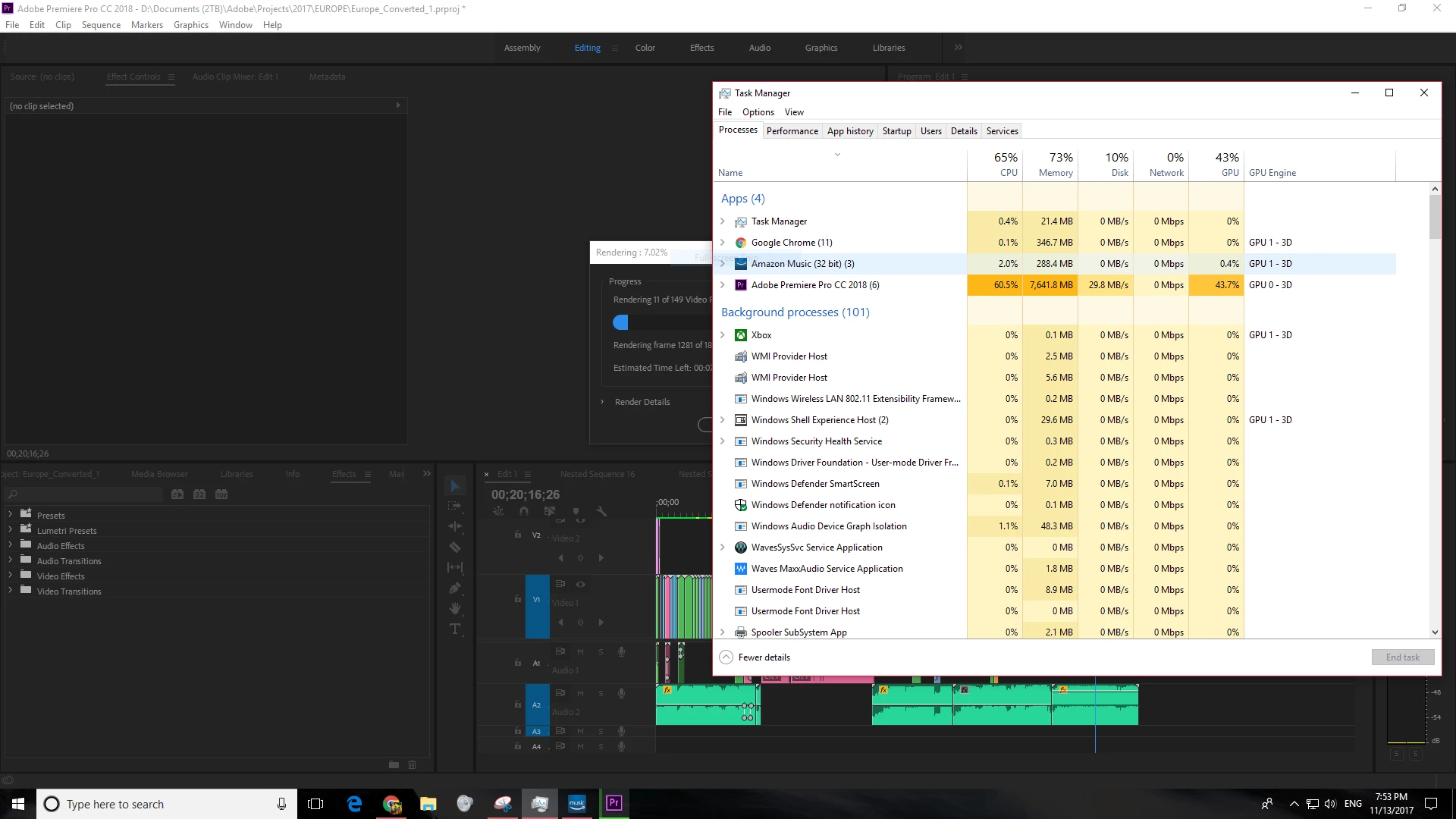
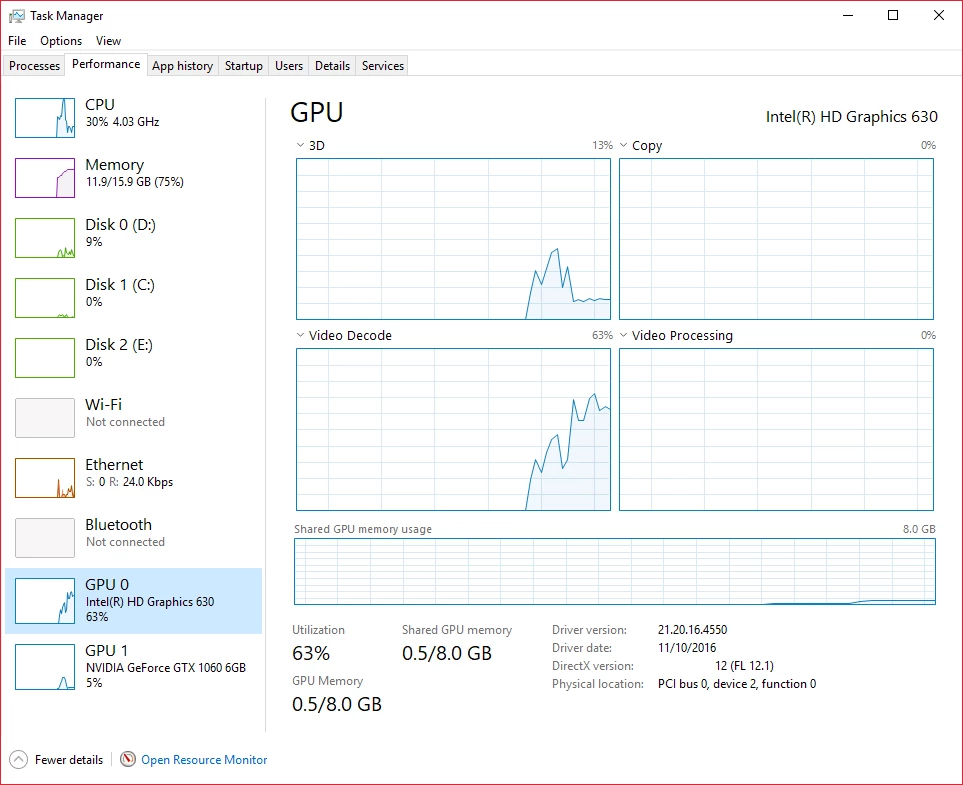
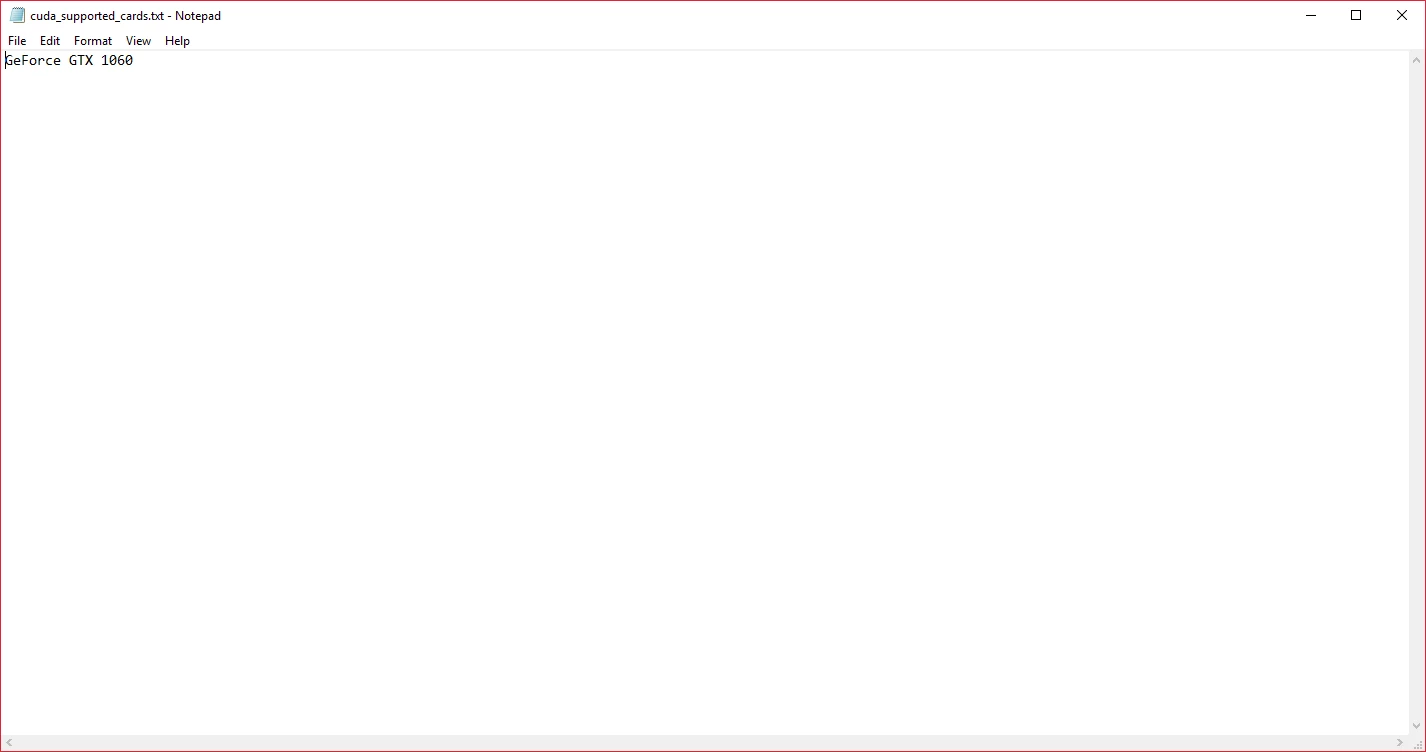
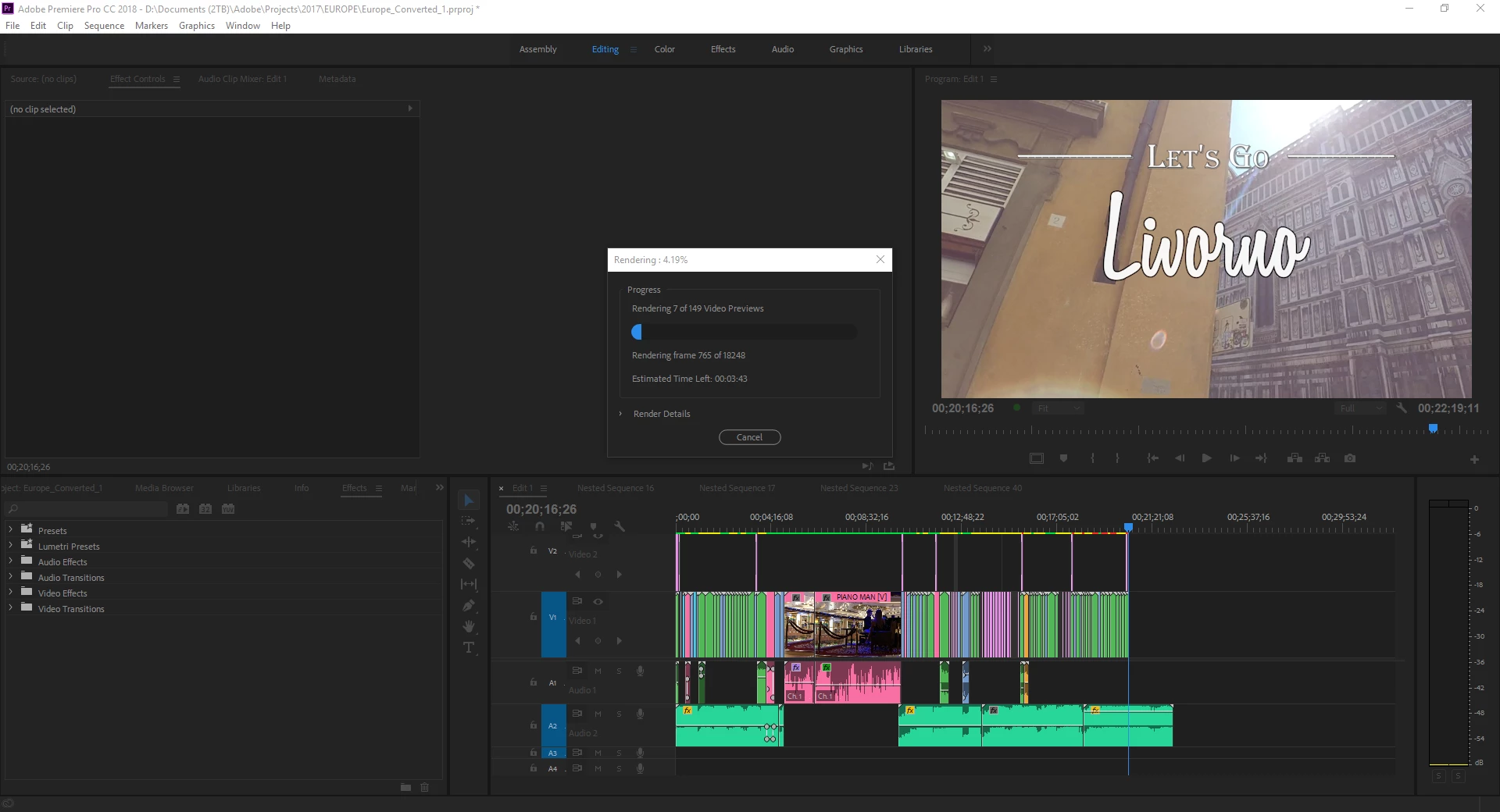
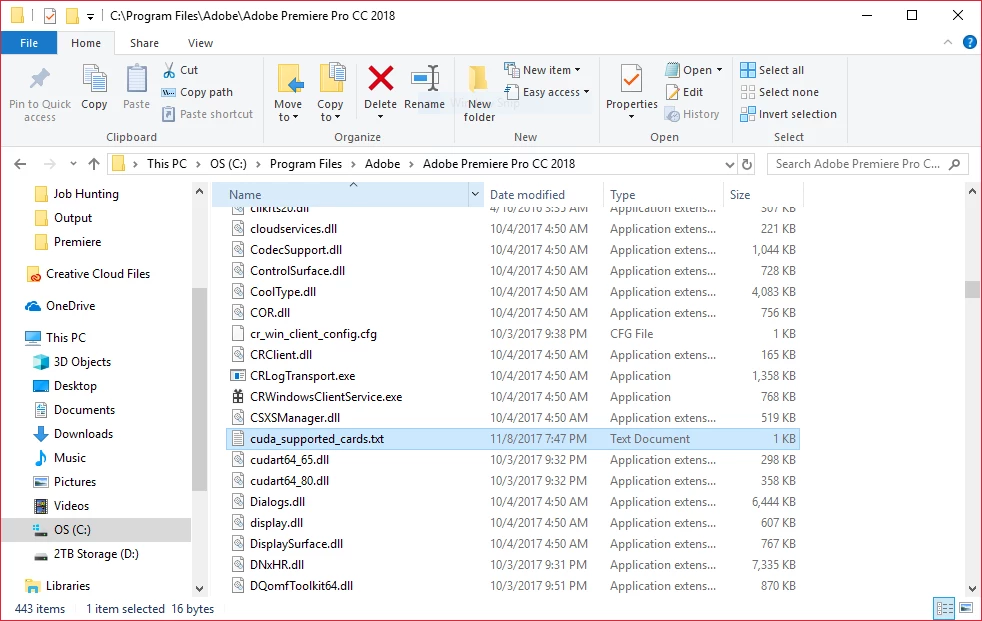
Hello all, I have a quick, but important question about Premiere Pro CC 2018. It seems that Premiere Pro is using my integrated graphics on my CPU rather than using my installed and working dedicated graphics card to render GPU accelerated effects and such. I am running a fresh install of Windows 10 with the latest updates. I also have a fully updated Creative Suite. Below I have listed my system specs and screenshots for reference to the issue. Notice that under GPU Engine in Task Manager, it lists GPU 0, my integrated graphics. I have also done some research of my own, and I have come across adding the "cuda_supported_cards.txt" into Premiere Pro's installation directory. I have done that, and I have tried both typing "GeForce GTX 1060" and "GeForce GTX 1060 6GB" into the document, but its the same story for both cases: it uses my integrated graphics. The file currently lists "GeForce GTX 1060".

Thank for any and all help,

Ryan

System:

7th Gen Intel i7-7700K Processor (No current overclock)

nVIDIA GeForce GTX 1060 6GB

256GB M.2 SSD

2TB 7200 RPM HDD

16GB of 2400MHz DDR4 Memory

Windows 10 Pro 64-bit

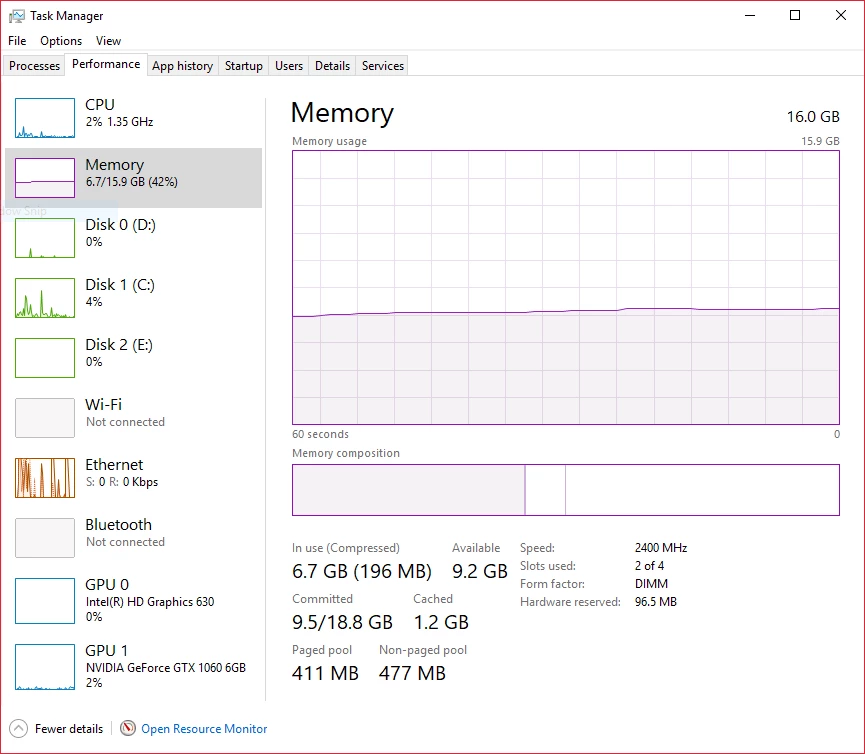
Screenshots (Idle, Premiere Pro loaded and open, not rendering):
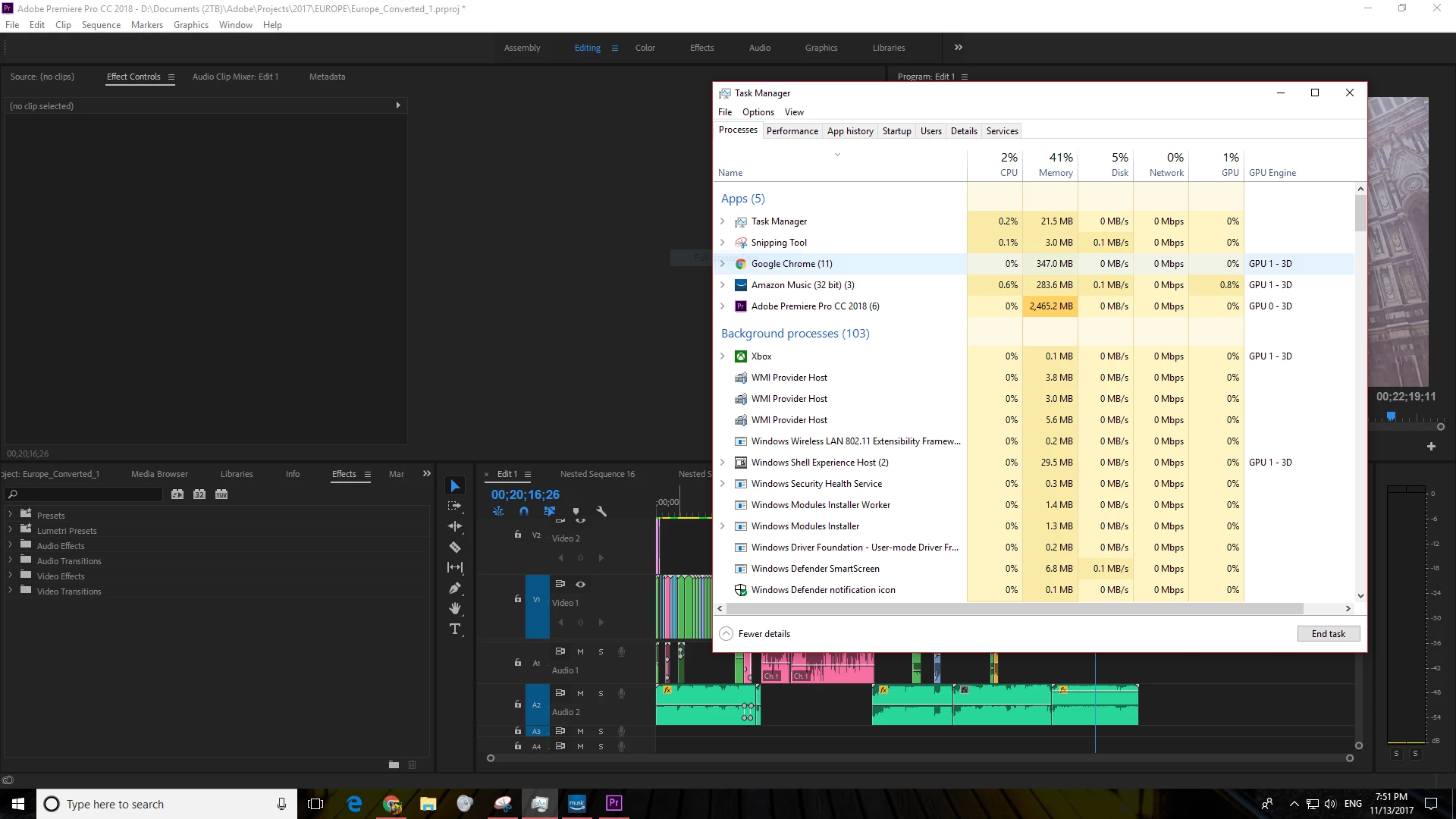
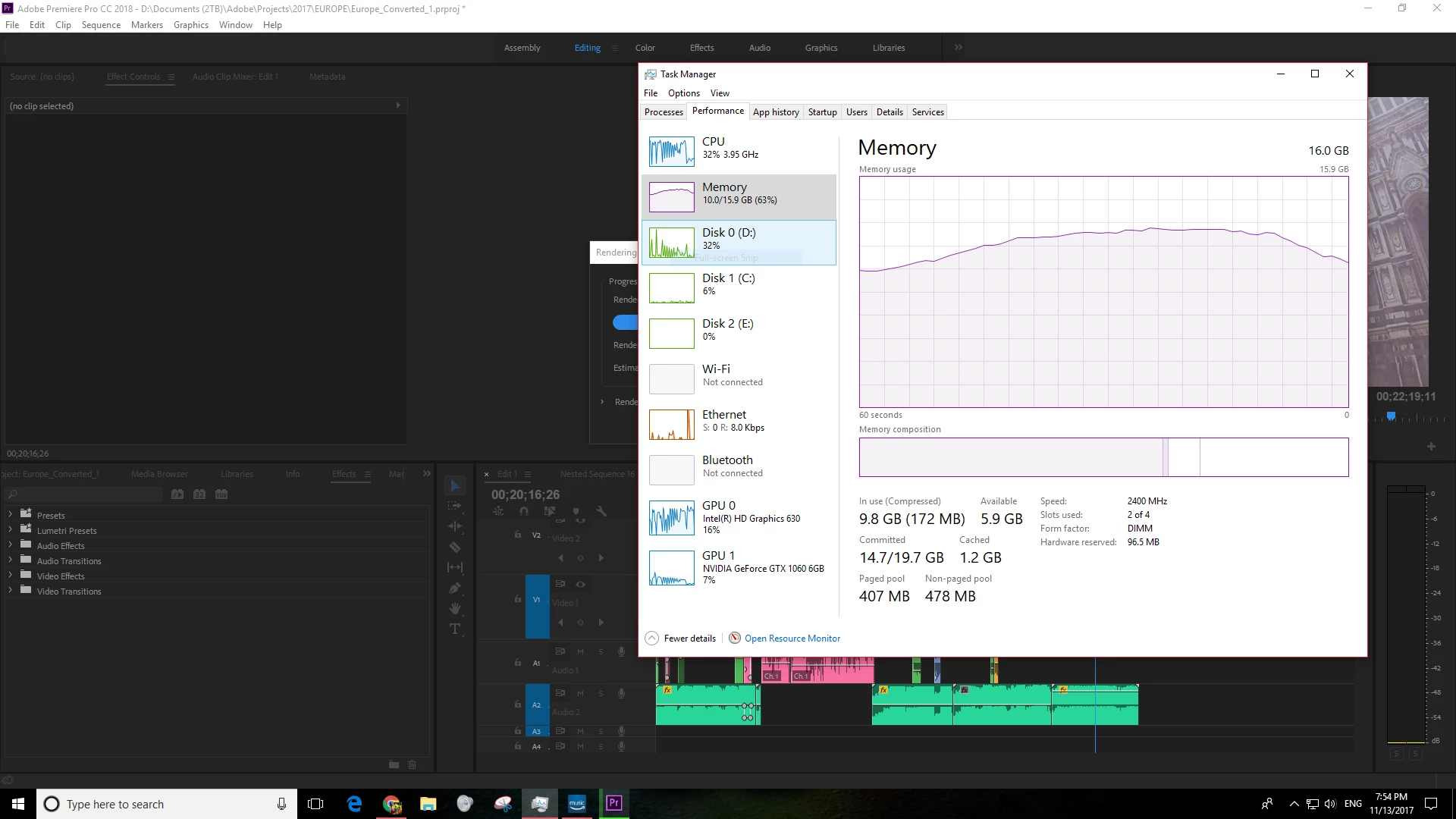
Screenshots (Premiere running, Rendering previews for a project of mine):
Text Document:
[Moderator note: moved to best forum for technical issues.]

Correct answer caroline_edits

We created a video on how to optimize your GPU for Adobe apps here! Take it with a grain of salt, if you have an Intel GPU using QuickSync, you're best off using that GPU for H.264 and HEVC (H.265). 


Caroline

49 replies

Participating Frequently
August 11, 2018

Just adding to this thread from perhaps another angle...

System:

Win 10

i7 3.4 Ghz quad core
16GB RAM1TB SSD

NVIDIA GTX 1060 3GB

I just recently upgraded the GPU from a GTX 750 because rendering a 30 minute episode was taking between 6-7 hours.

As I began to render some clips, I also notice that the GPU was running at 1% while CPU was pegged between 93-96%. I've checked all the software and file settings listed above. System is only recognizing the 1060 card, but PP 2018 is simply not using it.

The main effect which seems to be slowing things down in Neat Video's DeNoiser... anyone else have experience with that? Is it something that only makes use of CPU and RAM?

R Neil Haugen
Legend
August 11, 2018

If you do an export of a clip with a lot of Lumetri controls bumped ... just move a bunch of things, then export the clip for testing ... does your GPU use jump up?

Neil

Everyone's mileage always varies ...
Participating Frequently
August 12, 2018

Not really. I'm rendering a clip that's roughly 50% red bar and 50% yellow bar on the timeline... but it's rendering as I type this, and the CPU is at 100%, RAM utilization at 54%, and the GTX 1060 is at 1%.

JJL777
Participating Frequently
August 6, 2018

Just wanted to chime in with my experiences.

Alienware Aurora R7

8700kCPU

1080Ti 11GB

32GB ram

all latest updates to drivers, CC, and win10

Exporting from Premiere, while looking in the performance tab of the task manager, my internal GPU was getting heavy utilization during the render...and I had an 8 minute estimate from Premiere.

Went to device manager and disabled the integrated GPU there. Went back and re-exported the sequence from Premiere. Task manager showed only the 1080Ti, but it never went over 2% utilization. But is that because it's just a much more powerful GPU, and what makes it ramp up to 2% made the internal GPU ramp up higher? When I cancelled the render the GPU usage did become a flat line instead of very small spike. So it seems like it was doing something while exporting...also...the estimate given from Premiere this time was 4 minutes for the exact same sequence. (and I didn't have "use previews" checked, so I don;t think it was just using previews already rendered the first time)

Not sure if my GPU is really working. Would love to see it at 100% utilization and have the exports be even faster...but....if the bottleneck is elsewhere then whatever.

R Neil Haugen
Legend
August 6, 2018

GPUs are only used for things on the GPU Accelerated Effects list, stuff like color or Lumetri,  Warp Stabilizer, major resizing, a few other things.

When in use, they do what is assigned them as the CPU gets to the various tasks. So it is not at all common for a GPU to peg at 100%. For a few moments let alone an entire export.

They don't work independently.

Exports are largely a matter of cores/RAM effective utilization plus drive access speed. You want to get drive access, RAM use, and GPU capabilities to a point where that CPU runs high.

Neil

Everyone's mileage always varies ...
Participant
July 21, 2018

I've noticed this issue on my custom PC. Granted that my GPU is outdated as it is an EVGA GTX 680 FTW. I noticed stutters and lag while playback/scrubbing. I pulled up my task manager to see that my GPU is not being utilized at all. Even with effects that are labeled to be accelerated with the GPU. Until this weekend, I haven't touched Premiere in a year and this wasn't an issue last time. I had more effects and heavier editing last time with no issues, but this time with a lighter workflow it was stuttering/lagging pretty bad.

I was told to just use proxies, which is fine if I were working with 4K footage, but this is 1080p footage and what wasn't a problem before is a problem now. It's frustrating.

R Neil Haugen
Legend
July 21, 2018

That 680 is about the end of life, sadly. I dumped my 770 two years back. It's ... time.

As PrPro keeps moving forward, it's designed to use current generation architecture/capabilities of the hardware. They keep some backwards usability, but ... only for so long.

Neil

Everyone's mileage always varies ...
Participant
July 20, 2018

I have exactly the same problem.

I have an NVIDIA GPU card (I admit it, a bit dated now, a GTX680M) in my Alienware laptop.

When using Premier Pro, I can not select this card in the Project settings. I only have the choice of Mercury Playback Engine GPU... Why?

I was considering upgrading my laptoop to a new Alienware 17, with an i9 and an NVIDIA Geforce GTX 1080 to super boost up the performance in Premier Pro, however I see numerous people with the GTX1080 who are experiencing the same problem than me: Premier Pro not letting them use their dedicated NVIDIA graphic card.

Hence, before investing in anything new, and in order to see how my own system will perform when using my current NVIDIA card, can someone please help and tell my how to get Premier Pro to use my dedicated GPU card (and not the default Mercury option).

Needless to say, super frustrating to spend hours trolling the net to find an answer to this.

Thanks

Isabel

R Neil Haugen
Legend
July 20, 2018

This is a problem for some laptop users, and without knowing any of the 'internal data', I've wondered if it's more common with certain brands/boards/BIOS than others. Some folks are able to disable the on-board chip in the BIOS or computer's user settings, and some aren't.

Those that can obviously don't have any issue.

So ... you might check on that new laptop you're looking at, whether you can disable the onboard graphics chip. If you can, then there's no problem to be had.

Neil

Everyone's mileage always varies ...
Participant
July 20, 2018

Thanks Neil! I had not heard this before. Worth exploring!

rmthompson902
Known Participant
July 10, 2018

ryant27965867​,

Below is the link to the post on the User Voice page.

P. Pro not using correct graphics card – Adobe video & audio apps

Also, I like the name!

Ryan.

Known Participant
July 13, 2018

Same problem on HP Spectre 360-- tried forcing AME and Premier Pro to use the good GPU using the Nvidia Control Panel, but AME still refuses, uses built-in GPU.

Ryan Tulloch
Participant
July 10, 2018

Just commenting to keep this alive. How is this not resolved? I have a gtx960m although Adobe continues to use the integrated Dell card for all GPU intensive work. Annoying as heck.

R Neil Haugen
Legend
July 10, 2018

File this on the UserVoice feedback setup they have. VASTLY improved over their old bug report process. I'm on phone or I'd give a link but you can find it on the overview page.

Neil

Everyone's mileage always varies ...
rmthompson902
Known Participant
May 19, 2018

Ohim and thomasa18025948,

I appreciate your idea of editing the registry keys, although it seems a little heavy-handed to me. Although if it works, go for it, right? I have two things to mention here, and the first is a little bit more information on how to edit these keys.


First, use the Windows Key on your keyboard with the "R" key to open the run prompt.

WinKey + R

Then, type the following command into the prompt (then hit enter) to open the registry editor.

regedit

Next, hit allow if the UAC prompt comes up.

Finally, navigate through the directories on the left-hand side to the path you desire.

Once, navigated to the key that you are looking for, right-click the key and proceed to click "Modify".

Here, change the value to what you desire, then click "OK" to save the edit. You will need to restart after making any edits.

For us, first navigate to the following path:

Computer\HKEY_LOCAL_MACHINE\SOFTWARE\Khronos\OpenCL\Vendors\

Next, change the value of both of the REG_DWORDs to 1 by using the above modification steps.

Now, navigate to the next path.

Computer\HKEY_LOCAL_MACHINE\SOFTWARE\Wow6432Node\Khronos\OpenCL\Vendors\

Again, change the value of both of the REG_DWORDs to 1.

According to Ohim, this should disable the OpenCL renderer for the integrated graphics and make it useless to Premiere. This should hopefully force P. Pro to use the dedicated graphics when exporting. However, I will not be making these changes on my system for the reasons below. I will not know if it works for me and my system.


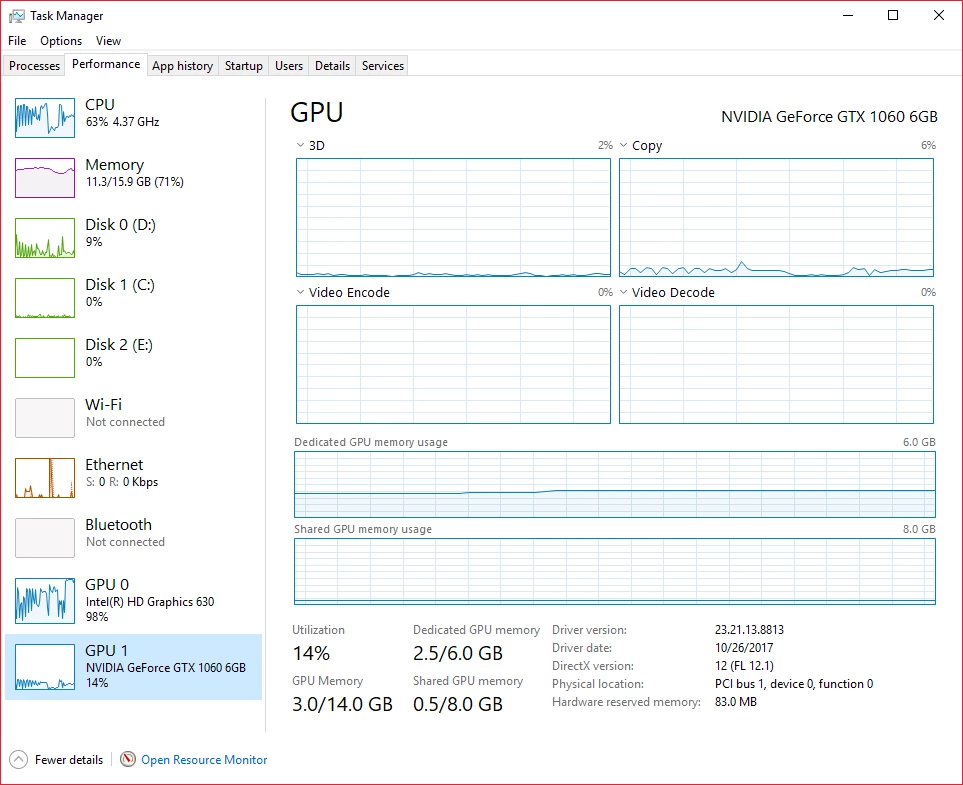
The second thing that I should mention is that after the recent updates to the Adobe Suite, I have noticed that my GTX 1060 6GB IS (FINALLY) being used, during export. I have included a screenshot below. I am not sure exactly what changed, but nothing on the hardware side of things changed for me. Only a Windows 10 update and some updates to P. Pro have been made.

If you happen to know why my integrated graphics are not being used and my 1060 is, please let me know. However, as I am the original author of this thread, I do not want to mark anything as the correct answer yet as this may be a case unique to me and my setup. Please let me know what the case is for you.

I apologize for the lengthy post, but I wish you the best of luck,

Ryan.

Participant
June 7, 2018

I have followed all the steps you have mentioned. However after changed the registry value and reboot system  but still not using Dedicated GPU I also facing issue the video play back screen become flip and color faded. Please help to resolve cc 2018 issue.

rmthompson902
Known Participant
June 10, 2018

If you are having issues, I would most definitely consider reverting the changes that you made. It is still hit or miss whether my internal or external GPU is used, but there is nothing more that we can be doing at this point to my knowledge.

Ryan.

Ohim
Participant
May 18, 2018

You have to disable the OpenCL renderer for the Intel iGPU, you make this from Registry

Navigate to the following locations :

Computer\HKEY_LOCAL_MACHINE\SOFTWARE\Khronos\OpenCL\Vendors\

Computer\HKEY_LOCAL_MACHINE\SOFTWARE\Wow6432Node\Khronos\OpenCL\Vendors\

There you will find the Dword for the IntelOpenCL64.dll  driver .. you either modify the value to 1 Which means False (disabled) and not use it, or do like me and delete the entry (technically deny the iGPU to ever be used as an OpenCL device) and restart your PC!

Participant
May 18, 2018

There are two of them within each Vendor folder (so 4 Dword files total) do i delete all 4?

Ohim
Participant
May 18, 2018

Just to be sure just put a 1 (disable) at each first, restart and see if everything is back to normal.

rmthompson902
Known Participant
May 8, 2018

R Neil Haugen​ ,

Thank you for your reply. I have submitted a post there under GPUs. It is under my username, rmthompson902.

Here is is the link to my post.

P. Pro not using correct graphics card – Adobe video & audio apps

Ryan.

R Neil Haugen
Legend
May 8, 2018

I added a comment.

Neil

Everyone's mileage always varies ...
valentinw21850218
Participating Frequently
May 8, 2018

Hello I am having the exact same issues as you all.

Render times are much much faster if you leave the integrated gpu turned on.

i can deactivate my onboard graphics but when i do, it renders cpu only and leaves my gtx1060 unused.

idealy premiere would use my gtx1060 for rendering, and has previously done, like last year everything worked just fine!

Adobe should have a fix for this by now!!! otherwise everybody using gtx1060,1070,1080 has useless gpus that they can not use for premiere rendering...

and i agree that rendering is CPU intensive but when i do a heavy export like 4k timeline with four 4k clips in it playing at the same time with gaussian blur and lumetri color put on, two playing in reverse I even receive usage of my onboard graphics of like 86%. So it is not a cpu only computation. That it would be nice to use the power of our GTX cards again.

Additionally, timeline playback performance slowed down as well. when playing a timeline with a lot of effects, my gtx1060 doesnt get used at all, like 5% at max.

Adobe please come up with a fix!! Last year everything worked fine without any problems!!

R Neil Haugen
Legend
May 8, 2018

To file a feature/bug report, use the new and nifty 'user voice' system ...

Adobe Bug /Feature Request form: https://adobe-video.uservoice.com/forums/911233-premiere-pro

These forums are primarily a user-to-user setup, with product support staff monitoring. In general, the development team staff don't spend time here except on their own dime.

However, some of the best brains at this sort of thing do "hang" here in the hardware forum ... Bill Gehrke​ and ECBowen​ among others ...

Neil

Everyone's mileage always varies ...