rmthompson902
Known Participant
November 14, 2017
Answered

Premiere Pro using Integrated and not Dedicated Graphics Card

  • November 14, 2017
  • 49 replies
  • 452557 views

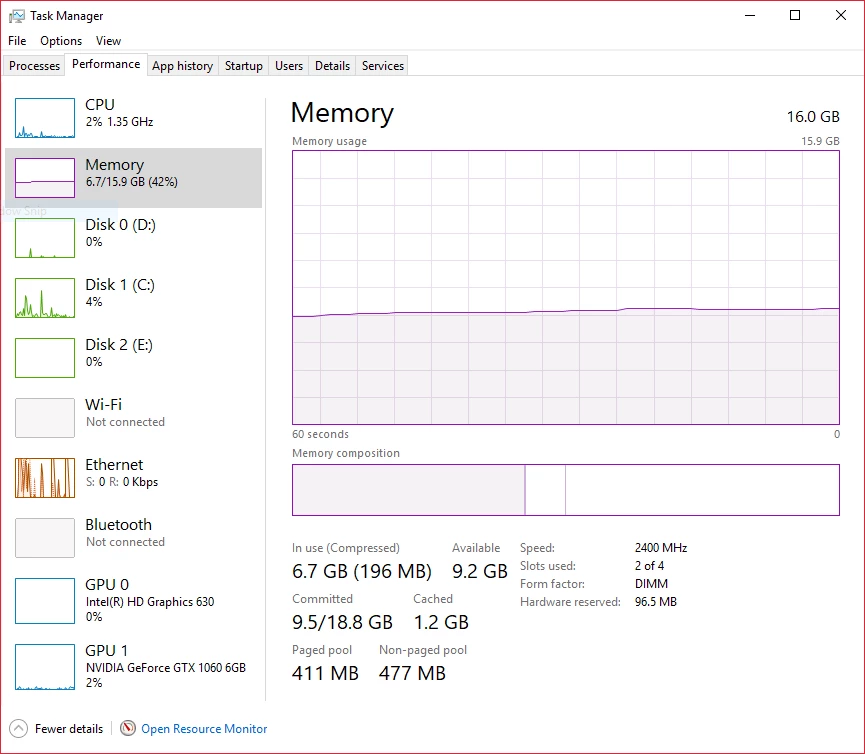
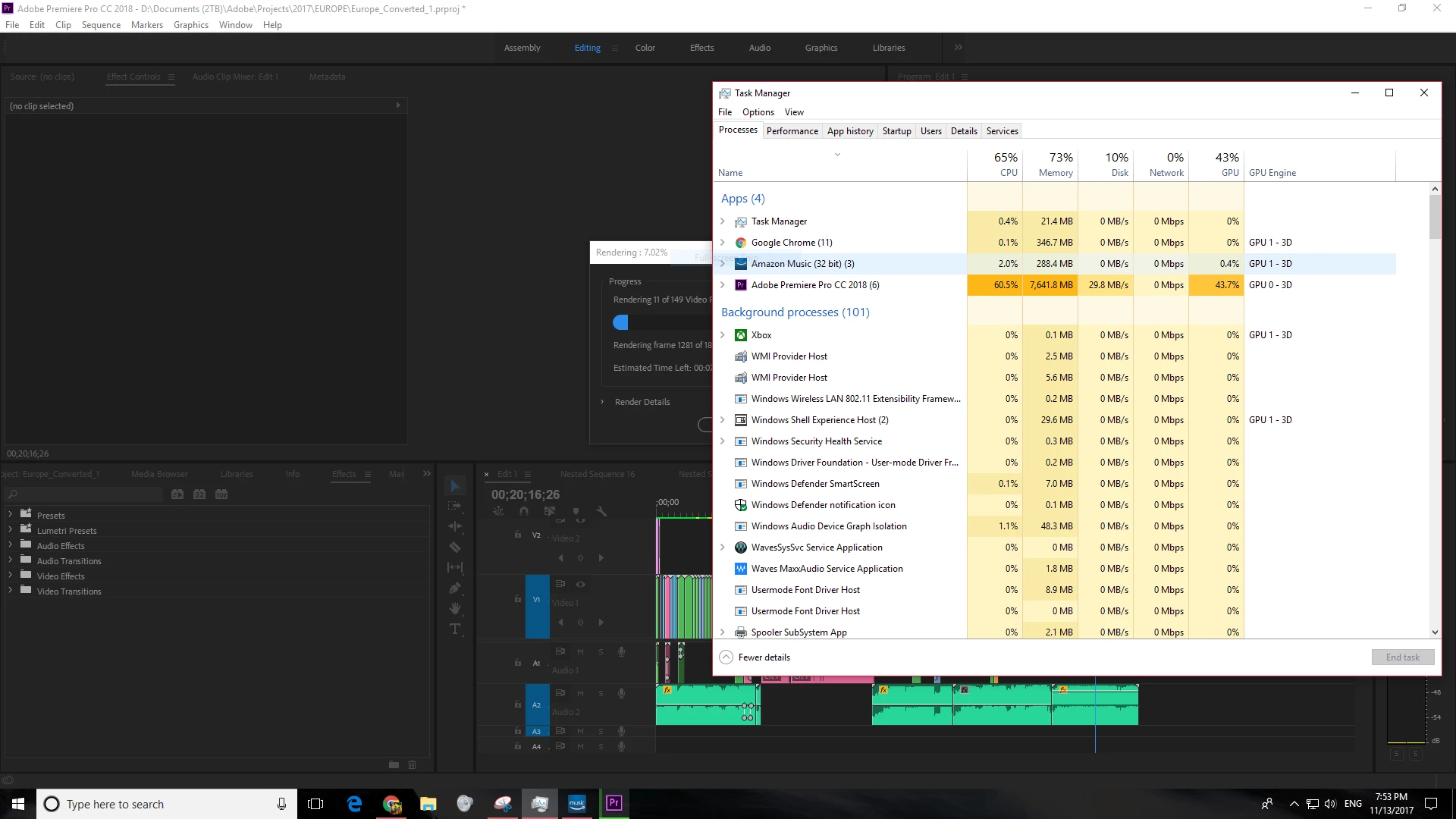
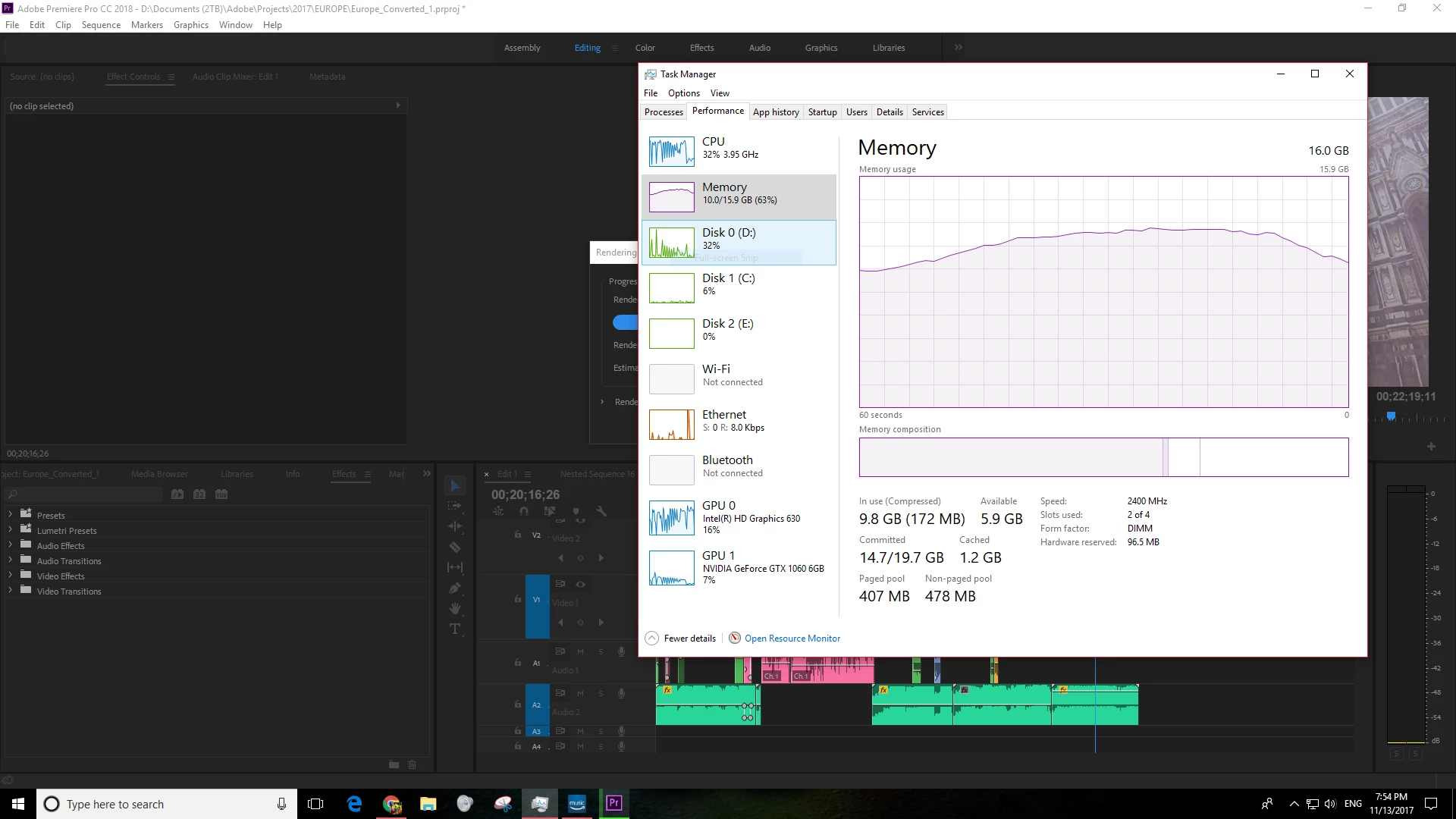
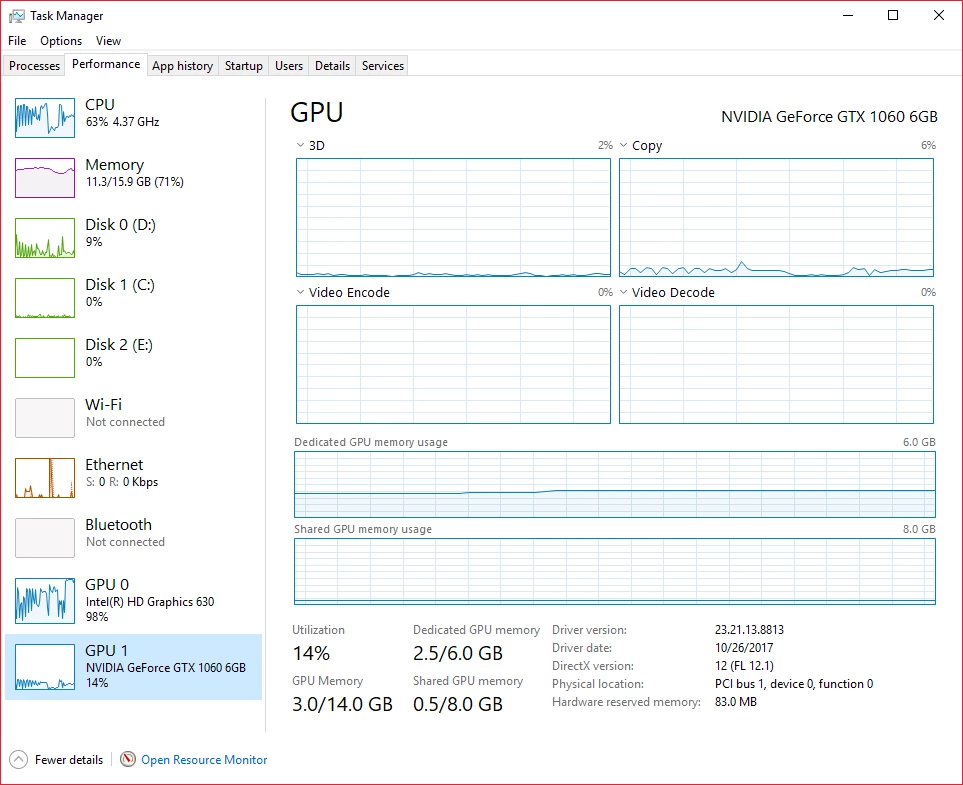
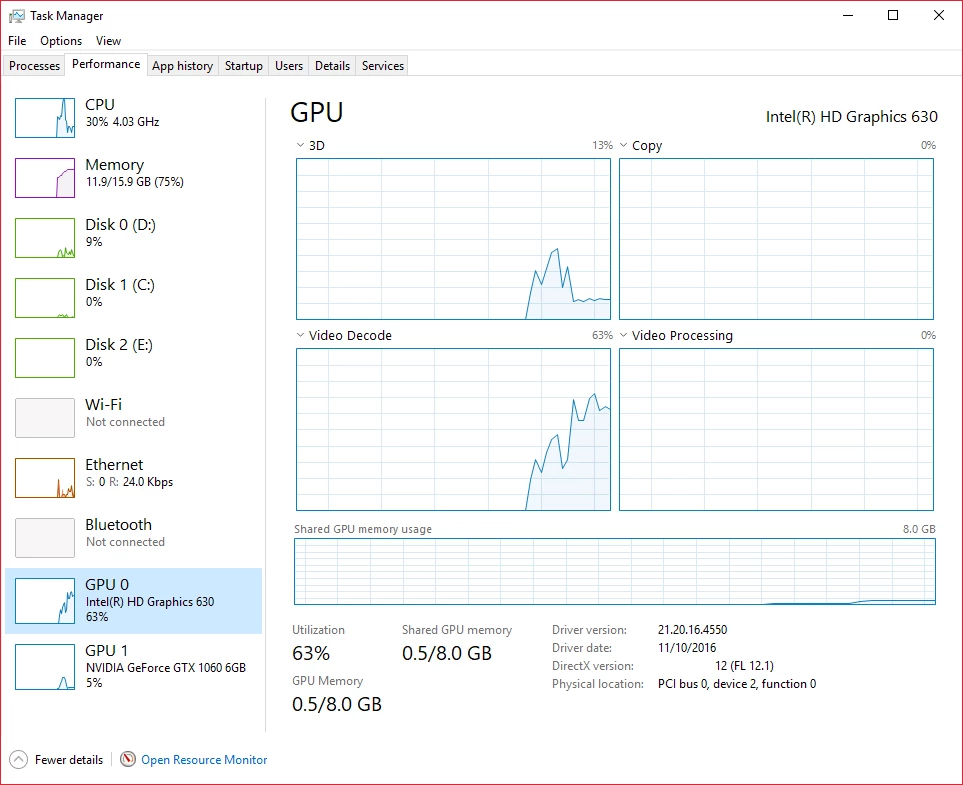
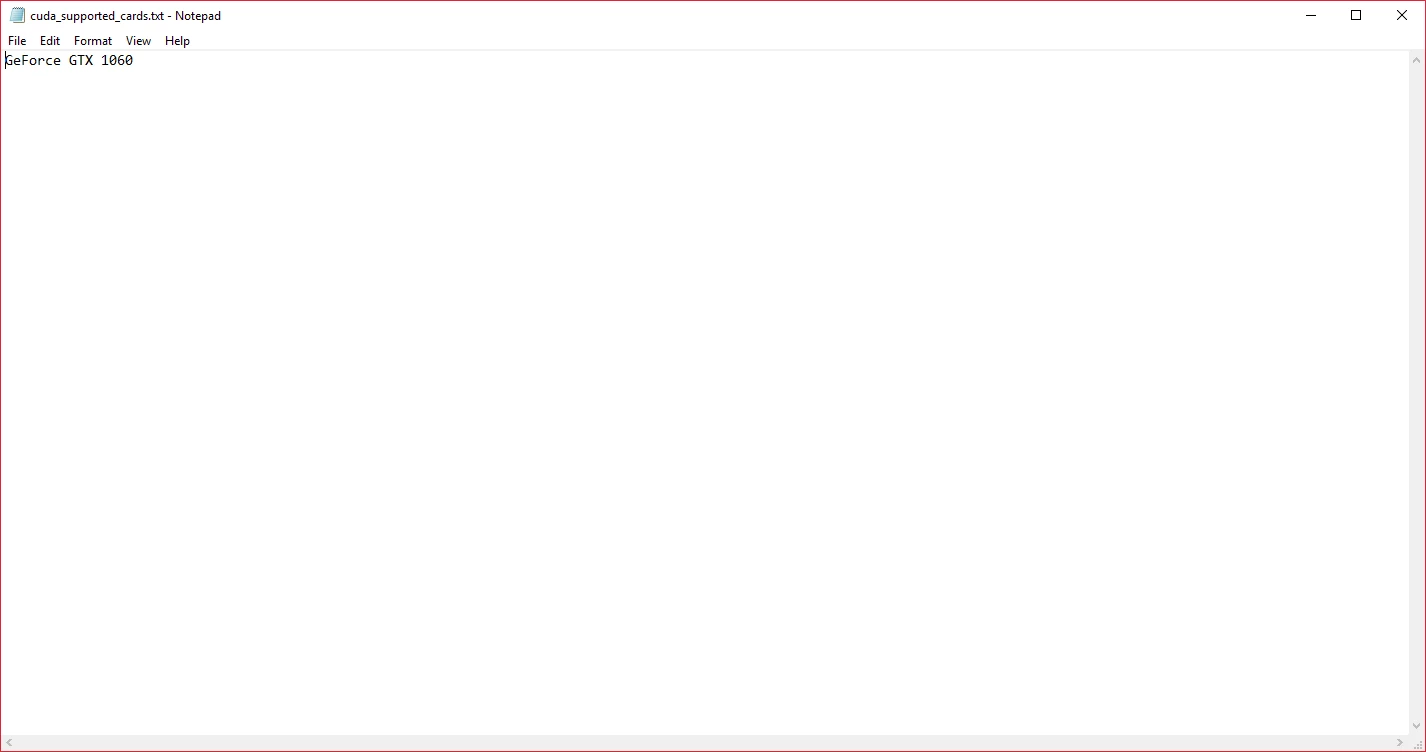
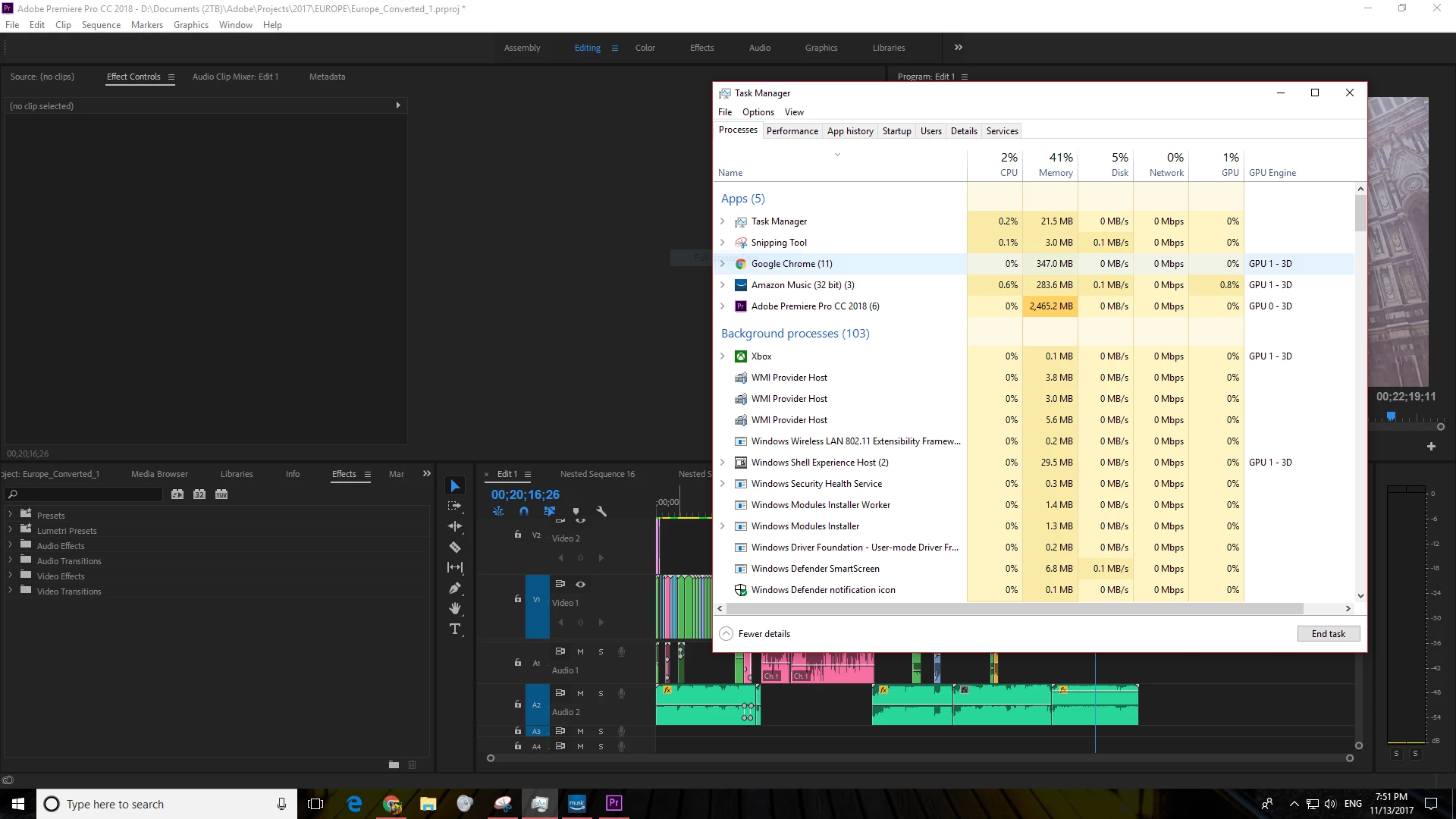
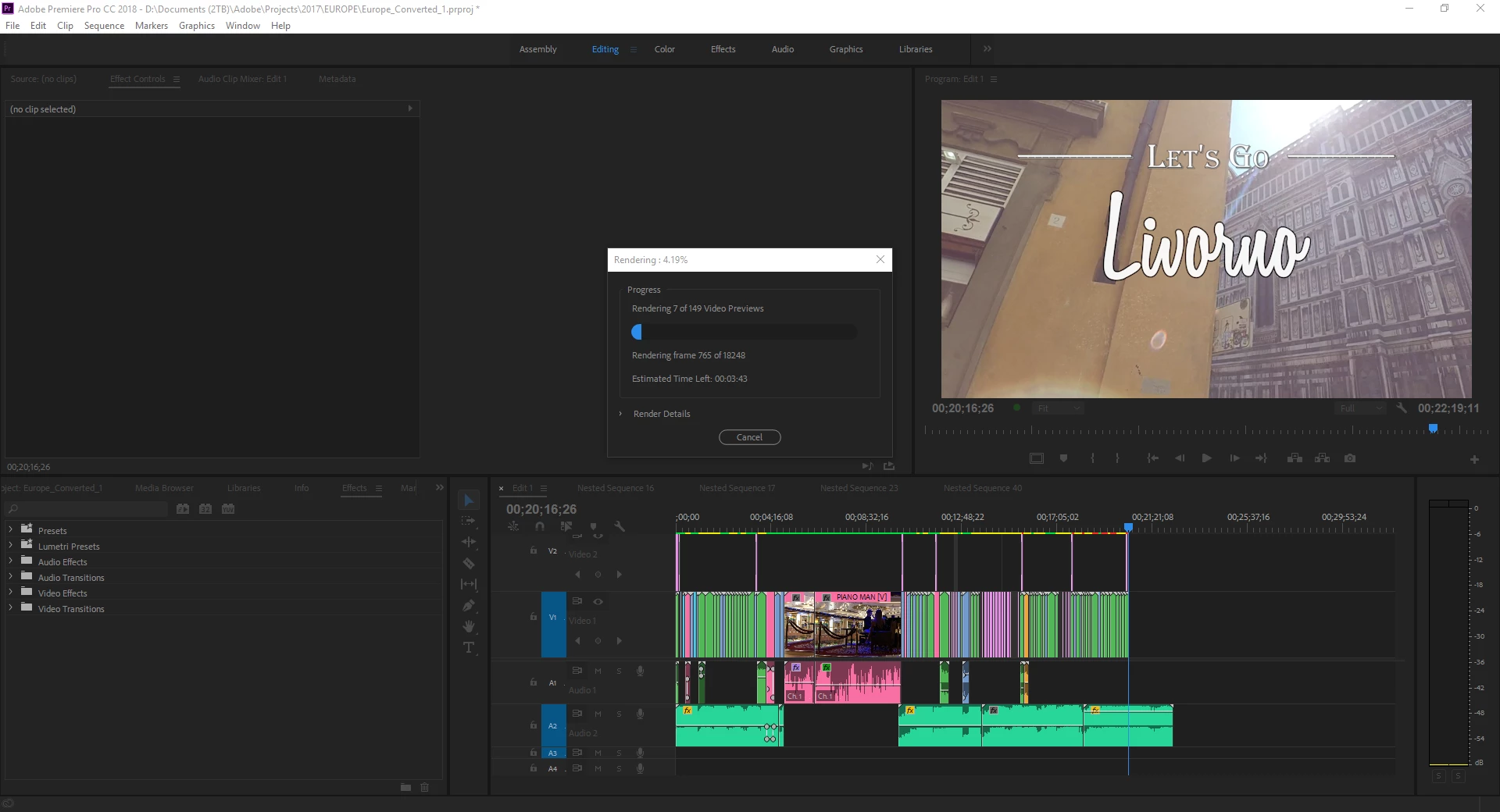
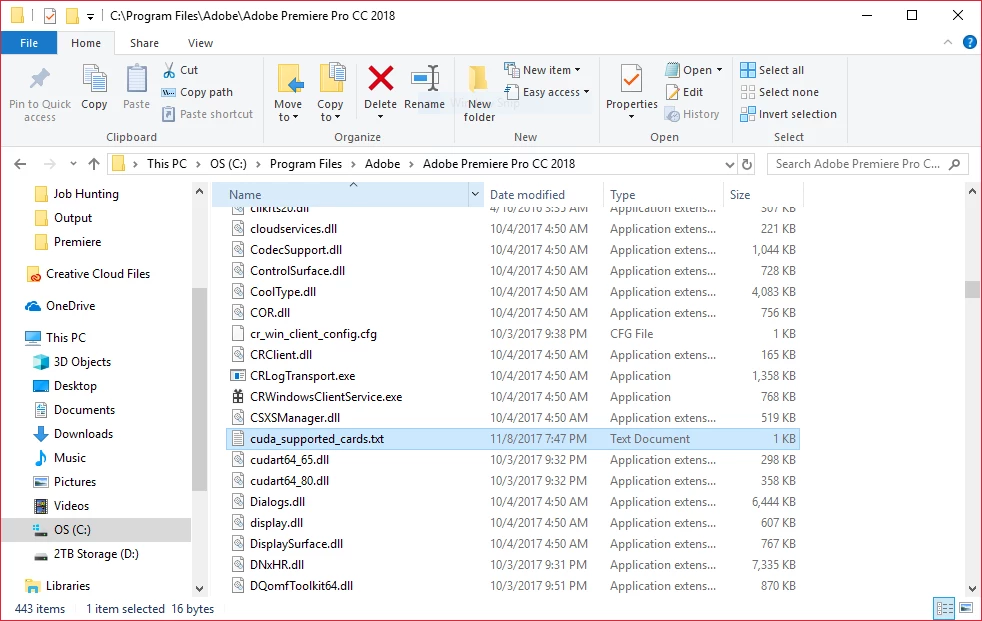
Hello all, I have a quick, but important question about Premiere Pro CC 2018. It seems that Premiere Pro is using my integrated graphics on my CPU rather than using my installed and working dedicated graphics card to render GPU accelerated effects and such. I am running a fresh install of Windows 10 with the latest updates. I also have a fully updated Creative Suite. Below I have listed my system specs and screenshots for reference to the issue. Notice that under GPU Engine in Task Manager, it lists GPU 0, my integrated graphics. I have also done some research of my own, and I have come across adding the "cuda_supported_cards.txt" into Premiere Pro's installation directory. I have done that, and I have tried both typing "GeForce GTX 1060" and "GeForce GTX 1060 6GB" into the document, but its the same story for both cases: it uses my integrated graphics. The file currently lists "GeForce GTX 1060".

Thank for any and all help,

Ryan

System:

7th Gen Intel i7-7700K Processor (No current overclock)

nVIDIA GeForce GTX 1060 6GB

256GB M.2 SSD

2TB 7200 RPM HDD

16GB of 2400MHz DDR4 Memory

Windows 10 Pro 64-bit

Screenshots (Idle, Premiere Pro loaded and open, not rendering):
Screenshots (Premiere running, Rendering previews for a project of mine):
Text Document:
[Moderator note: moved to best forum for technical issues.]

Correct answer caroline_edits

We created a video on how to optimize your GPU for Adobe apps here! Take it with a grain of salt, if you have an Intel GPU using QuickSync, you're best off using that GPU for H.264 and HEVC (H.265). 


Caroline

49 replies

rmthompson902
Known Participant
April 29, 2018

red hard ,

The results that you have posted in the image of your post show that you are having the same issue as the rest of us. Yours is interesting because your sniffer did not even list that your CPU has integrated graphics. Either way, I appreciate your post, but all I can suggest is to submit a bug report. If you do file a bug report, I would paste a link to this forum in your report. The conclusion that I have come to is that this is just a bug that has gone under Adobe's radar.

--------

HE1NOUS ,

It does look as if you are having the same problem as the rest of us. As far as I know, there has not been any updates to this problem. Again, all we can do is file a bug report and HOPE that Adobe will spend some of their resources to fix this issue. But, we have to remember that exporting is a very CPU intensive process. However, based upon my knowledge, I believe that the GPU should be used more than what it currently is.

I wish you two the best of luck. Below is a link to Adobe's bug reporter. Again, I would paste a link to this forum in your report.

Feature Request/Bug Report Form

Ryan.

RED HARD
Participant
April 27, 2018

Hello, someone against the crop solution? I have the same problem, I can not make my grafia card work in premier pro cc 2018 I leave a capture of the test in CMD, honestly I do not understand anything I hope someone can explain the results that I have obtained, thanks

rmthompson902
Known Participant
February 25, 2018

I have filed one as well. I linked this forum on the report that I submitted.

Ryan

rmthompson902
Known Participant
February 25, 2018

weipingl75112065 ,

Very interesting. I really had given up on this issue a while ago, but now that you bring this up, I am once again intrigued. I ran the same test on my PC and got similar results.

Because of this, I am curious if other people in this thread would run this test, what their results would be. I think if that all come back similar, we have probably found a bug, just like you said. I think that is in the best interest of all of us.

So, to initiate the test, first open your command prompt. This can be done by pressing the Window's logo + R on your keyboard to open the run window. Then type "cmd" (without quotes) and hit enter.

Then, type:

cd premiere_install_location

i.e. cd C:\Program Files\Adobe\Adobe Premiere Pro CC 2018

After, type:

GPUSniffer

That should start it. You can look at my screenshot to see how I did it. Then, if people could take screenshots and post them here, I think we may have solid evidence of a bug.

However, and as far as I know, the only thing to do from there is to just submit a bug report to Adobe. I don't think we as users can really do much else.

Let's see what we can find (and thank you for keeping this thread alive),

Ryan Thomspon.

weipingl75112065
Participant
February 25, 2018

Thanks for the reply.  I saw something interesting in our GPUSniffer results.

At first, I thought the bug is that Adobe Premiere Pro CC always use the first GPU it detects.  Then again, I don't think Adobe engineers would make such a low level mistake.

Now, the GPUSniffer doesn't indicate which GPU is the integrated one and which is the external/dedicated one.  And it's almost impossible for the code to detect all the models of GPUs.  There is a possibility that the code is using the Total Video Memory to decide which GPU to use.  Since integrated GPU shares the memory with the system, chances are that it has more Total Video Memory than the external/dedicated GPU as shown in our GPUSniffer results.  I can't prove this because I couldn't find a way to limit the memory for the integrated GPU.

In any case, I am sure it would be an easy fix if Adobe makes this a priority bug.

Ann Bens
Community Expert
Community Expert
February 25, 2018

If you think this is a bug please report as such:

Feature Request/Bug Report Form

weipingl75112065
Participant
February 24, 2018

I have the same problem with my new Dell XPS 8930.  I tried all the suggestions listed here and other places.  None of them work.  Here is what I found:

  • Premiere Pro CC 2018 always use integrated GPU (Intel UHD Graphics 630).
  • If I disable integrated GPU, Premiere Pro CC 2018 will use CPU instead of GTX 1080.
  • Have both GPU enabled, there is no difference in setting CUDA in Project Settings in Premiere.  Choosing "Mercury Playback Engine Software Only" would still use internal GPU.

The games are running fine with GTX 1080 on my machine.  I think this is a problem with Premiere Pro CC 2018.  Looks like Premiere is not compatible with GTX 1080.  I sincerely hope Adobe can fix it!

Here is my system:

8th Gen Intel i7-8700K Processor (No overclock)

nVIDIA GeForce GTX 1080 8GB

1TB M.2 SSD

2TB 7200 RPM HDD

64GB of 2400MHz DDR4 Memory

Windows 10 Home 64-bit

* When both GPUs are enabled.

* When internal GPU is disabled.

Legend
February 24, 2018

The exact same thing will occur even if you have an older GPU that's on the "recommended" list.

And since CC 2015.3, when the bug-ridden switchable graphics support was removed, Premiere Pro will now only support GPU0, and will only support GPU1 if it's exactly identical to GPU0 if GPU0 is an OpenCL GPU that doesn't support CUDA. Unfortunately, GPU0 in that system is the integrated Intel graphics – and in that case, no other GPU can be used at all in the same system for GPU acceleration, as far as Adobe is concerned. The suggested fixes for this problem do not work in all systems (specifically, it worked on some but not all systems).

Further complicating matters is that the big-name OEMs offer absolutely no provision whatsoever to disable the integrated Intel graphics (or put it this way, the setting for the integrated graphics is permanently locked at BIOS/EFI level to "Always Enabled"). This means that a driver for the integrated graphics MUST be installed for Windows to even function properly. Unfortunately, this needlessly complicates things for Adobe, which requires its software to always look at GPU0 first, and then stop detecting and reject another company's GPU if an already-primary non-CUDA GPU has been detected. As a result of that, Adobe software will only use OpenCL or software only.

If this were your own PC build rather than a prebuilt, the BIOS/EFI setting for the integrated Intel graphics is by default set to "AUTO", which means that it depends on whether or not something is connected to the video-out port(s) that is/are associated with the iGPU to enable or disable the iGPU. "Disabled" means that the iGPU will always be disabled even if you have anything at all connected to it. "Enabled" means that it will always be enabled even if you have nothing whatsoever connected to it.

Randall

weipingl75112065
Participant
February 25, 2018

I think this is a bug in Adobe applications.  It should be very easy to detect internal GPU and external GPU in C++ or Java code.  All game applications do that.  As a matter of fact, Adobe's own GPUSniffer detects that too.  But Premiere Pro CC 2018 ignored the results of GPUSniffer or it simply doesn't work with GeForce GTX 1080.  As you mentioned, it doesn't work with older GPU that's on the "recommended" list either, so this must be a bug in deciding which GPU to use in Premiere Pro CC application.

MrBrits
Participant
January 16, 2018

So, I haven't tested this myself, but I have had this problem with other types of software that could work so much better with dedicated graphics.

Go to the shortcut, and edit the Target of the shortcut and add the command

-force-opengl

to the end of the target, after the quotations of the shortcut location.

This will force OpenGL library to be used which can only be done by GPUs capable of of rendering 2D and 3D vector graphics, basically telling the integrated graphics that it's not going to work here.

Hope this helps

Participant
August 30, 2021

This is actually genious, this fixed my issue and I have the RTX 2060 and an i73770K


Participant
December 26, 2017

Hi ,

Go to Nvidia control panel / under 3D setting / Manage 3d setting / Program setting tab /

Select a program to customize ( premier pro cc )

After that at the right bottom corner / click apply

Your Gpu gonna work try test render

Cheer !

rmthompson902
Known Participant
December 28, 2017

I'm not sure where the "apply" button is at the bottom right corner. Below is what I see.

R Neil Haugen
Legend
December 28, 2017

In the CUDA - GPU's line, click on the setting section and see what is set. If it's listing both, see if you've an option to use the GPU only.

Neil

Everyone's mileage always varies ...
Participant
November 28, 2017

I'm noticing the same thing with a 6700k and GTX 1080 on Windows Fall update.

rmthompson902
Known Participant
November 29, 2017

Do you think it is a Windows issue then? Thanks for your reply.

R Neil Haugen
Legend
November 14, 2017

Do you have Mercury Playback enabled in the Project Settings panel? File/Project Settings/General?

And the whole CUDA supported list was from the CS6 days, a long, long time ago. Not used in years.

Neil

Everyone's mileage always varies ...
rmthompson902
Known Participant
November 14, 2017

Yes. I have set that in both Premiere and in Adobe Media Encoder, both still use the integrated graphics.

R Neil Haugen
Legend
November 14, 2017

For a desktop, you might go ahead and disable the onboard GPU. That 1060 would blow off anything the onboard can do.

Neil

Everyone's mileage always varies ...