Participant
May 13, 2025
Question

Assinatura Eletrônica Ilegível

  • May 13, 2025
  • 1 reply
  • 530 views

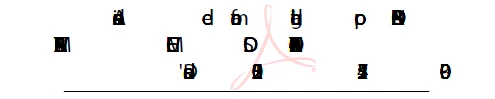
Ao assinar um documento com e-cpf, que já havia sido assinado pelo GOV.BR - a assinatura fica ilegível.



1 reply

creative explorer
Community Expert
Community Expert
May 14, 2025

@bery_5653 I have a feeling it might be corrupted fonts causing this illegible signature for the GOV.BR and e-CPF signings. Think of it like this: when each platform applies its digital signature, it might rely on specific fonts to visually represent that signature or embed related information. If the document itself has issues with embedded fonts, or if your system (or the system used to view the final document) has corrupted or missing fonts that the signature rendering process depends on, it could definitely lead to the signature appearing as a jumbled mess of unreadable characters, similar to what you're experiencing.

What's a work-around—Adobe Acrobat Reader is generally a reliable choice (for security reasons), but you could also try other PDF readers or even the built-in PDF viewer in your web browser (like Chrome or Edge). Opening the document with a different viewer might render the fonts and signatures correctly.

m
bery_5653Author
Participant
May 15, 2025
Acontece que ao pegar um documento em extensão PDF, com assinatura digital pelo GOV.BR a assinatura digital do próprio adobe, utilizando um e-cpf da Serasa, fica ilegível.
Me parece que existe algum conflito e gostaria de saber qual é…
Afinal outras plataformas de assinatura digital, não geram conflito em função da utilização de um ou outro certificado digital.
AnandSri
Community Manager
Community Manager
May 16, 2025

Hello @bery_5653!


++Adding to what our community product expert has already shared, when you apply a second visible signature over a GOV. BR-signed PDF, Acrobat isn’t actually “flattening” the first appearance—instead, it’s stacking two signature‐field widgets that both try to render their appearance images in the same spot. Because the https://adobe.ly/4mlgz7R signature uses its own custom appearance stream (and certificates from Brazil’s ICP-Brasil chain), your Serasa e-CPF signature can end up drawing on top of or behind that graphic, producing the garbled result you’re seeing.


Why does it happen? 


  • Overlapping signature fields
    Each digital ID you use creates its own form field with its own “appearance” (an image of your signature, name, date, etc.). When you co‐sign a PDF that already has a https://adobe.ly/4mlgz7R field, Acrobat adds your new field in the same spot—so the two images collide.

  • Different trust root chains
    https://adobe.ly/4mlgz7R uses Brazil’s official ICP-Brasil root certificates. If you haven’t imported those roots into Acrobat’s “Trusted Identities,” Acrobat may redraw the appearance incorrectly or hide the first signature’s graphic.

Try the following suggestions and let us know how it goes: 

Import and trust the ICP-Brasil root certificates

  1. Download the official ICP-Brasil root certificates bundle from Adobe’s site:

    HelpX article: “Install enterprise and custom root certificates for digital IDs”

  2. In Acrobat, go to Menu→ Preferences → Signatures → Identities & Trusted Certificates, then More → Digital IDs → Add ID, and import the ICP-Brasil .crt files.

  3. Restart Acrobat; this ensures https://adobe.ly/4mlgz7R signatures render correctly before you add yours.

2. Create a distinct signature appearance for your e-CPF

  1. Preferences → Signatures → Creation & Appearance → More…

  2. Click New…, give it a unique name, and configure your text/image layout.

  3. When you sign, choose Place Signature and pick that appearance, so it won’t reuse or overwrite the https://adobe.ly/4mlgz7R field.

3. Position your co-signature in a new field, not on top

  • Instead of clicking directly on the existing https://adobe.ly/4mlgz7R signature, use Fill & Sign → Sign (or Certificates → Digitally Sign) and draw a new signature rectangle below or beside the first one.

  • This leaves the GOV.The BR appearance is intact and prevents visual conflicts.

4. Use incremental save, not “Save As”/linearization

  • After you sign, go to File → Save (not Save As). Incremental saving preserves the first appearance stream unaltered.

  • If you must use Save As, re‐open and verify both visuals before distributing.

See these Adobe articles for more information: https://adobe.ly/43pqe4P

https://adobe.ly/43kubYr

https://adobe.ly/44BPyGZ


I hope this helps.

Thanks,

Anand Sri.