
TriendaXTRA
Participant
May 3, 2017
Answered

Default Hide Navigation Pane On Left Side Acrobat Reader DC

  • May 3, 2017
  • 10 replies
  • 124270 views

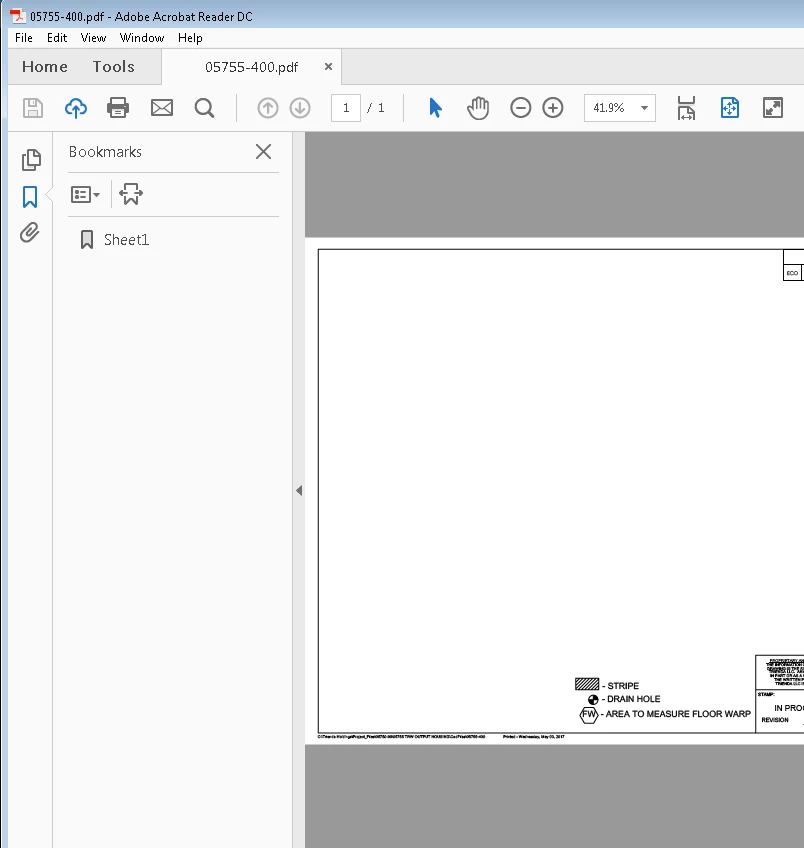
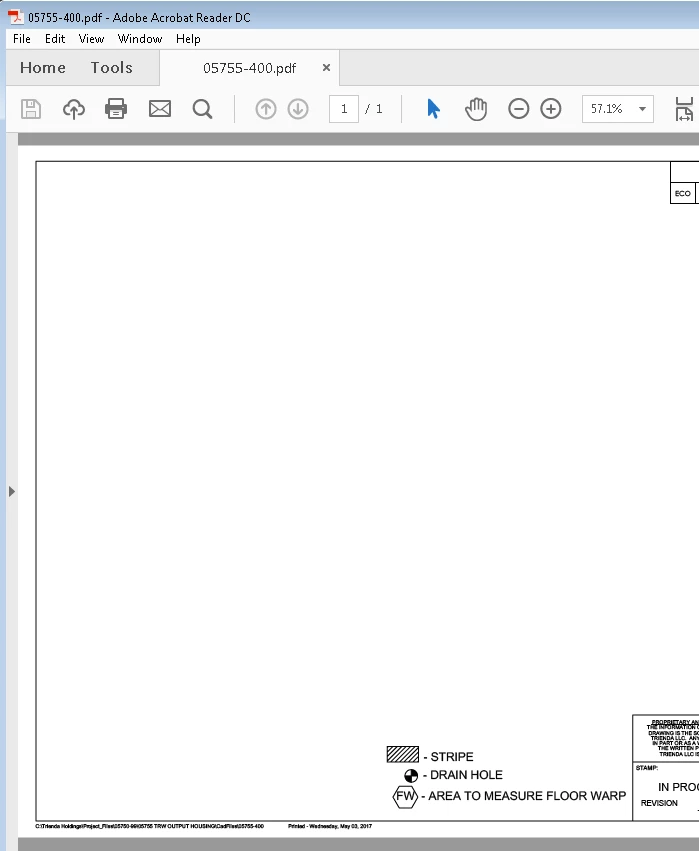
I to have files open without the huge navigation pane open on the left side. It's messing with previews in Solidworks PDM. This meaning I want ALL PDF files to open and NOT HAVE TO CLICK THE SMALL ARROW to hide the pane ON EVERY SINGLE DRAWING. Here are some snips.

What opens like now:
How we want it to look by default (without having to click on every file):
Thanks in advance!

Correct answer deerspotter

Finally after hours of searching, i have figured it out by manually trying all the registry keys related to adobe one by one.

This is the solution that works 100% (todays date 10/20/17)
Using Adobe Acrobat (Pro), versionL 10.1.16

Open notepad.exe

copy this code and save-as no-navpane.reg

Windows Registry Editor Version 5.00

[HKEY_CLASSES_ROOT\Applications\Acrobat.exe\shell\Open\command]

@="\"C:\\Program Files (x86)\\Adobe\\Acrobat 10.0\\Acrobat\\Acrobat.exe\" /A \"navpanes=0\" \"%1\""

Where you see Acrobat 10.0 you can replace with your ## version or .exe program URL and it will work.

10 replies

Participant
June 6, 2024

I tried all of the regedits on this thread and nothing worked. I installed foxit viewer & it has a nice clean preview in SW PDM off the bat, no longer do I have to hit crtl-H every_single_time I want to preview a drawing in PDM without huge tool bars either side that make the drawing tiny.

Participant
May 16, 2023

The command code of modifying registry key as follows:


Reg Add "HKCR\Acrobat.Document.DC\shell\Open\command" /ve /t "Reg_Sz" /d "\"C:\Program Files\Adobe\Acrobat DC\Acrobat\Acrobat.exe\" /a \"navpanes=0\" \"%%1\"" /f


The above command code is provided for your reference.

Participant
February 20, 2023

This is, indeed, frustrating as hell. The best option I've found is hitting the F4 key. This quickly gets rid of (and brings back) the bookmark pane, but I have to do it everytime I open a document. For me this is better than clicking around with the mouse.

Participant
February 15, 2022

This does not work.    Adobe, fix your bug!

Participating Frequently
May 20, 2021

The  /A "navpanes=0" "%1" fix doesn't work for us on Adobe Reader DC v21.001.20149

We can get the layout we want using the setting Preferences -> Documents -> Open Settings -> "Remember current state of Tools Pane", which will open Adobe Reader with the Tools Pane hidden if it was hidden last time you had Adobe Reader open, but we are in an enterprise environment so we need to have this set by default with GPO or registry so this isn't practical.


Also, this only affects the Tools Pane and not the other panes, such as the Attachments Pane on the right. This is stuck open for some of our users and they have to hide this manually EVERY time they open a document, regardless of having "Remember current state of Tools Pane" or even "Restore last view settings when reopening documents" is checked.


Has anyone found a current solution to hide all of the side panes in Adobe?

Steve50B6
Known Participant
January 21, 2021

THANK YOU!!! This has been driving me crazy.  Your solution worked PERFECTLY!!!


Appreciate it SO MUCH!!!

Participant
January 21, 2020

NOT GOOD ENOUGH.


Having that giant Bookarks pane open by default with every document is a major annoyance. When I open a document I want to see the document and nothing else. If I want to seex an index or bookarks I can always open them by choice. Either fix your uselessly "helpful" view or at the least put an option to keep the Bookmarks pane closed into your program defaults. Making ME do it manually with every stinking PDF is IRRITATING.

Participant
February 8, 2021

It's clear to me that Adobe doesn't want anyone to use Reader anymore. I guess they want to stop supporting, so they make it horrible tp use. I finally had to switch to a 3rd party viewer because I can't edit registry keys on my work laptop. When you open 100 of these a day it gets old to keep closing the bookmark. 

Participant
April 3, 2021

What viewer?
I also got sick of this behavior, most solutions don't work/don't apply but I still use this for compatibility reasons. 

deerspotter
deerspotterCorrect answer
Participant
October 20, 2017

Finally after hours of searching, i have figured it out by manually trying all the registry keys related to adobe one by one.

This is the solution that works 100% (todays date 10/20/17)
Using Adobe Acrobat (Pro), versionL 10.1.16

Open notepad.exe

copy this code and save-as no-navpane.reg

Windows Registry Editor Version 5.00

[HKEY_CLASSES_ROOT\Applications\Acrobat.exe\shell\Open\command]

@="\"C:\\Program Files (x86)\\Adobe\\Acrobat 10.0\\Acrobat\\Acrobat.exe\" /A \"navpanes=0\" \"%1\""

Where you see Acrobat 10.0 you can replace with your ## version or .exe program URL and it will work.

Participating Frequently
May 4, 2018

Using Acrobat Reader 11, I found this to be a great starting point. The corresponding registry key did not have the desired effect, unfortunately, but I changed 5 additional keys to use the same parameters, and now it works. Possibly, I only had to change 1 or 2, but I didn't take the time to test them one at a time.

The ones I changed were:

HKEY_CLASSES_ROOT\Applications\AcroRD32.exe\shell\Read\command [didn't work, but I kept it changed]

HKEY_CLASSES_ROOT\acrobat\shell\open\command

HKEY_CLASSES_ROOT\AcroExch.Document\Shell\Open\Command

HKEY_CLASSES_ROOT\AcroExch.Document.11\shell\Open\command

HKEY_CLASSES_ROOT\AcroExch.Document.11\shell\Read\command

HKEY_CLASSES_ROOT\AcroExch.Document.7\shell\read\Command

Thanks for the advice!

areels
Participant
August 28, 2018

Do you know which key is affecting internet explorer plugin? we have an app using builtin ie to display pdf files. These changes are fixing and removing bookmarks pane with regular pdf files but, ie plugin still shows bookmarks.

Participant
September 22, 2017

The answer to this is this:

There is a system registry fix that will resolve this, which will have to be done on all clients to alleviate this issue.

The location in the registry is here:

HKEY_LOCAL_MACHINE / SOFTWARE / SolidWorks / Applications / PDMWorks Enterprise / FileFormats / .pdf

Under the registry key 4, clear all data.

Participating Frequently
October 18, 2023

I just updated to the "new" version of reader 23.006.20360-what a mess. I tried to hide the keft side panel following the procedure I used on the previous version with no effect. I tried several times with no effect. I just went back to the previous version and everything works.

AkanchhaS8194121
Legend
May 3, 2017

Hi Seth7227,

As mentioned above, that you would like to disable the side bar.

But unfortunately, you can not disable it permanently as Its a default behavior of the application.

But you can manage to hide the side bar by changing the preferences settings so that it will not come up automatically when you open the document next time.

  • Open document
  • Click on the arrow to hide the side bar.
  • Go to Edit>Preferences>Documents> Under Open settings check "Restore last view settings when reopening documents"
  • Click OK.
  • Close Application and relaunch it.
  • Reopen document, the side bar should be hidden now.

Hope this is helpful

Regards,

Akanchha

TriendaXTRA
Participant
May 3, 2017

There are no ways to change the default settings? Registry Settings, preferences, scripts, no way at all?

I've seen a few people complain about this, will there be a fix?

There was a tools pane that opened on the right side, if I go to (Edit > Preferences > Documents > Check, Remember current state of tools pane) that no longer opens or shows in the previewer which is very perfect! Why is there no option like that with navigation/bookmark panes on the left?

This is causing multiple issues for us.

Thanks again,

Seth