Hello Haley!
I hope you are doing well, and thanks for reaching out.
Could you please share more details about the issue? Are you on a Windows machine or a Mac, and what is the version?
Please ensure you have the latest version of Acrobat Reader installed on the machine: 25.001.20474 (Win) | 25.001.20476 (Mac), Apr 28, 2025. Check for any pending updates from the Menu > help > check for updates, install the updates, restart the app and the machine, and try again. For more information, see this: https://adobe.ly/4jKDOXm
Make sure Chrome and the operating system are updated to the latest version.
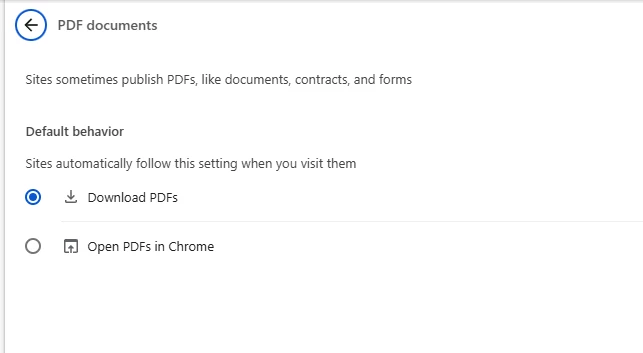
Make sure Chrome is set to download PDFs instead of opening them:
- Go to
chrome://settings/content/pdfDocuments
- Enable “Download PDFs” instead of opening them in Chrome.
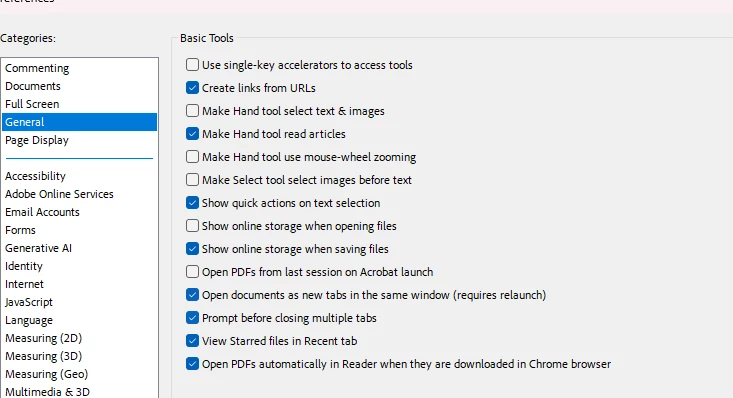
If the setting “Open PDFs automatically in Reader when downloaded in Chrome browser” is not saving or missing, try this workaround:
- Open Adobe Acrobat Reader.
- Go to Edit > Preferences > Internet.
- Uncheck: “Open PDFs using a different application” (or similar wording depending on version).
- Then go to Edit > Preferences > General.
- If available, uncheck: “Open PDFs automatically when downloaded from Chrome browser”.
- Restart Chrome after making these changes.
- Important Tip: If the setting doesn’t save, try toggling it:
- First, select “Download PDFs” in Chrome.
- Then re-select “Open PDFs in Chrome” and restart the browser. This has resolved the issue for many users
Let us know how it goes.
Thanks,
Anand Sri.

 already.

 AdChoices