
Participant
March 21, 2025
Answered

Hide the Tools and Features panels

  • March 21, 2025
  • 1 reply
  • 295 views

Every time I open a file containing "Attachements", file which is convertable to Word/Excel or having any other features like it's an ISDOC form, I can't see the file itself, but only the panels showing those features I don't really need to work with. I have to manually close all of them every time, so I could see the document "hidden" and minimized behind them. Is there any possibility to set Acrobat by default to show only the file and not the useless panels?
Correct answer creative explorer

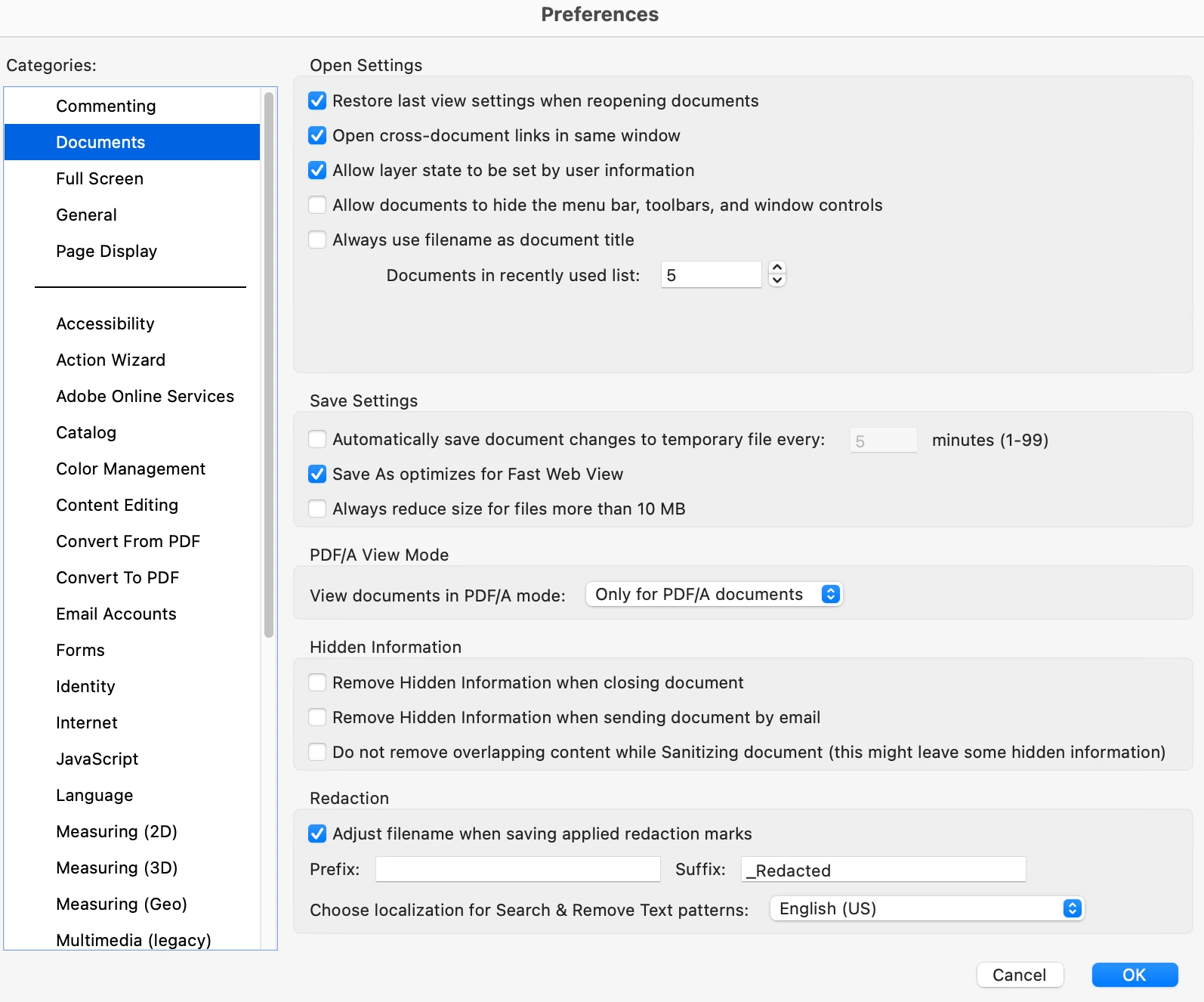
@barbora_1434 Yes, there is a way to configure Adobe Acrobat to open documents with only the main file view visible and to suppress the display of those auxiliary panels by default. Open Adobe Acrobat and navigate to Edit > Preferences (on Windows) or Acrobat > Preferences (on macOS). Within the Preferences dialog, look for a category related to Documents or Opening Documents. Within these settings, you should find options that control how documents are opened and displayed. Look for settings such as "Restore last view settings when reopening documents" and ensure it is unchecked. There might also be an option related to "Open to Page Panel" or similar; ensure this is set to None or that the specific panels you're seeing (like Attachments or the ISDOC form features panel) are not set to automatically open. By adjusting these preferences, you should be able to configure Acrobat to open files with a clean view of the document itself, without the automatic appearance of the panels you find unnecessary.


1 reply

creative explorer
Community Expert
creative explorerCommunity ExpertCorrect answer
Community Expert
April 17, 2025

@barbora_1434 Yes, there is a way to configure Adobe Acrobat to open documents with only the main file view visible and to suppress the display of those auxiliary panels by default. Open Adobe Acrobat and navigate to Edit > Preferences (on Windows) or Acrobat > Preferences (on macOS). Within the Preferences dialog, look for a category related to Documents or Opening Documents. Within these settings, you should find options that control how documents are opened and displayed. Look for settings such as "Restore last view settings when reopening documents" and ensure it is unchecked. There might also be an option related to "Open to Page Panel" or similar; ensure this is set to None or that the specific panels you're seeing (like Attachments or the ISDOC form features panel) are not set to automatically open. By adjusting these preferences, you should be able to configure Acrobat to open files with a clean view of the document itself, without the automatic appearance of the panels you find unnecessary.


m