
Legend
October 13, 2018
Question

How To Extract Single Pages

  • October 13, 2018
  • 3 replies
  • 1389 views

Hello Everyone.

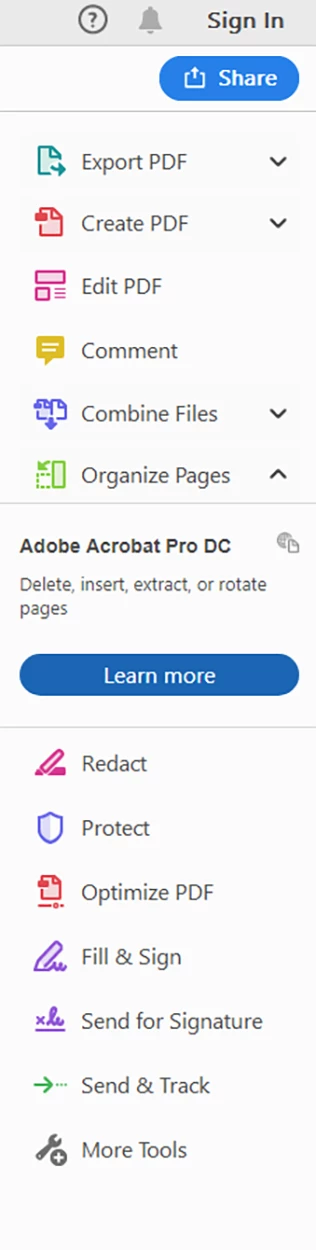
I have a Document with many Pages, and I want to save 2 or 3 pages only. I can not find the Extract Pages. I am running the latest Creative Cloud app.

Also, By default every time I open Acrobat, the  Page Display View is like 250%, I want it to fit to screen for everytime I open the PDF.

Here Is my Screenshot.

Thank you very much.
    This topic has been closed for replies.

    3 replies

    Legend
    October 15, 2018

    Acrobat DC is fine. Acrobat Pro DC is fine. Acrobat Reader DC is not. If you see the word Reader it cannot work. You need to be very clear which one is running (which is easy enough, it tells you in the title bar).

    I suggest you uninstall Reader then use the Creative Cloud app to install Acrobat Pro DC, just as you would install Photoshop or other CC apps.

    Legend
    October 16, 2018

    Dear Test Screen Name.

    Inside Adobe Creative Cloud, I see all the programs such as Photoshop, Premiere, After Effects, Bridge, and so on. But I don't see any Acrobat Pro DC

    Thanks.

    Participant
    October 15, 2018

    There is a simple trick: go to Print and set Microsoft print to PDF as printer. Then save the pages you want.

    Legend
    October 16, 2018

    Dear conchao

    I used your Print Technique and It worked.

    Thank you very much.

    Legend
    October 13, 2018

    Please look in the title bar of your app. Does it say "Acrobat Pro", "Acrobat Standard", "Acrobat Reader" or something else again?

    Legend
    October 14, 2018

    Dear Test Screen Name.

    It say  Acrobat DC

    Thanks

    try67
    Community Expert
    Community Expert
    October 14, 2018

    No, it says "Acrobat *Reader* DC".

    Reader can't extract pages from a file.

    If you have Acrobat Standard or Acrobat Pro then you need to open the file there and you'll be able to do it, unless the file is encrypted or signed or something like that.