Participant
October 17, 2018
Answered

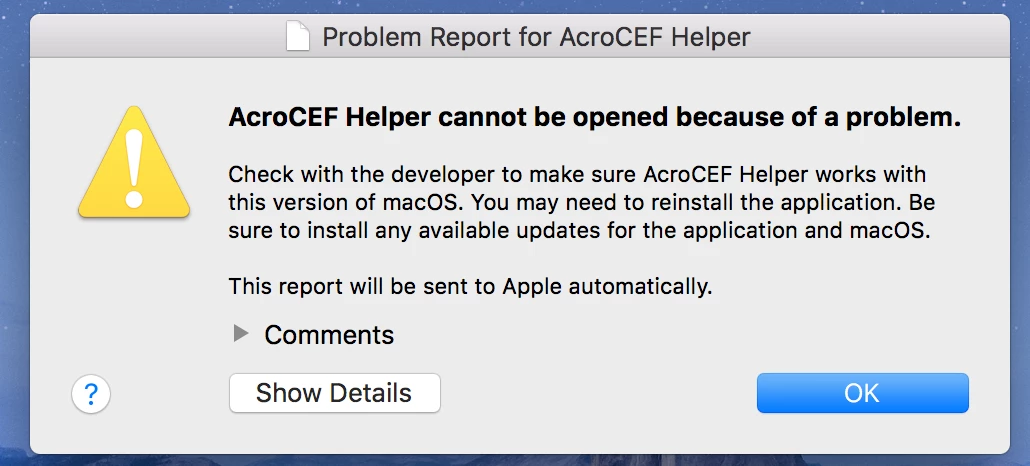
How to fix "AcroCEF Helper Cannot be opened because of a problem"?

  • October 17, 2018
  • 1 reply
  • 6540 views

Every time I open a PDF document this message keeps popping up constantly. I tried uninstalling Adobe Acrobat and installing it again, still keeps popping up. I tried restarting my computer and it still happens. I tried looking it up on the internet but found no clear solution. I am using a mac OS, 10.13.5 and Creative Cloud 4.7.0.400
    This topic has been closed for replies.
    Correct answer AkanchhaS8194121

    Hi Den,

    Sorry to hear about the trouble and thanks for sharing the detailed description. Since you are using the Mac OS, then we suggest you to once close unwanted the Acrobat instances running at the background and then try to open a pdf.

    You can refer to the following steps.

    1- Open "Activity Monitor",You can search for it in spotlight or Go>Utilities>Activity Monitor.

    2- Select AcroCEF Helper from the processes and force quit.

    3- Open Acrobat and pdf, the files should open now.

    4- If it still doesn't help, then use cleaner tool to remove the application and its old traces.

    Download Adobe Reader and Acrobat Cleaner Tool - Adobe Labs

    5- Reinstall the app.

    Let us know if it doesn't make any difference.

    Regards,

    Akanchha 

    1 reply

    AkanchhaS8194121
    AkanchhaS8194121Correct answer
    Legend
    October 17, 2018

    Hi Den,

    Sorry to hear about the trouble and thanks for sharing the detailed description. Since you are using the Mac OS, then we suggest you to once close unwanted the Acrobat instances running at the background and then try to open a pdf.

    You can refer to the following steps.

    1- Open "Activity Monitor",You can search for it in spotlight or Go>Utilities>Activity Monitor.

    2- Select AcroCEF Helper from the processes and force quit.

    3- Open Acrobat and pdf, the files should open now.

    4- If it still doesn't help, then use cleaner tool to remove the application and its old traces.

    Download Adobe Reader and Acrobat Cleaner Tool - Adobe Labs

    5- Reinstall the app.

    Let us know if it doesn't make any difference.

    Regards,

    Akanchha 

    den024Author
    Participant
    October 18, 2018

    Thank you! The first 3 steps didn't work but steps 4 and 5 solved the issue.

    AkanchhaS8194121
    Legend
    October 19, 2018

    Awesome!!

    Glad to hear it worked for you. And thanks for letting us know the exact step that actually helped you.

    Let us know if there is any further assistance is required.

    Regards,

    Akanchha