



Answered
How to stop the windows which open permanently while you start the Adobe Reader
When I start the Adobe Reader, this window opens and wants me to create an Account. But I already created an Account and don't want to close the advertisment every time I start the Reader.
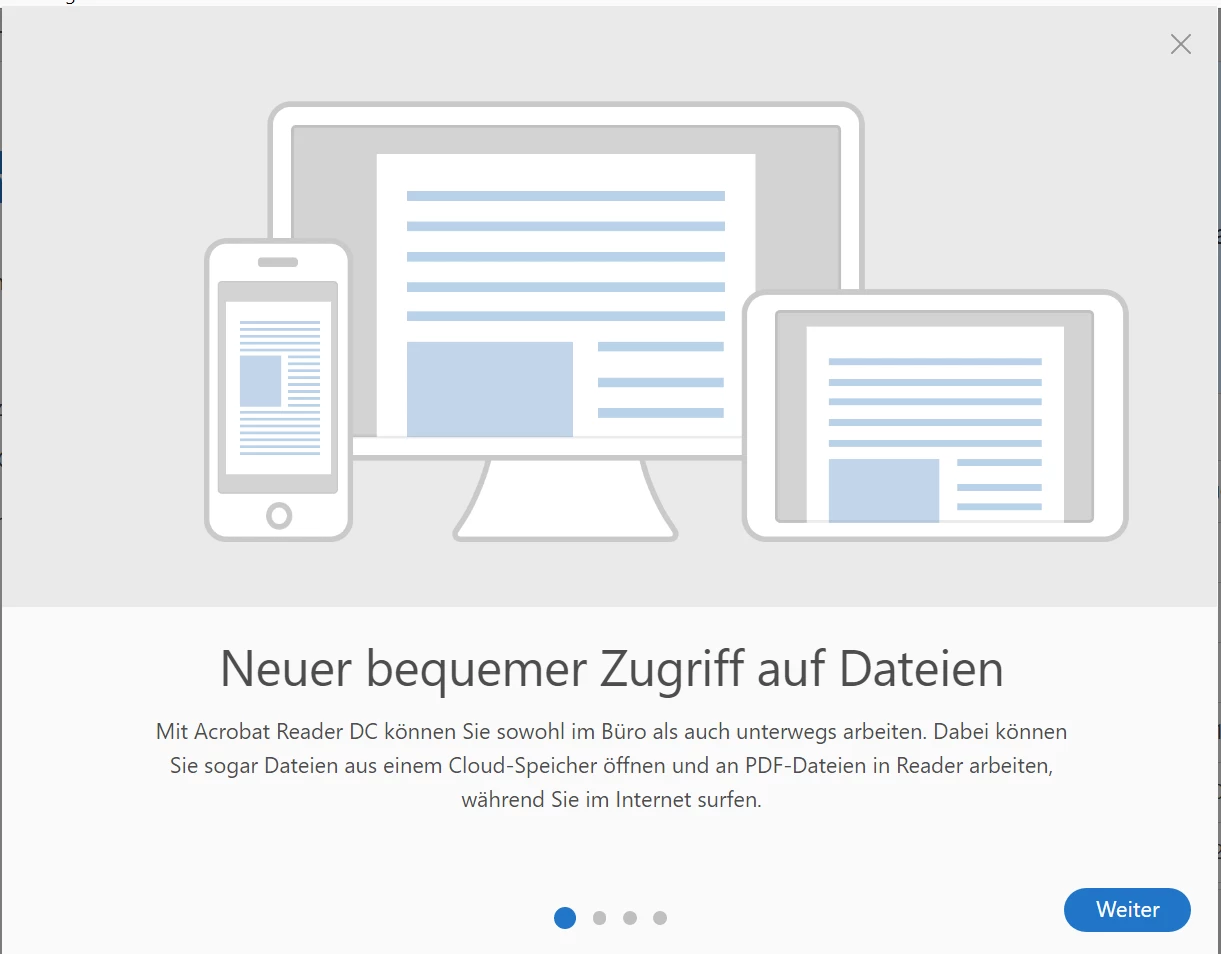
After I closed the window another appeares:
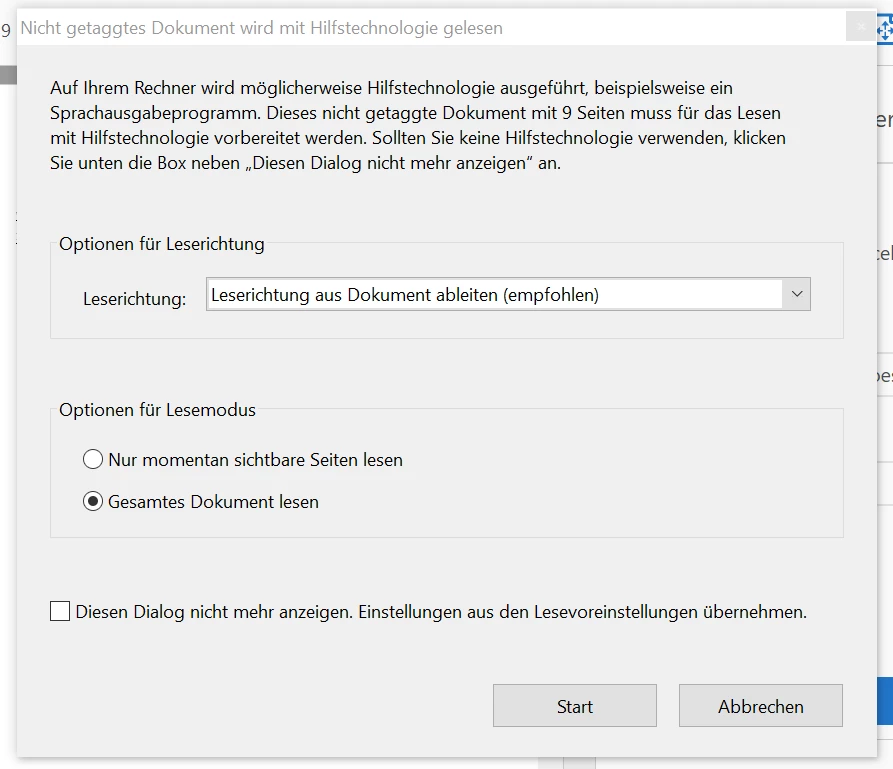
It asks me always the same: Do you want to read the whole document or just one page. But I don't want to decide it for the same document again and again when I open it and this for each document. Is it possible to stop these windows appearing?
Thanks for your help
Anton

 AdChoices