
LJDM
Known Participant
October 19, 2018
Answered

Newest version of Reader DC (2019.008.20074) doesn't display forms properly

  • October 19, 2018
  • 3 replies
  • 1185 views

Hi all.

I created an elaborate 28-page form in Acrobat Pro DC which contains a large amount of Javascript code and features dozens of dropdowns, checkboxes, read-only fields, and fillable fields throughout. I have always saved a Reader Extended PDF version of the form to distribute to the users of the form. This has worked fine for a couple of years.

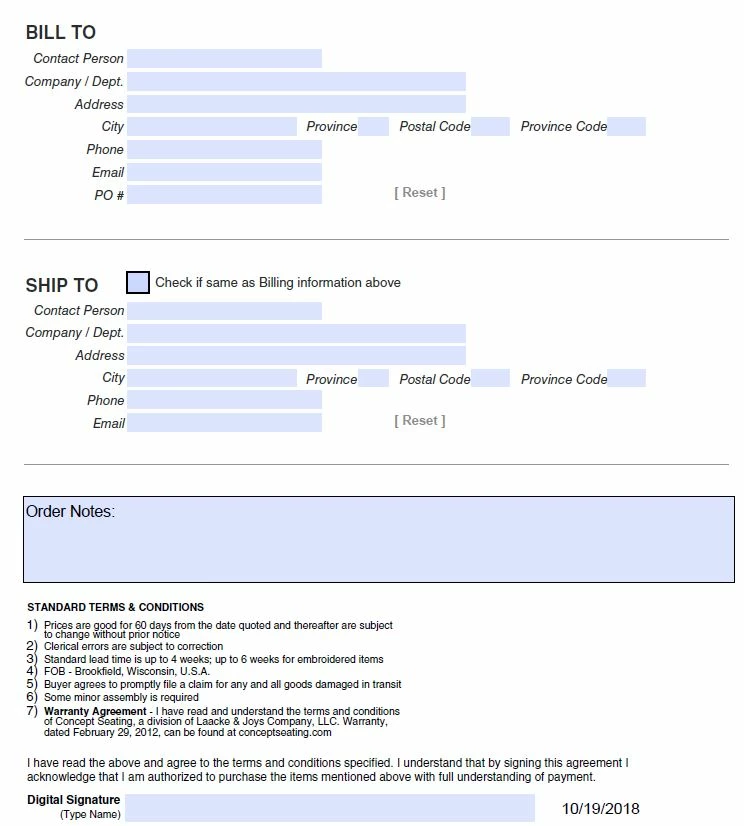
After the most recent update to Reader DC, my users no longer see any of the fillable text fields in the exact same file they used in the previous version of Reader DC. The fields are still there, and can be clicked on and typed into, but they are no longer visible. This means my users are lost and confused, considering there have been no changes to their files, but they suddenly look very different.

For example, previously one of the pages looked like this:
Now, that same page looks like this:
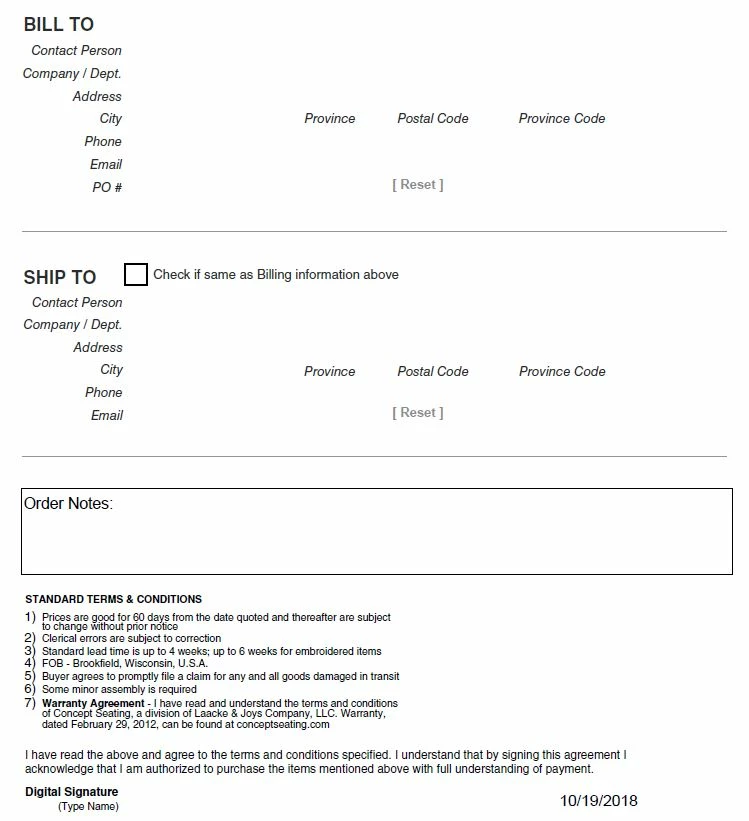
Again, absolutely nothing has changed within the file. only the Reader software was updated. I already contacted Acrobat Pro DC support to ask if there was a new method required for saving/exporting Reader Extended PDFs, and they simply told me they know nothing about Reader and I had to come here for help. Users are combo of Mac & PC.

Any suggestions or insight? Thank you in advance for any and all help you can provide.

    This topic has been closed for replies.
    Correct answer gkaiseril

    Unfortunately many updates for applications reset the  user's preferences for their applications. This causes users to have to go back and restore their settings.

    You can instruct them to turn on Field Highlighting by the menu item "Edit => Preferences => Forms" and selecting the highlighting items. Or you can add a document level script to turn on the highlighting option, but be careful since this may reset the user's preferences.

    3 replies

    LJDM
    LJDMAuthor
    Known Participant
    October 19, 2018

    Thank you both for the answer. During troubleshooting, I completely uninstalled the newest version of Reader and installed an older build (from earlier this year). Voila, the form worked as expected again.

    Couple that with the fact that most of my users would have no idea how to change preferences if they wanted to, and it's obvious 'Field Highlighting' was enabled by default in previous versions, but is now disabled by default. It's a curious change to make, since by the nature of a fillable form, a user needs to know where the editable fields are.

    I haven't tested your solution yet, but it sounds like it will solve the dilemma. I'll reinstall the newest version and test later today. Thanks again for the help. I'm off to put together a 'training' graphic for my users . . .

    gkaiserilCorrect answer
    Inspiring
    October 19, 2018

    Unfortunately many updates for applications reset the  user's preferences for their applications. This causes users to have to go back and restore their settings.

    You can instruct them to turn on Field Highlighting by the menu item "Edit => Preferences => Forms" and selecting the highlighting items. Or you can add a document level script to turn on the highlighting option, but be careful since this may reset the user's preferences.

    Bernd Alheit
    Community Expert
    Community Expert
    October 19, 2018

    Enable the field highlighting in the preferences of Acrobat Reader.