
Inspiring
April 8, 2022
Answered

.PDF file not retaining fullscreen when re-opening in Acrobat Reader DC

  • April 8, 2022
  • 1 reply
  • 429 views

I have a .pdf file set as a homepage. It displays in fullscreen.
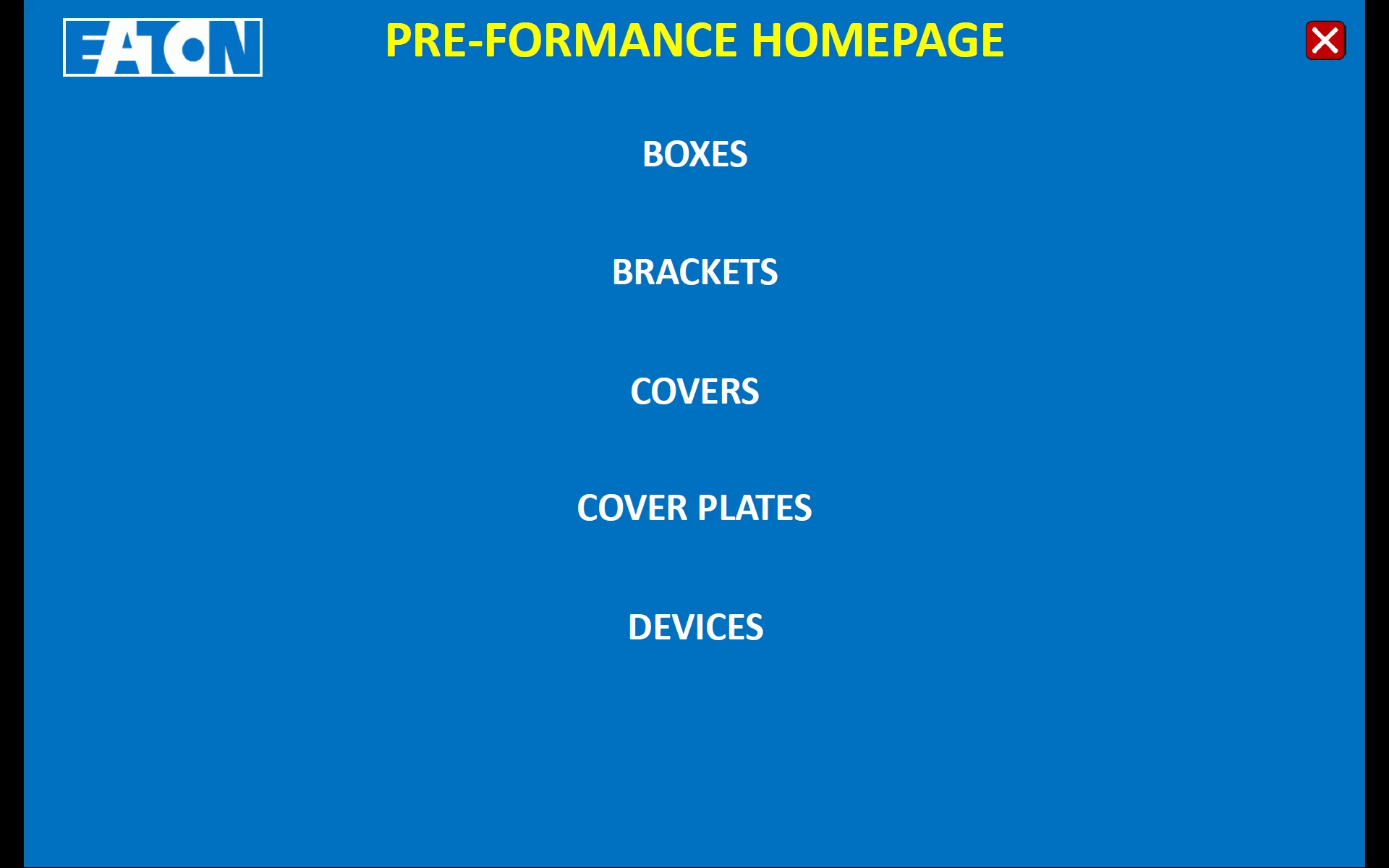
Clicking on one of the links opens a .pdf file in a new window. But when I close that window to go back to the home page, the home page now displays like this:
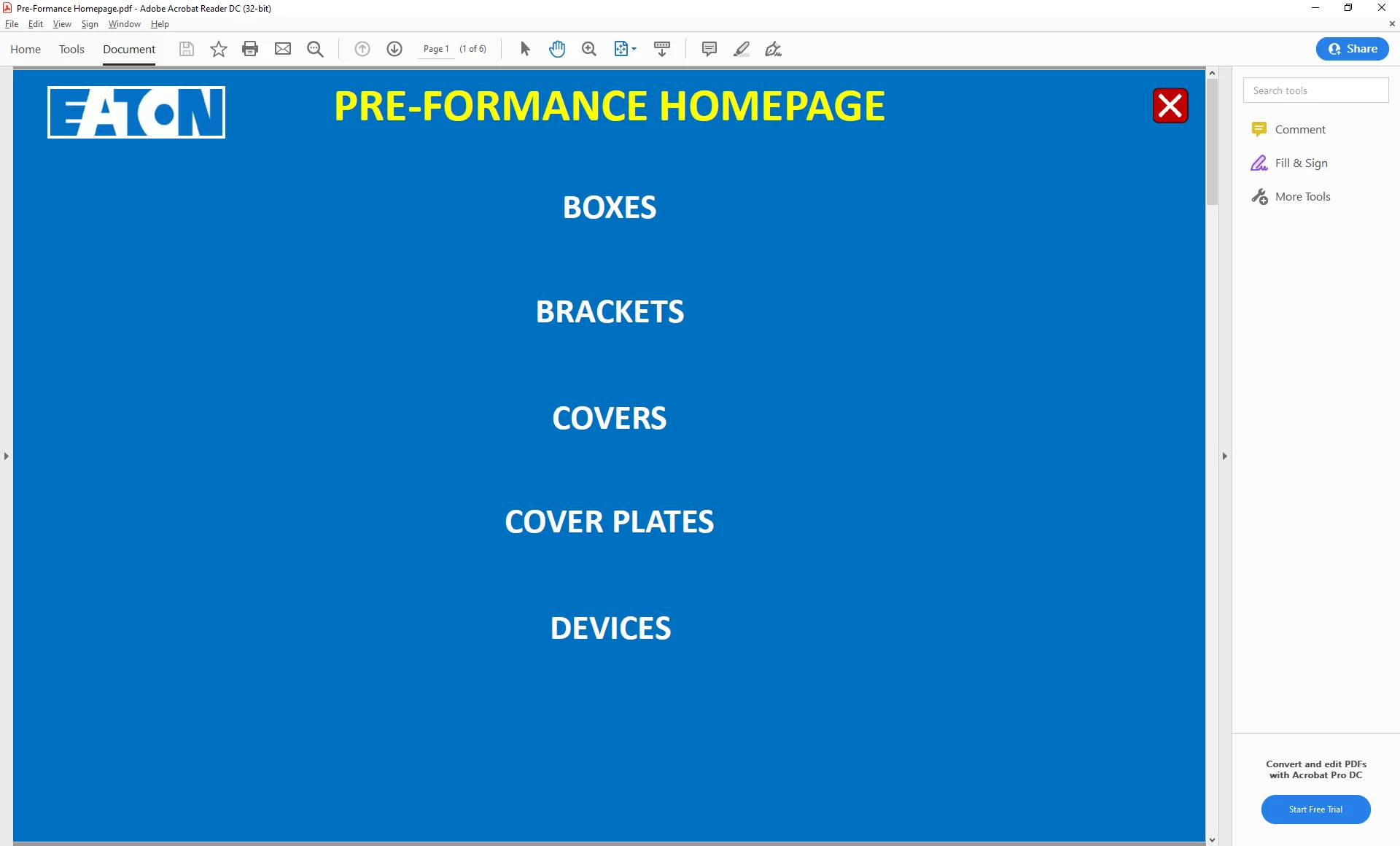
This does not happen on my main PC (PC#1), only at the PC (PC#2)out in the work area. I have checked the Acrobat Reader DC settings on PC#2 and they are the same as on PC#1.

This is making me nuts. Any and all help is greatly appreciated.

This topic has been closed for replies.
Correct answer AkanchhaS8194121

Hi Patrick,


Sorry to hear about your experience. 

Looking at the screenshot shared above, it seems that you are referring to the Tool-Pane window opened on the right-hand side of the document. Which is basically cropping the view of the file and not letting it open 100% on screen. Did I get this right?

If this is the case then this Tool-Pane can be disabled by changing the following preferences setting in Acrobat Reader DC. 

1- Navigate to Acrobat Reader>Edit>Preferences (Ctrl+k)>Documents, and then select Remember current state of Tools pane.

2- Open a PDF document in Reader DC, and then collapse the Tools pane by clicking on the arrow available on the sidebar.

3- Click OK. Relaunch Acrobat Reader DC.

For detailed information, you may read this help article here: https://helpx.adobe.com/acrobat/kb/disable-right-hand-pane-in-acrobat-reader.html 


Thanks,

Akanchha 

1 reply

AkanchhaS8194121
AkanchhaS8194121Correct answer
Legend
April 11, 2022

Hi Patrick,


Sorry to hear about your experience. 

Looking at the screenshot shared above, it seems that you are referring to the Tool-Pane window opened on the right-hand side of the document. Which is basically cropping the view of the file and not letting it open 100% on screen. Did I get this right?

If this is the case then this Tool-Pane can be disabled by changing the following preferences setting in Acrobat Reader DC. 

1- Navigate to Acrobat Reader>Edit>Preferences (Ctrl+k)>Documents, and then select Remember current state of Tools pane.

2- Open a PDF document in Reader DC, and then collapse the Tools pane by clicking on the arrow available on the sidebar.

3- Click OK. Relaunch Acrobat Reader DC.

For detailed information, you may read this help article here: https://helpx.adobe.com/acrobat/kb/disable-right-hand-pane-in-acrobat-reader.html 


Thanks,

Akanchha