@Mr. GreyZ The poster printing feature is usually available in most versions of Adobe Acrobat, the inability to adjust the orientation for optimal tiling and minimal waste might be a limitation of the current implementation or could potentially be related to how the application interprets the page setup for poster printing.
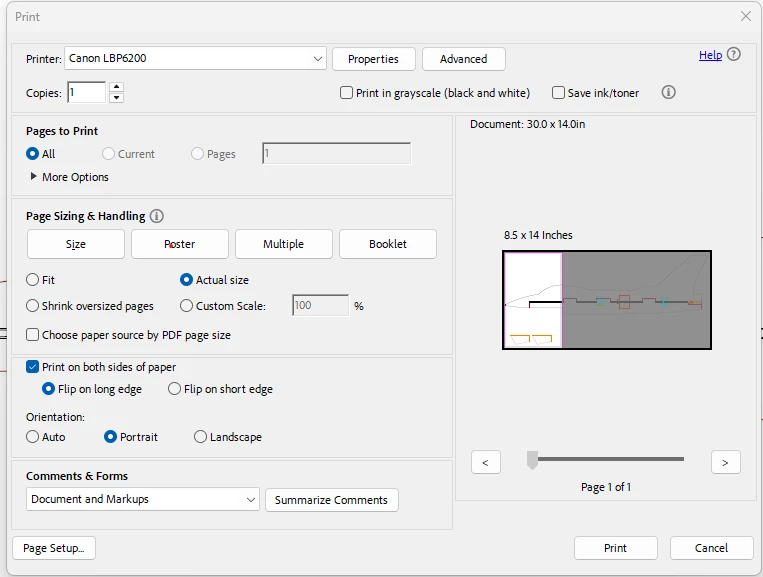
Since you have the 'Poster' setting, you have access to more of the advanced printing options, including tiling. The fact that it's not functioning suggests there might be a specific setting or workflow step you might be missing, or perhaps there's an issue with how Acrobat is interpreting the document or your printer settings. Before going to the print dialog, go to File > Page Setup. Ensure the paper size selected here matches the paper you're actually printing on. Sometimes, a mismatch can cause unexpected behavior in the print output, including tiling. It might seem obvious, but ensure the document you're trying to print as a poster is indeed larger than a single sheet of your output paper. Acrobat uses the document's dimensions to determine how to break it into tiles.
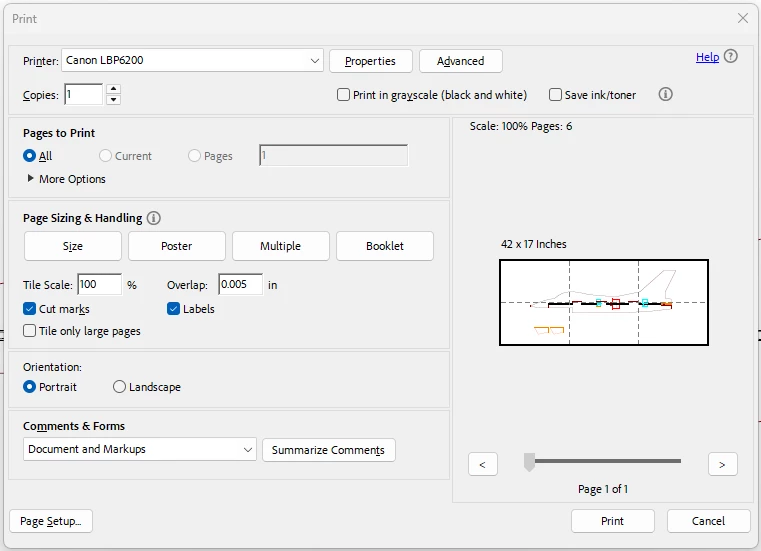
Now, when you go to File > Print and select Poster under "Page Sizing & Handling," make sure you've adjusted the Tile Scale and Overlap settings to your liking. The "Tile Scale" determines how much the original page is magnified across the printed sheets, and the "Overlap" controls how much each tile overlaps the adjacent ones for easier assembly.



 AdChoices