
lauren8139
Participant
Jul 26, 2018 1:38 PM UTC
Answered

Printing pop-up too big for screen

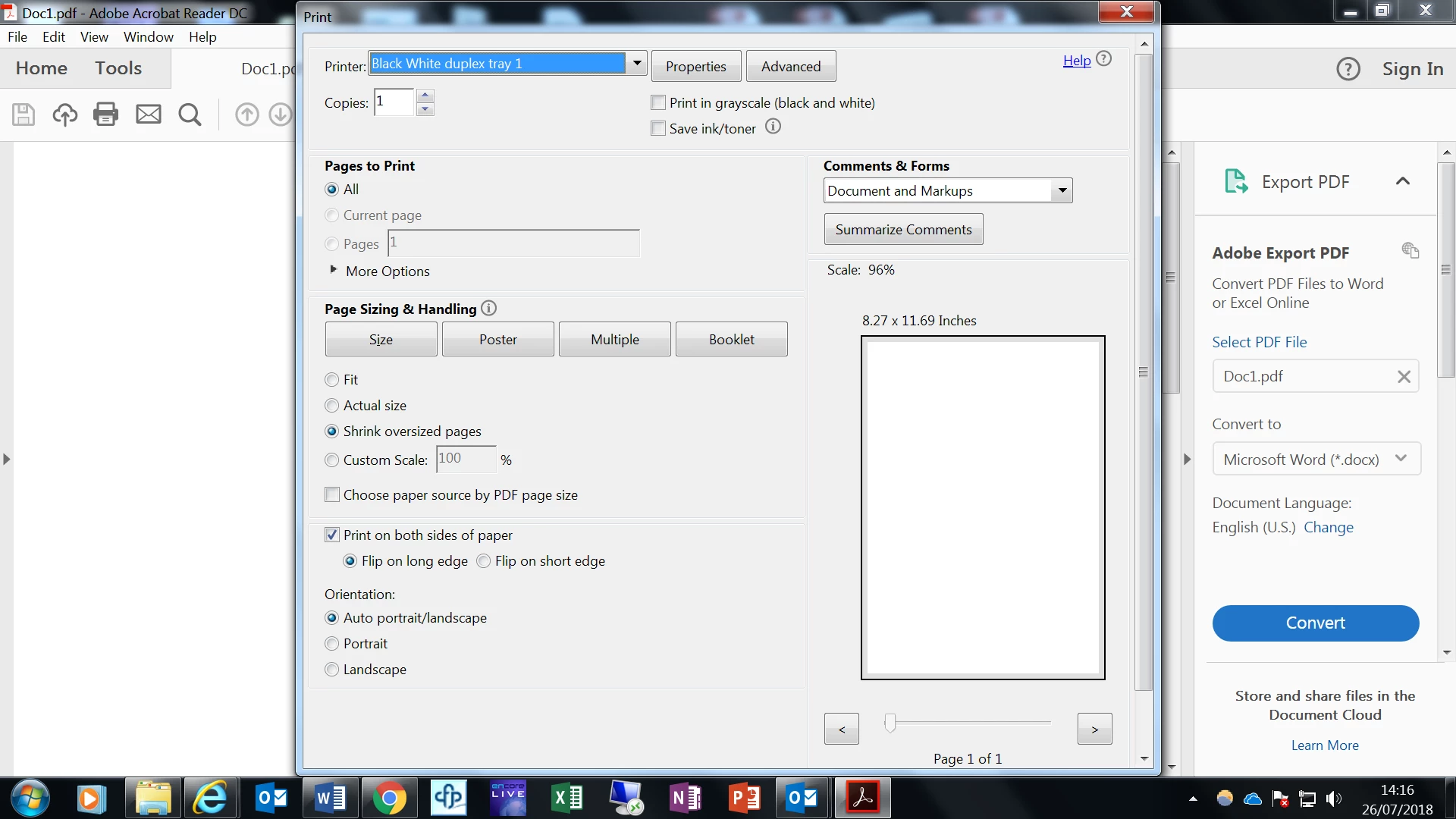
When I go to print every PDF the pop-up that comes up saying which printer, page etc always comes up too big for the screen with a scroll down the side to get to the actual print button. Every couple of times this scroll doesn't move the page so I can't get down to print and have to wait a while. I have tried resizing the pop-up box however although the arrows come up when I go to the edge, I cannot move it.

Is there a different way to permanently make the pop-up smaller, so that each time I go to print it doesn't fill the page?
Thank you

AnandSri
AnandSriCorrect answer
Legend
Sep 23, 2018 9:18 PM UTC

Hello Lauren,

We're sorry for the delayed response and inconvenience caused. Please go to Edit - Preferences - General and select "Auto Detect" under "Scale for screen resolution"> Click OK. Launch Adobe Reader and check.

Make sure that you have the latest version of Adobe Reader 2018.011.20063 installed, check for the updates from help>check for updates, reboot the machine after updating Adobe Reader.

Let us know how it goes and share your observation.

Thanks,

Anand Sri.

3 replies

AnandSri
AnandSriCorrect answer
Legend
Sep 23, 2018 9:18 PM UTC

Hello Lauren,

We're sorry for the delayed response and inconvenience caused. Please go to Edit - Preferences - General and select "Auto Detect" under "Scale for screen resolution"> Click OK. Launch Adobe Reader and check.

Make sure that you have the latest version of Adobe Reader 2018.011.20063 installed, check for the updates from help>check for updates, reboot the machine after updating Adobe Reader.

Let us know how it goes and share your observation.

Thanks,

Anand Sri.

Translate
Participant
May 1, 2025 2:06 AM UTC

I've tried it however it's not working.  Can anyone help?

Translate
AnandSri
Legend
May 1, 2025 2:07 PM UTC

Hello!


I hope you are doing well, and thanks for reaching out.


Could you please share more details about the issue? Are you on a Windows machine or a Mac, and what is the version? What is the current version of Acrobat Reader installed? To identify, go to Menu > Help > About Adobe Acrobat Reader, and share the version details as a screenshot.


Please ensure you have the latest version of Adobe Acrobat Reader installed on the machine: 25.001.20474 (Win) | 25.001.20476 (Mac), Apr 28, 2025. Check for any pending updates from the Menu > help > check for updates, install the updates, restart the app and the machine, and try again. For more information, see this: https://adobe.ly/3RF5PDo


Do you have an external monitor connected? Oversized dialog boxes are often caused by display scaling:

Windows:

  • Right-click on the desktop and select Display settings.
  • Under Scale and layout, set Scale to 100% (or a lower value if set higher).
  • Sign out and sign back in, or restart your PC.


Set Acrobat Reader DPI Settings

  • Navigate to:
    C:\Program Files (x86)\Adobe\Acrobat Reader DC\Reader\AcroRd32.exe

  • Right-click → Properties → Compatibility tab.

  • Click Change high DPI settings.

  • Check Override high DPI scaling behavior and set it to System.

  • Click OK and restart Reader.


Also, ensure you have all the mandatory and optional updates of the operating system installed. 


Let us know how it goes.

Thanks,

Anand Sri.

Translate