
Reader crashes - Error: PDF Can't be viewed in Acrobat
Problem: Acrobat or Acrobat Reader crashes or displays the error "This PDF cannot be viewed in Acrobat or Reader, and the application will now exit."
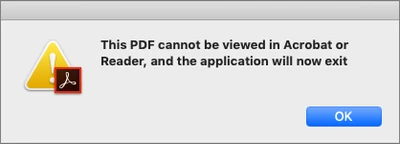
Acrobat or Acrobat Reader crashes on macOS or displays the above error dialog when you perform any of the tasks below in a PDF file:
- Play MP4 content
- Render a 3D model
- Add a .U3D file
- Scroll a PDF created by InDesign
Reason
- When the virtual memory limit of Acrobat or Acrobat Reader crosses the internal threshold, Acrobat displays the error and exits.
Solution: Create a FeatureState.plist file with a lock-down setting to increase the threshold limit
- Quit Acrobat or Acrobat Reader application if it's already running.
- Navigate to the folder /Library/Application Support/Adobe/(product name)/(version)/Preferences.
For example, the path for Acrobat is /Library/Application Support/Adobe/Acrobat/DC/Preferences.
- Do the following:
a.) Download the com.adobe.acrobat.featurestate.plist.zip file below - click the Get file button.
Get file com.adobe.acrobat.featurestate.plist.zip file
b.) Extract the file, and copy the extracted file to the following folder - /Library/Application Support/Adobe/(product name)/(version)/Preferences.
_________________________________________________________________________________
Note:
The com.adobe.acrobat.feature state.plist file has the following entry:
- Key: kEnableHigherVirtualSizeLimit
- Type: Boolean
- Default Value: 1
When kEnableHigherVirtualSizeLimit = 0; the default internal threshold is used.
When kEnableHigherVirtualSizeLimit = 1; the increased internal threshold is used.
In either case, when you exceed the internal threshold limit, Acrobat displays the error and exits.
_________________________________________________________________________________
4. (Optional) Open Terminal and run the following command: sudo killall cfprefsd
This command clears your Mac's cache preferences and prevents the macOS from deleting the newly added plist file when you launch Acrobat or Acrobat Reader.
5. Launch Acrobat or Acrobat Reader and perform your desired task.
Have you found this answer helpful?
If so, Join the conversation with us and share your thoughts. Your feedback is valuable to us, and we are always listening.


 AdChoices