@silviol48935268 The suggested method for disabling automatic bookmark opening is for a specific PDF document, as per @Meenakshi Negi. The automatic opening of bookmarks is a setting embedded within the PDF file itself by the person who created or last saved it. This is called the "Initial View" setting, and it's what the previous advice referred to (Document Properties > Initial View).
Unfortunately, there isn't a direct, single preference setting in Adobe Acrobat Pro (or Reader) that globally disables the automatic opening of the Bookmarks panel for all PDFs you open.
For PDFs that open with bookmarks, you'll simply need to manually close the Bookmarks panel (usually by clicking the little "x" or the bookmark icon on the left sidebar) each time you open such a document. While not ideal, it's the most straightforward method.
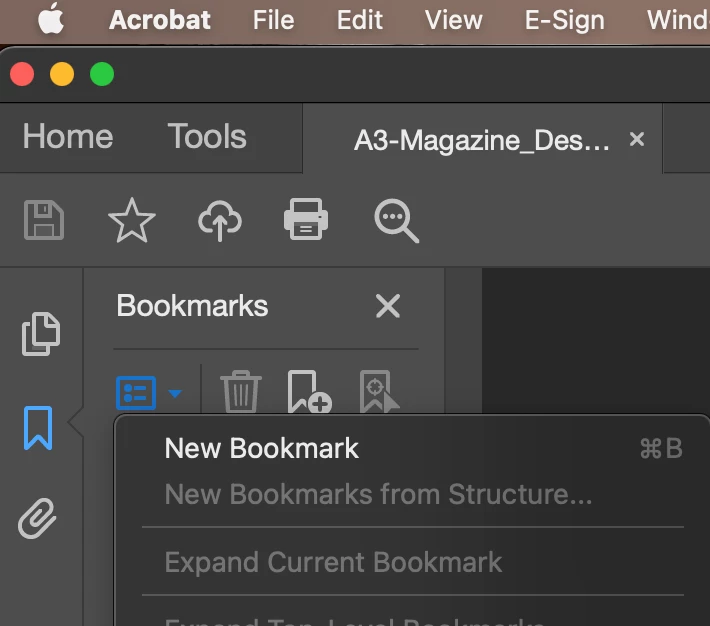
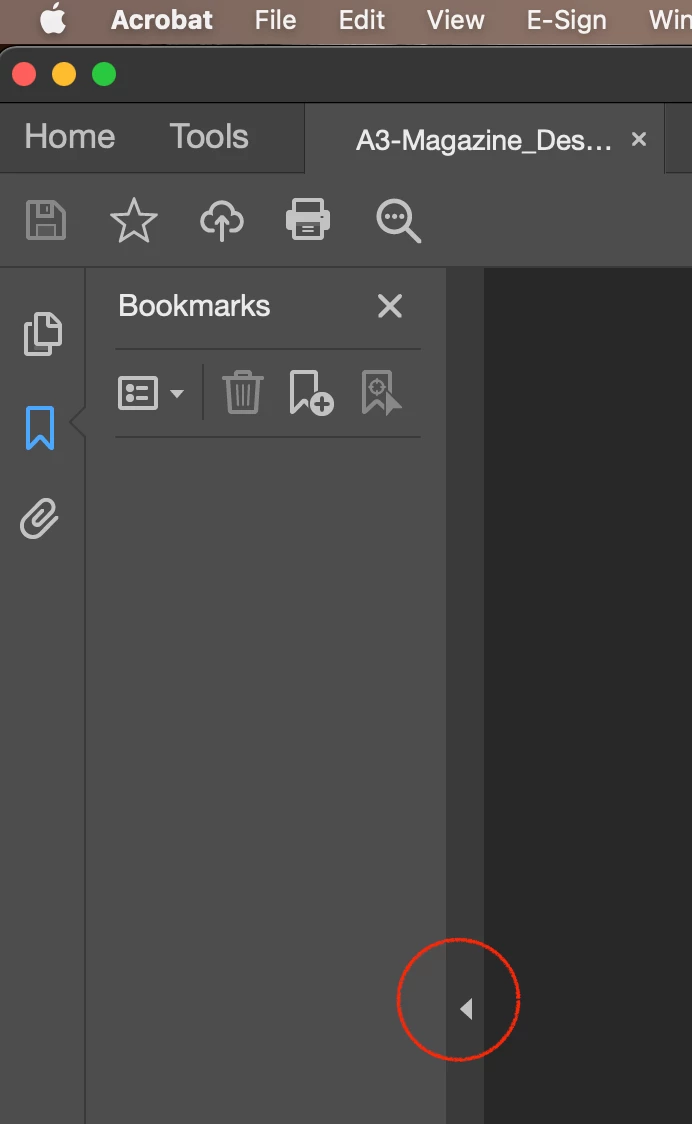
Or click to close the side panel. Mine is usually closed, and when I open a PDF, if I want to look at the Bookmarks, I need to expand the side panel!





 AdChoices