Hello @jarikunnel,
I hope you are doing well, and thanks for reaching out. We're sorry for the trouble you had.
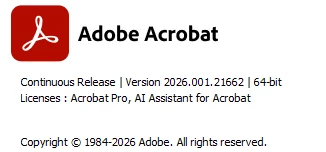
The screenshot you shared for the version is from June 2026. The latest build of Acrobat is: 26.001.21691, Planned update, Jun 25, 2026. Check for any pending updates by navigating to Menu > Help> Check for Updates. Install the updates, restart the app and the machine.
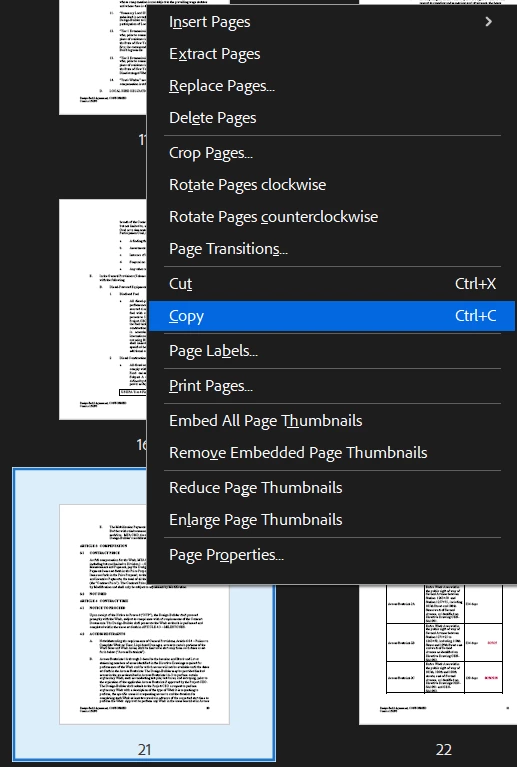
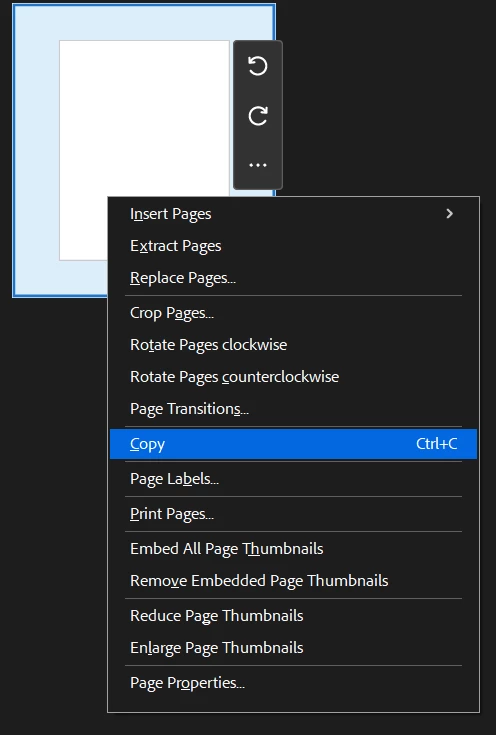
Please note that you can copy whole pages between PDFs in Acrobat Pro, but the Paste option is contextual. It appears when you paste between page thumbnails in a target PDF, not as a general paste option on a “blank” document area.
Suggestions:
Open both PDFs in Acrobat Pro
Open the source PDF and the PDF that will receive the copied pages.
On Windows, choose Menu > Window > Tile > Vertically to view both PDFs side by side. Adobe documents this as the current workflow for moving/copying pages between PDFs.
Reference: https://adobe.ly/3RcOJzW
Open Organize Pages
In the source PDF, select All tools > Organize pages.
The page thumbnails will appear in the document area.
Select the pages you want
Copy the selected pages
Paste into the target PDF
Go to the target PDF.
In Organize pages, right-click between the page thumbnails where you want the copied pages inserted.
Choose Paste.
Acrobat inserts the copied pages and renumbers the document.
Save the new file
Note:
If your target is a brand-new blank PDF, it only has one page, and finding the paste spot next to a single lone thumbnail can be fiddly. The most reliable method in that case is drag-and-drop: select the pages in the source's Organize pages view and drag them straight into the target's Page Thumbnails panel. A blue line shows where they will land. This does everything copy/paste does and tends to be smoother for assembling from multiple files.
If Copy or Paste ever appears greyed out entirely, check the source file's security: open Document Properties > Security, and if "Changing the Document" is Not Allowed, that restriction blocks page copying until it is removed.
If you’re building one PDF from multiple files
For a multi-file workflow, you may find Combine files easier:
Choose Menu > Combine files on Windows.
Select Add Files and add the PDFs you want.
Expand a file to view individual pages.
Remove pages you don’t need, drag thumbnails to reorder pages, then select Combine.
Another option: Insert pages from a file
If you already have the target PDF open:
Open the PDF you want to use as the base file.
Go to All tools > Organize pages.
Select Insert > From file.
Choose the PDF you want to insert.
In the Insert Pages dialog, choose where to place the pages, then select OK.
I hope these suggestions help, and let us know if you need any assistance.
Regards,
Anand Sri.





 AdChoices