This question has been answered before here:
And here is a link with official Adobe Helpx guidance:
In any case, is just easier if you just go online and paste this link in your web browser:
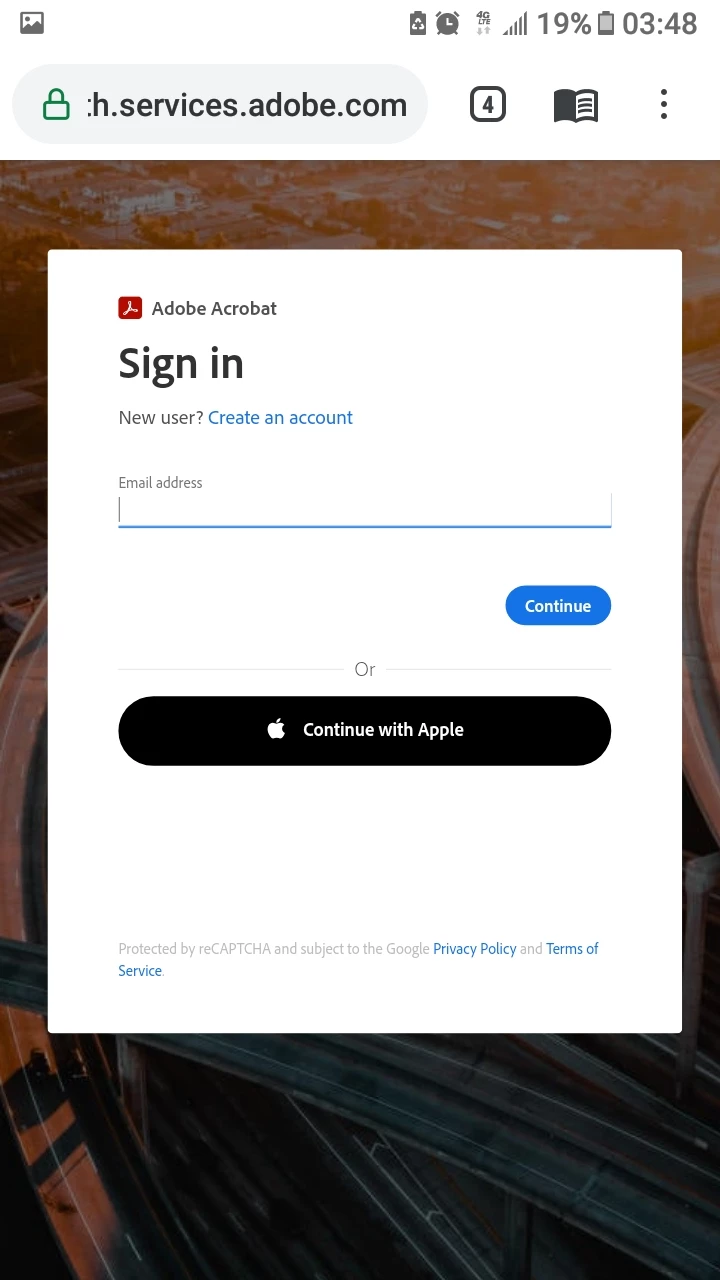
You'll need to sign in with your AdobeID.
Provide the AdobeID that is associated with your current paid subscription of Adobe Acrobat Pro DC:
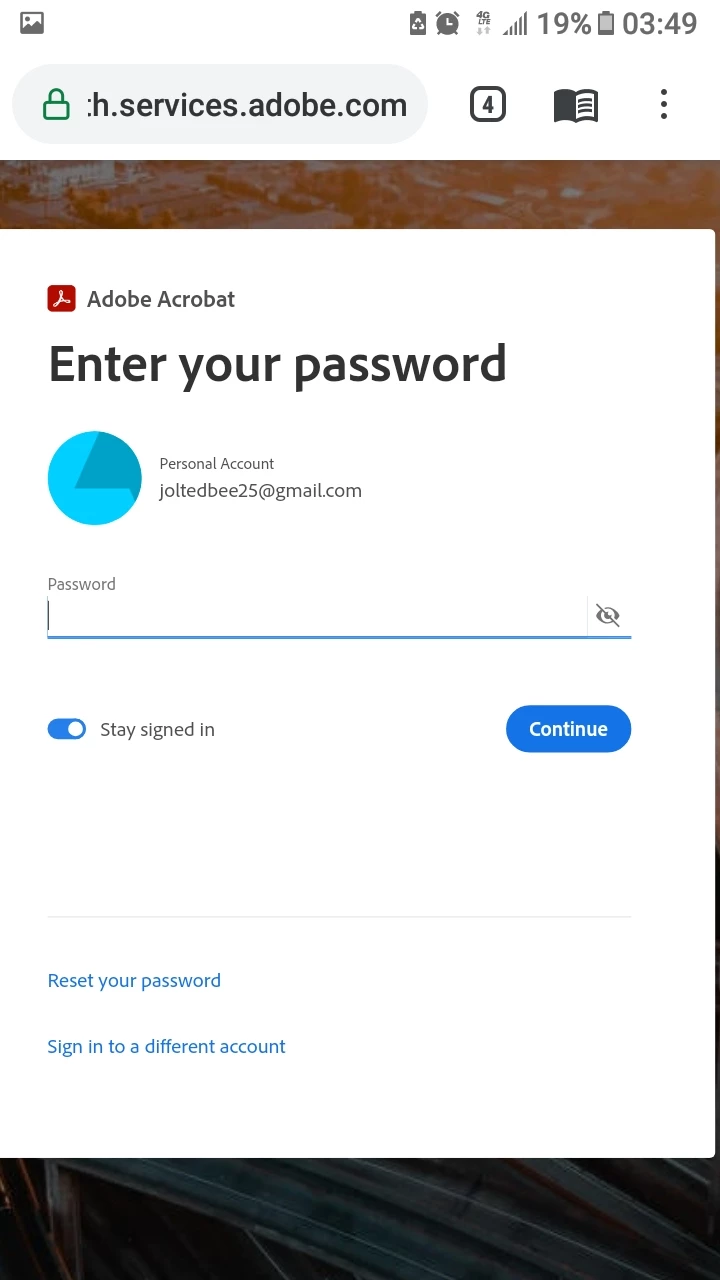
Then enter your password in the next screen:
Accessing the Adobe Sign home page will take a second or so... just wait for it:
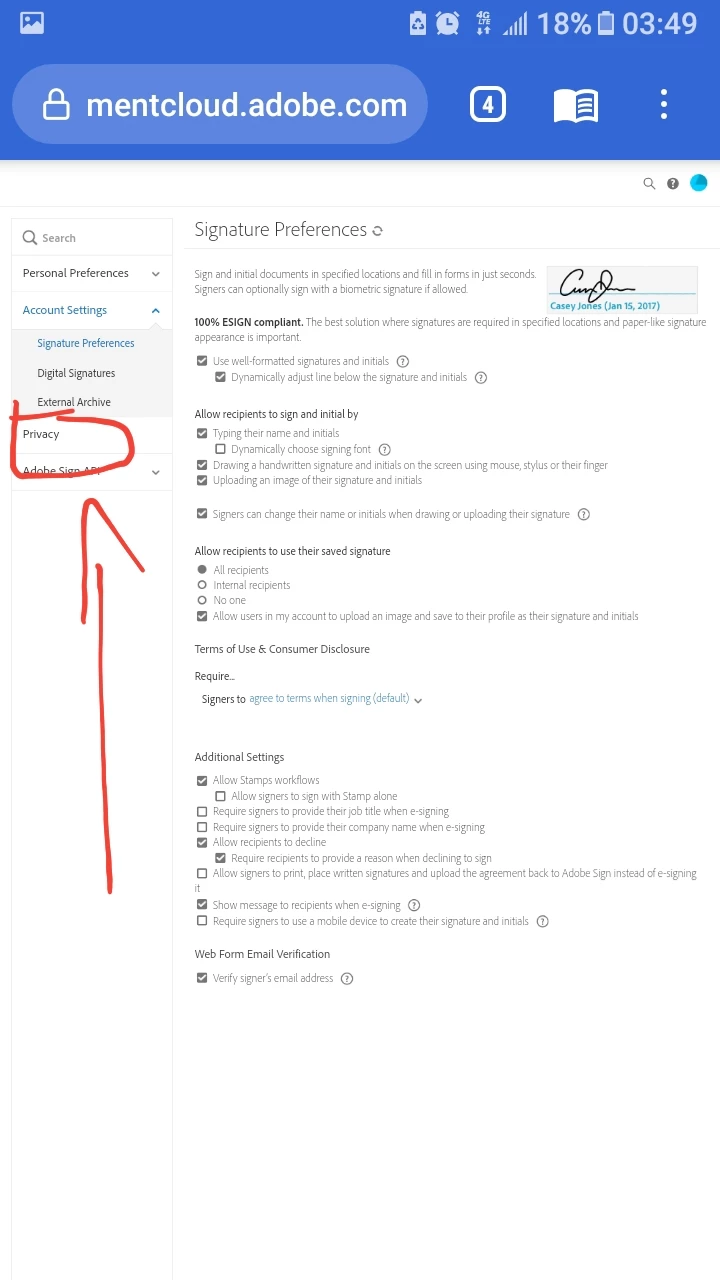
When it is done loading, it will bring you to the "Settings" landing page.
Click on the "Privacy" link as shown below:
Then in the next screen enter your AdobeID (or the email address in the blank provided (shown in the next slide) that is associated with any of the agreements that you've previously sent to other recipients:
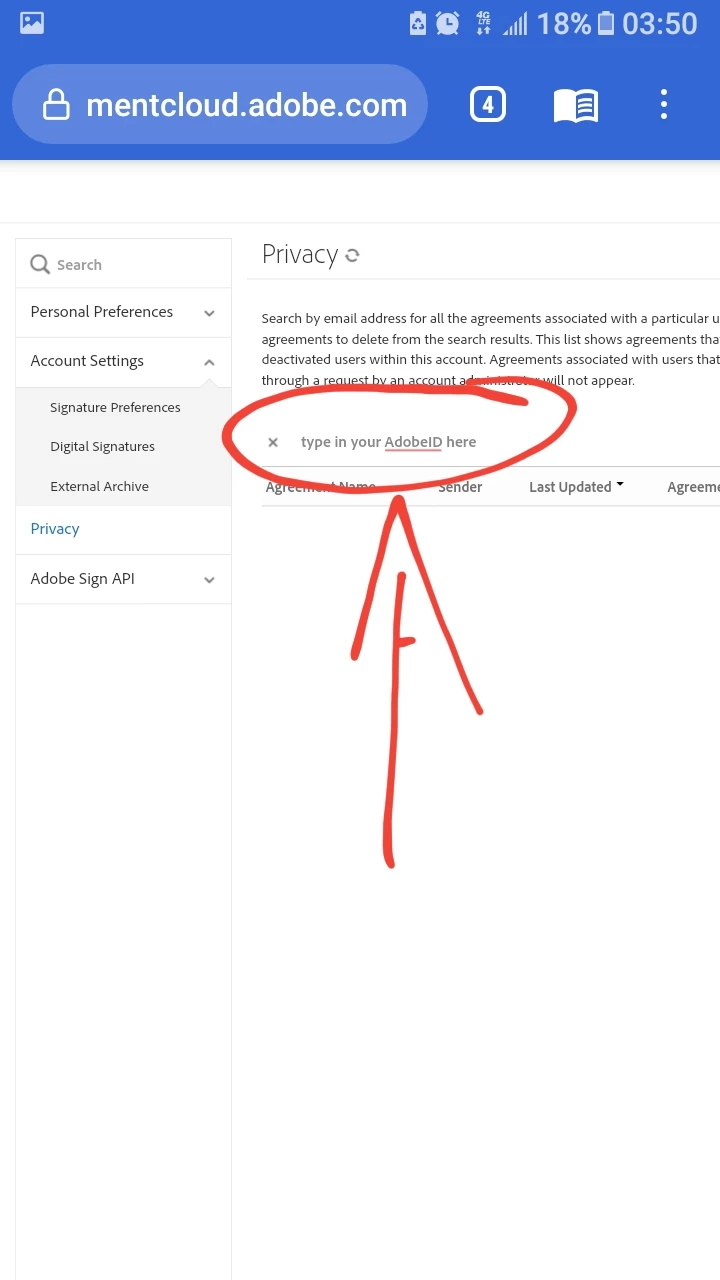
Once you've entered the email address all your agreements will be listed in the table below that email blank.
To the far right column, you'll see an trash can icon next to each of the rows per agreement. Click on that trash can icon to delete, and then confirm with OK on the next popup window to commit the delete action.
NOTE: I apologize if the images are blurry. I am posting this answer with screenshots from a dying mobile device.




 AdChoices