


Participant
October 8, 2023
Question

How Group or locking layers

  • October 8, 2023
  • 1 reply
  • 1086 views

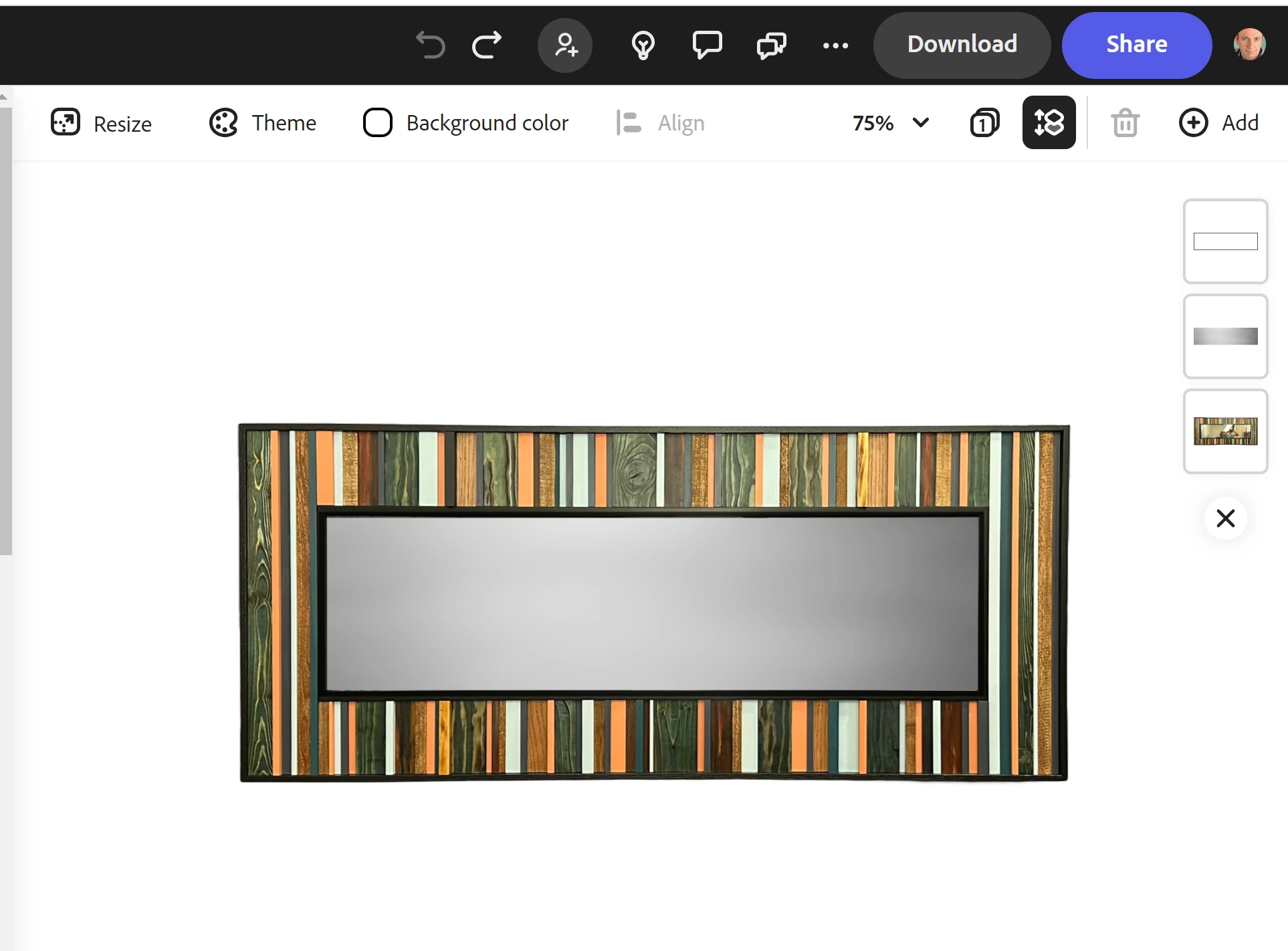
How do you lock or group all the layers in your image?  I've read forum that said you have to click on the 3 dots.  I do not see any three dots. Another said to select layers from the image and not layer icons themselves. Doesn't work.  Another suggestion was to try a different browser.  I tried Chorme and Edge.  Other suggestions were click on layer and hold shift or ctrl A... these don't work either.  I have a simple 3 layer image that dreated and now want to crop/resize... but can't lock the layers.  Seems like a lot of people are having this problem. Where is this function?


This topic has been closed for replies.

1 reply

thejanebradbury
Community Expert
Community Expert
October 9, 2023

To select multiple layers hold down the Shift key and click each element on the project canvas. To Group the layers use the keyboard shortcut Ctrl+G or check the panel on the left-hand side, where you should see the option to Group. 


Participant
October 16, 2023

I appreciate your reply. But I don't have any icon that says "group" or anything similar. As my question stated, I have asked forums, watched videos and tried all suggestions otheds offered. This is such a simple and necessary tool that I don't seem to have; though I have a paid subscription. 

thejanebradbury
Community Expert
Community Expert
October 17, 2023

Can you share a screenshot of your whole window please, where you have selected more than one element on the project canvas that you want to group? It's very difficult to suggest a solution without seeing what you are seeing on your screen. The ability to group layers is available when more than one layer or element is selected.