
Inspiring
Oct 31, 2026 12:30 PM UTC
Question

The layout setting for the left side panel

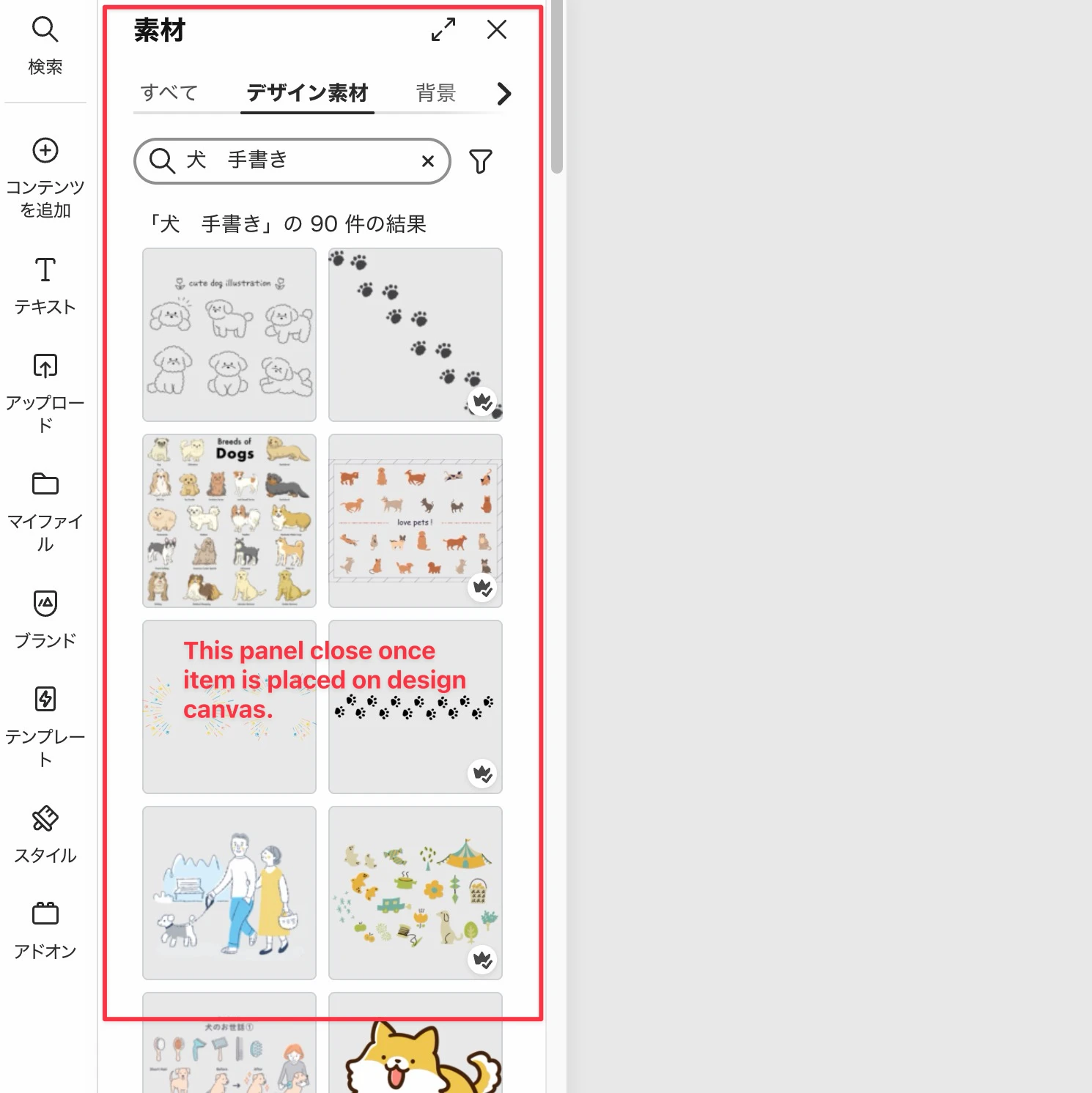
Regarding the left panel, suppose I search for "dog illustration" while creating a design.

A lot of results show up, and clicking one places it onto my design canvas on the right.

However, if it doesn't quite fit and I want to try another element, the search results disappear as soon as the item is placed, forcing me to search for "dog illustration" all over again.

Is there a way to keep the search results panel open on the left?


    3 replies

    Imaginerie
    Community Expert
    Community Expert
    Oct 31, 2026 1:07 PM UTC

    I don’t really have an answer to this particular issue, with the workflow you are using, but I am using a different one to avoid having to do a whole search again.
    Instead of deleting the illustration, just click on the design asset (or anything else), right click to open the contextual menu, go to replace, and choose the same type of content as your original asset (in my case “design asset” . It will open the left side panel with your previous search already applied. Now all you have to do is to choose the new asset, click replace at the bottom and see the new asset put in place.
     

    Note that if you decide to choose another kind of asset such as “photo” (as per my screenshot below) it will still keep the same search keywords, and you’ll find related assets
     

    Hope it helps!

    Translate
    fannreiAuthor
    Inspiring
    Oct 31, 2026 5:22 PM UTC

    thank you so much, it saves a bit of hassle.

    But there is one problem with “replace”. it will crop everything if the new illustration or image is bigger than the actual size (the new asset will be placed inside the frame and if the ratio is different, it will be cropped..)

    Translate
    Imaginerie
    Community Expert
    Community Expert
    Oct 31, 2026 8:49 PM UTC

    Yes, but in that case, all you need to do is to double click on the asset to activate the crop mode and resize the new asset within the initial box.
    or you can see the left panel with the crop option, and click to “original” and have the crop box automatically resized to the asset ratio.

    That’s how I do it anyway.

    But I agree that the search keywords could stick until it’s replaced in the text input box. That would solve it...


    Translate