Inspiring
February 2, 2023
Answered

Blend node, alpha merge node, something else?

  • February 2, 2023
  • 1 reply
  • 682 views

Hello,


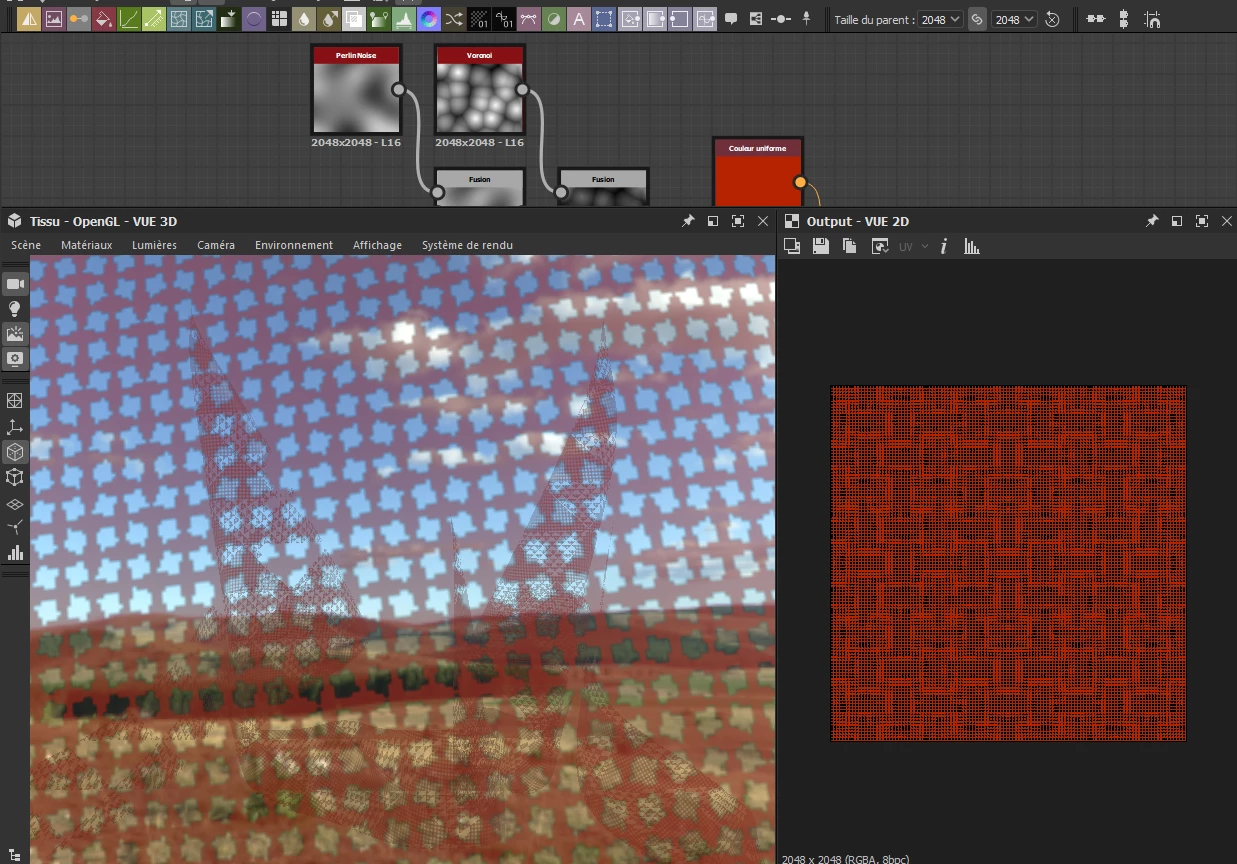
I try to create a fabric with transparency but :

- transparency is too strong (maybe it's how it is supposed to be, it's just the scale)

Trying to colorize it :

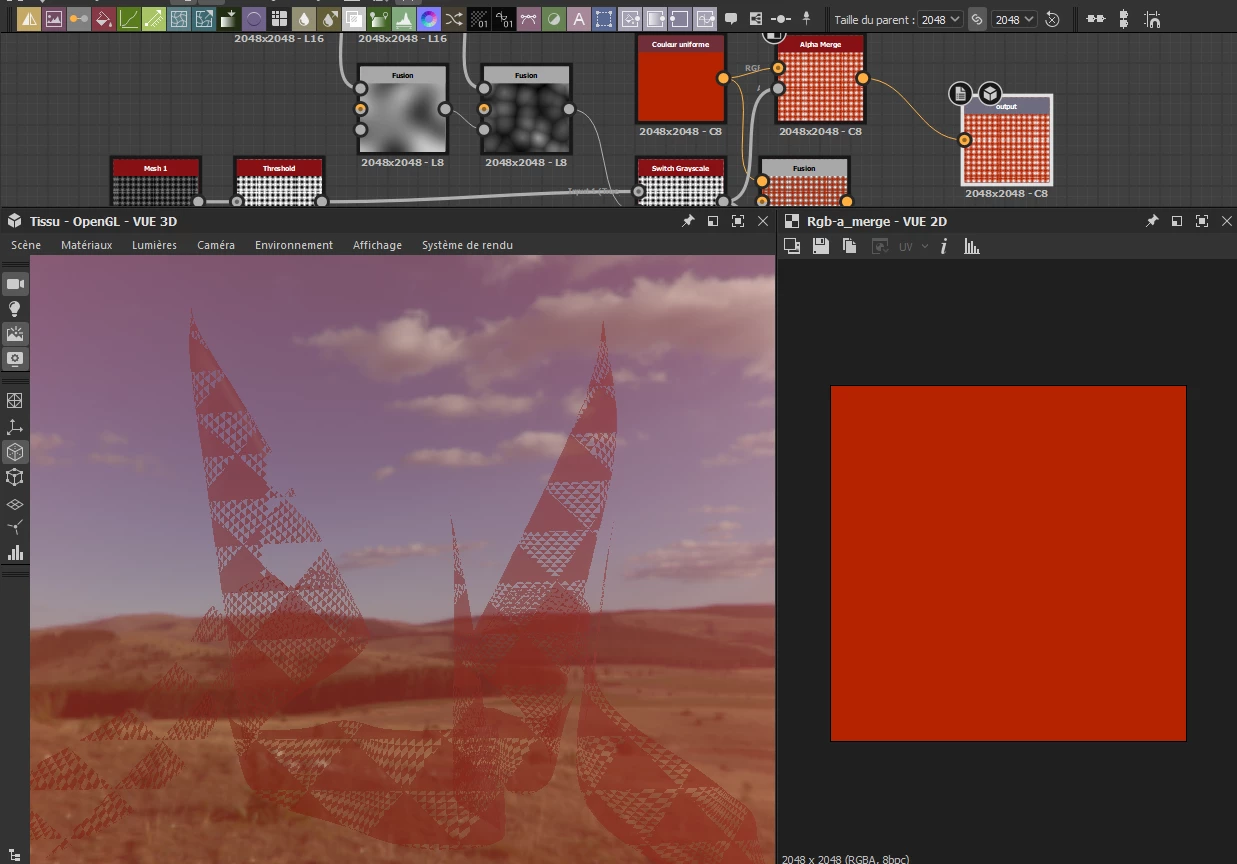
- if I add a blend node : color still impact the alpha (white is fine, black turn invisible)

- if I add an alpha merge node, the fabric texture goes wrong (the thresold disapears -likely "invert"-).

I have tried different parameters (greater, lower, invert, add,  multiply etc.) but with no avail. Any hint about how to fix this?  


This topic has been closed for replies.
Correct answer Luca Giarrizzo

Hello @arthenics,


Thank you for your message.


The issue you are experiencing is likely the result of bilinear filtering being applied either on the texture, on the material in the 3D View, or both.


Bilinear filtering smooth an image when it is being resized to a different resolution, to mitigate the aliasing that can occur when resizing. However, when working with dense, high-frequency details such as your pattern, this can result in the pattern being blurred out into mush.


Since your pattern does not have a lot of variation, it is not necessary to work with high-resolution textures where the pattern is tiled heavily. I suggest working with less tiling in the images, and increase tiling in the 3D View material instead, as shown below.
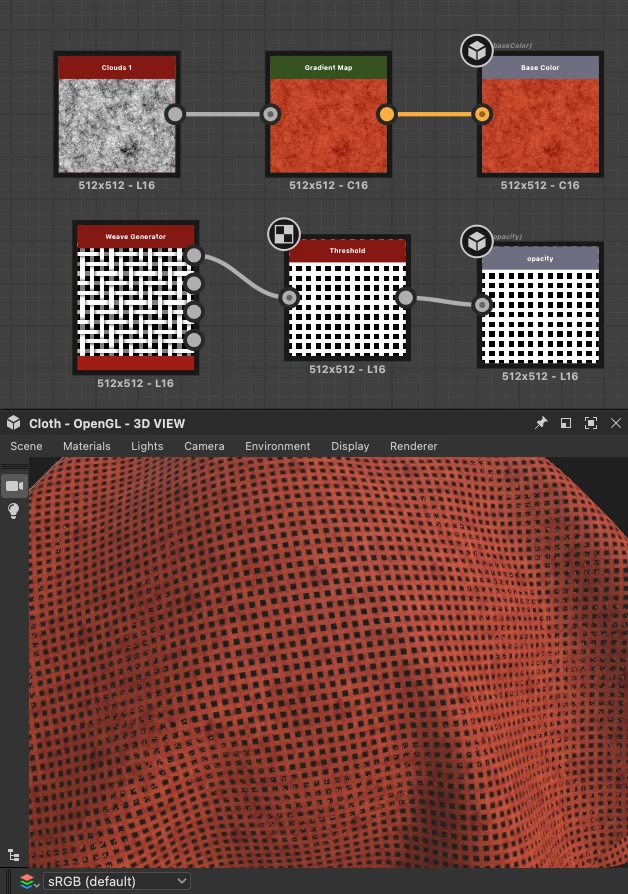


To increase tiling in the 3D View, go to Materials > Default > Edit, then tweak the Tiling parameter in the Properties.


Also, in your example it unclear why the alpha should be merged into the base colour. Is it a requirement of the engine you are targeting? If this is not required, I advise keeping base colour and alpha separate in the graph, to prevent accidental resolution changes caused by inheritance in graphs.


Let me know if your need further guidance.


Best regards.

 

1 reply

Luca Giarrizzo
Community Manager
Luca GiarrizzoCommunity ManagerCorrect answer
Community Manager
February 2, 2023

Hello @arthenics,


Thank you for your message.


The issue you are experiencing is likely the result of bilinear filtering being applied either on the texture, on the material in the 3D View, or both.


Bilinear filtering smooth an image when it is being resized to a different resolution, to mitigate the aliasing that can occur when resizing. However, when working with dense, high-frequency details such as your pattern, this can result in the pattern being blurred out into mush.


Since your pattern does not have a lot of variation, it is not necessary to work with high-resolution textures where the pattern is tiled heavily. I suggest working with less tiling in the images, and increase tiling in the 3D View material instead, as shown below.


To increase tiling in the 3D View, go to Materials > Default > Edit, then tweak the Tiling parameter in the Properties.


Also, in your example it unclear why the alpha should be merged into the base colour. Is it a requirement of the engine you are targeting? If this is not required, I advise keeping base colour and alpha separate in the graph, to prevent accidental resolution changes caused by inheritance in graphs.


Let me know if your need further guidance.


Best regards.

 

Luca Giarrizzo | Quality Engineer - Substance 3D Designer | Adobe
arthenicsAuthor
Inspiring
February 2, 2023

Hello,

Since I'm in a self-taught process, I'm not sure.

BUT, thanks, your approach helped me to solve my problem. Or.. I thought so... Since I've closed and repoened the project, it doesn't work anymore. I can't manage to define the base color and the opacity as you did.

arthenicsAuthor
Inspiring
February 2, 2023

Likely fixed.