SverreAK
Participant
October 12, 2022
Answered

Exposing a 90º rotation

  • October 12, 2022
  • 1 reply
  • 621 views

Hi there


I'm trying to support my .SBSAR for a material variation of 90º rotation, using a UniformColor as a RotationMap for a NonUniformRotationGrayscale

According to my calculations, 90º should equate to "0,25" on a 0-1 slider, but the texture no longer tiles at this value

If I compensate to 0.249 the misalignment gets worse and there is no smaller step available that yields a visual difference


Am I using the wrong method in order to expose a 90º rotated material variation, or would I have to create a new set of bitmaps & a separate .SBSAR to achieve this?


Please advice

This topic has been closed for replies.
Correct answer davescm

Hi

I'm glad you found a way through it. It is always good to lay out your graph logically so you can find your way through it. As it gets more complex you can break it into smaller graphs and use each as an instance in a larger graph. There is some good advice at the documentation link below on optimisation:

https://substance3d.adobe.com/documentation/sddoc/best-practices-182255843.html


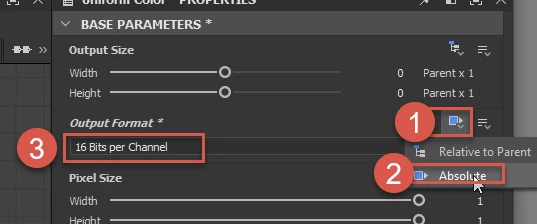
To change the Uniform Color node from 8 bit to 16 bit, click on the node then go to the top right of the parameters. Change Output format from Relative to parent, to Absolute. Then you can change from 8 bit to 16 bit.


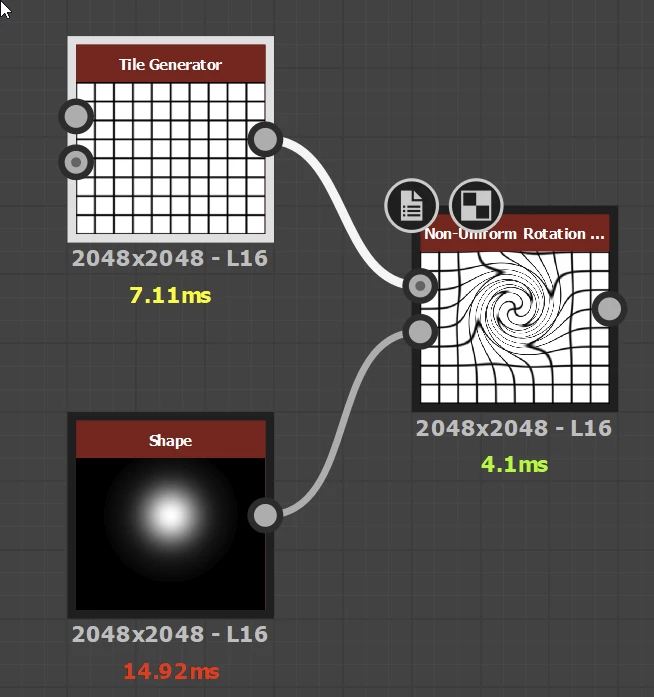
The non uniform Rotation node was really designed to make rotations that are different across the map rather than a fixed rotation. That is why it is fed with a greyscale map rather than a fixed value. Example below:


Don't be afraid of functions. At the simplest level they allow you to take an input value from a parameter and change it before using it with a node. At their most complex they are very powerful and really add to the capabilities of Substance Designer.


There are some good tutorials at the link below, including one introducing functions

https://substance3d.adobe.com/tutorials?software=Substance%203D%20Designer


Dave


1 reply

davescm
Community Expert
Community Expert
October 13, 2022

In direct answer to your method, the issue is using an 8 bit Uniform Color node. 0.5 would require a value of 127.5 which cannot be stored in 8 bit. Switch uniform colour to 16 bit or higher and you will see an immediate change in your rotation accuracy.


I have to ask though why do it that way?


Would it not be easier to go further back in your graph and use a transform 2D node at a point where you have your basic height texture.

Create a graph input parameter called rotation and set min to -90, max to +90, step to 90, and default 0, and Clamp to true.

In the transform node, add the function below to control the Transform Matrix:

Now you can control rotation with the slider (the step, max and min values limit the settings to -90, 0, +90)

This way rotation is exactly 90 degrees and tiling will not be an issue


If you can't go back that far in the graph, you could use the same technique and use that one exposed parameter to control multiple 2D transform nodes.


Dave

SverreAK
SverreAKAuthor
Participant
October 13, 2022

Hi Dave


Thanks a bunch for the in-depth answer, I'm out of the woods on this now, happy to say.


After posting my question I managed to find a 2021 answer by yourself to a similar issue & went on a Documentation+YouTube reserach spree - as of this morning I'm going by way of an Input Value node to make the material rotation configurable post-publish & it works a treat (perfect alignment, single "exposed" value).


As to why later rather than early for the rotation nodes, I did start out with them directly following the (six) bitmaps used, but the Compositing Graph ended up looking a little messy for my relatively untrained Substance eyes. Since the rotation nodes are 1:1 in number-of-nodes to the 6 main Outputs, I ended up stacking them up in a nice parallel line at the end there (image). Its a lot of info for someone relatively new to this workflow, so I gravitate towards every little bit that helps keeping things easy to read at this stage, I guess. Does the order of the nodes affect drawcalls or performance at all?


When it comes to your Transform Matrix suggestions, I've yet to delve into making use of a Function Graph in order to solve my Compositing Graph needs & since I got the job done without one I think I'll hold off on that level of tweaking til I really need it. The main issue was not ending up with 6 different rotation exposes in one SBSAR, and you (+ one "Chunck" on  YouTube) helped me knock that one back to one after the Rotation Map thing didn't work out.


Thanks again for the indisposable info Dave, was gonna set this to solved before the end of the day, but you beat me to it!


NB! Although I found your 8-bit information illuminating as to why the program was behaving the way it did, I can't seem to find how a Uniform Color node could be switched from being read as 8-bit to 16-bit - the online documentation doesn't reference such an ability for this node type & I don't see an option for it (at least not that I reckognise as such). Would I need to use an actual 16-bit grayscale bitmap (file), if I wanted to retain the original setup? I mean - for this week I'm gonna stick to using the Input node I have there now. Any extra light you can shed  here would be great though, in case I ever venture into Rotation Maps territory again - not that I think I'll have to in the foreseeable future - it was just the first obvious option I found to achieve any kind of material rotation, stumbling around the interface like an ox.

davescm
Community Expert
davescmCommunity ExpertCorrect answer
Community Expert
October 14, 2022

Hi

I'm glad you found a way through it. It is always good to lay out your graph logically so you can find your way through it. As it gets more complex you can break it into smaller graphs and use each as an instance in a larger graph. There is some good advice at the documentation link below on optimisation:

https://substance3d.adobe.com/documentation/sddoc/best-practices-182255843.html


To change the Uniform Color node from 8 bit to 16 bit, click on the node then go to the top right of the parameters. Change Output format from Relative to parent, to Absolute. Then you can change from 8 bit to 16 bit.


The non uniform Rotation node was really designed to make rotations that are different across the map rather than a fixed rotation. That is why it is fed with a greyscale map rather than a fixed value. Example below:


Don't be afraid of functions. At the simplest level they allow you to take an input value from a parameter and change it before using it with a node. At their most complex they are very powerful and really add to the capabilities of Substance Designer.


There are some good tutorials at the link below, including one introducing functions

https://substance3d.adobe.com/tutorials?software=Substance%203D%20Designer


Dave