


Participant
February 5, 2024
Answered

Height map work disappeared overnight without any changes

  • February 5, 2024
  • 1 reply
  • 916 views

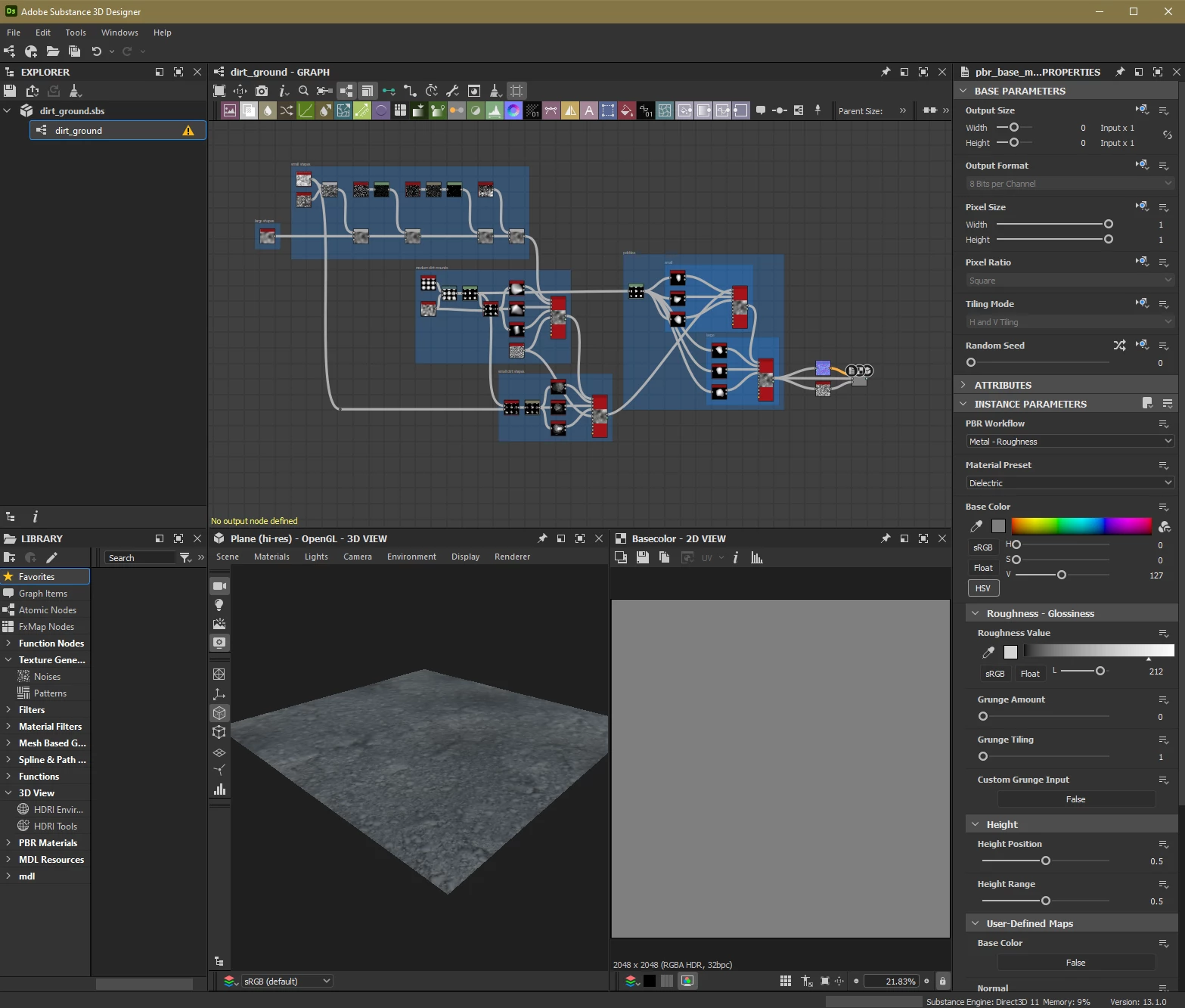
posted a photo below, but all my work from yesterday just... isn't registering? I'm on the same material I was yesterday and I haven't made any changes. Saved my stuff (multiple times), went to bed, and now it seems like it's missing. 

the error says "No output node defined" but I thought my final base material node at the end would cover this? Again, same setup I had yesterday and did not have this error. In the official Adobe documentation (Warnings in function graphs | Substance 3D Designer (adobe.com)) It shows to RMB the output node appropriate (my base material node at the end in this case) and select the "set as output node" but this is not an option when I right click this node. 

limited time to finish this and could use any help! PS... very new to substance 
This topic has been closed for replies.
Correct answer davescm

The material settings in the 3D window refer to the shader settings which set how the shader will display your material on the mesh ( be that a default mesh or on a mesh you have imported).

Importantly though, those settings are not saved within your material - it would not make sense to do so as using the material in another application would change the shader settings anyway. You can however save them in the 3d viewport scene menu - Save current State.  Then Load State will reload them.  Reset scene will put it back to default.


Dave

1 reply

Participant
February 5, 2024

So I have figured out that 1 of the errors was due to no output node, even though I was able to work without one yesterday. The other error, more prominently, seemed to be that my material settings were not saved and reset to default for some reason. I had to redo everything, primarily the scale and tessellation factor, so it doesnt look the same but its close enough to continue working. 

davescm
Community Expert
davescmCommunity ExpertCorrect answer
Community Expert
February 5, 2024

The material settings in the 3D window refer to the shader settings which set how the shader will display your material on the mesh ( be that a default mesh or on a mesh you have imported).

Importantly though, those settings are not saved within your material - it would not make sense to do so as using the material in another application would change the shader settings anyway. You can however save them in the 3d viewport scene menu - Save current State.  Then Load State will reload them.  Reset scene will put it back to default.


Dave

Participant
February 5, 2024

Thank you so much Dave. I am extremely new (less than a week experience) to Substance Designer so I appreciate the explanation. You're right, that wouldn't make sense, and I didn't even realize there was a place to save the scene so I didn't have to redo material settings. Thanks so much for reviewing this!
