December 11, 2025
Answered

How to export hi-res plane scene (as mesh) with height information? always flat and empty

  • December 11, 2025
  • 3 replies
  • 239 views

Hi, I'm having trouble exporting my 3d scene. I am seeing the hi-res plane properly, with height displacement and all the right textures applied on the override material. When I export scene as any file type (fbx, obj etc) it is an empty flat plane. All the tutorials for exporting scene are like 4 years old, and the interface is slightly different. I'm using Adobe standard shader (i think). any clues?


thats my first material btw 🙂 
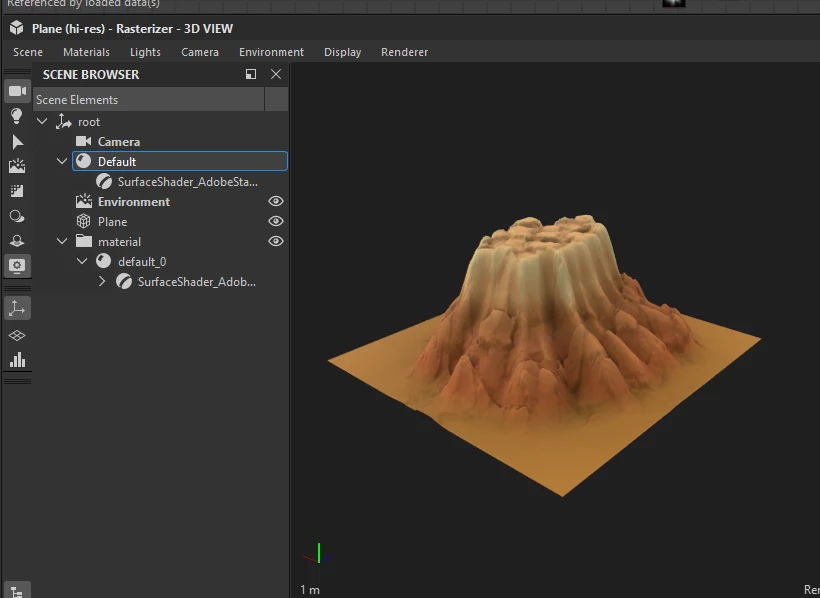
image.png

Correct answer Luca Giarrizzo

Hi!


You can export the mesh with tessellation and displacement baked in, when using the OpenGL renderer:

  1. Go to Renderer > OpenGL
  2. Set up the scene with displacement and tessellation as needed
  3. Go to Scene > Export tessellated mesh...


There are some caveats to keep in mind:

  • If the original mesh has multiple UVs and/or materials, these are merged into one
  • It is strongly recommended to adjust your system's TDR values beforehand


This feature is documented here, along with a couple of other caveats.


I hope this is helpful!


Best regards.


3 replies

Luca Giarrizzo
Community Manager
Luca GiarrizzoCommunity ManagerCorrect answer
Community Manager
December 12, 2025

Hi!


You can export the mesh with tessellation and displacement baked in, when using the OpenGL renderer:

  1. Go to Renderer > OpenGL
  2. Set up the scene with displacement and tessellation as needed
  3. Go to Scene > Export tessellated mesh...


There are some caveats to keep in mind:

  • If the original mesh has multiple UVs and/or materials, these are merged into one
  • It is strongly recommended to adjust your system's TDR values beforehand


This feature is documented here, along with a couple of other caveats.


I hope this is helpful!


Best regards.


Luca Giarrizzo | Quality Engineer - Substance 3D Designer | Adobe
gv111000Author
December 12, 2025

Thank you both for your replies. Switching to the OpenGL renderer and using Export Tessellated Mesh worked for me. it looks like I can additionally set the tessellation amount and using the built in "hi-res" plane got some nice results. 
This is what I was hoping for.

I was misled by the older official tutorial video which seem to be from a few years ago when the geometry export feature was first released, where the function was simply called "export scene" and maybe OpenGL was the default renderer at that time. So following those videos, everything looks identical if I try to simply export scene using the default renderer in 2025. Thanks for the help

Luca Giarrizzo
Community Manager
Community Manager
December 15, 2025

I think you are exactly right. I am glad I could help!


Best regads.

Luca Giarrizzo | Quality Engineer - Substance 3D Designer | Adobe
Cyril Dellenbach
Community Manager
Community Manager
December 11, 2025

Hello @gv111000,


For a first Designer project, that's awesome! Very cute scene.


When you're exporting the scene in USD, where are you opening it afterwards? Which application? The Displacement "amplitude" and tesselation value is something that you'll need to setup in your renderer.


As long as you're seeing the Base Color, Roughness, etc. on the plane, it means that the material is probably correctly applied. You just need to setup the Displacement and Tesselation.


Cyril Dellenbach (Micro) | QA Support Artist | Adobe
gv111000Author
December 11, 2025

gv111000_0-1765422906201.png

some unknown warnings when exporting.

I confirmed tesselation is on and displacement is on in the renderer. but idk if that impacts export