Inspiring
February 6, 2024
Answered

How to increase + control the Normal Map Height Effect?

  • February 6, 2024
  • 3 replies
  • 2383 views

How to increase + control the Normal Map Height Effect?

I don't want to use a Height Map or Displacement map. Also, I don't want to use Displacement in the preview. I want to focus mainly on the Normal Map effect and find a way to control the overall effect on the depth/height.

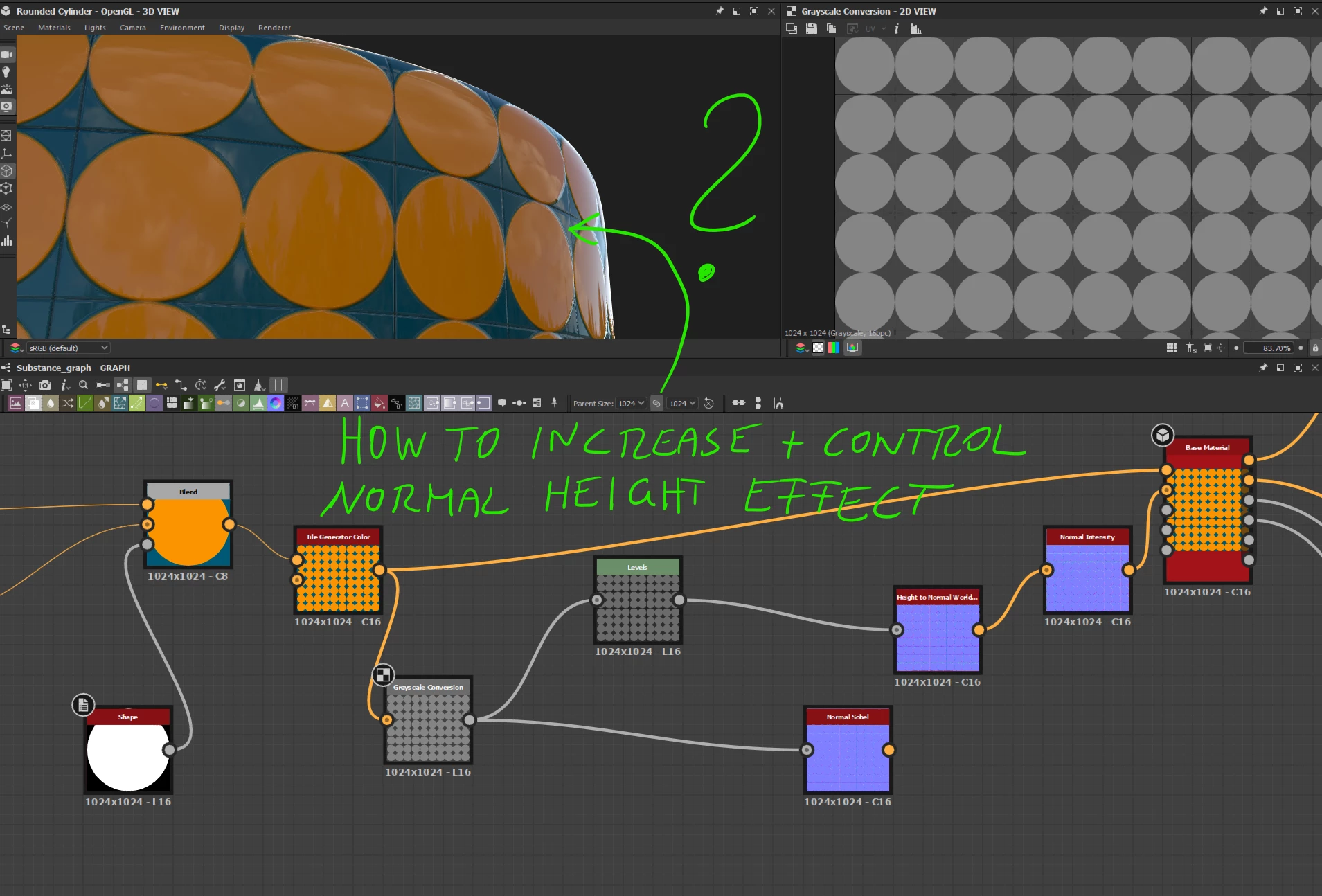
When I look at the sphere/circle, it doesn't pop.


If I want to increase the depth effect and let's say the circle should pop out from the bottom of the tiles, how do you set up the nodes?


thanks for any ideas, hints, tips and tricks,
appreciate it!


This topic has been closed for replies.
Correct answer Cyril Dellenbach

Hi @PixelFun,


Thanks for the question.


The Normal intensity can be directly handle with a simple Normal node that will convert a grayscale image into a Normal map.


From what I understand, what you're looking for won't be set up via the Intensity, but rather via the shape plugged in the Normal node. The one from your screenshot is a simple Disc, therefore you can't have a similar result as what you have in Zbrush. Something like Paraboloid or Bell is probably closer to what you're looking for.


Regards,

3 replies

Cyril Dellenbach
Community Manager
Community Manager
February 7, 2024

To be clear, the only way to make the circles really pop (moving polygons), is with a displacement map. The normal will only modify the way light interacts with a surface without altering the underlying geometry.


Regards,

Cyril Dellenbach (Micro) | QA Support Artist | Adobe
PixelFunAuthor
Inspiring
February 7, 2024

Hi Cyril and thanks for your great support!

I need to make a shout-out here, I do appreciate that help (awesome community manager - yehaaa)

another quick question:
Is there any simple grayscale node, that starts with a basic grayscale color?
Similar to the Uniform Color Node, but just for grayscale?

thx a bunch


Cyril Dellenbach
Community Manager
Community Manager
February 8, 2024

Thanks, I appreciate those words.


There is. This is in fact the Uniform Color. You can switch its mode to Grayscale at any time.


Regards,

Cyril Dellenbach (Micro) | QA Support Artist | Adobe
Cyril Dellenbach
Community Manager
Cyril DellenbachCommunity ManagerCorrect answer
Community Manager
February 7, 2024

Hi @PixelFun,


Thanks for the question.


The Normal intensity can be directly handle with a simple Normal node that will convert a grayscale image into a Normal map.


From what I understand, what you're looking for won't be set up via the Intensity, but rather via the shape plugged in the Normal node. The one from your screenshot is a simple Disc, therefore you can't have a similar result as what you have in Zbrush. Something like Paraboloid or Bell is probably closer to what you're looking for.


Regards,

Cyril Dellenbach (Micro) | QA Support Artist | Adobe
PixelFunAuthor
Inspiring
February 6, 2024

for example, when I use Zbrush to generate a Normal Map, I get much more depth information.
just by using that normal map inside of Designer, I am getting the depth effect as shown in the screenshot below.


normal map attached:


I wonder, how to create and then control the depth effect information inside Designer, just based on Normal Map information.

I hope that helps a bit more to clarify.
thank you so much for any of your ideas, appreciate it!