
Participant
March 6, 2025
Answered

Output: Basecolour with Opacity

  • March 6, 2025
  • 1 reply
  • 752 views

Hello All,


thanks for taking the time to help out. I am trying to implement Channel Packing by adding a opacity through the alpha channel to the basecolor output. I have used the following Nodes to achieve this:
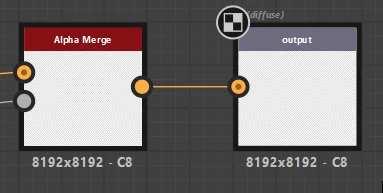
 

I find it strange that no thumbnails are shown.


By viewing the basecolor output In the 2D View, by switched through the RGB and Alpha Channels, all seems to function.
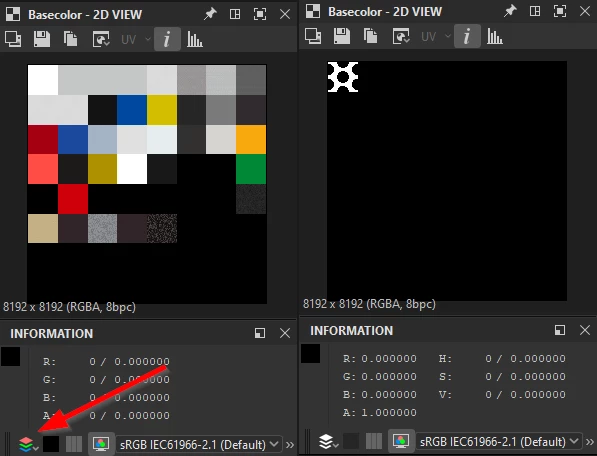
 

The basecolor output has the follwing setup:
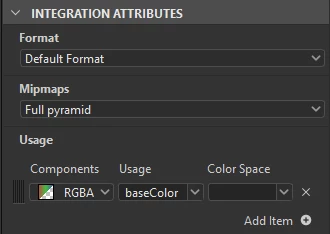
I have even tried using RGB and A as a seperate Usage.

Upon exporting and viewing in Photoshop, all I see is the Alpha. 


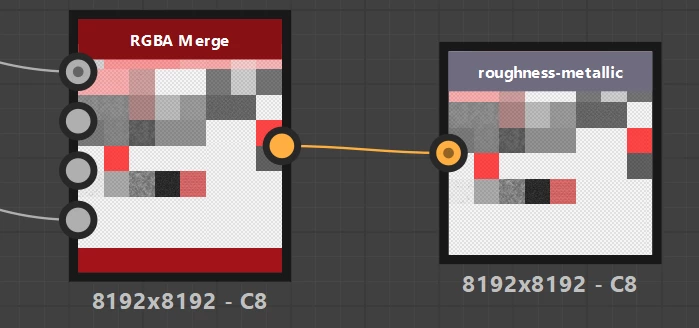
Elsewhere in the graph I have the following setup, and all works as it should:
 

I am desperate for assistance and I have unsuccessful experimenting and using online resources.

Many thanks


Correct answer Luca Giarrizzo

Hello,


Thank you for reporting this and providing so many details and images.


First, please note the settings under 'Integration attributes' have no impact on image exports. They are meant to help connect graph outputs to the 3D View and provide metadata to Substance 3D plugins for correctly handling these outputs in other applications.


That being said, please note the PNG. format stores transparency as a raw value in a pixel's fourth color component. It has no concept of an  'Alpha channel'. Photoshop just reads from a pixel's transparency value and applies it as-is in the image.


However, the RGB values are still there. In Photoshop, select the layer of your PNG image and go to Layer > Layer Mask > From transparency. Transparency values will be moved from the image into a separate mask. You may then disable that mask to display the RGB values, or process it in any way you need.


I hope this is helpful!


Best regards.

1 reply

Luca Giarrizzo
Community Manager
Luca GiarrizzoCommunity ManagerCorrect answer
Community Manager
March 6, 2025

Hello,


Thank you for reporting this and providing so many details and images.


First, please note the settings under 'Integration attributes' have no impact on image exports. They are meant to help connect graph outputs to the 3D View and provide metadata to Substance 3D plugins for correctly handling these outputs in other applications.


That being said, please note the PNG. format stores transparency as a raw value in a pixel's fourth color component. It has no concept of an  'Alpha channel'. Photoshop just reads from a pixel's transparency value and applies it as-is in the image.


However, the RGB values are still there. In Photoshop, select the layer of your PNG image and go to Layer > Layer Mask > From transparency. Transparency values will be moved from the image into a separate mask. You may then disable that mask to display the RGB values, or process it in any way you need.


I hope this is helpful!


Best regards.

Luca Giarrizzo | Quality Engineer - Substance 3D Designer | Adobe
AWP_0219Author
Participant
March 6, 2025

@Luca Giarrizzo Many thanks for shring this information! I brought the file into 3ds Max, where I could parse both maps - excellent, thanks very much!!