Inspiring
April 19, 2017
Answered

Adobe Audition automatic dithering

  • April 19, 2017
  • 1 reply
  • 10913 views

I have Adobe Audition CS6. I use Effects >Generate Tones to create tones that I use for audio bench testing. I discovered that Audition automatically dithers all 16 bit generated tones rather than generating them as non-dithered tones. I had to use another DAW software program to generate non-dithered 16 bit test tones. I could not find any menu in Audition to generate 16 bit non-dithered tones. I assume that is because no one recording or mastering music tracks in 16 bits would do that in an un-dithered format. My question is, does Audition also automatically dither 24 bit music tracks that are recorded and tones that are generated, or does Audition only dither 16 bit music tracks that are recorded and tones that are generated?

Thanks,

John Johnson

    This topic has been closed for replies.
    Correct answer Charles VW

    So, one has to generate the 16/44.1 tone as 32 bit floating, rather than 16 bit and then go to save as, and then change it to 16/ 44.1? I will try that shortly. However, there are no instructions anywhere that tell the user to generate 16 bit tones as 32 bit first. You have to admit this is definitely not an intuitive user interface. I assume that 24 bit tones also have to be generated as 32 bit floating to end up with undithered 24 bit tones? I am using undithered tones of 16 bits and 24 bits to use as a basis for comparing undithered and dithered bench test signals. I assume you used CS6 for your tests, since that is what I used. I know 24 bit signals don't necessarily require dithering, but I still need to show 24 bit undithered signals for comparison with dithered 24 bit signals, even if there is no difference.


    Hi John,

    Nothing _should_ have changed (that I recall) around this area between CS6 and current CC versions. I did a quick test on both CS6 (Mac) and CC 2017.1.0 (also Mac).

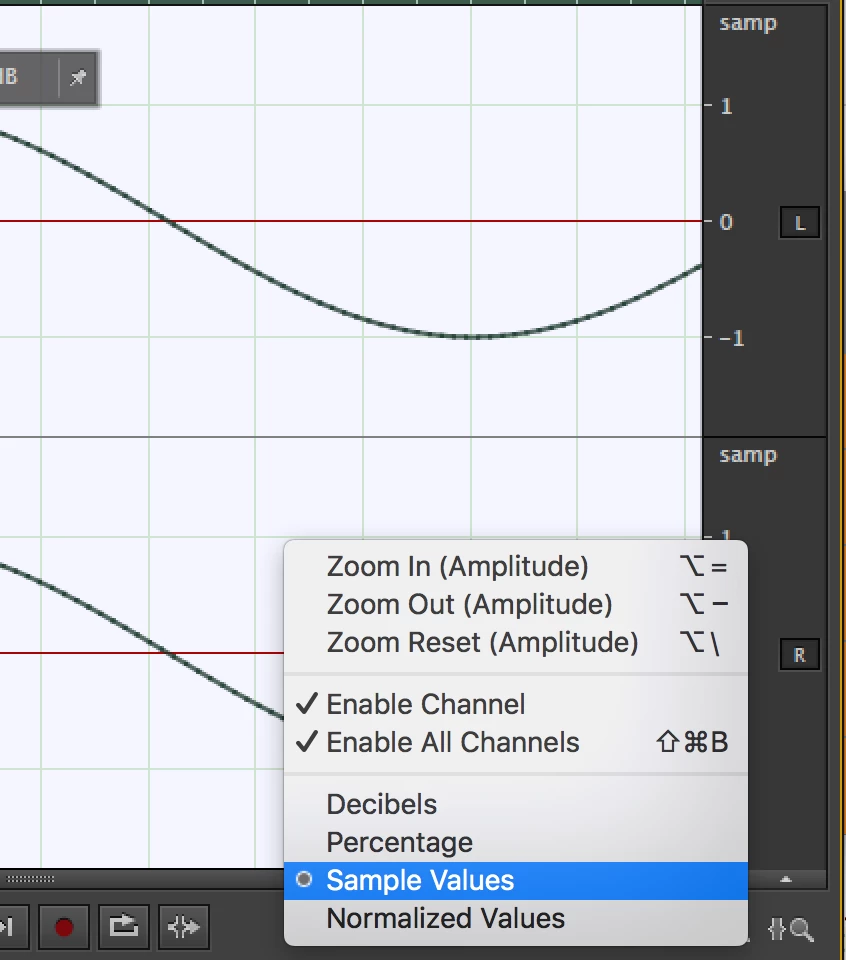
    For the purposes of analysis, I think it is helpful to view the vertical (amplitude) ruler in Sample Values as opposed to dB.
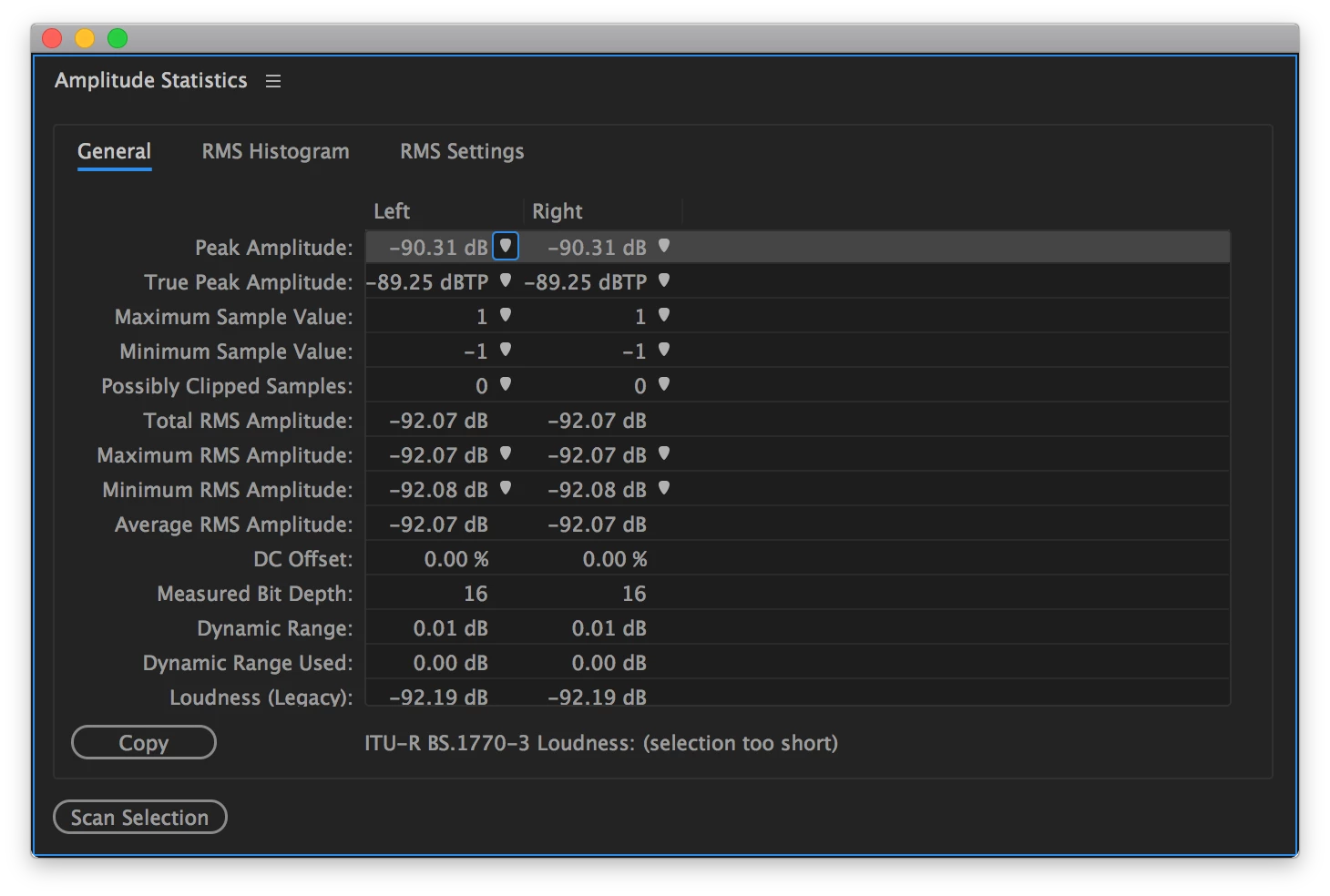
    Also, the Amplitude Statistics Panel can give an accurate measurement of the number of PCM bits used, even when opening a file that is in a 32-bit float container (see "Measured Bit Depth").
    I think what you're looking for is to get a signal that is quantized to 16-bit or 24-bit PCM without dither.  I tried this out a few ways, and I think I came across what I would agree with is a bug. Nonetheless, you can accomplish what you want. Here's the two paths where I think it makes a difference:

    (A) Create a new file, but choose the bit depth to be 16-bit. What this does is automatically choose "16-bit" when you do File > Save, for the data type of the file, but also shows you 16-bit-quantized sample values in the vertical ruler (shown above). When you then Generate Tones, the signal will always be generated with 32-bit floats (we don't know what the user will save as later or what sort of processing they want to do, so we choose the highest precision we have).  Upon saving, or even File > Save As... and checking that dither was disabled, I noticed that the resulting file still seemed to be  dithered. I would consider this a bug when doing File > Save As... and explicitly checking that dither was disabled.

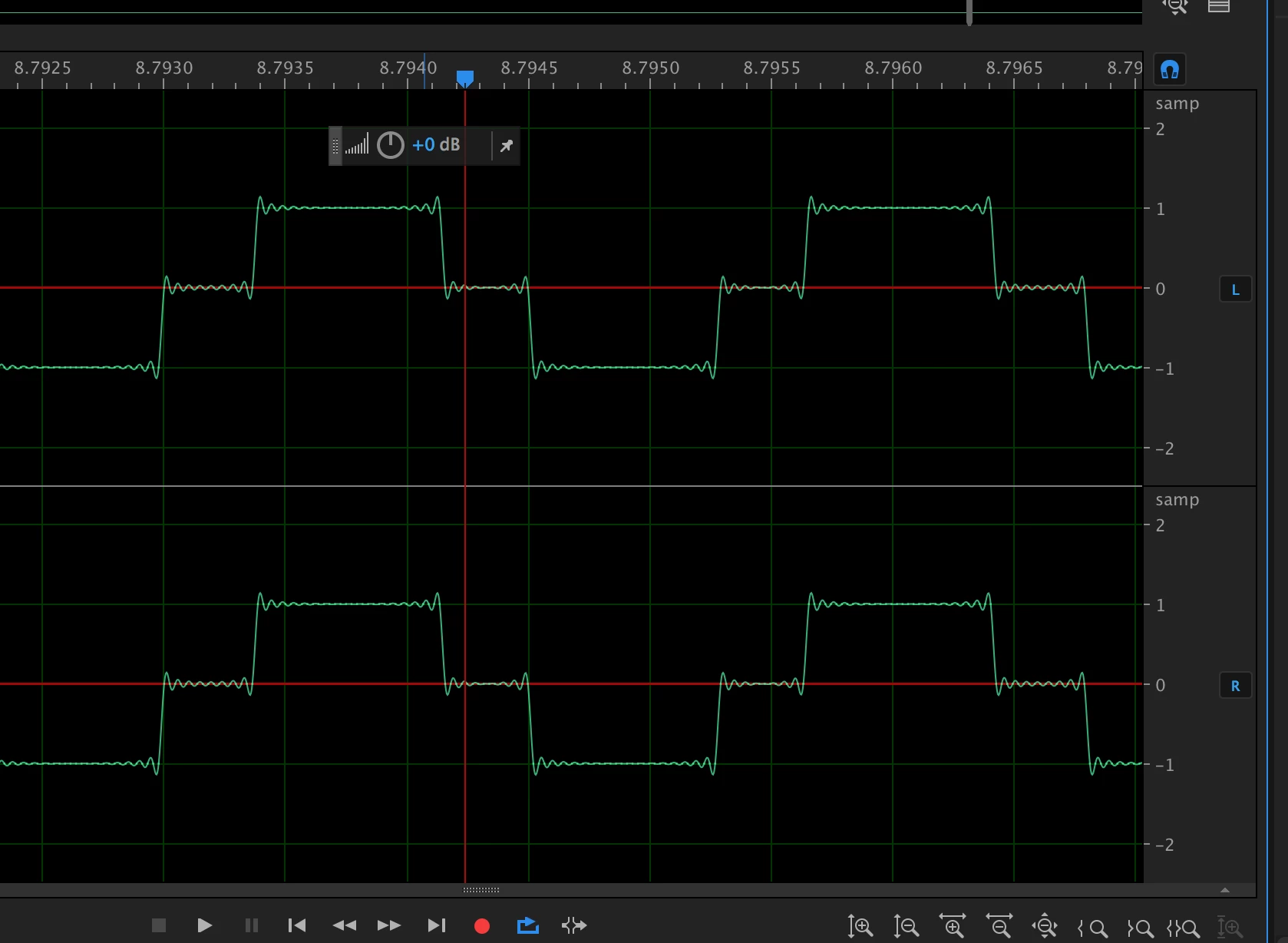
    (B) Instead of creating a new file labeled 16-bit, just choose 32-bit Float (I agree that this is non-intuitive). Then save as you wish (or use Convert Sample Type) and ensure in either case that dither is disabled. In this workflow, we honor the no-dither setting and I end up with 16-bit quantized sample values when I generate a 440 Hz sine wave at -90.308998699194359 dBFS (about 15-bits of precision). I end up with what I think you're going for.
    Please send a bug report here: Feature Request/Bug Report Form , you can paste in a link to this forum thread for information.

    Lastly, SteveG and ryclark are usually on top of their game and are super-helpful here. I think this was a matter of not having concrete repro steps (do this, then this, then this...) to replicate what you were doing and to recommend an alternative. It was one little option that needed to be changed and it makes a world of difference.

    1 reply

    SteveG_AudioMasters_
    Community Expert
    Community Expert
    April 19, 2017

    When it comes to anything other than tones, you can select exactly what form of dithering you want to use, or indeed whether you want to use dithering at all - this all happens in the 'advanced' section when you save whatever you've created. The tone generator used to generate non-dithered tone in a previous release, certainly, but I've noticed that if I generate a tone at -100dB now, then that's exactly what I get - but I can't see any dither noise. This leads me to believe that tone isn't actually generated as 16-bit in the first place, although I have no direct confirmation of that. An analysis of the results lead me to believe that whatever's being generated doesn't have any lsb noise added though.

    Have you tried generating the tone you want, going to the 'save' options and turning off the dithering? I haven't tried this yet, but on the face of it, if you generate a legitimate level of tone then it should be saved at the 16-bit level without being dithered. I will try this later...

    SteveG_AudioMasters_
    Community Expert
    Community Expert
    April 19, 2017

    Okay, I've tested this with a -96dB tone and got pretty much the dodgy square wave I expected, which confirms to my satisfaction that the saving process is the key to this, and turning off the dither does indeed result in a non-dithered saved result from the tone generator. The generator itself clearly isn't generating the tone in that format, though.

    Inspiring
    April 19, 2017

    Well, I cannot find any menu option anywhere, including creating the test tone track or saving the test tone track, that allows me to dither or not to dither. That's the problem. I can only select no dither or yes dither if I create the test tone track and then go to Edit > Convert Sample Type, setting dithering to disable, convert the sample type and then save it. That has been the damn problem. No menu for just saying I don't want the track to be dithered or I do want the track to be dithered when creating and saving the file. Dithering or not dithering is ONLY under the Edit > Convert Sample Type. There is NO menu option to dither or not dither when creating the test tone track or saving it. You will have to step me through the process of creating the test tone and selecting no dither or yes dither, without having to go to Convert the Sample Type before I save it. So far, there is no menu that I can find anywhere for dithering or not dithering except for converting the sample type. I have Audition CS6, not Audition CC. This is extremely frustrating.

    John