


Maddie_Z
Participant
October 13, 2026
Question

Advanced Envelope Tutorials

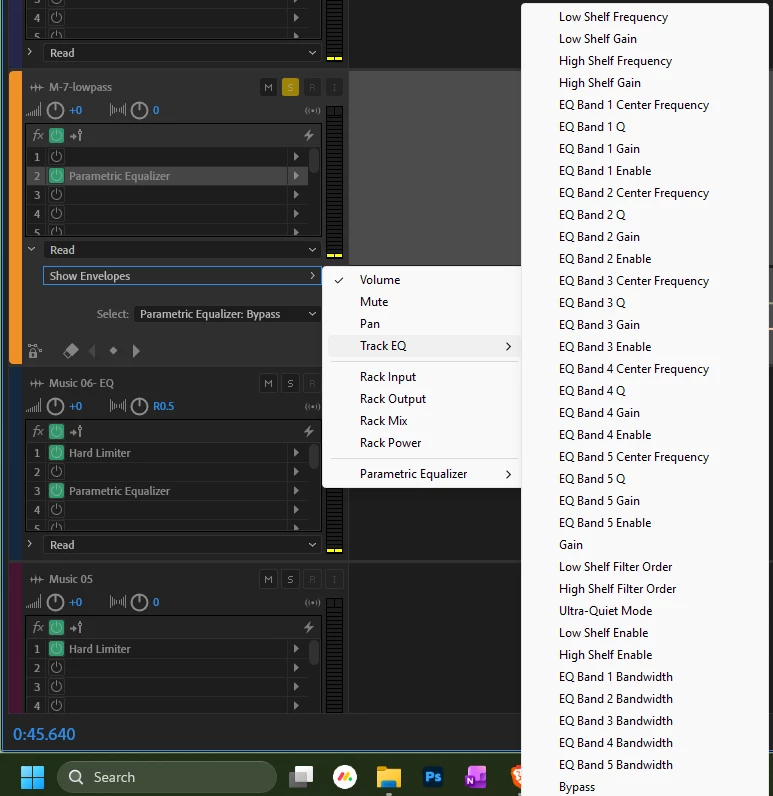
I would like to begin using the more advanced envelopes under “Track EQ” and “Parametric Equalizer”, but I can’t find any resources to learn how. I have been using Adobe Audition for over 10 years and I have lots of experience using the fade/gain/pan envelopes in a Multitrack Session. 

Could anyone point me in the right direction?  There are tons of tutorials on how to use the basic pan and gain envelopes, but I would like to learn the more advanced envelope features.
 

    1 reply

    CORCTON34033231
    Community Expert
    Community Expert
    October 13, 2026

    Hi Maddie, good news — you are already in the right menu in your screenshot. Those work just like gain/pan, you just automate one parameter at a time:


    1. In the Multitrack Editor, use Show Envelopes and choose Track EQ or Parametric Equalizer, then pick the single parameter you want to move, e.g. EQ Band 1 Center Frequency, Gain, or Q.

    2. Click the envelope line to add keyframes, then drag them up/down or left/right. To add another band or parameter, switch the Show Envelopes selection to it — each parameter has its own envelope.

    3. To record it live instead, change the track Automation Mode from Read to Write, Latch or Touch, press Play and adjust the EQ control while it plays. Audition writes the keyframes for you. Set it back to Read afterwards so playback does not overwrite them.


    Adobe's guide to this is here: https://helpx.adobe.com/audition/desktop/mixing-multitrack-sessions/automating-mixes-envelopes1.html — it covers selecting a parameter in Show Envelopes, editing keyframes, and the Read/Write/Latch/Touch modes.


    A good first exercise is automating just one Parametric EQ band's Gain so a problem frequency dips only where it appears. Hope that helps!

    Translate