


Participating Frequently
May 24, 2019
Question

All the stereo track shows in mono on my multitrack project

  • May 24, 2019
  • 2 replies
  • 5449 views

Hi I imported an .xml project in audition and started working at the project. I realized that some clips should be in stereo but its sounds in mono. So I created all news stereo track and replaced the old ones (that were mono by default), but this didn't solved the problem.

Now if from the multitrack project I doulbe click on the clip (the one that sounds mono but I repat it's a real stereo one proof is if I open the file with an external audio player) I see this:
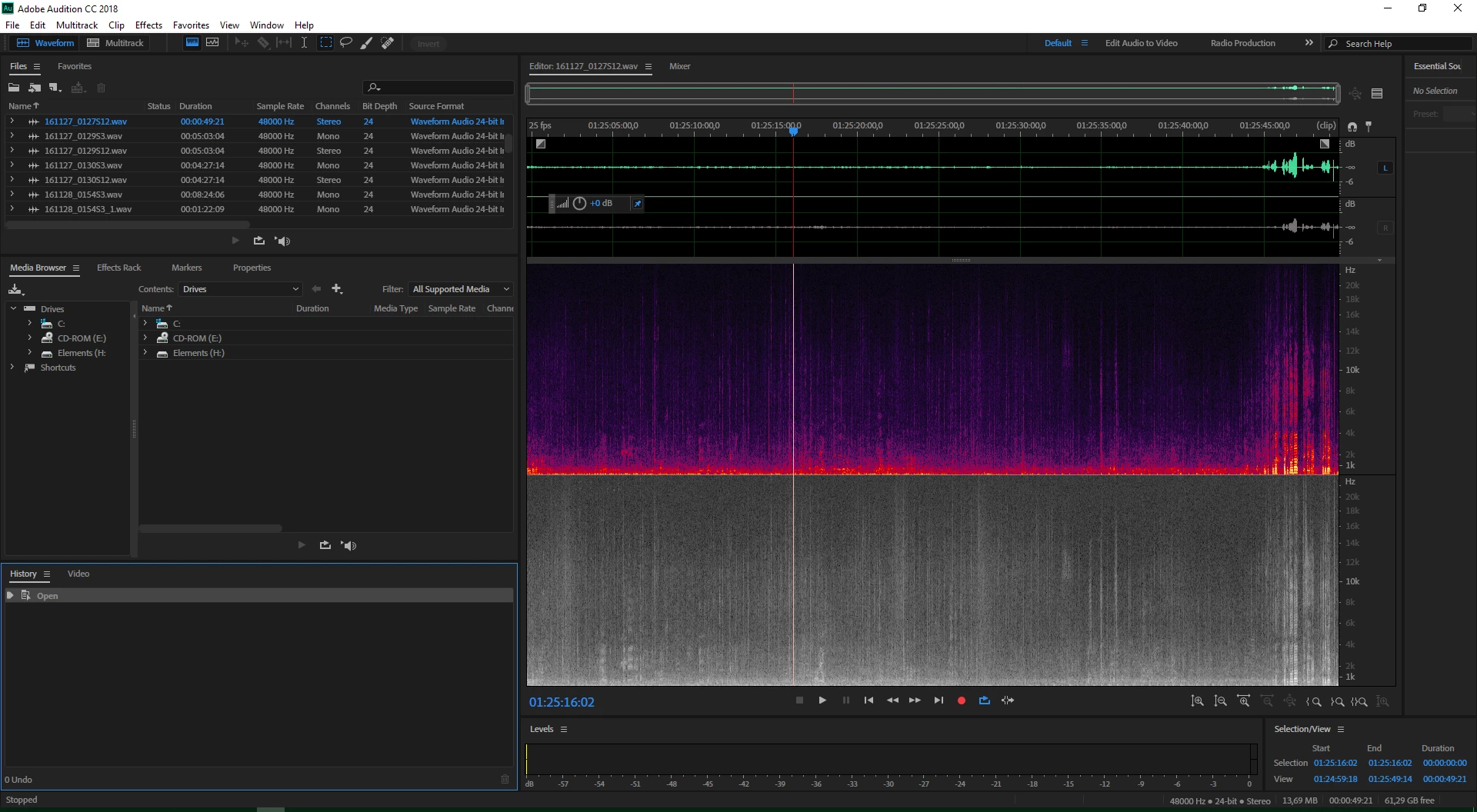
as you can see Audition recognise it's stereo, the problem is that one channel is grayed out by default for the stereo clips I have in my project.

how to solve this problem please?

I'm on a project for a indy documentary and I'm working by a month it's very important for me to fix this issue.

thx so much,

Dan

    2 replies

    Participant
    July 31, 2019

    I noticed this post was never solved and I ran into the same issue from a Resolve XML.  So I wanted to post an unusual workaround I've found where you don't have to manually drag and replace the files.  And if anyone else finds a better solution for this, I'd love to hear it.

    Before you import your XML, open it up in a simple text editor (Notepad or Textedit depending on Mac or PC), then ctrl+F (cmd+F on Mac) for:

    <trackindex>1<trackindex>

    Change the "1" to literally anything else besides 1 or 2.  You can do a "Find & Replace" search and make it quick by replacing all <trackindex>1<trackindex> with <trackindex>3<trackindex> or something.

    Then save the XML and import it into Audition.  The track will appear as stereo again, however you'll need to create a new stereo track and drop the audio down to it for the stereo part to work, since it creates a mono track by default.

    Now the last weird thing, when you double click the audio track to modify it, both channels will appear disabled, however when you double-click the source file under Files and modify it from there, your changes will save.

    Let me know if there are any other solves for this!

    Participant
    June 18, 2020

    Thank you SenekerlsMe.  In a million years I never would have figured that out and it seems to work. I was trying out Davinci as an NLE for this project and after this experience I can't kick it to the curb quickly enough and get back to Premiere.  Thanks again!

    SteveG_AudioMasters_
    Community Expert
    Community Expert
    May 24, 2019

    Click the mouse where I've circled...

    Dan7777Author
    Participating Frequently
    May 24, 2019

    thx you very so much for help I really appreciated it. unfortunately I tryed but it didn't works, if I try to click on that button nothing happends. everyiting remains grayed out.

    SteveG_AudioMasters_
    Community Expert
    Community Expert
    May 25, 2019

    Try the keyboard shortcuts: Ctrl + Shift + B should enable all channels. You can control individual channels like this as well; Ctrl + Shift + L and Ctrl + Shift + R will toggle either channel, in just the same way that Ctrl + Shift + B will toggle both of them. Or if you have a multichannel file, all of them.