
Participant
May 30, 2019
Answered

Audition CC: Scrub Bar moves before audio starts

  • May 30, 2019
  • 1 reply
  • 492 views

I was using the most recent version of Audition just fine for about 10 hours, but after using the "Zoom Out Full (All Axes)" button in podcast mode for the first time, I started having this problem.

Every time I hit the space bar to start playback, the scrub bar starts moving for about .7 seconds before the audio playback starts. The audio begins where the scrub bar began, but since the scrub bar has already been moving, the waveform and audio playback are no longer in sync.

If I stop playback with the space bar, click again to move the scrub bar back to where I wanted it, and then hit space again, the problem resolves and playback will be in sync with the waveforms. However, it's obnoxious to have to go through this entire multi-click process every time I want to start playing back a bit of audio while editing.

Any solutions would be greatly appreciated!
This topic has been closed for replies.
Correct answer SteveG_AudioMasters_

I have the problem both with my built-in speakers and a Sades headset I use. I'm using whatever driver comes automatically installed on my Dell Inspiron 15-7572.


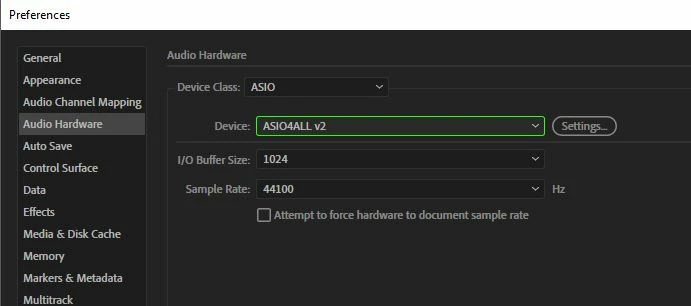
If it's a Dell laptop, then it's almost certainly a Realtek device. But you still get a choice of driver - either MME or WASAPI (there's unfortunately no direct ASIO option for Realtek); that decision's made in Audition. If you go to Edit>Preferences>Audio Hardware then you will see, if you click on Device Class, that you get options:

If yours is MME, then try the WASAPI setting and see if that makes any difference - and vice versa.

You will notice in the above screen-grab that there's a device called 'ASIO4ALL' showing on this laptop. This driver takes Audition's inherently ASIO input and output, and translates these to whatever is the current audio device (probably MME) on your laptop. It's free, and has one huge advantage over using the 'direct' drivers, and that is that it has diagnostics, so you can see what's going to work or not. It has other options too, in terms of how it handles buffers, and using this will give you options to try that you wouldn't otherwise get.

1 reply

SteveG_AudioMasters_
Community Expert
Community Expert
May 31, 2019

No guarantees that it will work (or possibly make any difference at all), but try turning hardware acceleration off or on, depending on what it's set to:

Other than that, make sure that your video driver is up to date. If you're using W10 then system 'upgrades' can often make your video driver out of date, even though on the face of it, everything's fine. Doing this has fixed one or two issues in the recent past, so it's worth checking out.

Participant
May 31, 2019

I tried everything you suggested and nothing made a difference. Got any other ideas?

SteveG_AudioMasters_
Community Expert
Community Expert
May 31, 2019

The other way to look at this is that maybe, it's an audio problem. Well not the audio as such, but how it's buffered. What exactly are you using for audio? Built-in sound on a laptop, or an external device? And what driver are you using - ASIO, MME or WASAPI?