
December 14, 2019
Answered

Clipping but not really (audio sample inside)

  • December 14, 2019
  • 1 reply
  • 792 views


Hello Community,

sorry for the vague title but I don't know how else to describe it. I attached a screenshot and an audio sample at the bottom.


Problem: I filmed a video with my phone and every few seconds when the music was really loud, the full audio-band (hope I'm using the right term) is occupied. This is visible in the "pillars" in the screenshot. The resulting audio sounds like clipping but it isn't (I think). At least the declipper doesn't solve the issue.


I apologise again for the vague terms. I only have about 20 hours with Audition and couldn't find any solution/similiar thing on Google or in the forums. I hope someone can help me or at least point me in the right direction.


Thanks in advance for reading this post.
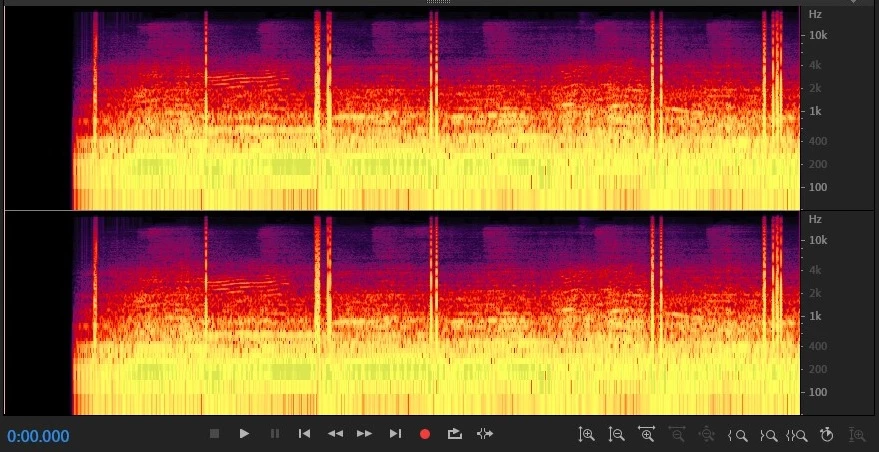


https://voca.ro/6AOjYuFP5Ww 


This topic has been closed for replies.
Correct answer SteveG_AudioMasters_

There's no automatic way to do this, but there's a relatively easy manual way which is quicker than you might think - and that's to highlight each instance and use the Favorite 'Auto Heal' on it. The way you make this quicker is to assign a keystroke to the favorite, which you can do in Edit>Keyboard Shortcuts. I downloaded your track and tried it - you may have to have a couple of passes at some of them, but you can make a significant difference to the output pretty quickly.


Let's put it like this: If there was an automated way of correcting this, it would take you longer to set up than just carrying out the task manually anyway, and almost certainly you'd get a better result from the manual intervention - that's normal!

1 reply

SteveG_AudioMasters_
Community Expert
Community Expert
December 14, 2019

If it doesn't do this on quieter bits, the chances are that the mic and preamp in the phone are being overloaded. This won't necessarily produce a clipped waveform as such - it just means that the phone's preamp can't cope with signals as loud as that. If a signal hits the level of the power supply in your phone, it can't go any higher - and at that point it becomes squared off. And square waves have a frequency spectrum that's potentially infinite...


It's hard to tell from three seconds, but does this interference beat in time with the bass in the music? If it does, then it's almost certainly an overload, as I just described.

December 14, 2019

Hello Steve,

thank you for your reply.

I attached the full screenshot (with the other oszillation) and a 20 second clip of the audio.

The interference is 95% in sync with the beat. The only notable examples where that isn't the case are at 2 and 17 seconds into the clip. It seems that it is indeed an overload.


Now my question is if it's possible to automatically mute or turn the volume of the overload down.
Doing so manually isn't an option. I have about 10 min of footage with this interference.

Thanks again for your reply.


https://voca.ro/52TZ4zFIRC0 


SteveG_AudioMasters_
Community Expert
SteveG_AudioMasters_Community ExpertCorrect answer
Community Expert
December 14, 2019

There's no automatic way to do this, but there's a relatively easy manual way which is quicker than you might think - and that's to highlight each instance and use the Favorite 'Auto Heal' on it. The way you make this quicker is to assign a keystroke to the favorite, which you can do in Edit>Keyboard Shortcuts. I downloaded your track and tried it - you may have to have a couple of passes at some of them, but you can make a significant difference to the output pretty quickly.


Let's put it like this: If there was an automated way of correcting this, it would take you longer to set up than just carrying out the task manually anyway, and almost certainly you'd get a better result from the manual intervention - that's normal!