
Disable track with high-latency effects from playback in Multi-track mode.
Hello
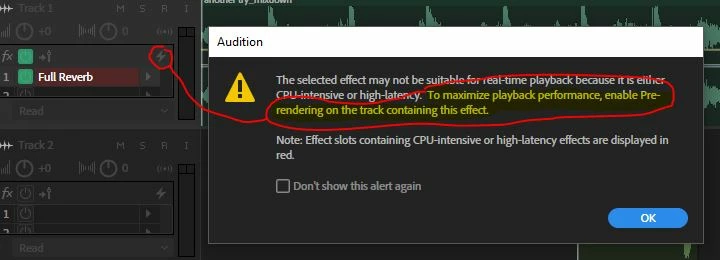
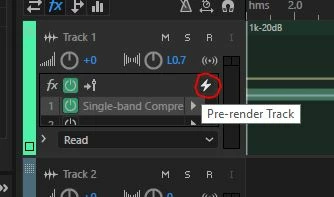
I have Audition CS6 5.0.2 & USB Audio Interface with ASIO drivers, so I am working in Multi-track mode, there are like 10 tracks and on some of them there are pretty "heavy" VST effects (applied in  section, including Guitar Rig VSTs, also build-in "Full reverberation", which is marked with red color) - all these make real-time playback and recording unbearable, with all effects enabled. For some reason, switching off the effects (green
  button) won't help, since he's still assessing to them - in my case, I don't know why, as far as they loaded in the rack. Only removing all "heavy" effects from the rack completely will help to get rid of dropouts, stuttering, etc. I know that "M" button is only muting the track, while he is still used in the playback, although not hearable. Is there a way to temporally exclude(grey out or something) a track from playing in Multi-track mode without deleting it completely, with all the effects properly set, etc.? Thank you.


 AdChoices