wheeler8807
Known Participant
September 20, 2017
Question

Dynamics Processing questions

  • September 20, 2017
  • 1 reply
  • 489 views

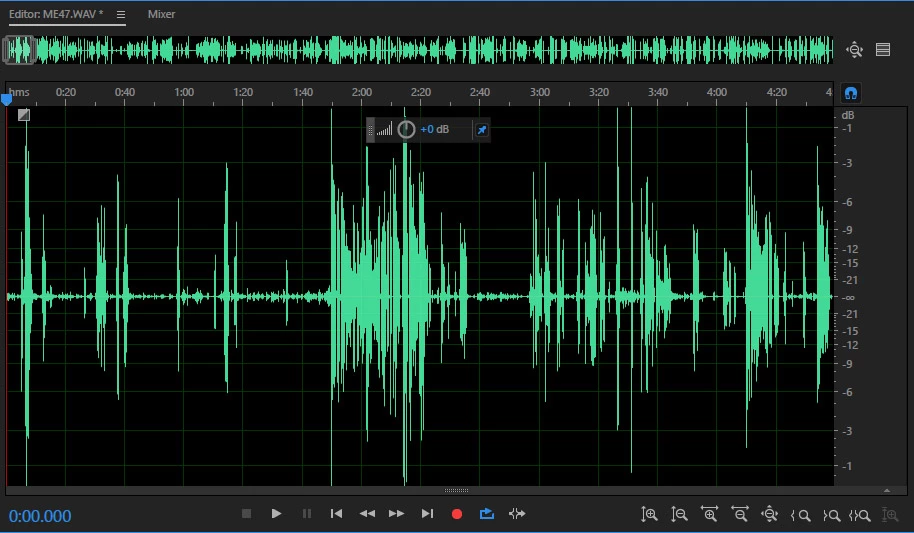
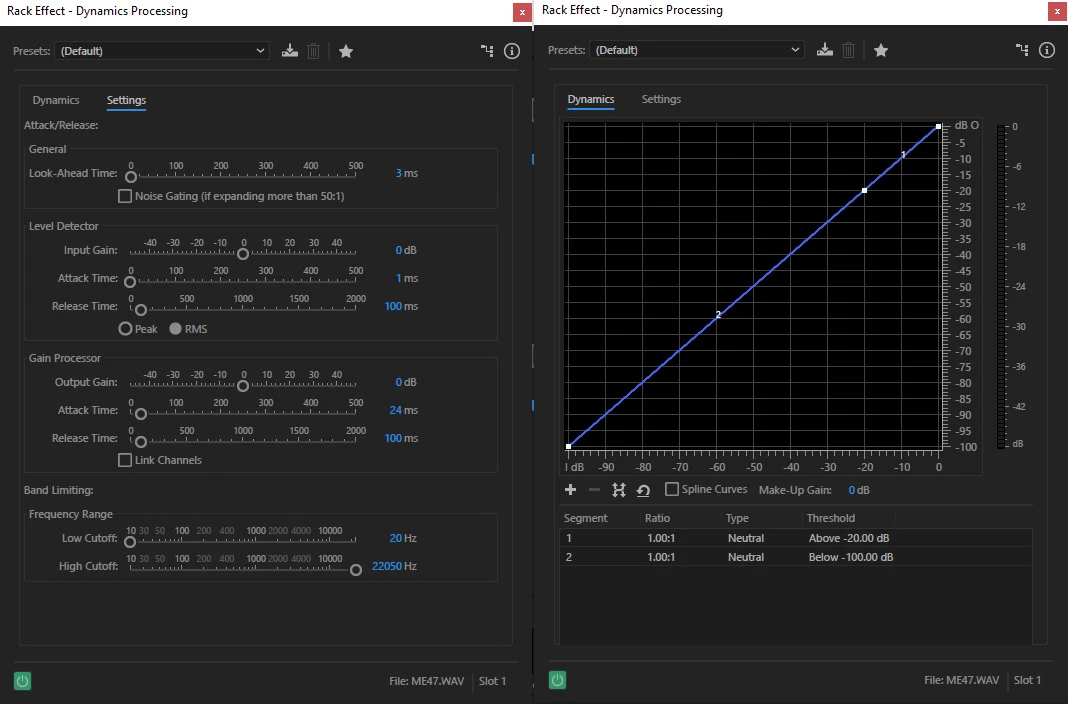
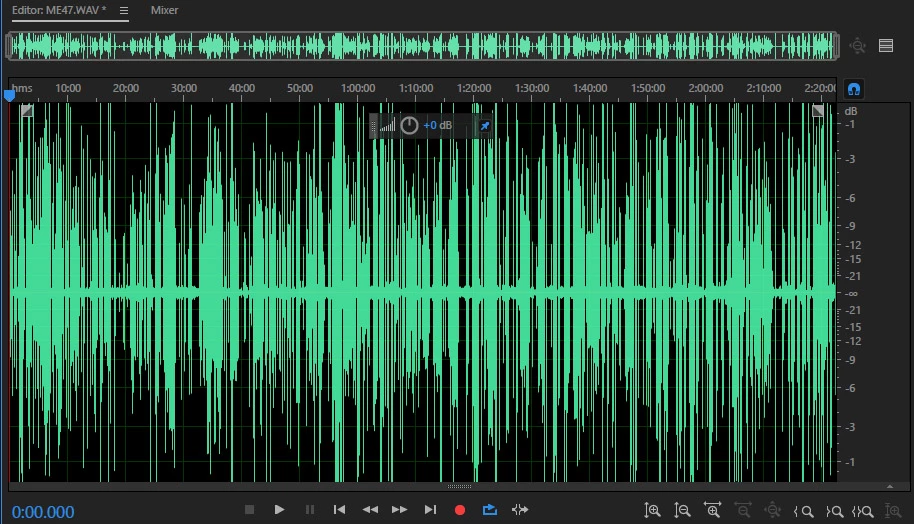
I am having a hard time understanding exactly what some of the stuff in D.P. means. Here are some of the screen shots I took to give you an example to base my query on. Can some explain what the vertical and horizontal lines mean in the graph? Also, a little of what the settings do? I found several things on line explaining what D.P. is, but nothing breaking down the graph/ and how the settings translate for audition. I also included a shot of my unedited track so you know what it looks like from the get.
I would love to email someone a audio file of my show if they'd like to inspect raw file it's self to give me and idea of what I should be focusing on doing for future reference.

PS. All of the questions I've had that have been answered have really helped me learn new things consistently, and I thank you guys/gals a lot!!

This topic has been closed for replies.

1 reply

Bob Howes
Inspiring
September 20, 2017

The graph provides a relatively easy way to adjust the dynamics processing without having to learn all the terms on the numeric setup on the left.

Basically, the horizontal scale across the bottom is to indicate the level of your existing file before applying compression.  The vertical scale allows you to set where you want the level to be after you apply the compression.  The straight line that's the base simply means you output the signal without a change.  For example, if you follow the graph, a signal that starts at -18 will output at -18 until you amend that straight line.

-Just as an example, say you want to limit a voice over to peaks of -6dB.  Put a marker (similar to using volume envelopes) at the -6 point, then drag down the marker that's already at 0dB to the -6 point.  This will limit your signal so anything above -6 will play at that level.

However, say your voice artist has big variations in his volume such that you can't hear the quiet parts.  Again, you can add markers (or move existing ones) so that levels between -24 and -6 get a boost--a medium one at the lowest level, tapering off to your -6 limiting point.

It's worth noting that dynamics processing is adjusting the overall difference between the quietest and loudest parts of you audio so there are no huge differences.  Once you've controlled the amount of change, you can still boost (or cut) the overall level and the ration will stay the same.  Indeed, some of the other dynamics adjustments on Audition actually have a control labelled output gain to do this in one pass--but using normalise or moving a mixer fader can do the same thing.

FYI, depending what you want to do, some of the presets can be pretty useful.  For example, the "single band compressor" has some good tools for evening out voices--and if it's not exactly what you want you can tweak the settings.  Also, the Essential Audio control panel has a basic adjustment for compression that might be easier.

Finally, if you want to learn what all the controls do, the Rane notes at Dynamics Processors -- Technology & Applications has one of the best explanations i know of.

Bob Howes
Inspiring
September 23, 2017

Detailed discussion via PMs so I'll close this.