Known Participant
February 15, 2018
Answered

Editing multitrack conversation keeping voices in sync

  • February 15, 2018
  • 1 reply
  • 1377 views

Hi,

I'm trying to figure out how to edit a conversation and keep everything in sync.  I have 5 tracks right now, voice 1 on track one, voice 2 on track 2, intro on track 3, interstitial on track 4, outro on track 5.  I have reshuffled the order of the conversation clips on track 1 and 2 are not just one continuous clips.  Also the intro, interstitial and the outro are also not one continuos clip.  I have everything laid out how I want it.  The problem is that now I'd like to edit out umhs and pauses etc.  Every time I do that everything falls out of sync.  I know I can slid each clip to make them in sync but this will take me weeks to edit this way.  It's an hour conversation.  There has to be another way.  I tried grouping clips but that doesn't solve the problem completely because that only works on the track I'm working on but the clips on other tracks don't slide over when I make a cut on another track.  Does anyone know the best way to approach this?

Thank you
    This topic has been closed for replies.
    Correct answer ryclark

    But if you use 'Ripple Delete/Time Selection in all Tracks' option that will move all the tracks to the right of the selected bit of track 1 to the left when you do the Delete.

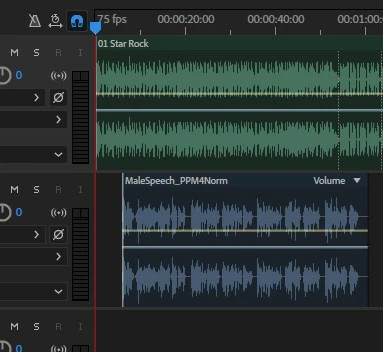
    Before

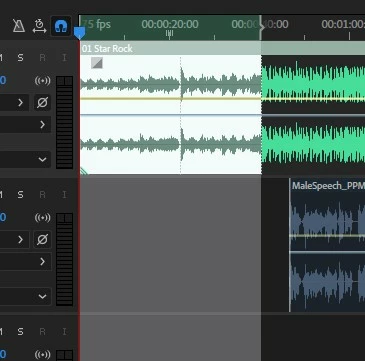
    After

    1 reply

    ryclark
    Participating Frequently
    February 15, 2018

    In order to keep all the tracks in sync you have to cut exactly the same portion out of all the tracks at once. When you have the selected the portion of audio that needs removing in the one track you then have to use Ripple Delete/Time Selection in All Tracks. You can find this either in the Edit menu or by right clicking in the selected portion of the clip. There is also a keyboard shortcut Ctrl-Shift-Backspace on a Windows PC or the equivalent on a Mac.

    NYCatAuthor
    Known Participant
    February 15, 2018

    yes, I understand that, but I can only do that if all the tracks happen to be in the same place in time as the one I'm trying to cut.   If track 1 is the first 5 minutes and track 2 is from minute 5 to 10 then if I cut something out at 3 that won't affect track 2.  And if I ripple delete track 1 will slide over but not track 2.  I hope I'm explaining this correctly

    ryclark
    ryclarkCorrect answer
    Participating Frequently
    February 15, 2018

    But if you use 'Ripple Delete/Time Selection in all Tracks' option that will move all the tracks to the right of the selected bit of track 1 to the left when you do the Delete.

    Before

    After