


Known Participant
January 24, 2021
Answered

Files Panel Names Hidden

  • January 24, 2021
  • 1 reply
  • 493 views

Noob question: I accidentally hid the names of files in the Files panel and I can’t figure out how to restore that column. It is greyed out in the column view options.
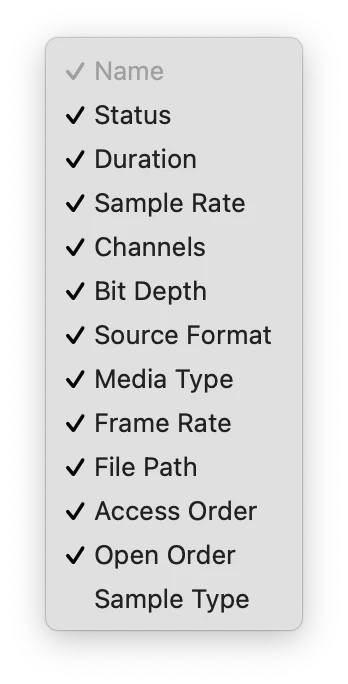
I have no idea what I did or how to undo it. Thanks in advance!

This topic has been closed for replies.
Correct answer SteveG_AudioMasters_

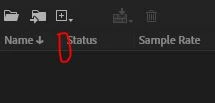
You didn't do anything except alter the columns in the actual display. You can't get rid of names (that's why it's greyed out with a check next to it). If you position the mouse carefully just to the left of 'status )where I've put the red circle) you'll find a little grab bar appears - just drag it to the right and Name will reappear.

If you really can't see any of 'Name' in the actual display, that grab tool will be right at the left edge.

1 reply

SteveG_AudioMasters_
Community Expert
SteveG_AudioMasters_Community ExpertCorrect answer
Community Expert
January 24, 2021

You didn't do anything except alter the columns in the actual display. You can't get rid of names (that's why it's greyed out with a check next to it). If you position the mouse carefully just to the left of 'status )where I've put the red circle) you'll find a little grab bar appears - just drag it to the right and Name will reappear.

If you really can't see any of 'Name' in the actual display, that grab tool will be right at the left edge.

pixeltechAuthor
Known Participant
January 25, 2021

Thank you! "Name" had actually gotten dragged all the way to the right column. Must have been an errant click/drag on my part. Once I pulled the panel open all the way t the right, I saw it and was able to drag it back where I wanted it.


Thanks for pointing me in the right direction!