xenatorres
Known Participant
October 15, 2017
Answered

How do you add a keyframe

  • October 15, 2017
  • 2 replies
  • 20039 views

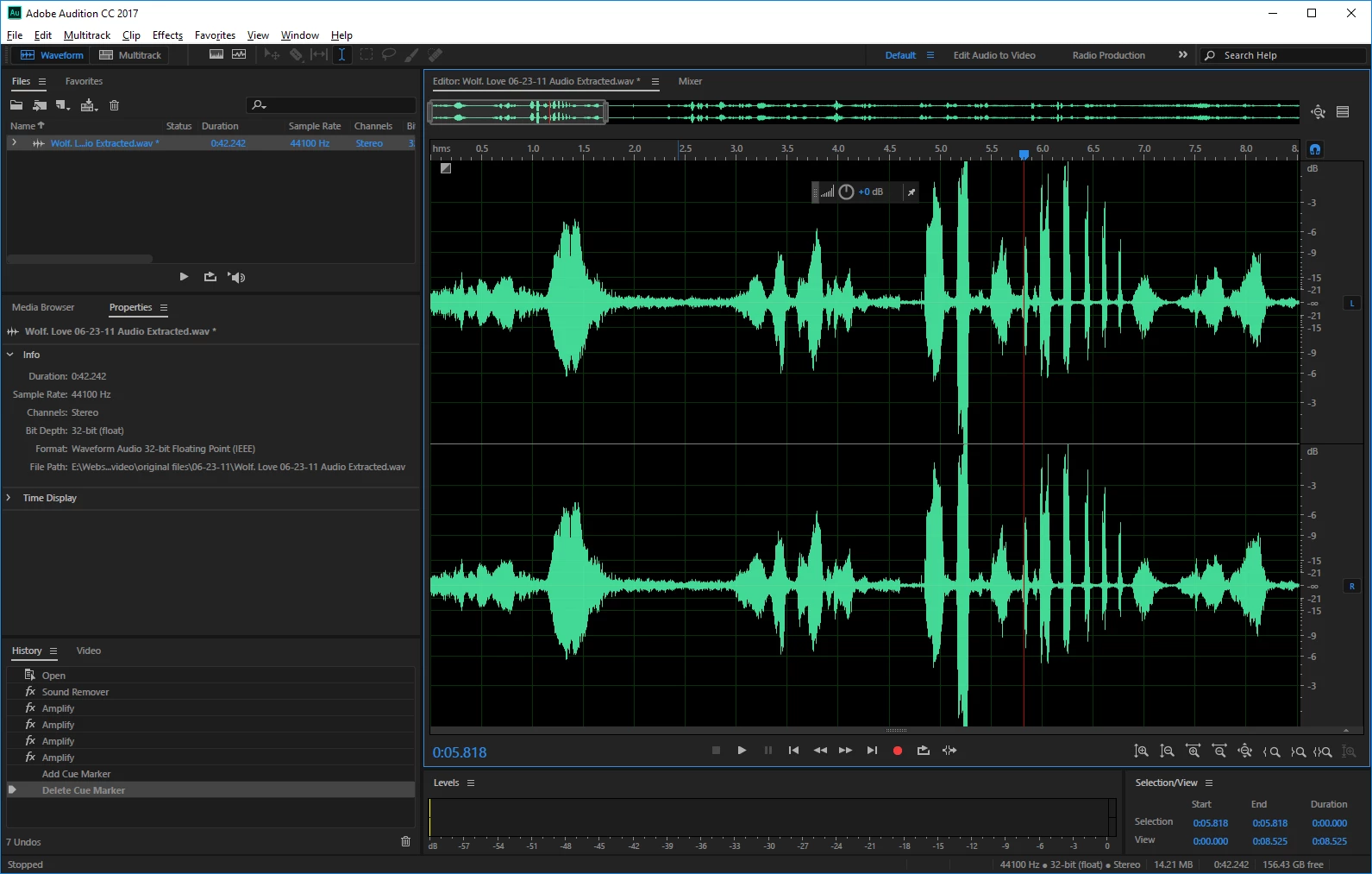
I've been using Soundbooth for years and just upgrades to Adobe CC. I cannot find where the heck to add a keyframe in Audition and it's driving me utterly bonkers.

As you can see, I don't have the yellow line, so I can't add a keyframe. Everything I find online is for multitrack files, or the person doing the tutorial already has the yellow line. How do I bring that up?

TIA.

    This topic has been closed for replies.
    Correct answer Bob Howes

    For what you're trying to do Multitrack is clearly the way to go and, indeed, what Premiere Pro will send if you use the "Edit/Edit in Audition" command to move your project to Audition.

    For simple level changes, I'd just use "Volume Envelopes" in Audition. It's usually on be default and shows up as a horizontal yellow line on each track/clip.  If you don't see this, go to view and put a tick by "Show Clip Volume Envelopes".

    Once you have that yellow line, you add keyframes by simply putting your cursor on the line roughly where you want a level change and right clicking.  Once you have some keyframes on the clip/track, you can drag them around the same as you would in Premiere.  You can also delete a key frame you don't need, you can delete it by right click/hold on the incorrect key frame and dragging it past the track edge in either direction.

    FYI, working in Waveform, the only way to get the altered track(s) back to Premiere is to Save or Save As the effect after you apply it then manually moving/copying it to Premiere.  In Multitrack you'll fine a File/Export/Export to Premiere Pro command.  Or, if audio is the last thing you do, you can also Export the whole project to AME directly.

    Use of the Volume Envelopes is likely covered in the various Audition Basics tutorials since they're used just as much in Audio only working.  Anyway, next coffee break I'll have a look 'round and see if I can recommend any specific videos for you.\

    Bob

    2 replies

    CEJLLC
    Known Participant
    May 15, 2018

    Thank you Bob!!!!

    ryclark
    Participating Frequently
    October 15, 2017

    Track automation using keyframes is only available in the Multitrack view. Since it is non destructive the keyframes can easily be modified to change their position and level. Also many of Audition's effects can have keyframes to control various of their parameters in the Multitrack view.

    The only effects that can use keyframes in Waveform view are the Fade Envelope or Gain Envelope from the Amplitude and Compression effects menu. The yellow lines only become visible and adjustable whilst the effect is open. Once you have applied the effect it's changes are permanently burnt into the audio file when you Save it.

    xenatorres
    Known Participant
    October 15, 2017

    Thank you, ryclark.

    I am trying to replace the audio from a video track in premiere. I want to lower the volume in the middle of the track as the two people talking are at drastically different volumes. This was very easy before with soundbooth, but I can't figure out how to do it in audition. I don't know where Fade Envelope is. I keep finding stuff that only shows me out to fade out/in at the end/beginning of a track. I always adjusted volume in the middle before with key frames.

    If I have to do this in multitrack, okay...but will that replace the audio in premiere?

    If anyone has a good tutorial video for the basics, that would be great. I am not finding anything to address this particular issue and I need to get this project edited.

    Thank you!

    Bob Howes
    Bob HowesCorrect answer
    Inspiring
    October 16, 2017

    For what you're trying to do Multitrack is clearly the way to go and, indeed, what Premiere Pro will send if you use the "Edit/Edit in Audition" command to move your project to Audition.

    For simple level changes, I'd just use "Volume Envelopes" in Audition. It's usually on be default and shows up as a horizontal yellow line on each track/clip.  If you don't see this, go to view and put a tick by "Show Clip Volume Envelopes".

    Once you have that yellow line, you add keyframes by simply putting your cursor on the line roughly where you want a level change and right clicking.  Once you have some keyframes on the clip/track, you can drag them around the same as you would in Premiere.  You can also delete a key frame you don't need, you can delete it by right click/hold on the incorrect key frame and dragging it past the track edge in either direction.

    FYI, working in Waveform, the only way to get the altered track(s) back to Premiere is to Save or Save As the effect after you apply it then manually moving/copying it to Premiere.  In Multitrack you'll fine a File/Export/Export to Premiere Pro command.  Or, if audio is the last thing you do, you can also Export the whole project to AME directly.

    Use of the Volume Envelopes is likely covered in the various Audition Basics tutorials since they're used just as much in Audio only working.  Anyway, next coffee break I'll have a look 'round and see if I can recommend any specific videos for you.\

    Bob