Dan UK
Inspiring
November 7, 2020
Answered

Merge clips without creating merge wav files

  • November 7, 2020
  • 2 replies
  • 1795 views

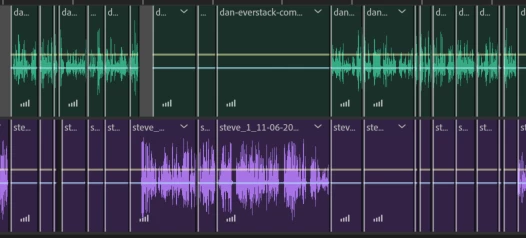
When editing audio in the multitrack view, I can easily delete sections to remove ums and arrs and silences, etc. But that creates a lot of unwanted splits...


I know there's a "merge clips" function which tidies this up - but this seems to create new "merged" wav files on disk, which are huge. I don't understand why deleting sections and creating splits does not need to create new dedicated wav files, but recombining them does. I just want to be able to tidy up audio and delete small sections without having tons of splits (or merge wav files). Perhaps I'm doing it wrong though?

This topic has been closed for replies.
Correct answer SteveG_AudioMasters_

Okay, let me explain what's happening. When you think you've put a split in a file, you haven't really done anything of the sort. You have to bear in mind that Multitrack view is essentially a giant file-player, and clips, in reality, are just sections of files arranged how you want them on the time line. You can use them over and over again if you want (looping) but the one thing you can't do with them is physically split the file they've come from - this can only happen in Waveform view. 


If you merge clips, then essentially what you are doing is playing everything you've merged into a localised mix-down. And that creates a new file. And of course that's going to be bigger, as it's got all the audio in it, essentially repeated.


So in fact you're doing it correctly - it's just that you haven't quite appreciated what it is about non-linear editing that makes it the way it is. The splits don't matter - in fact if you want to alter anything after the event it's rather useful that they are still there, because they can be manipulated if needs be.


But it is only a visibility thing. Premiere, for instance, handles the display of this differently, so you can create submixes that don't appear to have splits all over them - but actually they still do. Audition has never handled it like that, and personally I prefer seeing what's actually there, rather than a sanitised representation of it - but maybe that's just me.


2 replies

Inspiring
November 8, 2020

Dan,

It appears it's synched dialogue, 2 discrete channels? Why not export the discrete 2-channel sync and edit in the Wavform Editor? After doing so - select + delete, mute, insert silence - whatever. No messy "unwanted [visual] splits" as you describe. Note this is distructive editing. Save accordingly.


-paul.

@produceNewMedia

Dan UK
Dan UKAuthor
Inspiring
November 9, 2020

Yes, it's dialogue. Two guests. So wouldn't the export mean that my voice is in the left ear, and the other person's voice is in the right? Or have I misunderstood? A lot of the time, I'm cutting out about a second (umms, errrs, etc) out, and to keep them in sync, that time gets chopped from both dialogues. But sometimes, I want to move one dialogue without the other, to correct for people talking at the same time, etc. The multi-track editor works well for this - it sounds like I just need to ignore the splits. Or do the merge just once at the end. But I've perhaps misunderstood your suggestion?

Inspiring
November 9, 2020

Try this:

Sync up in Multitrack. If you come across talk-overs that you intend to “re-arrange”- handle accordingly. At this point refrain from manually cross-gating.


Export the (split-stereo) sync and load up in Waveform Editor. Manually Cross-Gate where necessary. You can do this by applying Silence on discrete selection or by Deleting on discrete channels.


This leaves you with a synched, re-arranged (if necessary), and cross-gated intermediate.


Apply discrete processing to each channel. Bounce sync to mono. Lastly move through and perform your intricate dialogue cutting by simply selecting and deleting. 


This prep workflow (albeit a bit more time consuming) provides a sort of pre-mastered copy that is well suited for dialogue editing. It nulls the creation of countless splits. BTW - the sort of pre-mastered mono copy should exhibit optimized loudness. This will create a much more efficient editing environment. Otherwise - problematic nuances that need to be addressed may be undetectable at low output source levels.


-paul.

@produceNewMedia

SteveG_AudioMasters_
Community Expert
SteveG_AudioMasters_Community ExpertCorrect answer
Community Expert
November 7, 2020

Okay, let me explain what's happening. When you think you've put a split in a file, you haven't really done anything of the sort. You have to bear in mind that Multitrack view is essentially a giant file-player, and clips, in reality, are just sections of files arranged how you want them on the time line. You can use them over and over again if you want (looping) but the one thing you can't do with them is physically split the file they've come from - this can only happen in Waveform view. 


If you merge clips, then essentially what you are doing is playing everything you've merged into a localised mix-down. And that creates a new file. And of course that's going to be bigger, as it's got all the audio in it, essentially repeated.


So in fact you're doing it correctly - it's just that you haven't quite appreciated what it is about non-linear editing that makes it the way it is. The splits don't matter - in fact if you want to alter anything after the event it's rather useful that they are still there, because they can be manipulated if needs be.


But it is only a visibility thing. Premiere, for instance, handles the display of this differently, so you can create submixes that don't appear to have splits all over them - but actually they still do. Audition has never handled it like that, and personally I prefer seeing what's actually there, rather than a sanitised representation of it - but maybe that's just me.

Dan UK
Dan UKAuthor
Inspiring
November 8, 2020

Hi Steve. Thank you for your very useful reply. Strangely, I didn't get an email notification, so have only just seen it. I was thinking about this this morning (from a programmer's point of view), and realised the reason it was happening. I came back on here to say so, then saw your reply. Great having it confirmed - and to know what I'm doing is correct - thank you.


So the multitrack is just a list of pointers/windows (with timestamp and duration) into the original wav file. Ie. each clip. And a single clip has to be a consecutive block of original wav?


It's a shame that it makes the timeline look so messy though. I'm new to audio editing, but was playing with Audacity before now using Audition, and Audacity feels a lot cleaner after moving stuff and chopping bits out.

SteveG_AudioMasters_
Community Expert
Community Expert
November 8, 2020

Yes, a single clip has to be consecutive samples from a file.