
Participant
April 15, 2022
Question

Robotic + Echoing Playback

  • April 15, 2022
  • 2 replies
  • 963 views

Hi all,


Using Audition v22.3, recording to my laptop from a compressor mic through a 1-channel Behringer U-PHORIA UM2 audio interface. I'm new to this whole recording thing so please bear with me.

Two days ago, I got all of my hardware together and recorded a voiceover of a monologue to test it out, the audio came out great. No distortion, no choppy playback, sounded just like my voice.

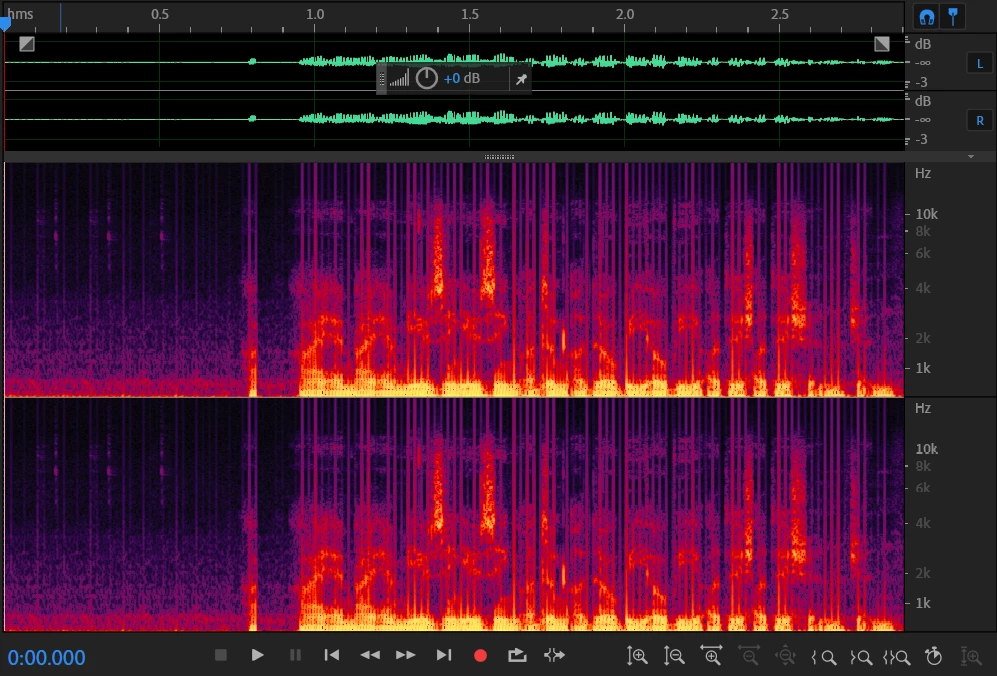
Today, I tried recording again, and the audio for some reason sounds terrible. It sounds as if the recording was cut up into 1/10 second pieces, each piece was duplicated, and a 1/10 second silence was inserted in between the non-silent pieces. I know that's hard to visualize, sorry. Basically, if I tried to say "I am using Audition," it would come back super robotic and sound like I'm saying "I-I am-am u-u-sing-sing Au-au-di-di-tion-tion."

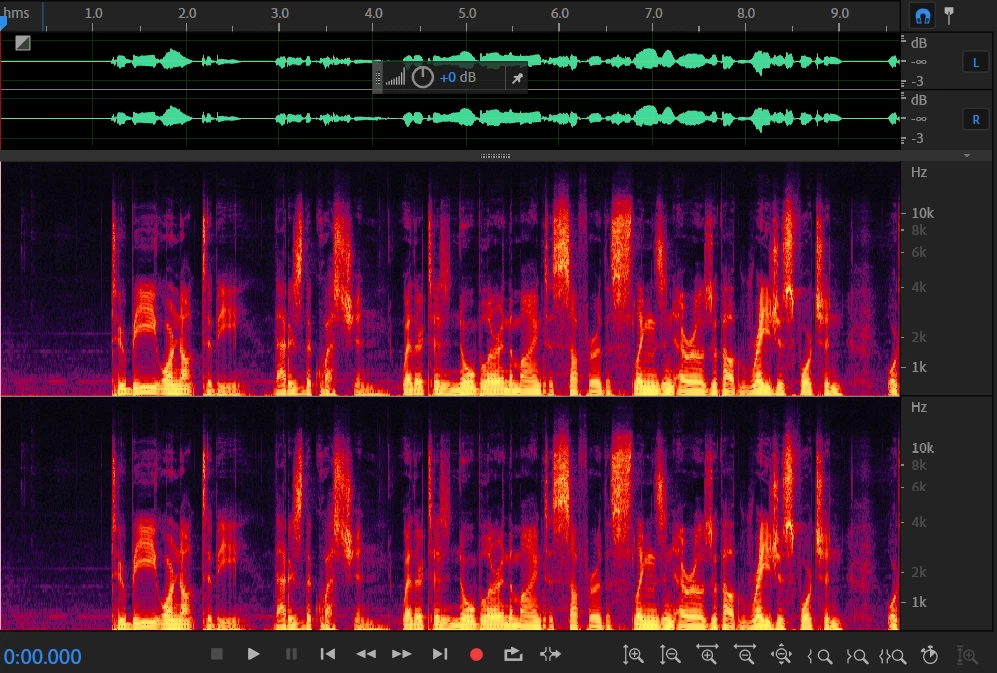
I've attached two screenshots below. In the first one, you can kind of make out tiny bits of audio that get repeated like I described above. The second screenshot is of a recording I did a couple days ago. Looks much better.

It's not an issue with my mic or audio interface because I tried recording through the integrated mic on my computer, and the same thing happens. Tried changing the latency both up and down, didn't help. Restarted computer, didn't help. I would have assumed it was something I did wrong had it not been for the fact that I could record just fine a couple of days ago. I hadn't even used my laptop much since then, so I don't know what could have gone wrong or changed.

If you have any tips, it'd be much appreciated.
This topic has been closed for replies.

2 replies

SteveG_AudioMasters_
Community Expert
Community Expert
August 25, 2022

The clue to what may well be happening is that it repeats. But before we get to that, there's some very basic info missing that's important. You haven't said whether this is on a Mac or a PC, and neither have you said whether this is a Multitrack or Waveform recording. The mechanisms for each are completely different. Also, if it's a PC we need to know what device class you are using (this is shown in the Hardware settings in Edit>Preferences). Whilst you are there, it's worth checking that under the Clock setting, it's using the device you are actually recording from.


There are other possibilities as well, but we need to get the basics sorted out first...

Participant
August 25, 2022

In my thread, which I linked to I mention that I'm running Windows 10 Version 21H2 on a Lenovo IdeaPad, Gaming 3 13IMH06 running Audition CC version 22.5. I did not mention what kind of recording I'm doing and that is waveform. Additional information about machine are that it's 64 bit, Intel Core i5 @ 2.5 GHz with 8 GB of RAM. The device class is set to MME. It's worth noting that I tried switching the clock and that made no difference. These are my current settings:


SteveG_AudioMasters_
Community Expert
Community Expert
August 25, 2022

One thing I've noticed in your hardware settings is that the latency is set to 200mS. That's quite a high setting, which means that the record buffer is pretty huge. Even on this old laptop of mine, the latency's set to 120ms and it works fine like that. It's worth changing this setting anyway, just to see if it makes any difference, because at the very least it would give a clue...


The other issue is that you are recording in Waveform, which is generally not really recommended any more. The reason for this is that all recordings are made to a temp file, and not converted to your actual file until you save the resulting recording. Unless you take steps to move it, the temp file shares a space with all the rest of the temp files on your system, and most importantly this includes the OS temp file - which takes priority over all the others. Absolutely the best thing to do about this is move Audition's temp file location to a different space - ideally even a different drive if one's available. This cuts down the possibility of errors occuring considerably.


The safest way to record is in Multitrack. This is because unlike Waveform recording, it's direct to the file - nothing stops it, and you can even recover from crashes most of the time.

Participant
August 25, 2022

This looks like the same problem I'm having. I posted about it on this form here: https://community.adobe.com/t5/audition-discussions/choppy-and-echoing-audio-when-i-try-to-record/m-p/13157471#M33528.

Also, I know it's not the onboard or external mics because they record fine into other applications.