unauthorizedrob
Inspiring
October 21, 2018
Answered

Simple Question, elusive answer: Audition CC 2019 how to customize columns in the media browser?

  • October 21, 2018
  • 2 replies
  • 874 views

I feel stupid for asking, but I am working in Audition CC 2019, and want to customize which columns I see in the files panel and/or media browser.  I specifically want to see the most recent versions right next to titles...

Thanks.

Rob

This topic has been closed for replies.
Correct answer SteveG_AudioMasters_

Here are the limits to what you can do with the files panel:

You can move the individual columns to wherever you want them, simply by clicking on them and dragging them with the mouse. Also you can alter the priority in which a column displays - which ever column you do this for will take priority for the entire list until you do the same thing with another column. The list of columns that is actually displayed can be made visible by right-clicking on any column name - you get a list like this:
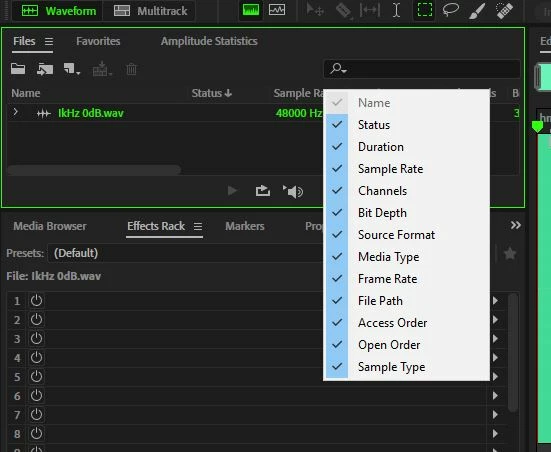
If it's in that list, you can choose whether to display it or not, and as I mentioned, you can drag the list order around to have the columns where you want them. If what you want isn't in that list, then I'm afraid you're out of luck!


2 replies

Legend
October 21, 2018

I was going to point to the metadata panel - but this seems to be useless in Audition as it only works for file opened in  waveform editor (it is useful in PP, as it does show the metadata for files selected - however it is cumbersome to navigate to track metadata in bwav files).

unauthorizedrob
Inspiring
October 21, 2018

I am in Waveform, so I will refer to metadata panel.... thanks!

SteveG_AudioMasters_
Community Expert
SteveG_AudioMasters_Community ExpertCorrect answer
Community Expert
October 21, 2018

Here are the limits to what you can do with the files panel:

You can move the individual columns to wherever you want them, simply by clicking on them and dragging them with the mouse. Also you can alter the priority in which a column displays - which ever column you do this for will take priority for the entire list until you do the same thing with another column. The list of columns that is actually displayed can be made visible by right-clicking on any column name - you get a list like this:

If it's in that list, you can choose whether to display it or not, and as I mentioned, you can drag the list order around to have the columns where you want them. If what you want isn't in that list, then I'm afraid you're out of luck!

unauthorized
Inspiring
October 21, 2018

Thanks, as always, Steve!