Participant
March 26, 2020
Question

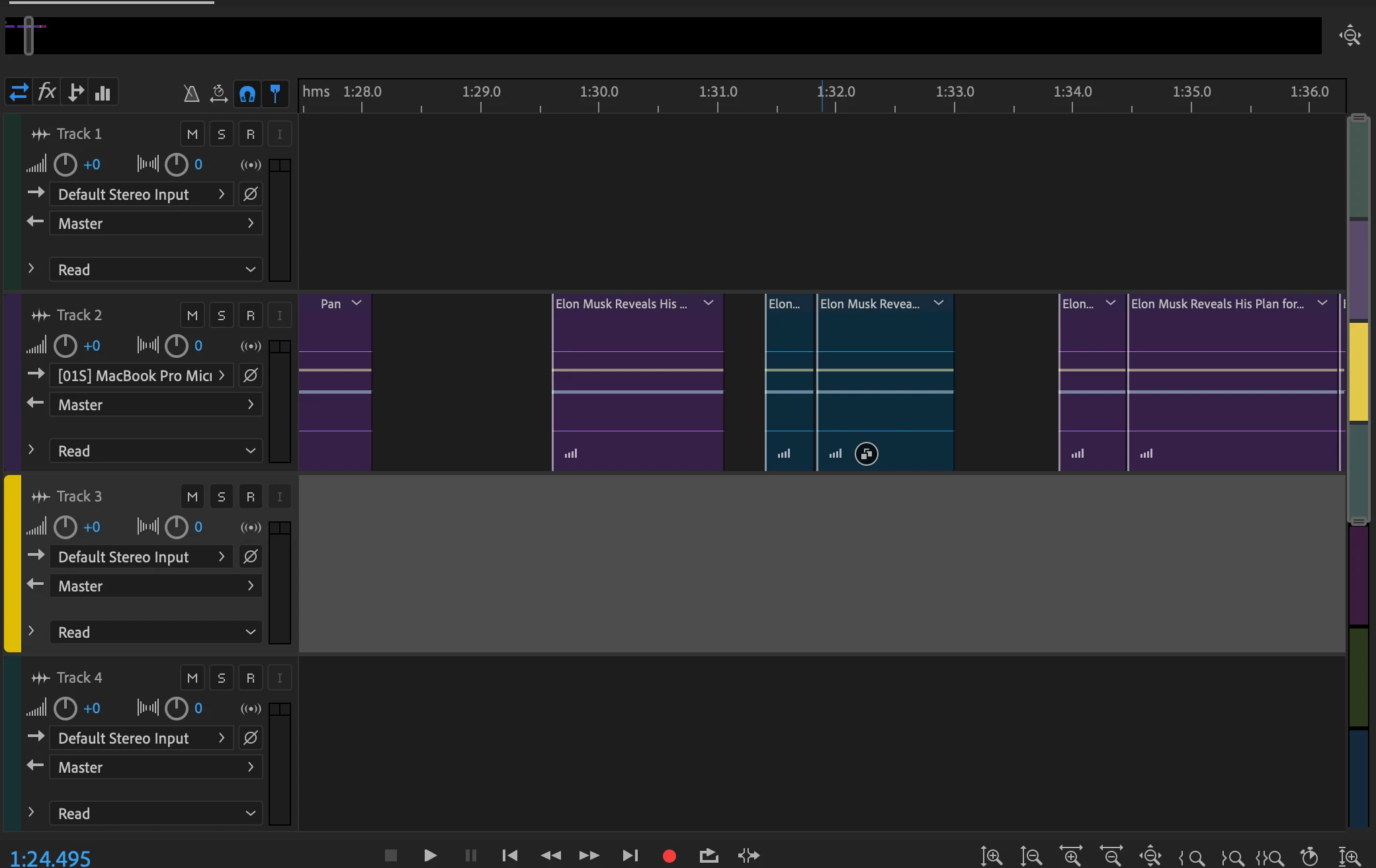
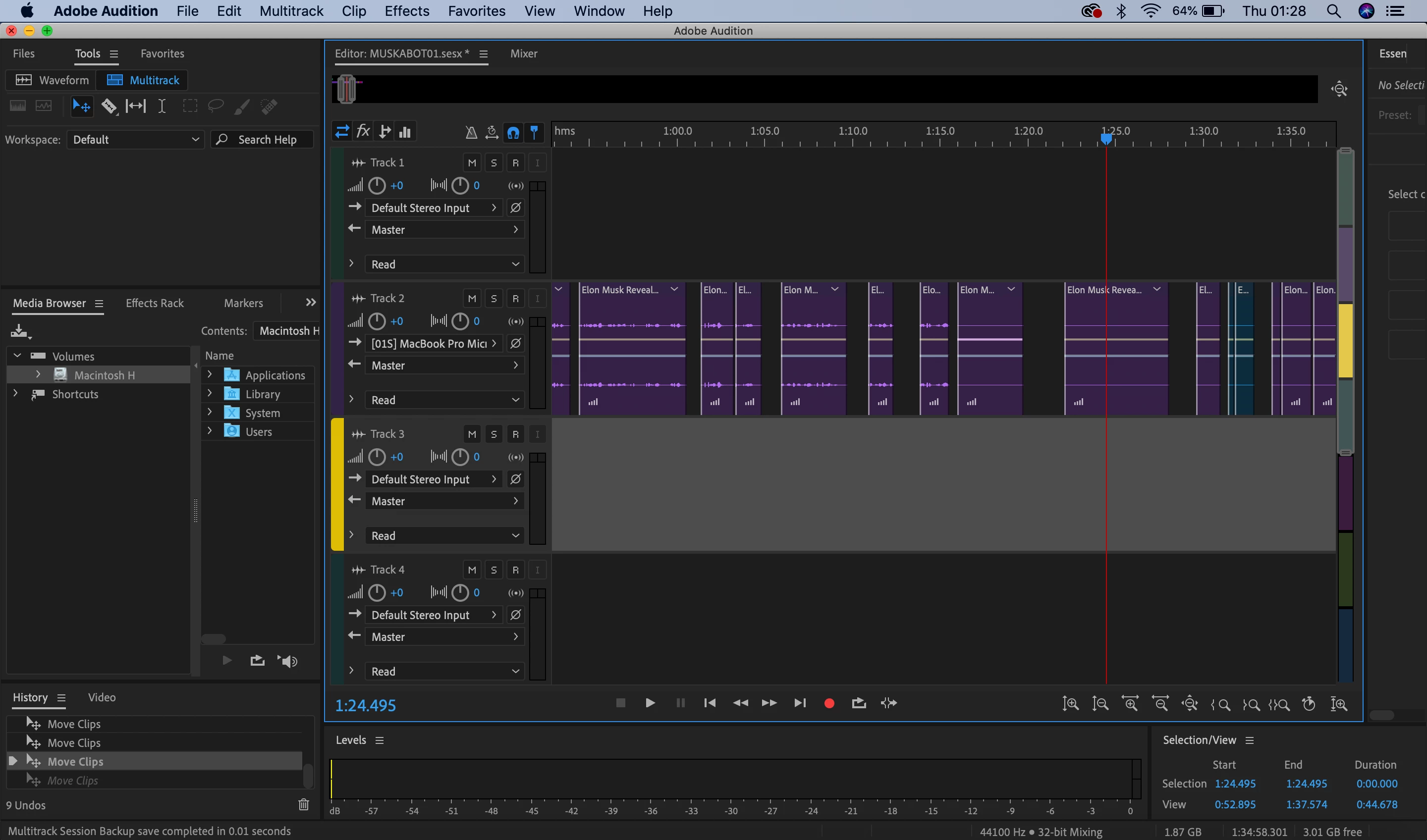
Sound is missing from half of my audition clips?

  • March 26, 2020
  • 1 reply
  • 1836 views

Hi guys,


So last night I managed to cut out all the sections i wanted from one audio. All of the clips were seperate as I was going to edit each section seperatley. However, as you can see, only half of my clips have sound... last night whilst i was editing the piece/ going over it everything was fine. I managed to save my session alongside the material I was using so that I could continue it today.... BUT WHERE'S THE REST OF MY SOUND 😞


I have checked things out in 'audio hardware/mapping,' and nothing is on mute? Is there a way to retrieve the sound from my clips or will i have to start again?  


I appreciate any help i can get! Thank you 🙂 
This topic has been closed for replies.

1 reply

SteveG_AudioMasters_
Community Expert
Community Expert
March 26, 2020

If you double-click on one of these silent clips, it will open the file they come from in Waveform view. I'm going to take a guess that there's no sound showing there either. If there is, then we'd need to see what you did to the gain settings in Multitrack...

Participant
March 26, 2020

Thanks, I just tried that and it's just taking me to the beginning of the audio I used rather than that direct section. 

However, i just realised that it's because half of my clip is missing! in the top left, it says ' Elon m... (Partial) MP3' ... I've tried bringing in the whole audio again but it's still not linking up to the rest of my clips? Is there a way I can get the other half of my main audio back that i've been cutting from so that i can sync it to the clips i gathered from it? I'm not sure where the other 1hr,20 minutes of the mp3 has gone to!


Thank you for your help 🙂 

SteveG_AudioMasters_
Community Expert
Community Expert
March 26, 2020

If it's taking you to the start of the file, then there are two possibilities: the first is that you don't have a check in File>Preferences>Multitrack Clips and the top box that says 'Synchronise Clips with Waveform Editor', and the second is that you edited the file in Waveform view, and everything's in the wrong place. Usually when you do that, you get a warning that the root file has changed, though.


If you start with the original audio (which it will have opened as a wav file - Audition can't edit MP3s, and decodes them) you will almost certainly have to redo the edits, as the original file name is different, and swapping the names around is a royal PITA, quite frankly.


The mormal procedure for dealing with this is to open the original (I'm assuming that it's an MP3) and save this, now decoded, version. This is the file that you place sections from in Multitrack. Do whatever you need to with it first (normalize, EQ, NR, whatever) and save the results. And whatever you do, don't touch this file again, especially cutting anything, because if you do, it will screw with your multitrack layout. This is the file that you save in the same folder as your session file (you will be prompted to do this). You can do this with as many original files as you like - the procedure is the same for all of them.


The other thing I should mention is that the best way to place your clips is to put marker ranges around the bits you want (and name them appropriately), and then when you right-click on the range in the marker list, you'll get an option to insert this in your session. The advantage of this is that the marker names transfer as well, so you know exactly which bit is which.


This way, you're never editing from the original file (always a good thing not to do) but an editing copy you've made for the purpose. And if you do this, making all of your edits virtual ones, you won't go wrong. But, you do need to organise this properly in the first place...